Monitoring and notifications
Use Dashboard to see whether integrations are healthy and Monitor to understand one run. Add notification channels so a failure or automatic schedule pause reaches the people who can act on it.
Read the Dashboard
Choose a period, then review:
- Total Runs, Success Rate, Avg Duration and Failed;
- running work and configured schedules and connectors;
- flows with the most activity or failures;
- recent errors;
- Connector Health, including requests, failures, success rate and average duration.
Connector Health refreshes automatically. A healthy connector does not guarantee that a later business step is valid, so use Monitor for failed runs.
Find a run
- Open Monitor.
- Filter by flow, trigger or status.
- Turn on Auto-refresh while watching live work, or select Refresh. Auto-refresh reloads the list every five seconds.
- Select a run card.
The list includes successful, failed, running and pending runs. A run can also finish as outcome_unknown when the platform cannot prove whether an external write completed.
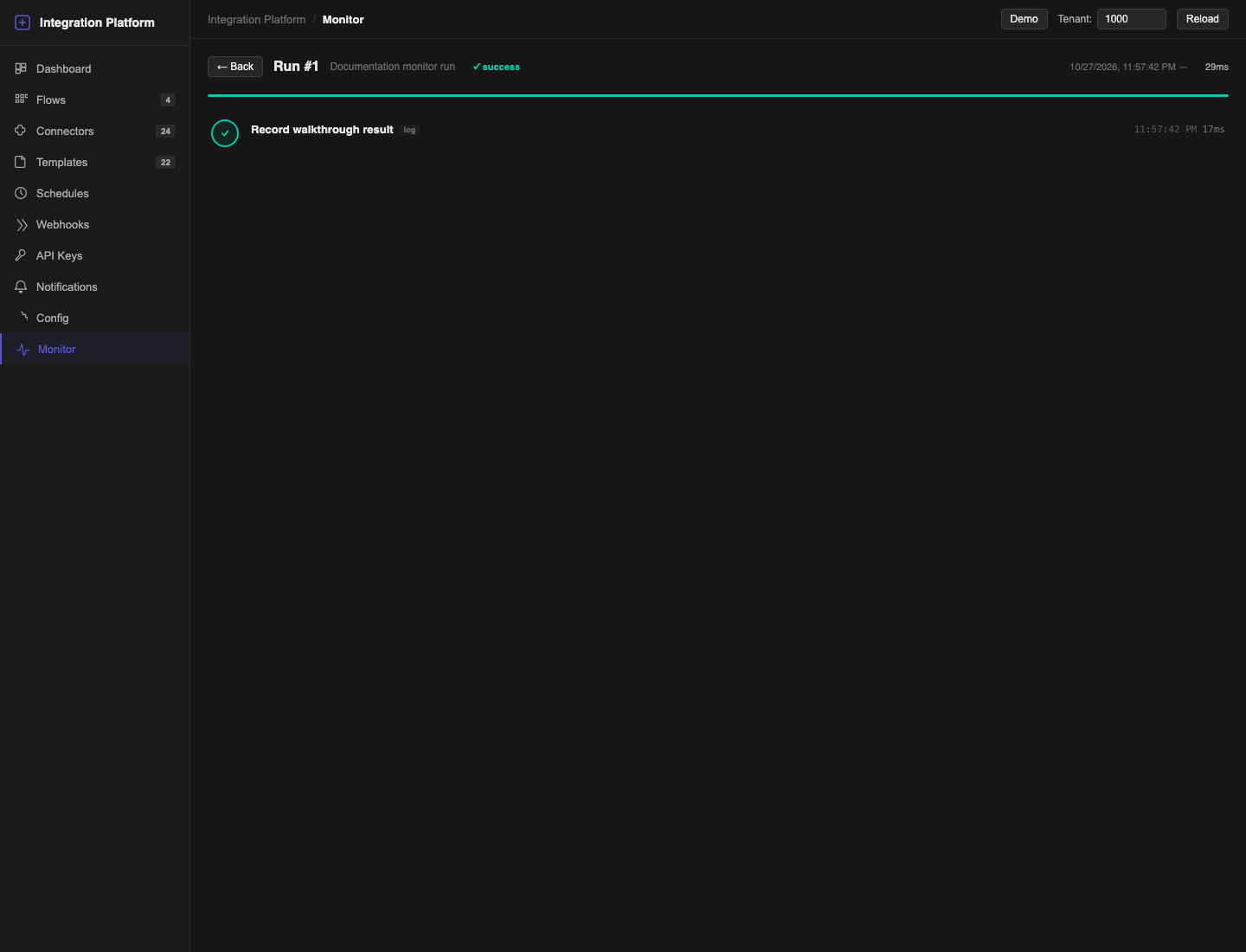
Read run details
The header shows the run ID, flow, status, trigger, start and end time, and duration. While a run is live, the detail view updates automatically.
Read the step timeline from top to bottom. For each step, check:
- status and duration;
- request URL for connector calls;
- response status;
- error message;
- expandable Response and Output values.
Large response and output values are shortened in the interface. Use them to locate the failure, not as a permanent business archive. Sensitive values must never be written by a Log step.
Decide what to fix
| First failed point | What to check |
|---|---|
| Connector request | Remote availability, URL, credentials, permissions, timeout and rate limit. |
| Mapping or transform | JSONPath, expected response shape, missing variables and type conversions. |
| Condition | Expression and values available at that point in the graph. |
| Loop or batch | Input list, item path, batch size and the failing item. |
| Downstream WMS call | Owner, warehouse context, entity status and the business error returned by WMS. |
Fix the cause in the connector, configuration or paused flow. Do not retry repeatedly while the remote side's result is unknown.
If the status is outcome_unknown
Do not start another execution. The external system may already have accepted the write even though the platform did not receive a conclusive result. The platform intentionally blocks Retry for this status.
- Use the run ID, request identity and business identifiers to inspect the destination system.
- Confirm whether the intended change exists and whether it is complete.
- Reconcile the two systems according to the business procedure for that integration.
- Only then decide whether a new, separately controlled execution is required.
Retry a failed run
Retry is available only for a run with status failed. It is not available for outcome_unknown.
- Confirm whether the external system may already have completed the request.
- Fix the cause of the failure.
- Select Retry.
- The platform creates a new run and opens it.
- Confirm the new run's result and check the destination system.
A retry is a new execution linked to the earlier failure. For write operations, safe recovery depends on the remote API's idempotency behaviour and the flow design. If the outcome of a remote write is uncertain, reconcile the destination before retrying.
Add a notification channel
- Open Notifications.
- Select + Add Channel.
- Enter Name and choose Channel Type.
- Turn Enabled off while configuring the channel.
- Complete the channel-specific address fields.
- Under Credentials, prefer API Key (encrypted):
- select an existing active key for the provider; or
- choose Create new, enter New API Key Name and the sensitive values.
- Under Event Filters, choose one or more:
- Flow Failure;
- Schedule Pause;
- Flow Success.
- Select Create.
- Select Test on the saved channel.
- After the test passes, select Edit, turn Enabled on and select Update.
Supported channel types are Telegram, Slack, Microsoft Teams, Email SMTP and WhatsApp. The form shows the fields required by the selected type.
Recommended production filters
- Enable Flow Failure.
- Enable Schedule Pause so repeated failures cannot silently stop synchronization.
- Enable Flow Success only when success messages are operationally useful; high-volume flows can create noise.
Test and maintain a channel
The Test action sends a test through the current channel configuration even while the channel is disabled. If it fails, check the destination identifier, webhook URL or SMTP settings and the bound key. Do not enable the channel until the test passes.
Use Edit to change configuration and filters. Disable a channel during planned maintenance rather than deleting it. Built-in system channels cannot be edited or deleted.
Incident checklist
- Open Dashboard and identify the affected flow and period.
- Open Monitor and select the first failed run, not only the latest retry.
- Find the first failed step and capture its run ID and error without copying credentials or payloads containing customer data.
- Check whether the external operation completed. If the status is outcome_unknown, reconcile it and do not use Retry.
- Fix the connector, configuration or flow while the flow is paused when an edit is required.
- Run one controlled test.
- Restore the production trigger.
- Watch the next scheduled or live run and confirm that notifications are working.