Quickstart
The fastest safe route is to fork a flow template, create the recommended connector, enter credentials, activate the flow and watch its first run.
Before you start
Have these items ready:
- access to the correct Integration Platform tenant;
- the external system's base URL and credentials;
- the Quark WMS goods owner ID used by this integration, when the template asks for it;
- the marketplace ship-to ID for an order-import template, when requested;
- one harmless test record that you can identify in both systems.
Do not use production credentials in a shared test tenant.
1. Pick a template
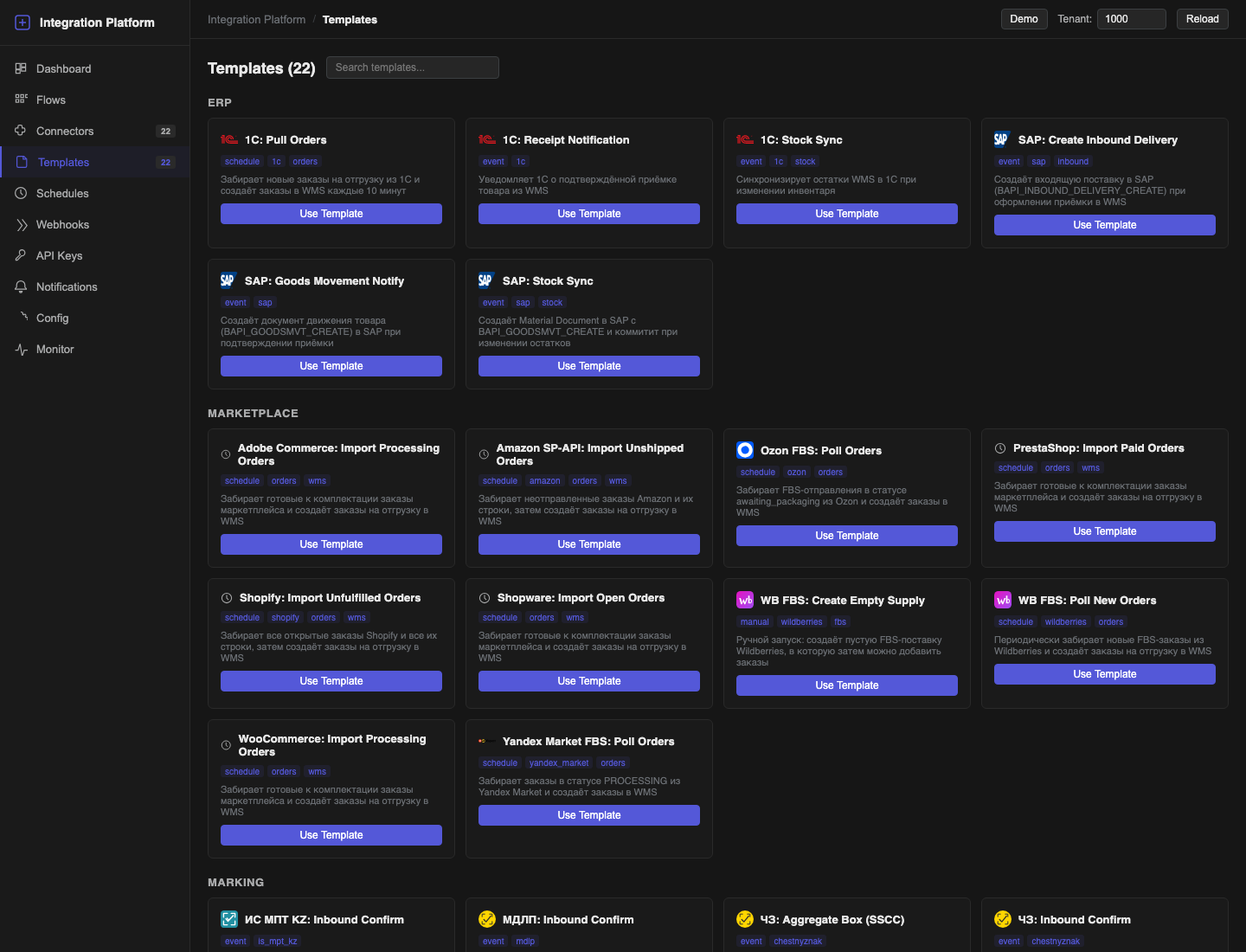
- Open Templates. If the tenant has no flows, you can also select Browse Templates on Dashboard.
- Search by marketplace, ERP or task.
- On the matching template card, select Use Template.
- If Fork & Map opens, review the connector selection:
- choose an existing connector only if it was created from the recommended connector template for the same environment;
- otherwise select the option to create the recommended connector.
- Complete any setup fields shown by Fork & Map, such as WMS goods owner ID or Marketplace ship-to ID.
- Select Fork & Map. If the template needs no mapping or setup fields, Use Template forks it immediately.
Expected result
The platform creates a tenant-owned flow in draft status. It copies the template name and generates a unique code. It also creates the recommended tenant connector when you chose that option. The draft is safe to review before activation.
If the connector cannot be matched
Do not attach a similarly named connector just to continue. Cancel Fork & Map, open Connectors, create or clone the correct connector, test it, and then return to Templates.
2. Configure and test the connector
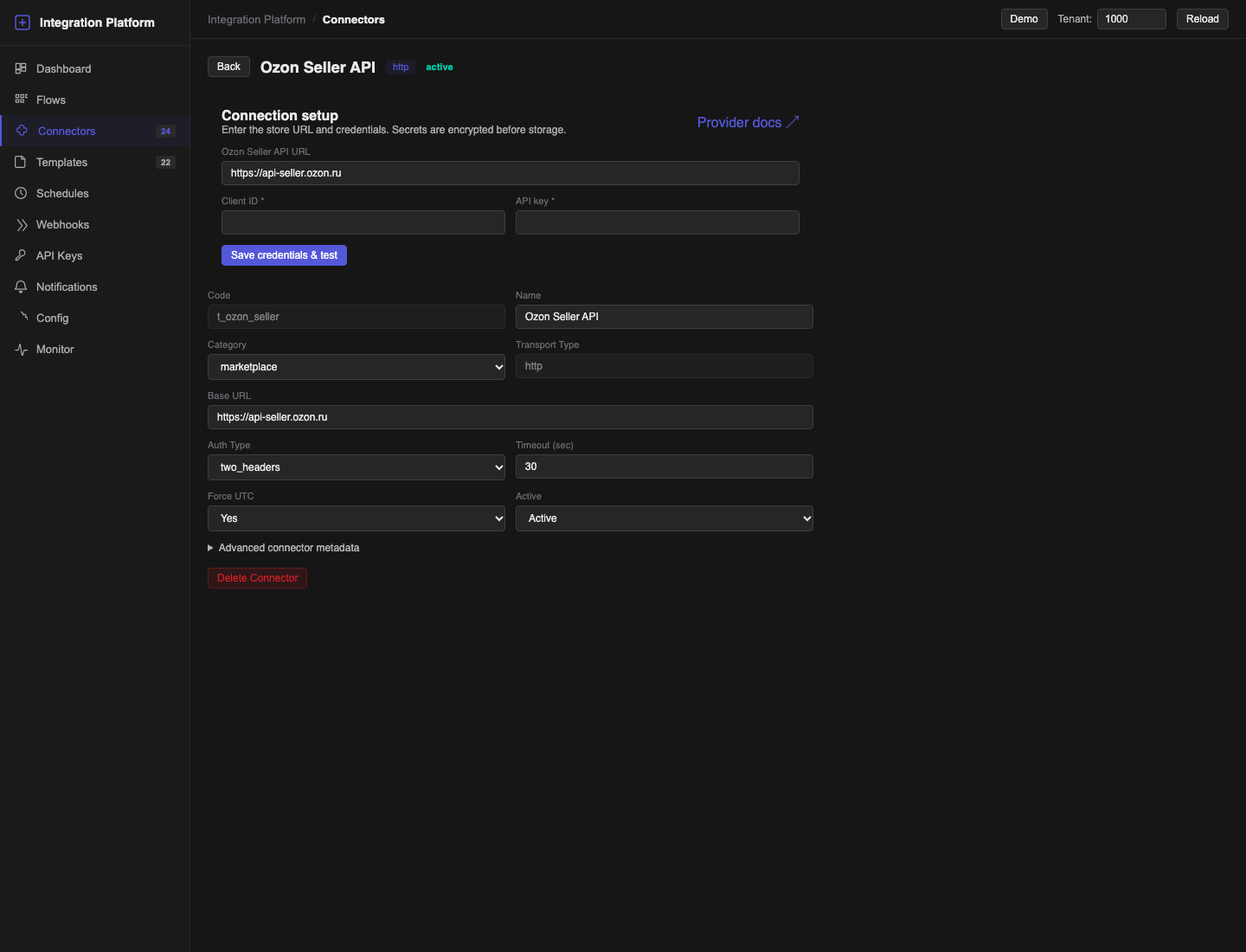
- Open Connectors and select the connector created for the flow.
- In Connection setup, enter the external system's base URL and required credentials.
- Select Save credentials & test.
- Wait for the result.
Expected result
You see Credentials saved and connection verified. The credential is stored for the connector and the test confirms that the remote endpoint can be reached with it.
If the test fails
Check the base URL, environment, credential value and any provider-specific account identifier. Confirm that the remote service allows requests from this environment. Keep the flow in draft or paused status until the connector test passes.
3. Review the flow
- Open Flows and find the new flow.
- Select Builder.
- Check the trigger, connector and any owner, ship-to or other setup values.
- For a schedule-triggered flow, keep the flow in draft, create an active schedule whose next occurrence is far enough in the future to finish validation and activation, then return to Builder. Schedule validation requires an active schedule, but the scheduler does not run it while the flow is inactive.
- Select Validate flow.
- Resolve every error. Review warnings before continuing.
- Select Save snapshot.
Leave a scheduled, webhook or event flow in draft status until its trigger is configured and under your control.
4. Run a controlled test
The trigger determines the activation sequence:
- Manual: activate the flow, then select Run.
- Schedule: leave the schedule active, activate the validated flow before the planned occurrence, and watch that occurrence in Monitor. Pause the schedule after the controlled run if you are not ready for continuous execution.
- Webhook: while the flow is still inactive, create and review the webhook. Disable it until the provider is ready, activate the flow, enable the webhook and send one signed or authenticated test request.
- Event: connect the event route while the flow is inactive. Activate the flow only when you are ready to send or produce one matching event.
Activation validates the flow again and saves an activation snapshot. If validation fails, the flow stays draft or paused.
Open Monitor, select the new run and inspect every step.
A successful first run
- The run status is success.
- Every required step completed.
- The expected test record appears in the destination system.
- Repeating or retrying the test does not create an unwanted duplicate.
Only after these checks should you enable the production schedule, webhook or event source.
Start from scratch
Use Create from Scratch only when no template matches the workflow.
- Create and test every connector first.
- On Flows, select + New.
- Enter Code, Name, Trigger and an optional Description.
- Open Builder and add the steps.
- Follow the same validate, snapshot, activate and monitor sequence described above.
See Templates and Flow Builder for step configuration and mappings.