Triggers, schedules and webhooks
A flow can start manually, from a schedule, from an incoming webhook or from an event. Choose one trigger when you create the flow, then configure the corresponding page before production use.
Choose a trigger
| Trigger | Best for | Main safety control |
|---|---|---|
| Manual | Testing and operator-controlled jobs | A user explicitly selects Run. |
| Schedule (cron) | Periodic polling or synchronization | Timezone and automatic pause after repeated failures. |
| Webhook | A provider pushes a change to the platform | HMAC or bearer authentication and a delivery ID. |
| Event | A trusted system publishes a named business event | Tenant API key and stable source event identity. |
The flow must be active before its configured trigger can execute it.
Run manually
- Open Flows.
- Activate a validated flow.
- Select Run.
- The platform opens the run in Monitor.
Use a manual trigger for the first controlled run even when the production design will later use a schedule, webhook or event.
Create a schedule
- Open Schedules and select + New Schedule.
- Choose a Flow created with Trigger = Schedule (cron). A manual, webhook or event flow cannot be attached to a schedule.
- Enter a descriptive Name.
- Enter a five-field Cron Expression, for example
*/5 * * * *for every five minutes. - Enter the intended Timezone. The default is
UTC. - For a controlled setup, keep the flow in draft and choose a cron expression whose next occurrence leaves enough time to validate and activate the flow.
- Save the schedule. A new schedule is active immediately, but it does not execute while the flow is inactive.
- Leave the schedule active: schedule-triggered flow validation requires it. Validate and activate the flow before the planned occurrence.
- Watch the occurrence in Monitor. Pause the schedule after the controlled run if continuous execution is not yet approved.
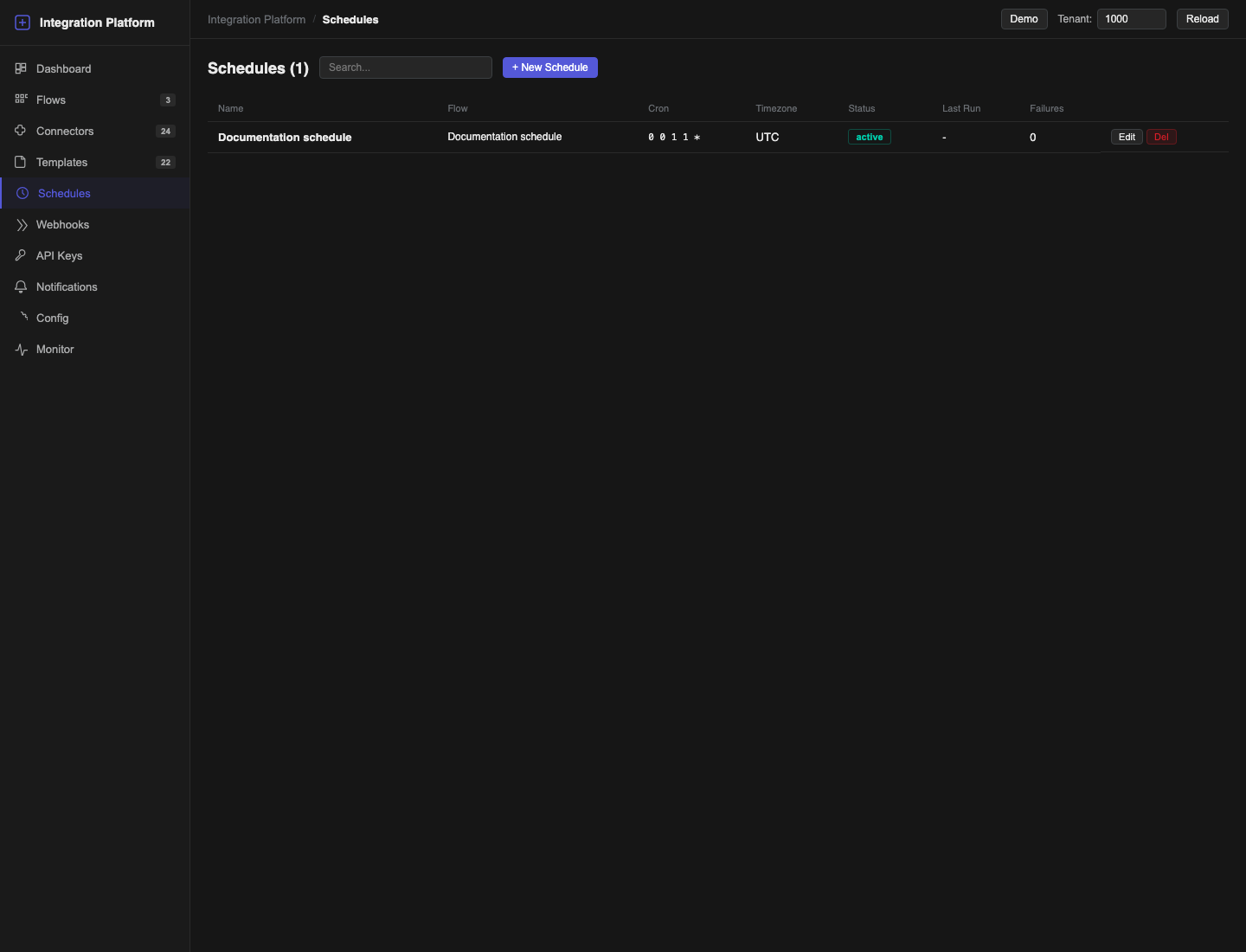
Expected result
The schedule row shows the flow, cron expression, timezone and status. After it fires, Last Run and Failures update, and the run appears in Monitor with a schedule trigger.
Repeated failures
The platform counts consecutive failures and automatically pauses a schedule when its configured failure limit is reached. Pending occurrences for that schedule are not allowed to keep running after the pause. Fix the connector or flow, run a controlled test, then enable the schedule again.
Edit a schedule to change its name, cron expression, timezone or active state. Delete it when the periodic trigger is no longer needed; deleting a schedule does not delete the flow.
Create a webhook
- Open Webhooks and select + New Webhook.
- Choose Flow.
- Enter a unique Path such as
orders/created. Do not start it with/, add the/webhooks/prefix, or include a query (?) or fragment (#). Use non-empty path segments only. - Choose Auth Type:
- HMAC SHA-256 when the provider signs the original request body;
- Bearer Token when the provider can send an Authorization header;
- None only for a deliberately unauthenticated test endpoint on a protected network.
- Enter Secret / Token for HMAC or bearer authentication.
- If the provider sends a stable unique delivery identifier, enter its header name in Delivery ID Header.
- Save the webhook and select Copy to copy its full URL.
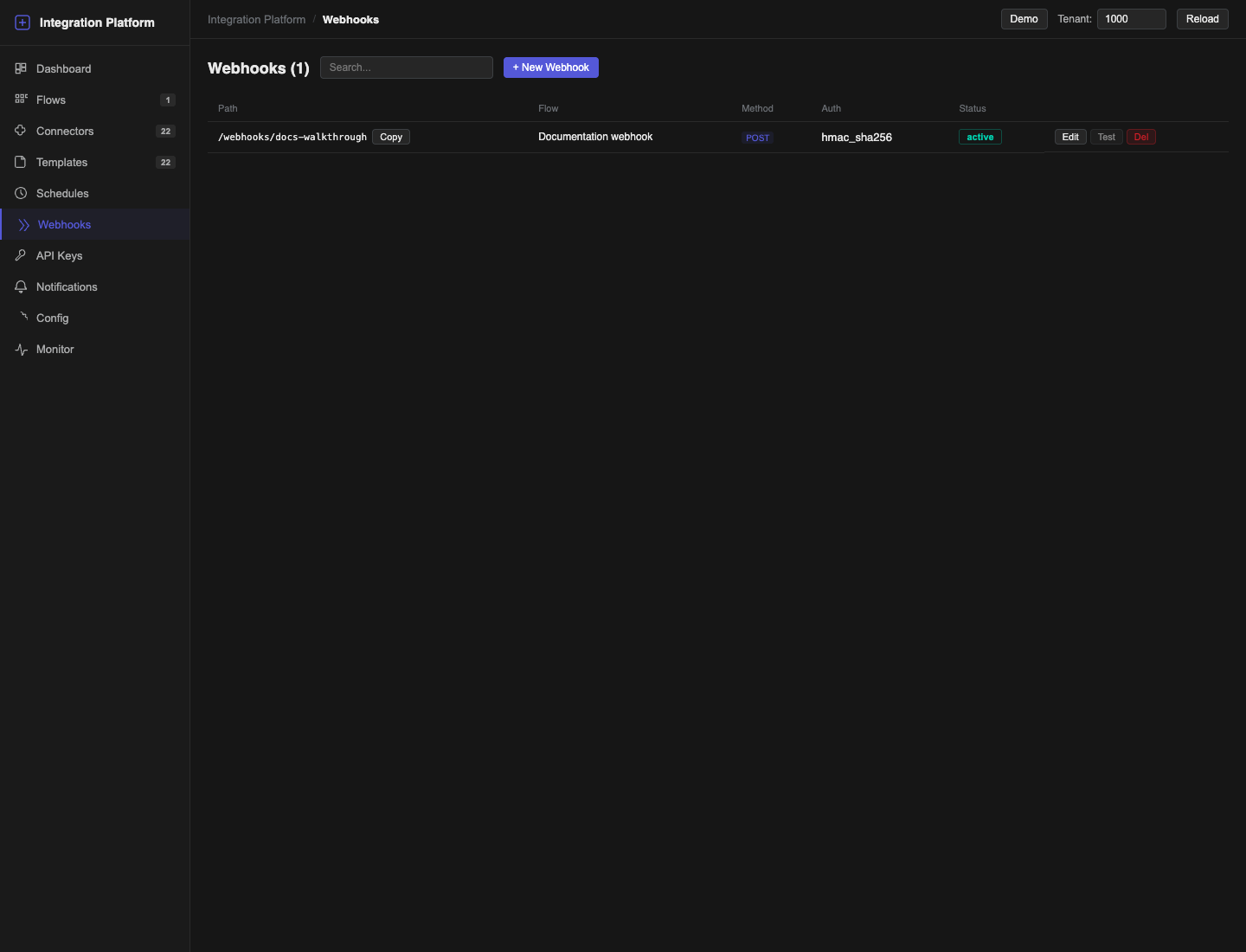
Authentication details
- HMAC uses SHA-256 over the exact request body. Send the signature in
X-Signature-256as hexadecimal or Base64; asha256=prefix is accepted. - Bearer authentication uses
Authorization: Bearer <token>. - The built-in Test action is available only when Auth Type is None. Test an authenticated webhook from the provider or another client that can calculate the correct signature or send the token.
Safe duplicate handling
When Delivery ID Header is configured, that header is required on every request. The platform accepts a given delivery ID once for that webhook and does not start a duplicate execution for a repeated delivery. Use a provider-generated event or delivery ID, not a timestamp created by the receiver.
If the same delivery ID is reused with different content, treat it as an upstream error and investigate instead of changing the ID to force execution.
Edit or disable a webhook
Select Edit to change authentication, the secret or token, delivery ID header and active state. The path stays fixed. If the public path must change, create and test a replacement webhook, update the provider and then delete the old definition.
Trigger from an event
An event-triggered flow matches its configured event name. An authenticated producer sends the event to the Integration Platform event endpoint with at least:
{
  "event_name": "orders.created",
  "payload": {
    "order_number": "TEST-1001"
  }
}
Use a stable source_event_id and source_scope when the producer can provide them. Together they let the platform recognize a repeated delivery without confusing events from different producers. The API key determines the tenant; a tenant number supplied in the JSON body does not change routing.
For Quark WMS business events, first configure the WMS subscriber to deliver matching events to the platform with a tenant-scoped platform API key. See Webhooks and events for the WMS event side.
Troubleshooting
| Symptom | Recovery |
|---|---|
| Schedules can only be attached to flows with trigger_type=schedule | Return to Flows and create the flow with Trigger = Schedule (cron), then select it in the schedule. |
| Schedule never runs | Confirm that both the schedule and flow are active; check cron expression and timezone. |
| Schedule is paused with failures | Fix the underlying run failure, complete a manual test, then enable the schedule. |
| Webhook path is rejected | Remove the leading slash, query and fragment. Enter only non-empty path segments, for example orders/created. |
| Webhook returns an authentication error | Recalculate the signature from the unmodified body or check the bearer token. |
| Webhook says the delivery ID header is missing | Send exactly one header using the configured name and a non-empty stable value. |
| Webhook is accepted but no flow runs | Confirm that the webhook and flow are active, then check Monitor and the flow trigger. |
| Event reaches the wrong expectation | Check the exact event name, tenant API key, owner and source identity supplied by the producer. |