Blind receiving, case-level receiving and returns
What you will do
- Receive goods that have no ASN (Receive Blind).
- Receive goods case by case against a case-level ASN (Receive Case-Level).
- Receive a customer return with an RMA (Receive Return).
Before you start
- For Receive Blind and Receive Return, know the owner code.
- For Receive Return, know the RMA number. An open customer return must exist.
- For Receive Case-Level, the ASN must be a case-level ASN. Each case has a label.
- Know the location for the goods. The defaults are
STAGE(blind) andRETURN(return). - The operator role may use blind and return receiving. Case-level cancel (Cancel Planned Case) needs a supervisor, a manager or an administrator.
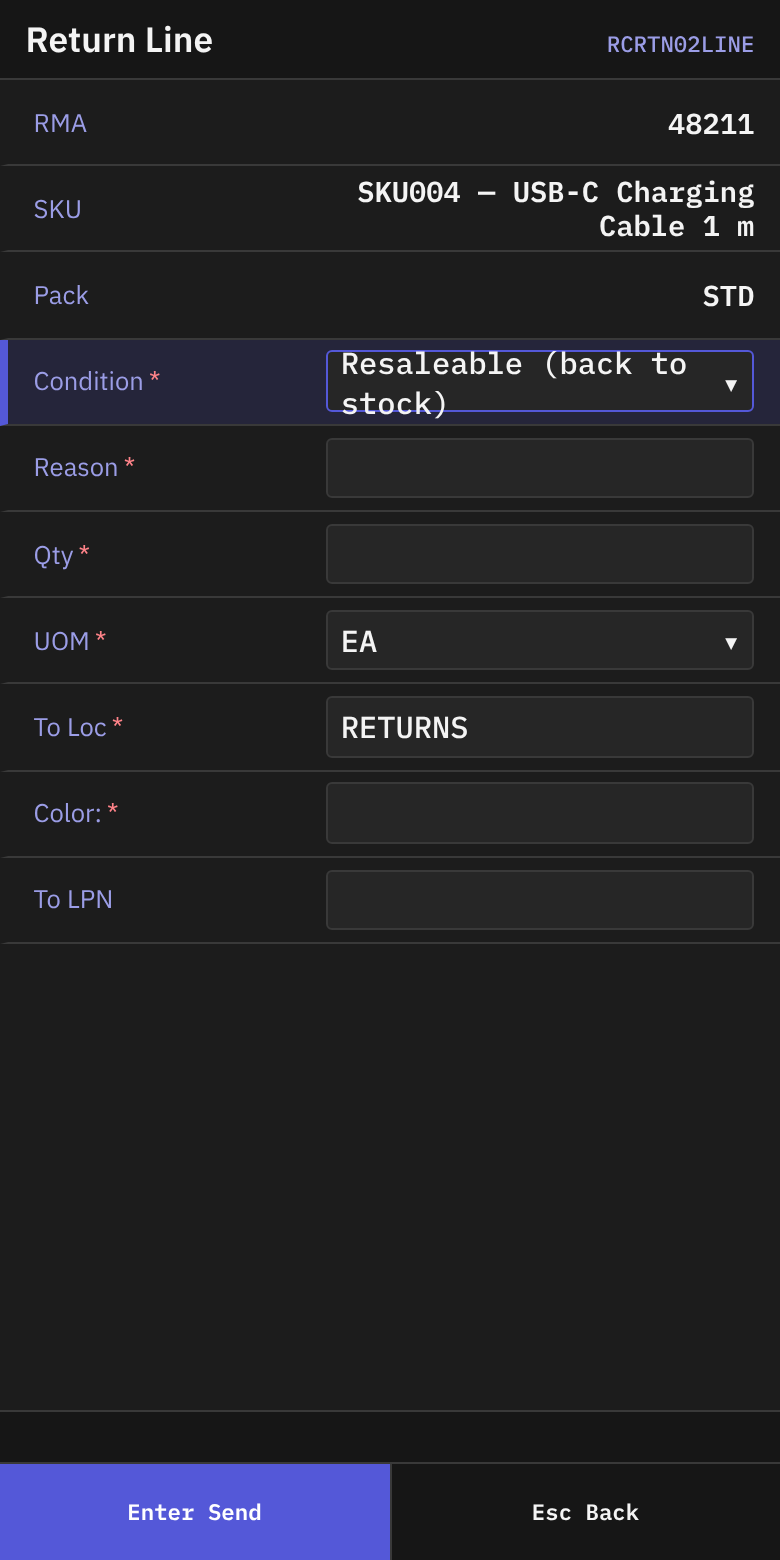
The screen puts RETURN in To Loc, the location the standard warehouse set-up creates (it said RETURNS before F-26, which does not exist). If your warehouse uses another return location, change To Loc to the one your supervisor names. A location that does not exist is refused (see Invalid location {code} below).
A. Receive Blind
Steps
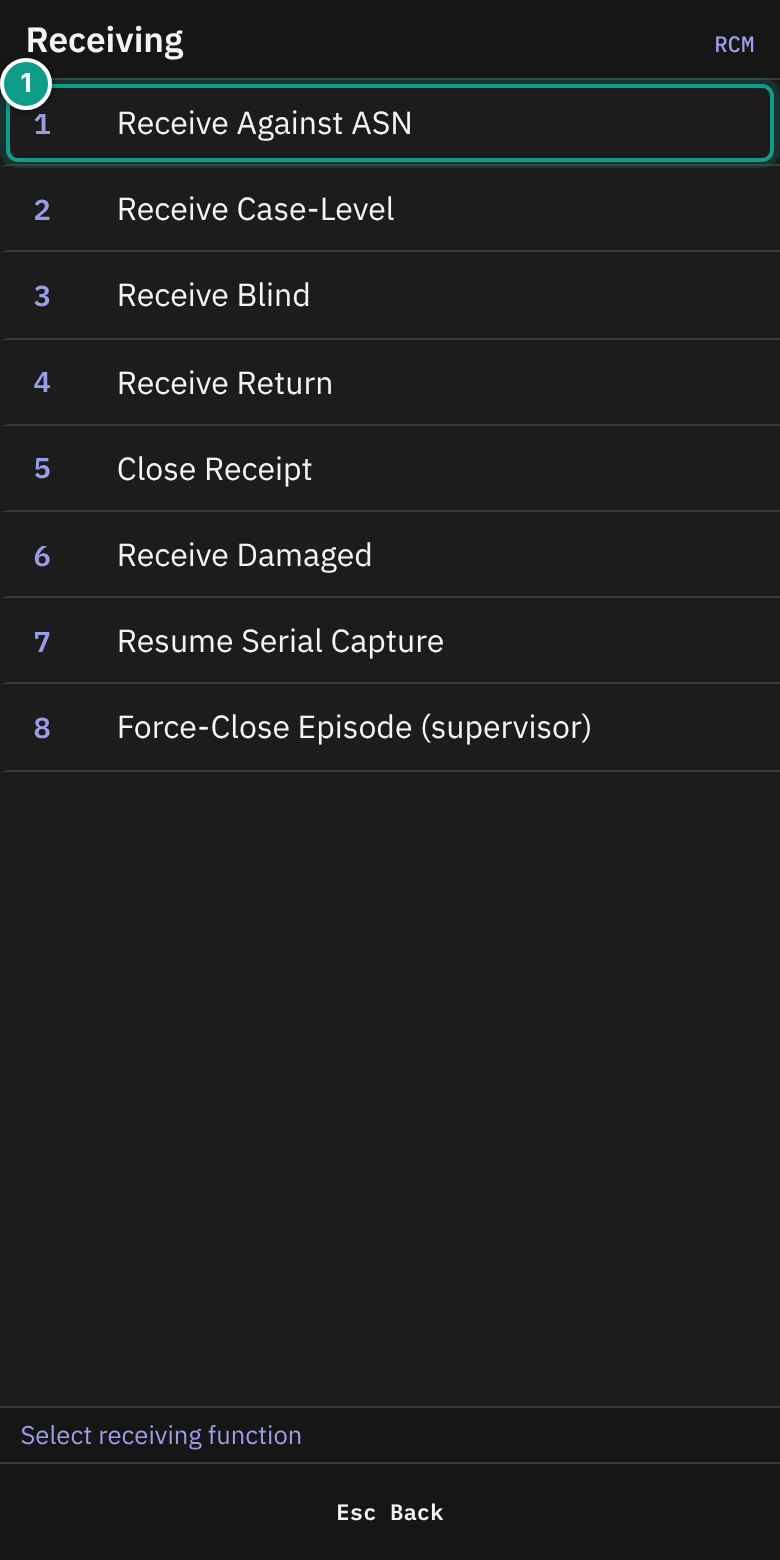
- On Receiving, press
3(Receive Blind).
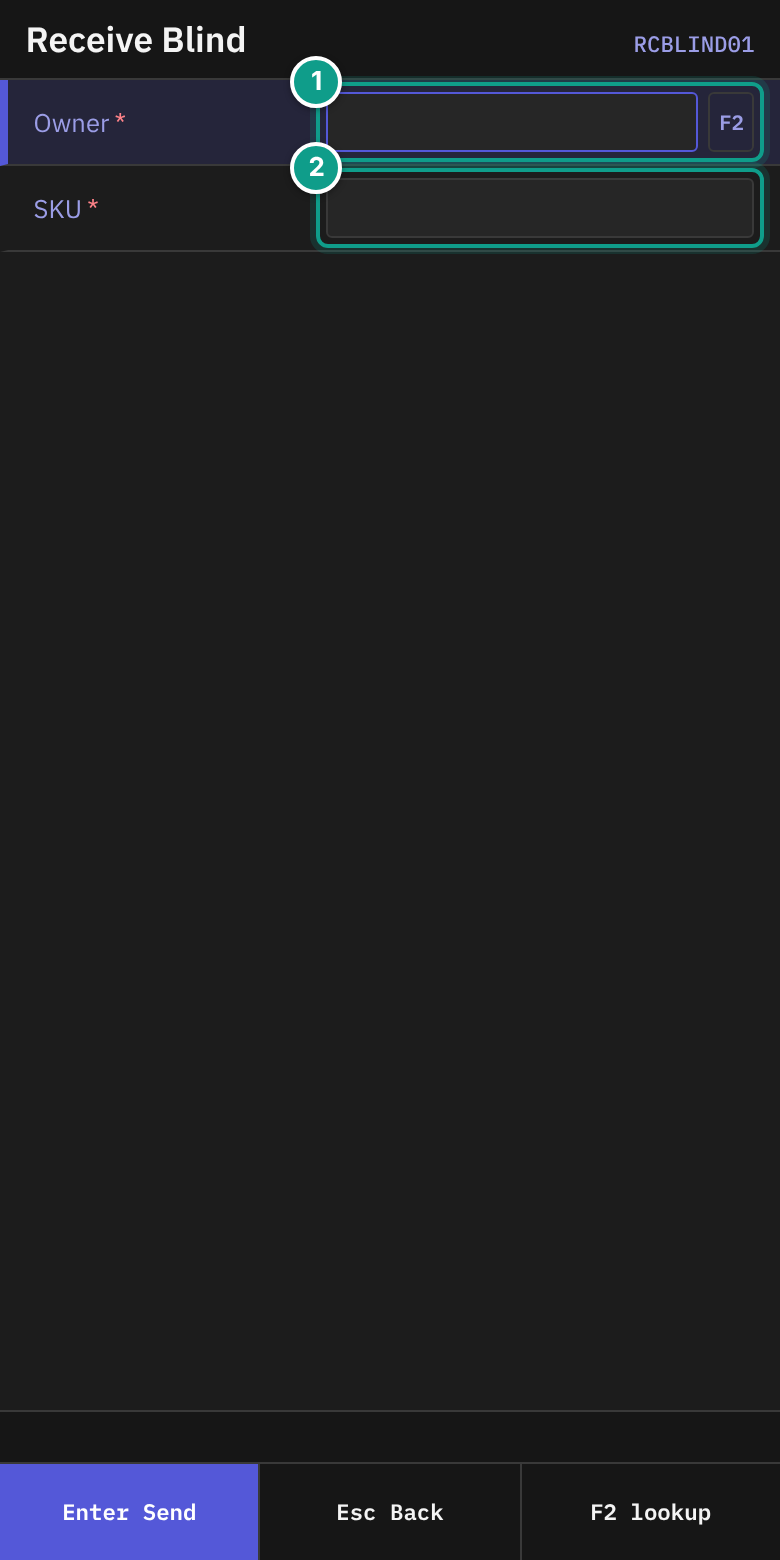
- On Receive Blind, in Owner, type the owner code (up to 20 characters). To pick from a list, press
F2. The hint says Type owner code or F2 to pick by code / company. - In SKU, scan the barcode or type the SKU. The field sends itself.
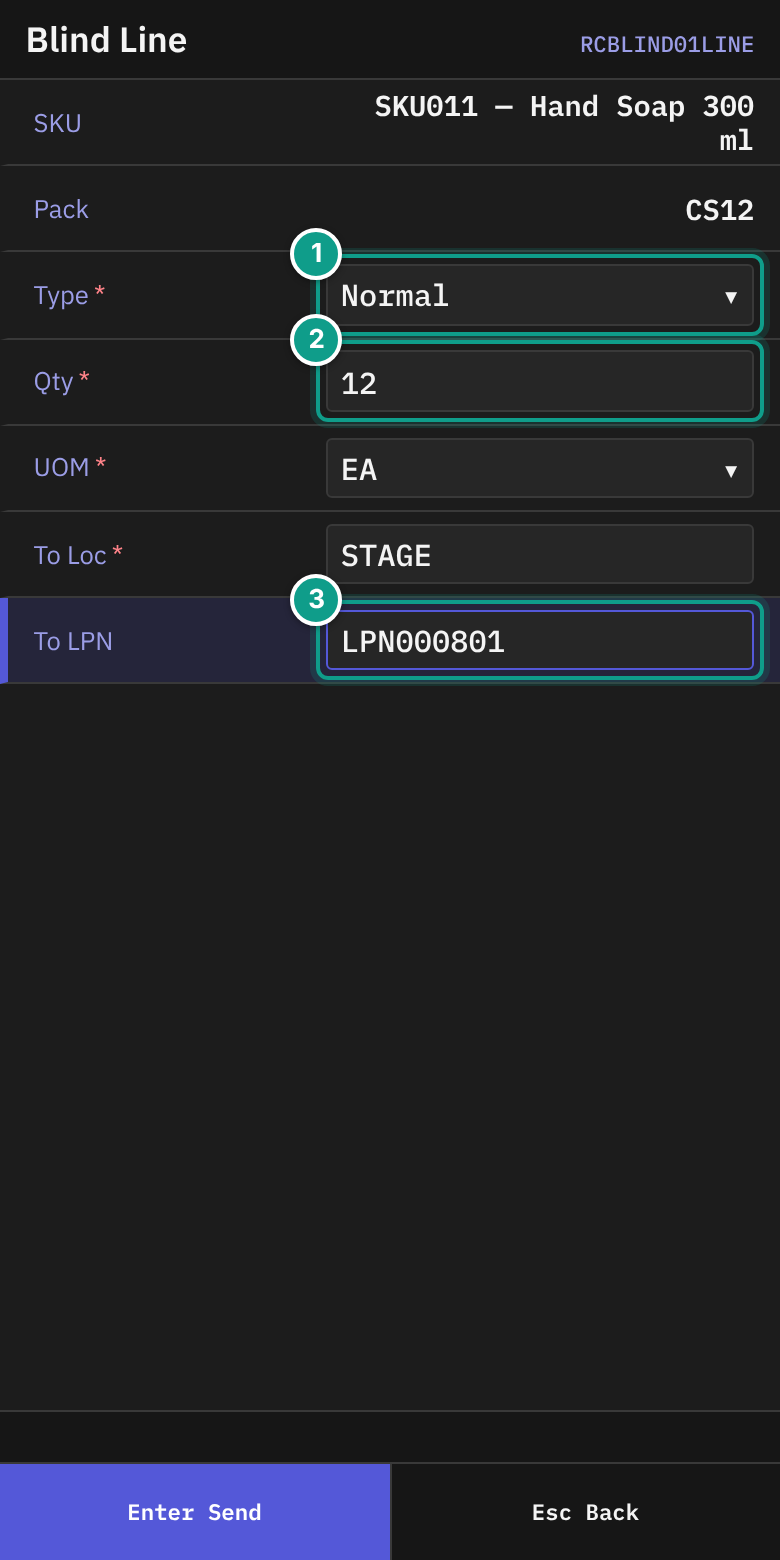
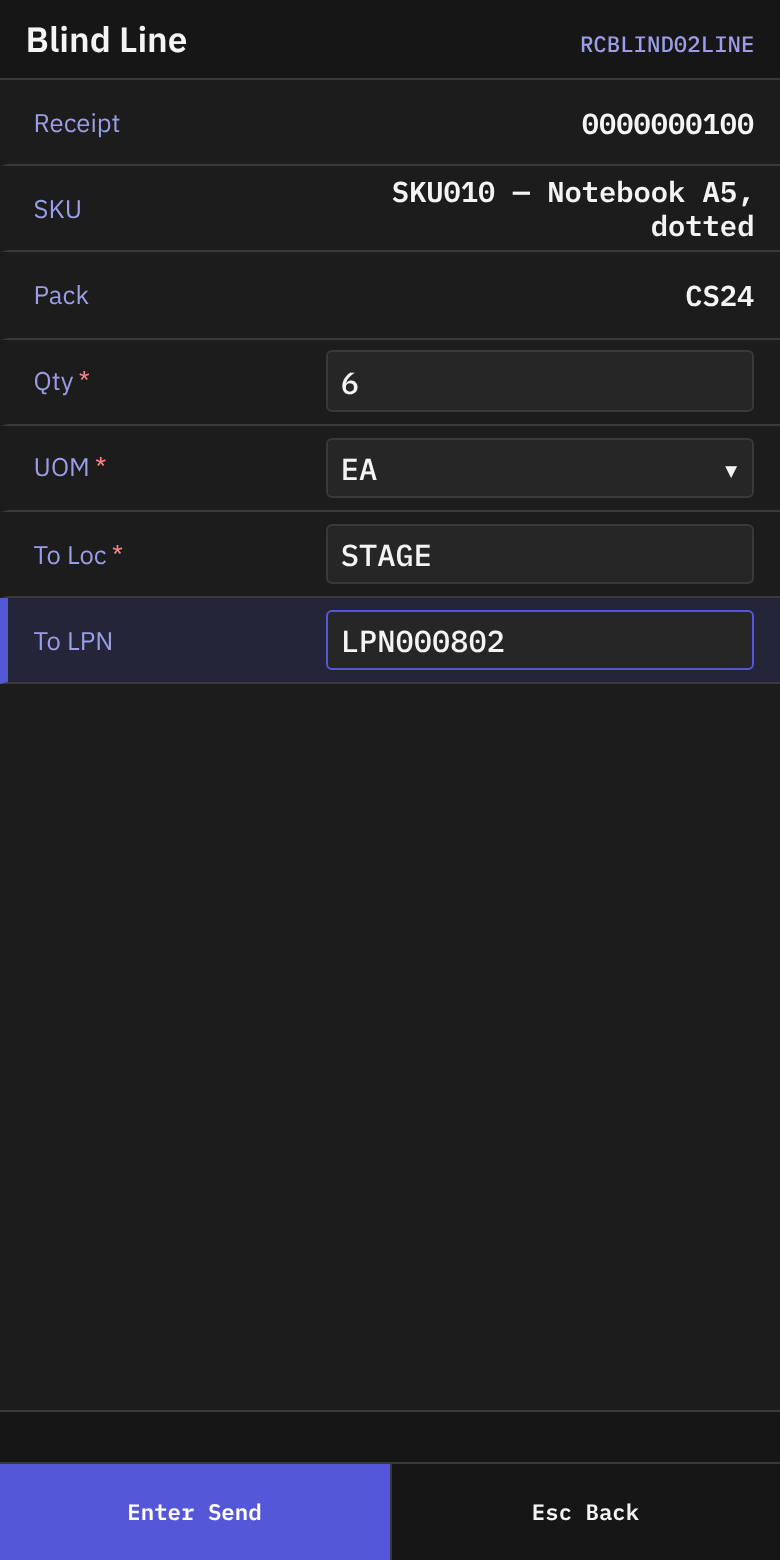
- On Blind Line, check SKU and Pack.
- Fill in the fields:
| Field | What to enter |
|---|---|
| Type | Leave Normal. It is the only choice. |
| Qty | The quantity. Must be more than 0. |
| UOM | EA, IP, CS or PL. |
| To Loc | The location. Default STAGE. After the first line, it starts with the location you sent last. |
| Lot attribute fields | Fill in each field the SKU asks for. |
| To LPN | Scan the pallet label. You may leave it empty only if the owner policy allows it. |
- On the last field, press
Enter.
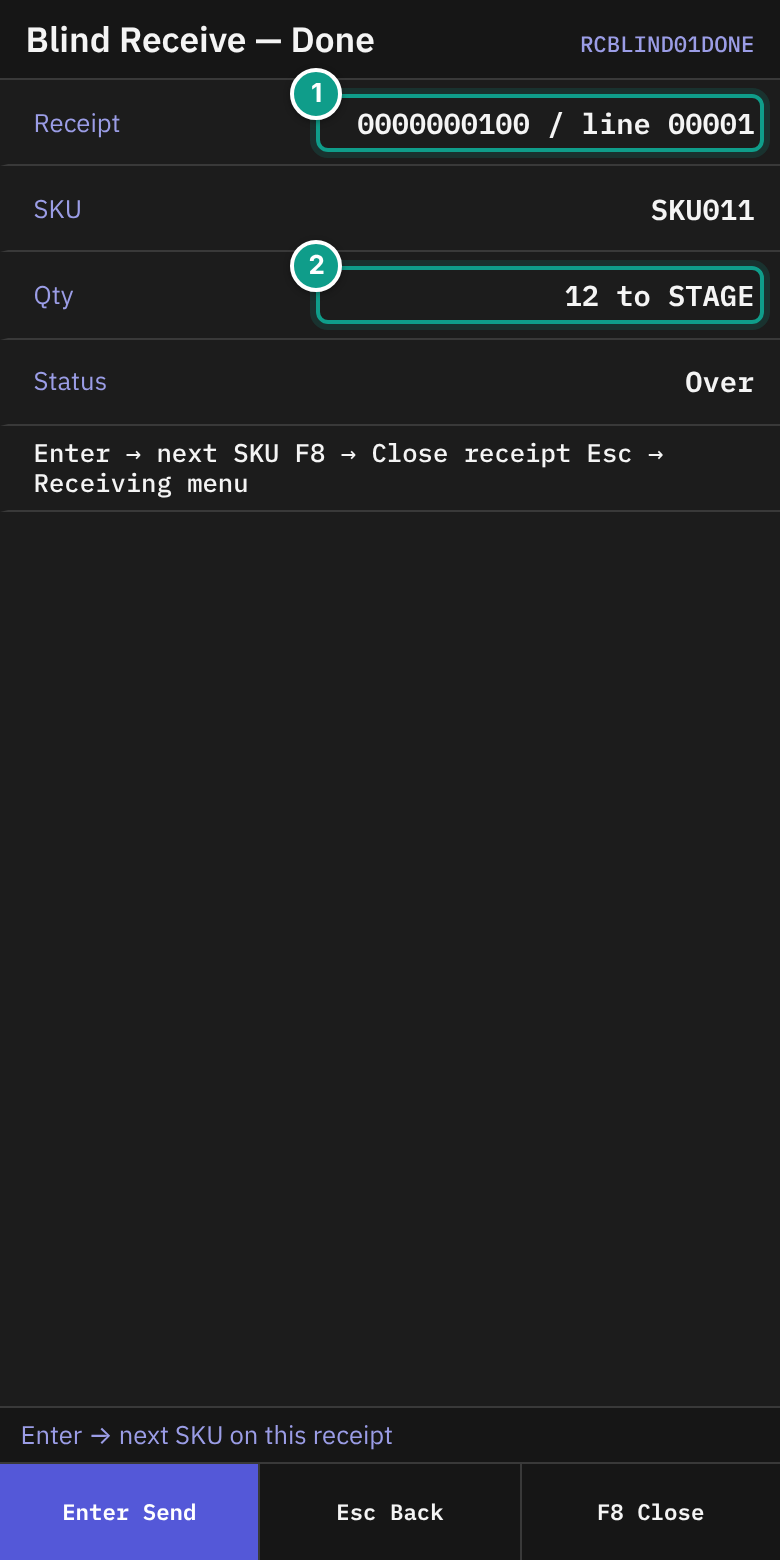
- On Blind Receive — Done, check:
- Receipt:
{receipt number} / line {n} - SKU
- Qty:
{qty} to {location} - Status
- Receipt:
- Choose what to do next. The footer says Enter → next SKU F8 → Close receipt Esc → Receiving menu.
Enterreceives the next SKU on the same receipt.F8(Close) closes the receipt. See 04 Damage and receipt close.Escreturns to the Receiving menu.
Next SKU on the same receipt
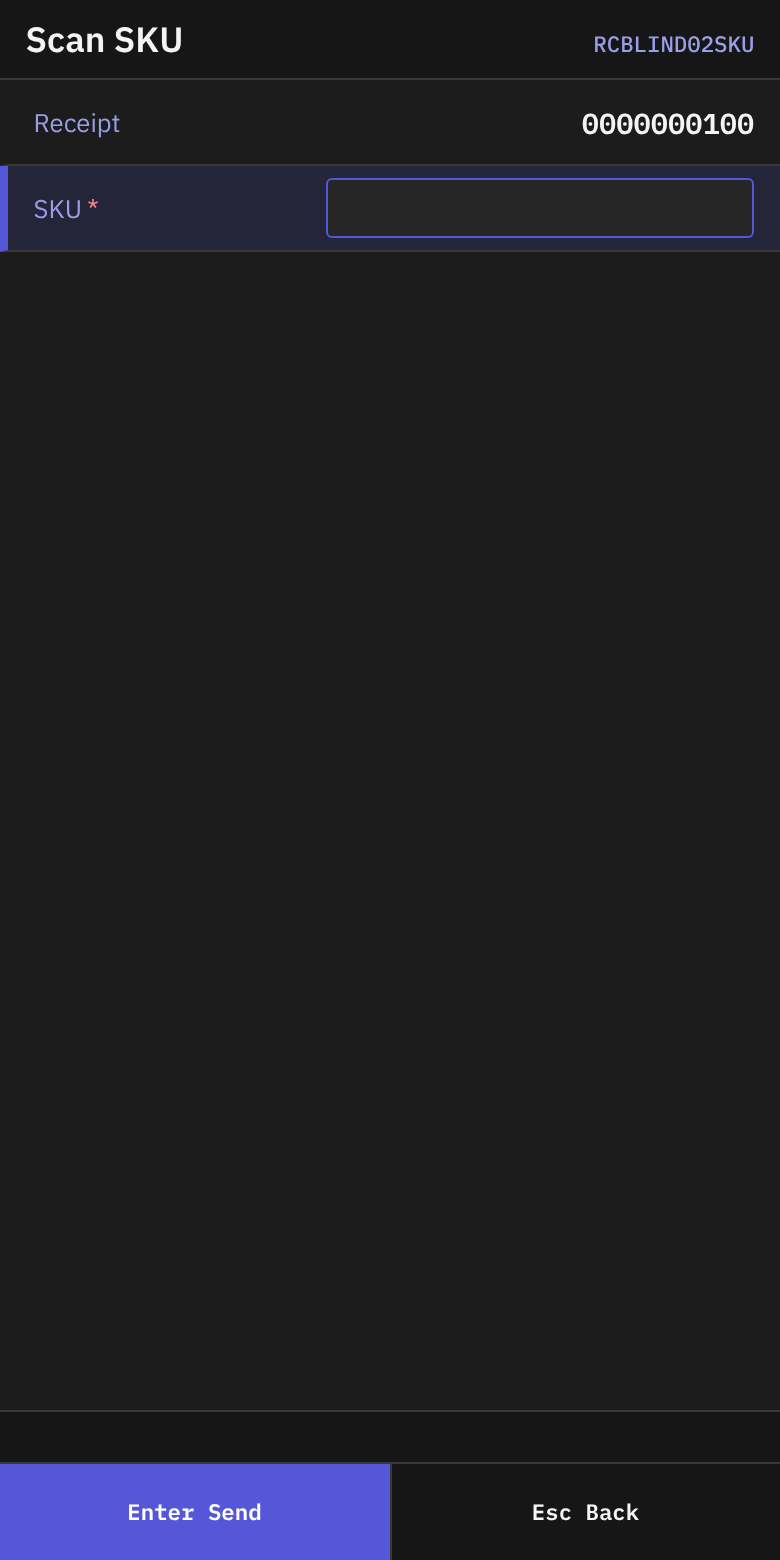
- On Scan SKU, check Receipt.
- In SKU, scan the next item.
- On Blind Line, fill in the fields as above. This screen also shows Receipt. It has no Type field.
Press Esc on Scan SKU to go back to Receiving.
Serial-tracked SKU
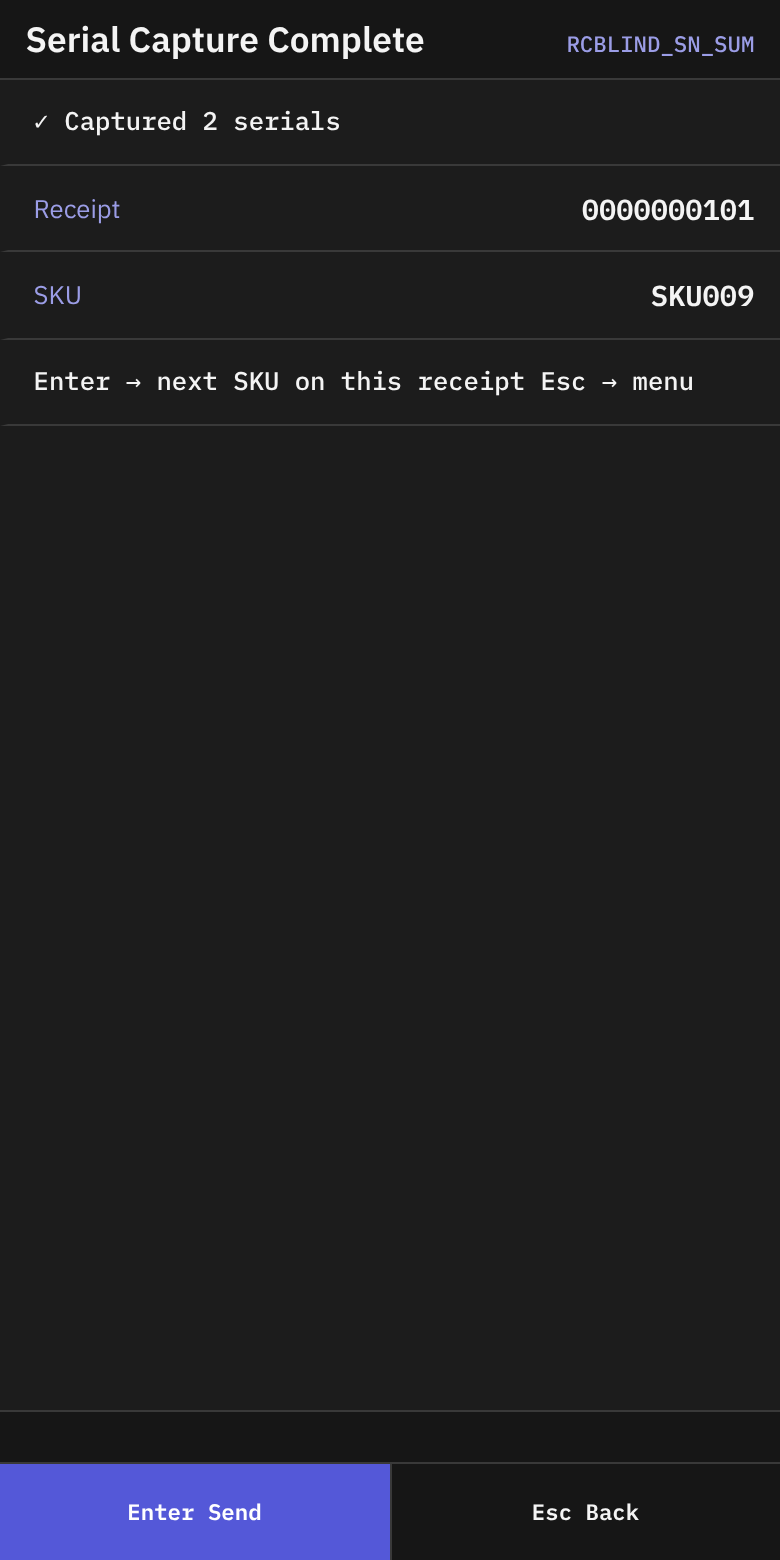
If the SKU needs serials, Serial Capture opens after the line. Scan each serial. See 02 Receiving against an ASN. When the last serial is accepted, Serial Capture Complete shows ✓ Captured {n} serials, Receipt and SKU. The hint says Enter → next SKU on this receipt Esc → menu.
B. Receive Case-Level
Steps
- On Receiving, press
2(Receive Case-Level).
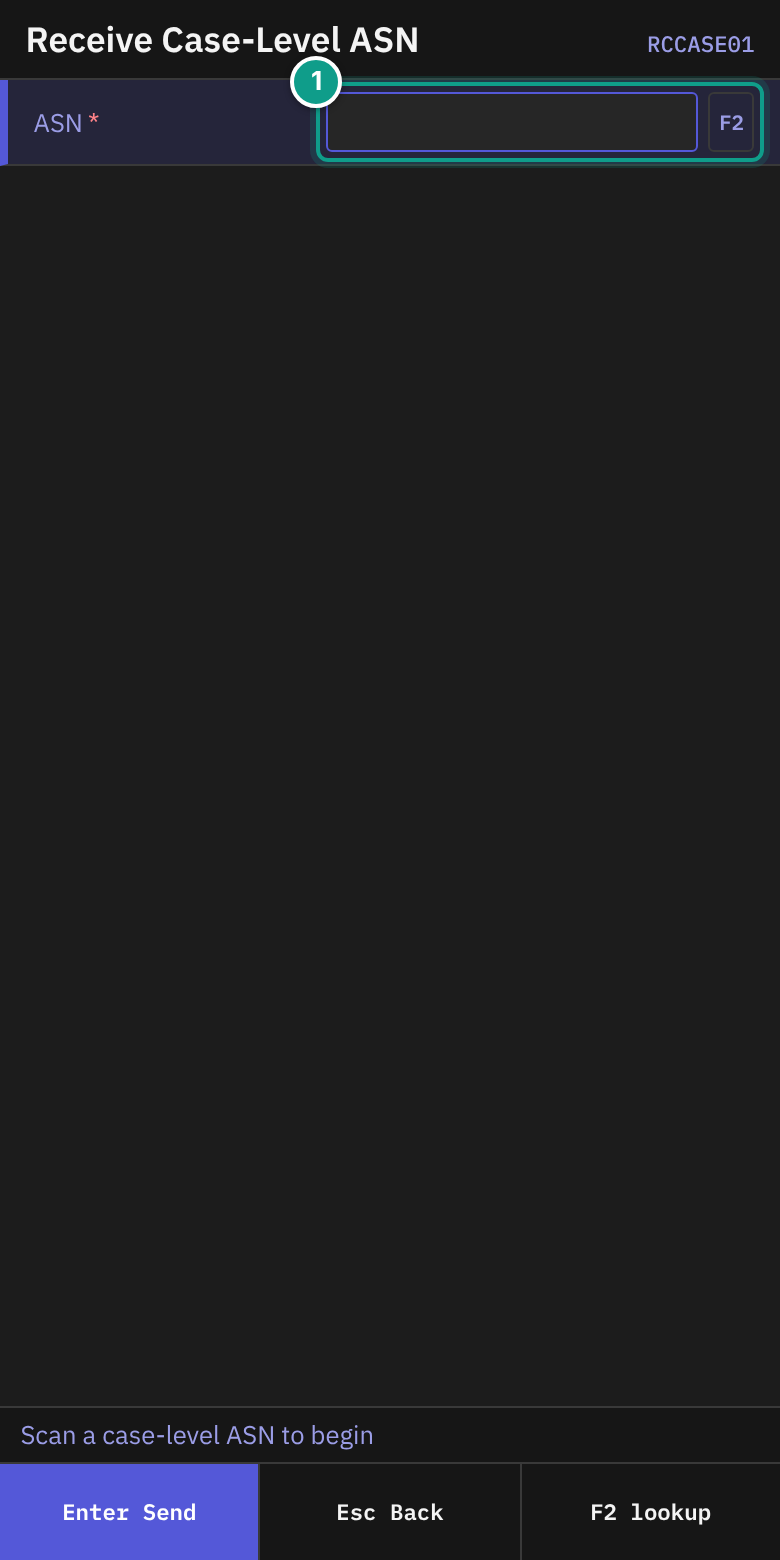
- On Receive Case-Level ASN, in ASN, scan or type the ASN number. Press
F2to find a case-level ASN. The status line says Scan a case-level ASN to begin.
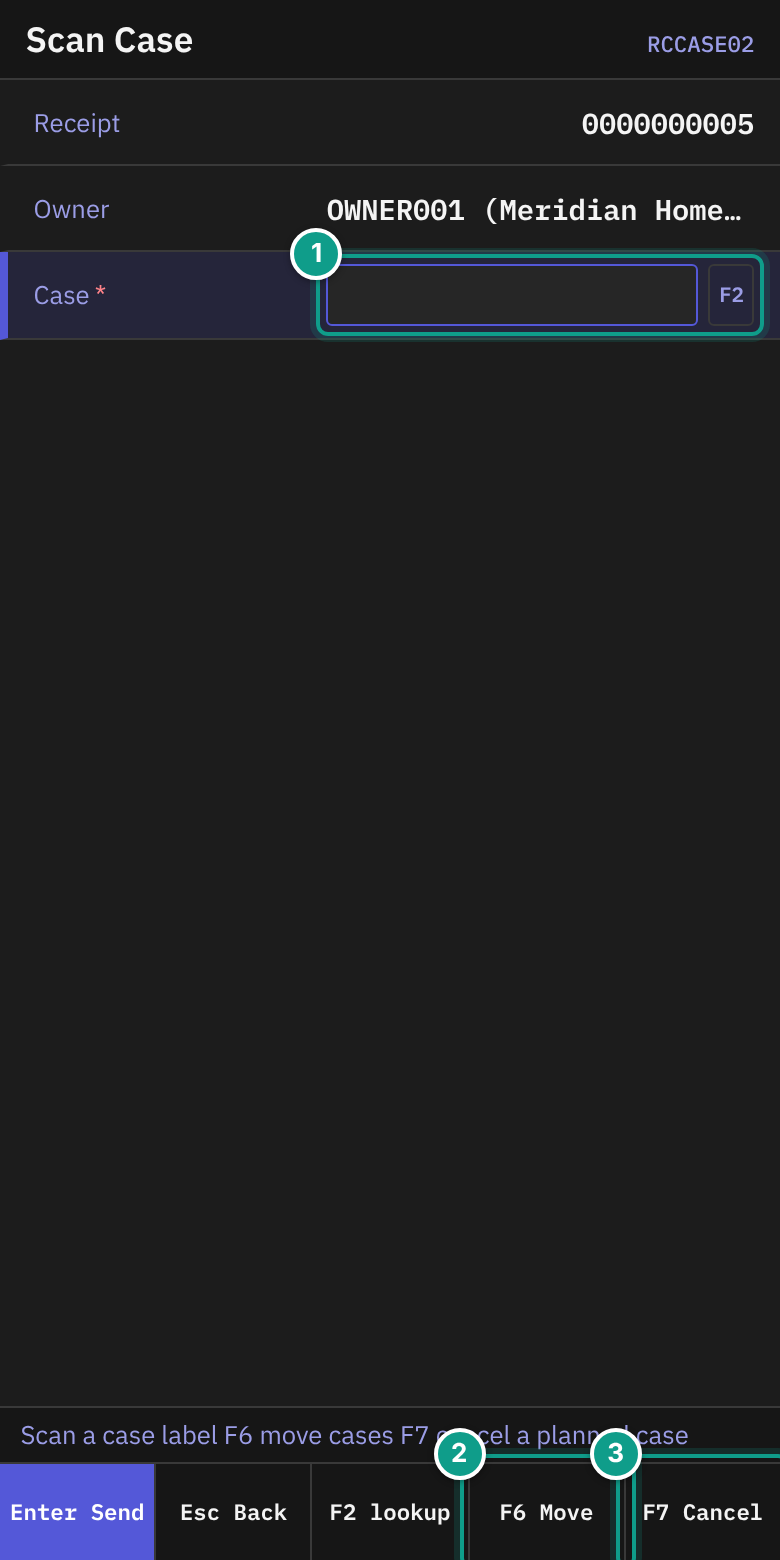
- On Scan Case, check Receipt and Owner. The line Last shows the last case, for example
CASE-1 = 10 EA. - In Case, scan the case label. Press
F2to list cases not yet received. The status line says Scan a case label F6 move cases F7 cancel a planned case.
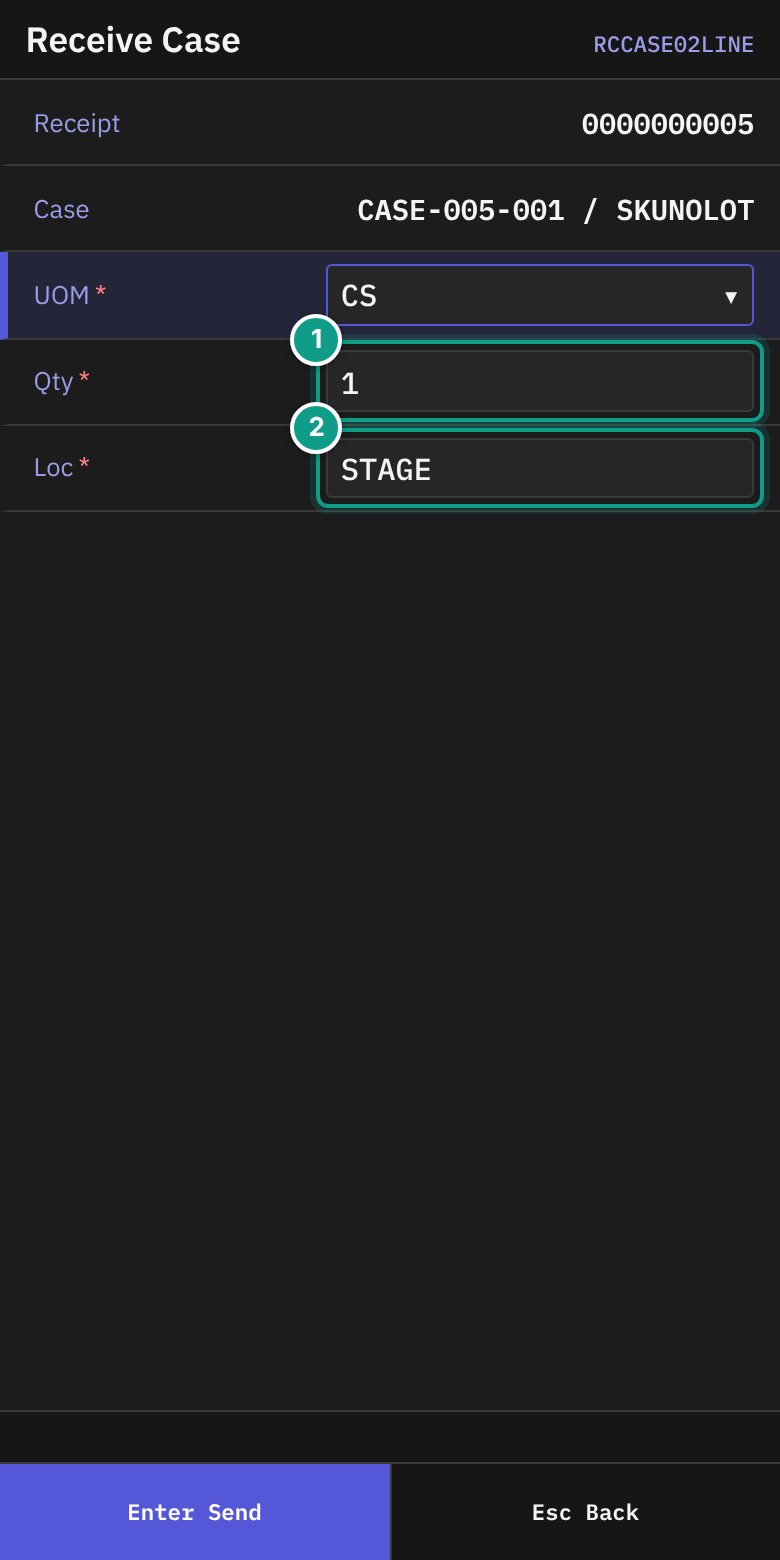
- On Receive Case, check Case (
{label} / {sku}). - Fill in the fields:
| Field | What to enter |
|---|---|
| UOM | CS (default) or EA. |
| Qty | The quantity. Default 1. |
| Lot attribute fields | Fill in each field the SKU asks for. |
| Loc | The location. Default STAGE; after the first case, the location you sent last. The field sends itself. |
- Press
Enter. - If more cases wait on the line, the terminal returns to Scan Case. Scan the next case.
- When the line is complete, Receipt Line Complete appears.
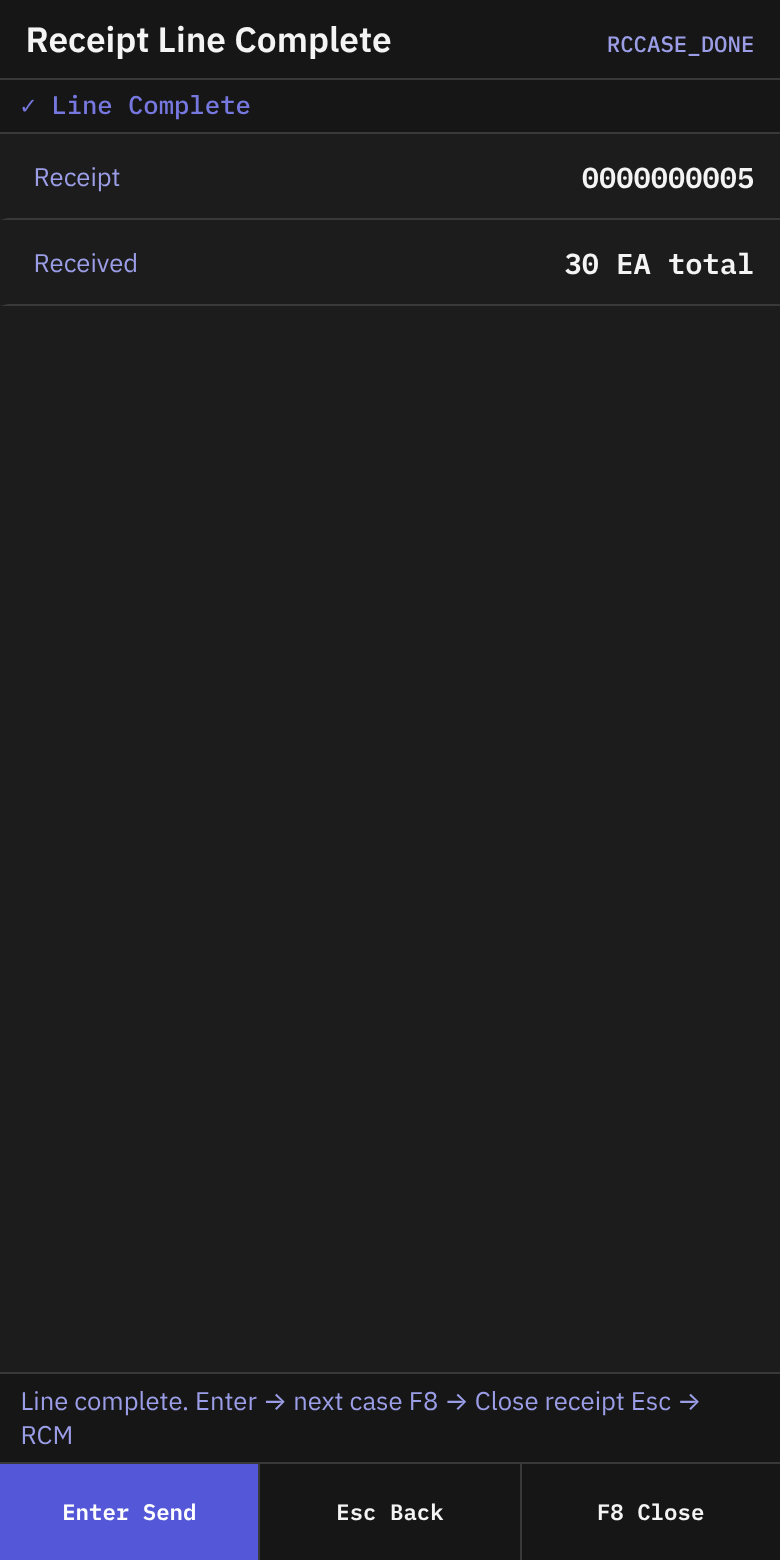
It shows ✓ Line Complete, Receipt and Received ({n} EA total). The status line says Line complete. Enter → next case F8 → Close receipt Esc → RCM.
Press Enter for the next case. Press F8 to close the receipt. Press Esc to go to Receiving.
Cancel a case that will not arrive
On Scan Case, press F7 (Cancel).
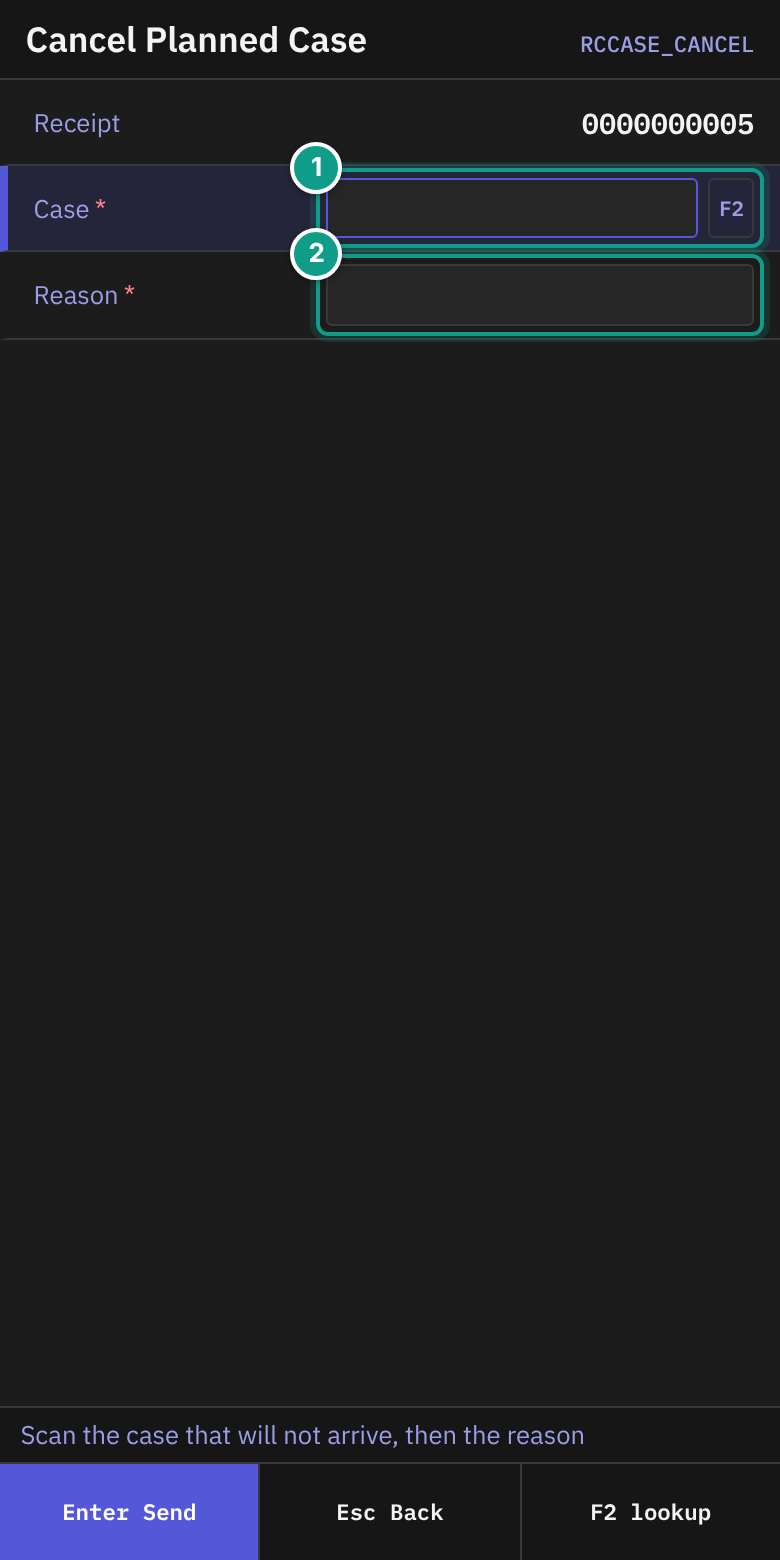
- On Cancel Planned Case, read the status line: Scan the case that will not arrive, then the reason.
- In Case, scan or type the case label.
F2lists cases not yet received. - In Reason, type why the case will not arrive (up to 200 characters).
- Press
Enter. The line Case {label} cancelled appears. - Press
Escto go back.
Move cases to another pallet
On Scan Case, press F6 (Move).
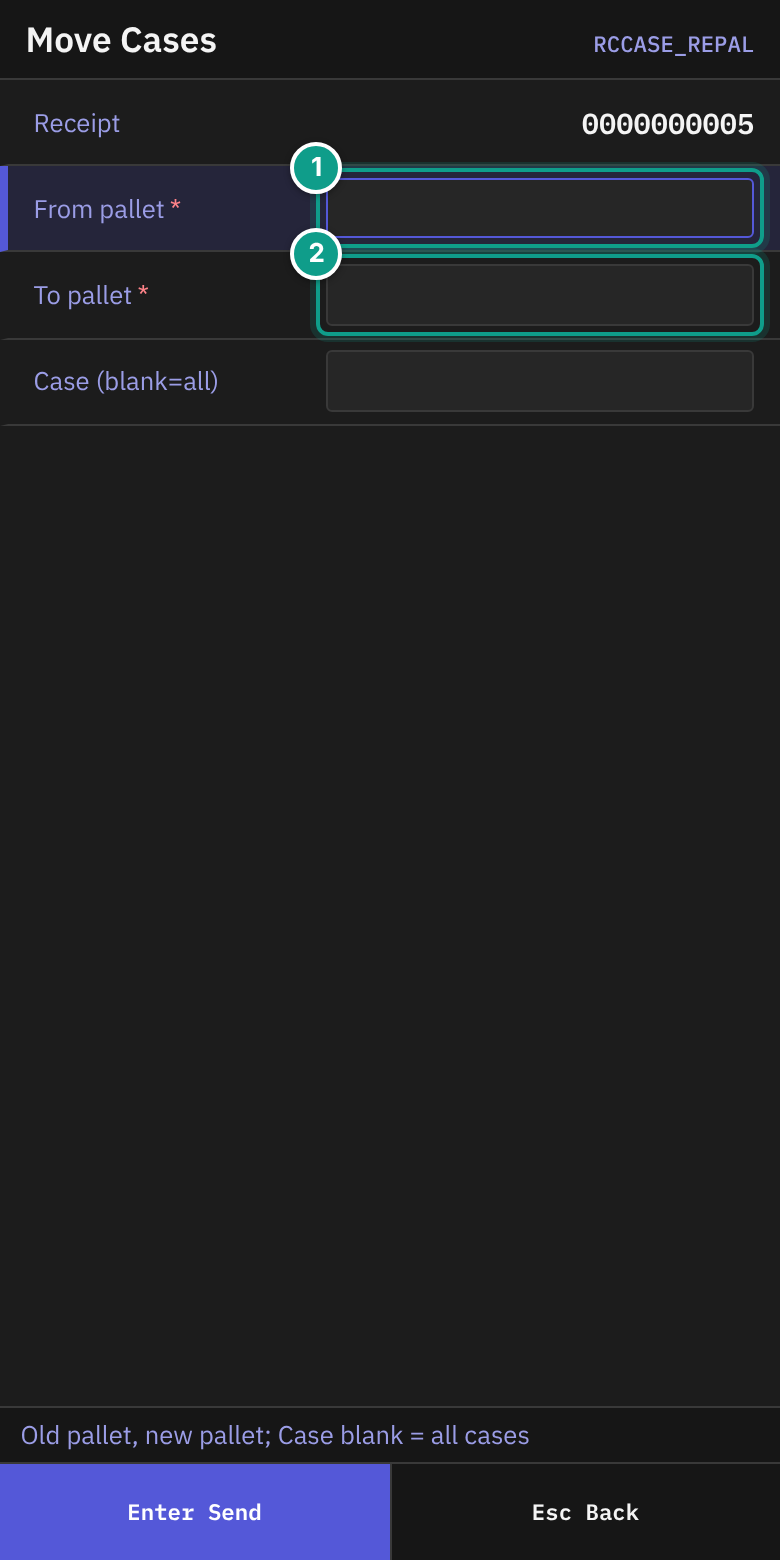
- On Move Cases, read the status line: Old pallet, new pallet; Case blank = all cases.
- In From pallet, scan the old pallet label.
- In To pallet, scan the new pallet label.
- In Case (blank=all), scan one case, or leave it empty to move all cases.
- Press
Enter. The line shows Moved {n} case(s) {old} → {new}. If the new pallet was created, it adds (new pallet). - Press
Escto go back.
C. Receive Return
Steps
- On Receiving, press
4(Receive Return).
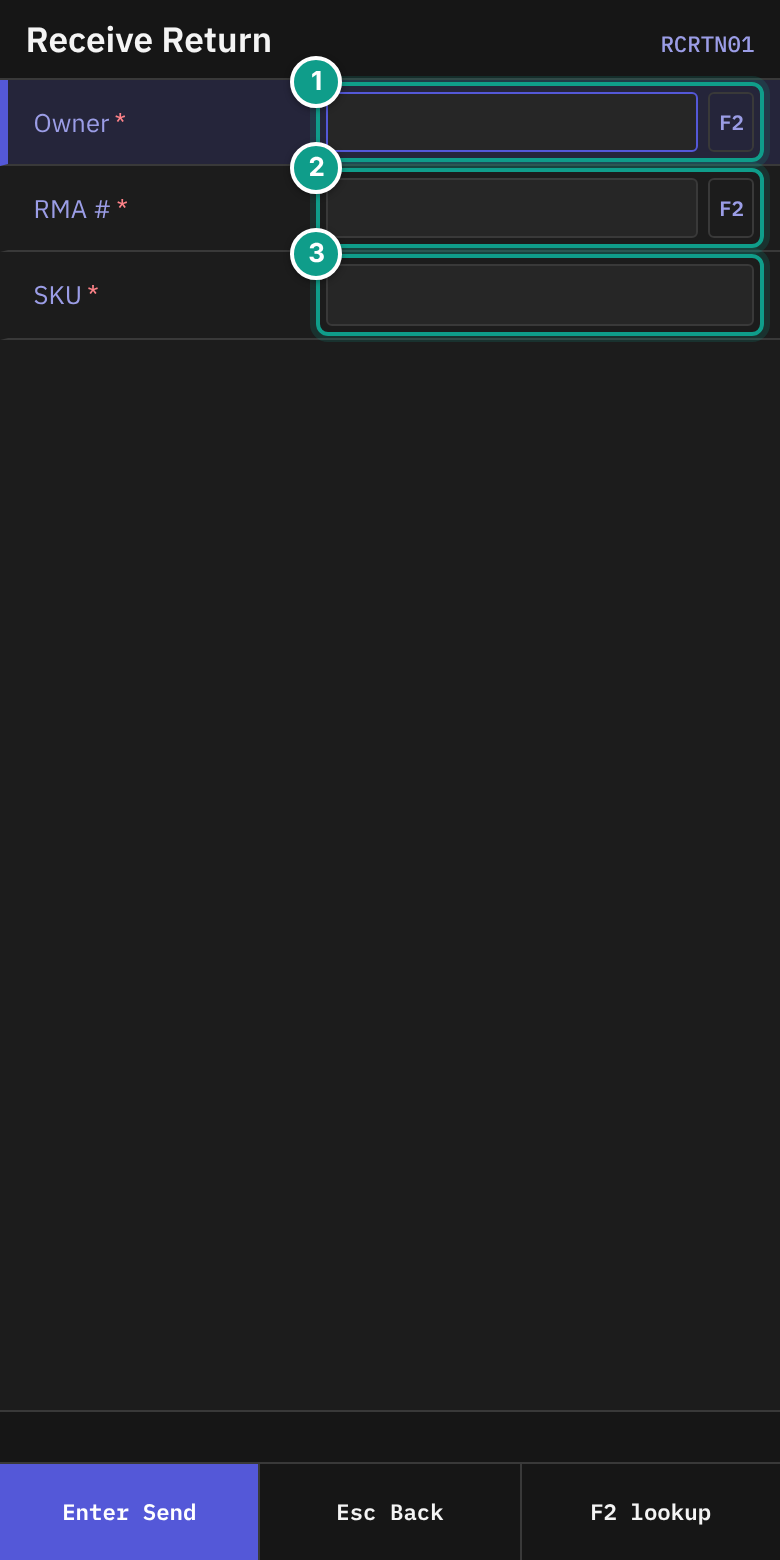
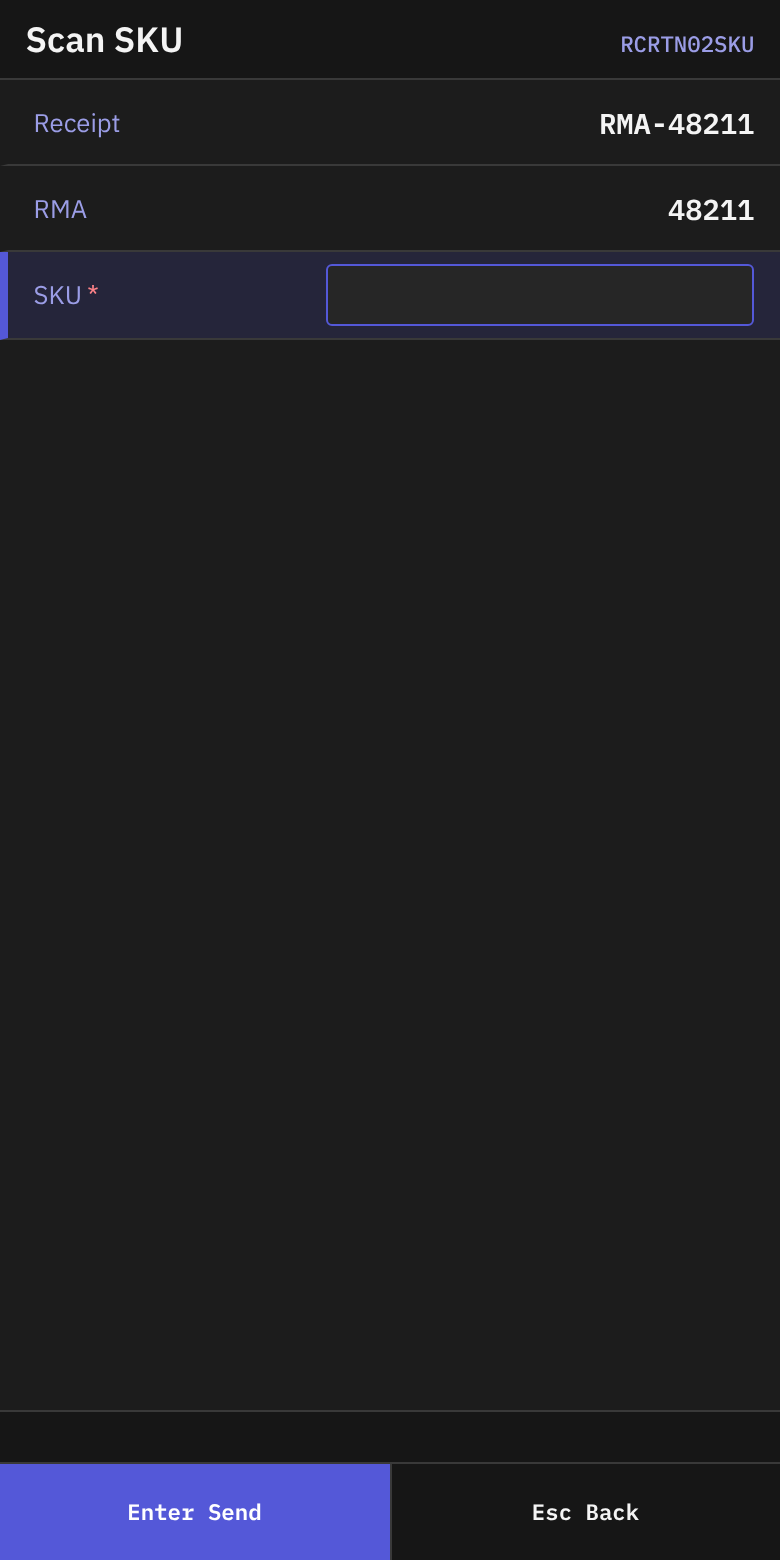
- On Receive Return, in Owner, type the owner code.
F2opens a list. - In RMA #, type the RMA number.
F2lists open customer returns. The hint says Type RMA reference or F2 to pick from open Customer Returns. - In SKU, scan the returned item.
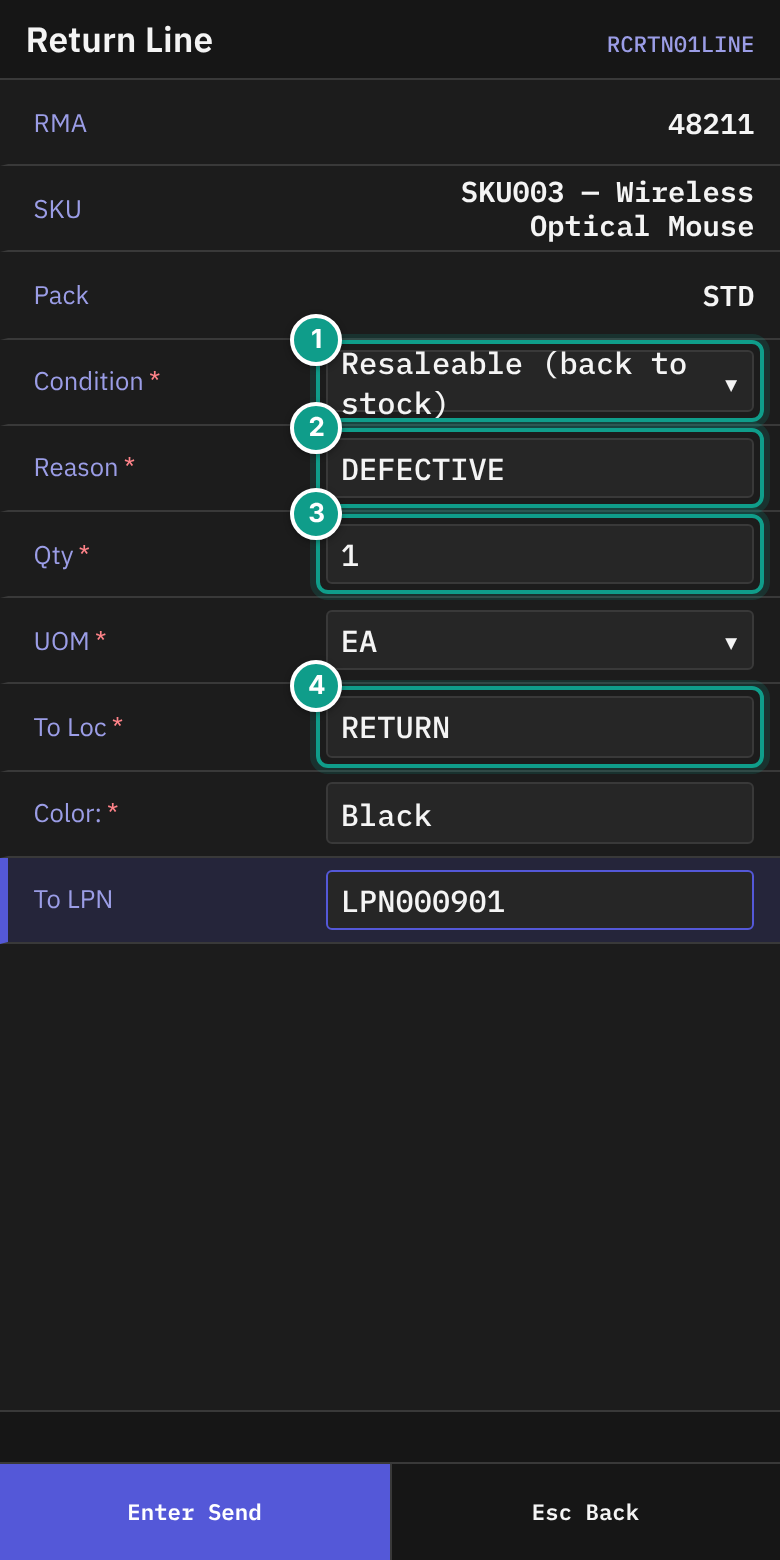
- On Return Line, check RMA, SKU and Pack.
- Fill in the fields:
| Field | What to enter |
|---|---|
| Condition | Your visual assessment. Press Left or Right. Choices: Resaleable (back to stock), Needs refurb (refurb staging), Damaged (quarantine), Discard (trash bin). Default Resaleable. |
| Reason | Why the customer returned the item. Type a code, for example defective or wrong_item. Required. Up to 30 characters. |
| Qty | The quantity. |
| UOM | EA, IP, CS or PL. |
| To Loc | Default RETURN; after the first line, the location you sent last. The hint says the system may send damaged or discarded goods to another place. |
| Lot attribute fields | Fill in each field the SKU asks for. |
| To LPN | Pallet label. May be empty only if the owner policy allows it. |
- If Condition is Damaged, four more fields appear:
| Field | What to enter |
|---|---|
| Severity | Cosmetic (sell as-is), Minor (discount), Major (refurb / hold) or Total (write-off). Default Minor. |
| Damage type | Crushed / Dented, Water damage, Torn / Punctured, Contamination, Temp breach, Transit damage or Other. Default Crushed / Dented. |
| Description | Optional text, up to 200 characters. |
| Vendor fault? | Space switches yes/no. Y sets yes. N sets no. Default no. |
- On the last field, press
Enter.
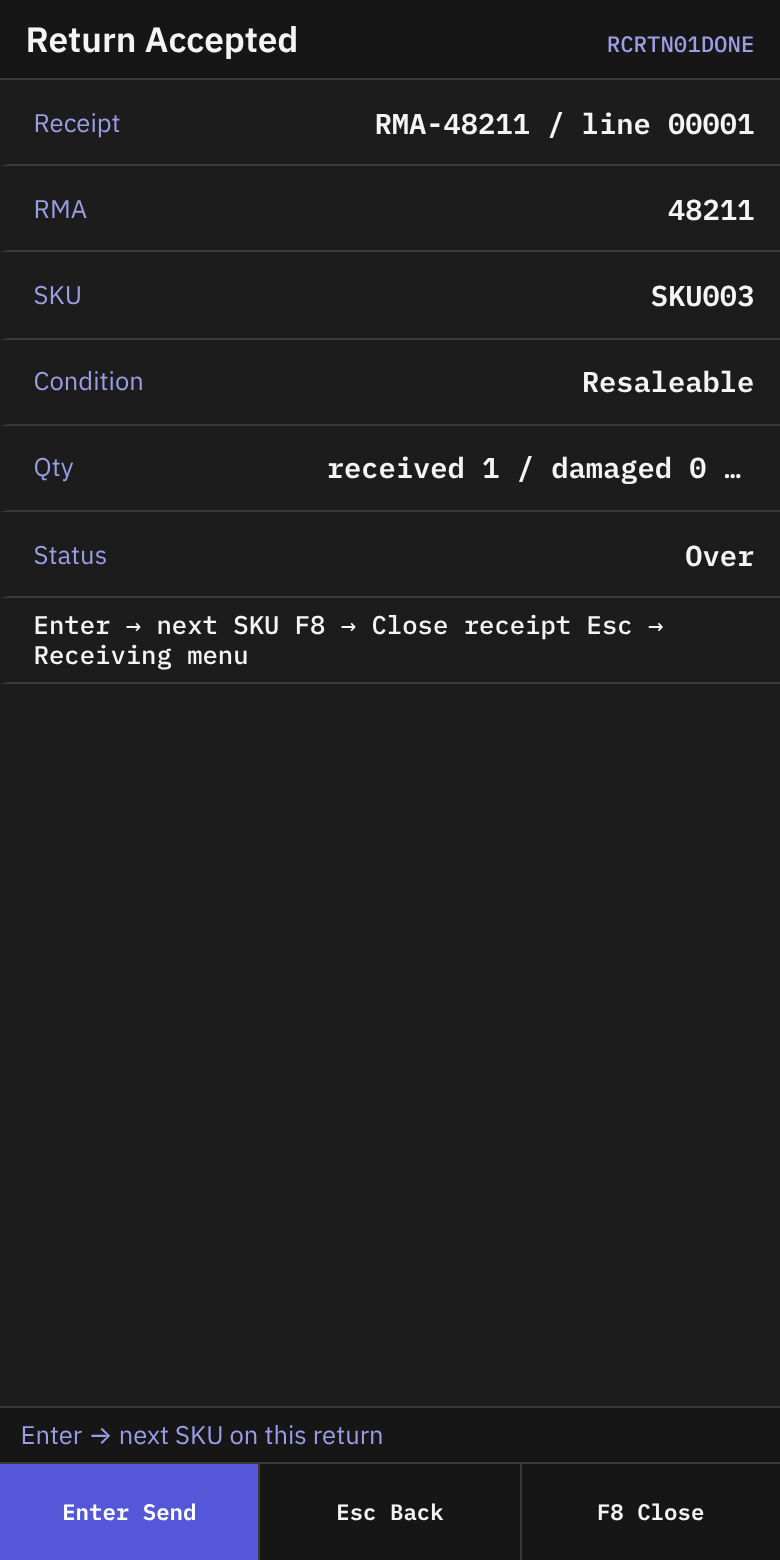
- On Return Accepted, check:
- Receipt:
{receipt} / line {n} - RMA, SKU, Condition
- Qty:
received {a} / damaged {b} / rejected {c} to {location} - Status
- Receipt:
- The status line says Enter → next SKU on this return. Press
Enterfor the next SKU. PressF8(Close) to close the receipt. PressEscto go to Receiving.
For the next SKU, the terminal shows Scan SKU with Receipt and RMA.
What you should see
- A Done or Accepted screen after each line.
- The same receipt number for all SKUs in one session.
If something goes wrong
| Message | What it means | What to do |
|---|---|---|
| Owner not found: {code} | The owner code is unknown. | Check the code. Press F2 and choose from the list. |
| SKU not found: {code} | The SKU or barcode is unknown. | Scan again. Tell your supervisor if it keeps failing. |
| receipt {number} is Aggregate-granularity — use 'Receive Against ASN' instead | You scanned an ASN that is not case-level. | Press Esc. Use Receive Against ASN. |
| asn {number} not found | No ASN has this number. | Check the number. Press F2. |
| case_label is blank | You sent the cancel form without a case. | Scan the case label. |
| ReceiveReturnLine: receipt {id} is type {type}, must be CustomerReturn | The receipt is not a customer return. | Tell your supervisor. |
| Receipt without LPN is not allowed by owner policy | To LPN is empty, and the owner requires one. | Scan an LPN. |
| qty {qty} is not a multiple of pack {pack_qty} | The quantity does not fit the pack. | Check the quantity and unit. |
| receipt id={id} is OnHold — release the hold before receiving | The receipt is on hold. | Tell your supervisor. |
| No permission: {screen} ({function}) | Your user may not do this. For example, Cancel Planned Case may be for supervisors. | Ask your supervisor. |
Messages for a location and for case-level receiving:
| Message | What it means | What to do |
|---|---|---|
| Invalid location {code} | The location in To Loc does not exist in this warehouse. | Check the code. Ask your supervisor for the right location. |
| location {code} holds only open pick pallets: nothing is received into it | You cannot receive into this location. | Choose another location. |
| case '{label}' is already {status} (only Planned cases can be received) | This case was already received or cancelled. | Check the label. Tell your supervisor. |
| case '{label}' not on receipt {id} and the receipt has no unplanned-case policy (granularity is Aggregate or column unset). Reject. | The case is not on this ASN. | Do not receive it. Tell your supervisor. |
| case '{label}' not on receipt {id} and unplanned_case_on_asn=HardError — scan rejected | The owner does not allow cases that the ASN does not list. | Do not receive it. Tell your supervisor. |
| old pallet '{lpn}' not found on receipt {id} | Replace Pallet: the old pallet label is not on this receipt. | Check the label. |
| Scan both the old and the new pallet LPN | Replace Pallet: one of the two labels is empty. | Scan both. |
| The old and the new pallet are the same ('{lpn}'): scan the new pallet | Replace Pallet: both labels are equal. | Scan a different new pallet. |
| new pallet lpn '{lpn}' already exists on receipt {id} — refusing to merge cross-receipt structural data; pick a different code or fix the source | Replace Pallet: the new label is already used. | Scan a different new pallet. |
| case '{label}' not found on receipt {id} | Cancel Planned Case: the case is not on the receipt. | Check the label. |
| case '{label}' is {status} — only Planned cases can be cancelled | Cancel Planned Case: the case is already received or cancelled. | Nothing to do. |
| reason is required for cancellation audit trail | Cancel Planned Case needs a reason. | Enter a reason. |
| This case was just received at another terminal: scan the next one (or ... concurrent operation; retry) | Someone else received the same case at the same time. | Scan the next case. |
Other case messages exist for rare data problems. Their text is in the server code and contains the case label or the receipt number.
To pick a case without typing its label, press F2 on the Case field of Scan Case: it lists the cases of the receipt that are not received yet.
What the supervisor sees
Blind and return receipts are created when you receive the first line. The receipt shows the owner, lines and quantities. Damaged returns go to quarantine and carry the severity and damage type you entered.