Damage and receipt close
What you will do
- Receive damaged goods into the damage area.
- Correct a received quantity that is wrong.
- Close a receipt.
- (Supervisor) Force-close a serial capture that cannot be finished.
Before you start
- For damaged goods, know the owner code (Receive Damaged) or the ASN (Damage key).
- To close a receipt, know the receipt number.
- Finish all serial captures on the receipt first. An open capture blocks the close.
- Every damage record must have a final decision. A receipt with undecided damage cannot be closed.
- A receipt that differs from its plan needs a supervisor. Have the supervisor ready at the terminal.
A. Receive damaged goods
There are two ways in.
A1. From the Receiving menu
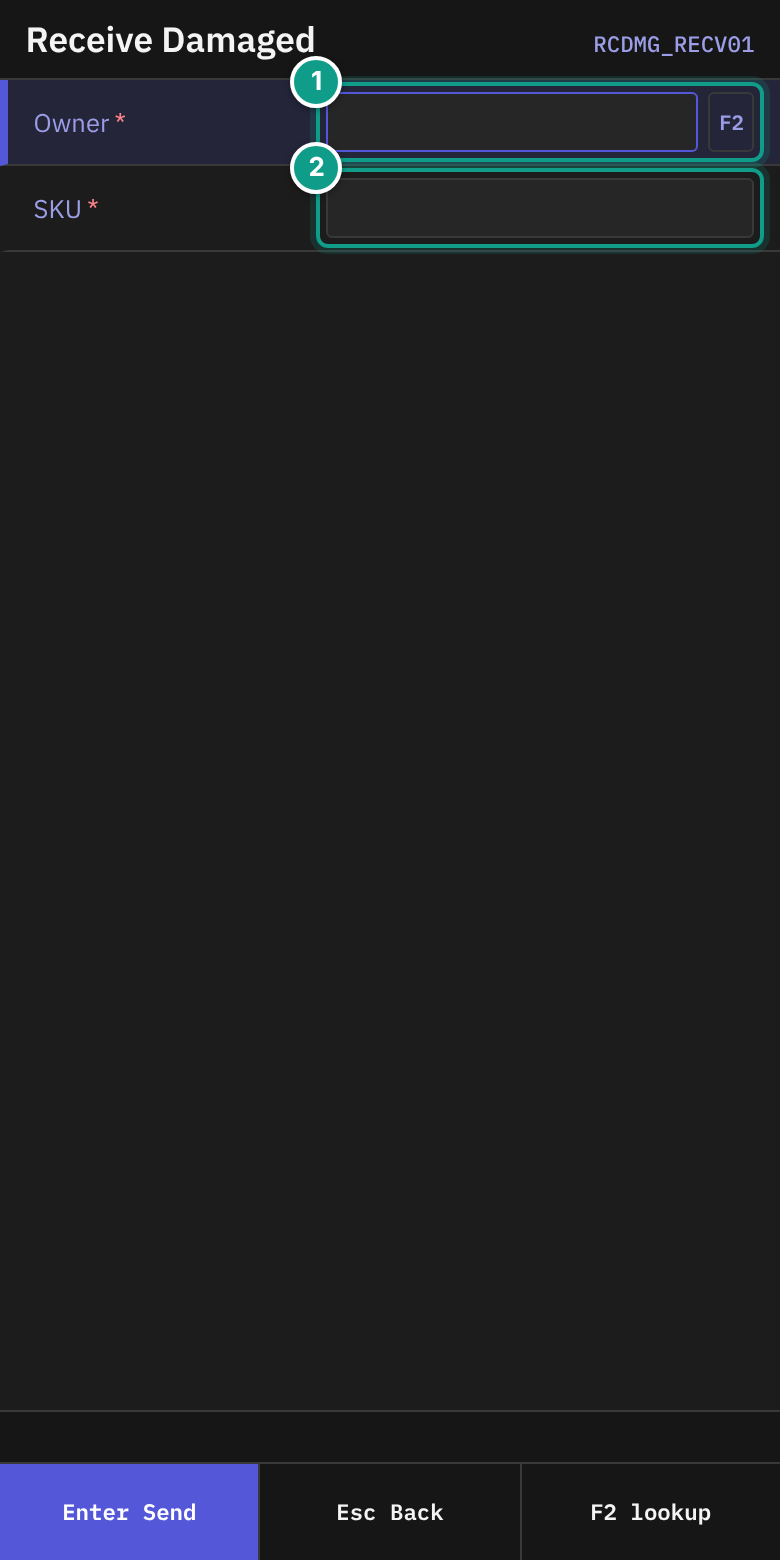
- On Receiving, press
6(Receive Damaged). - On Receive Damaged, in Owner, type the owner code.
F2opens a list. The hint says Type owner code or F2 to pick. - In SKU, scan or type the damaged item. The hint says Scan or type SKU of the damaged item.
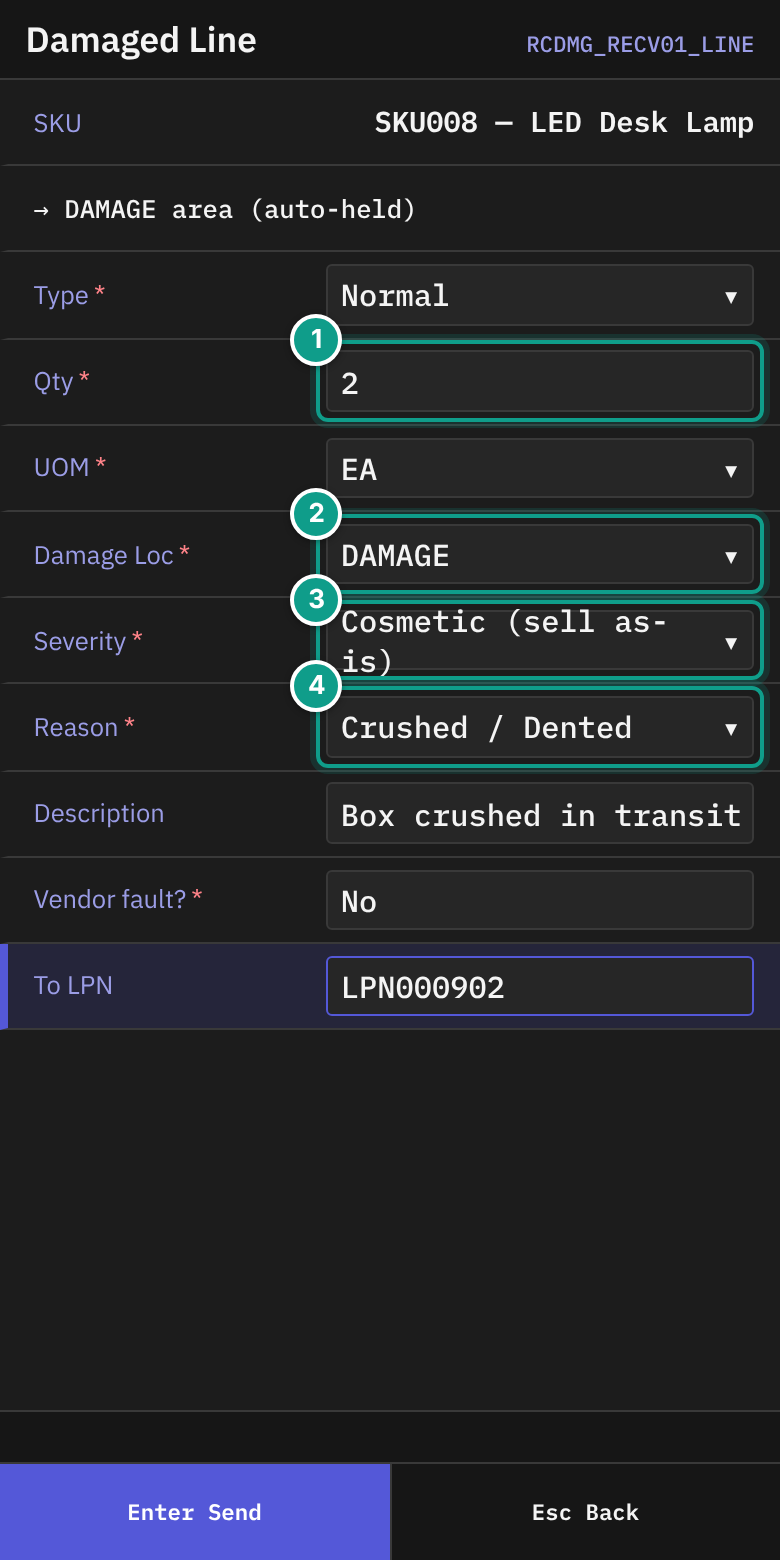
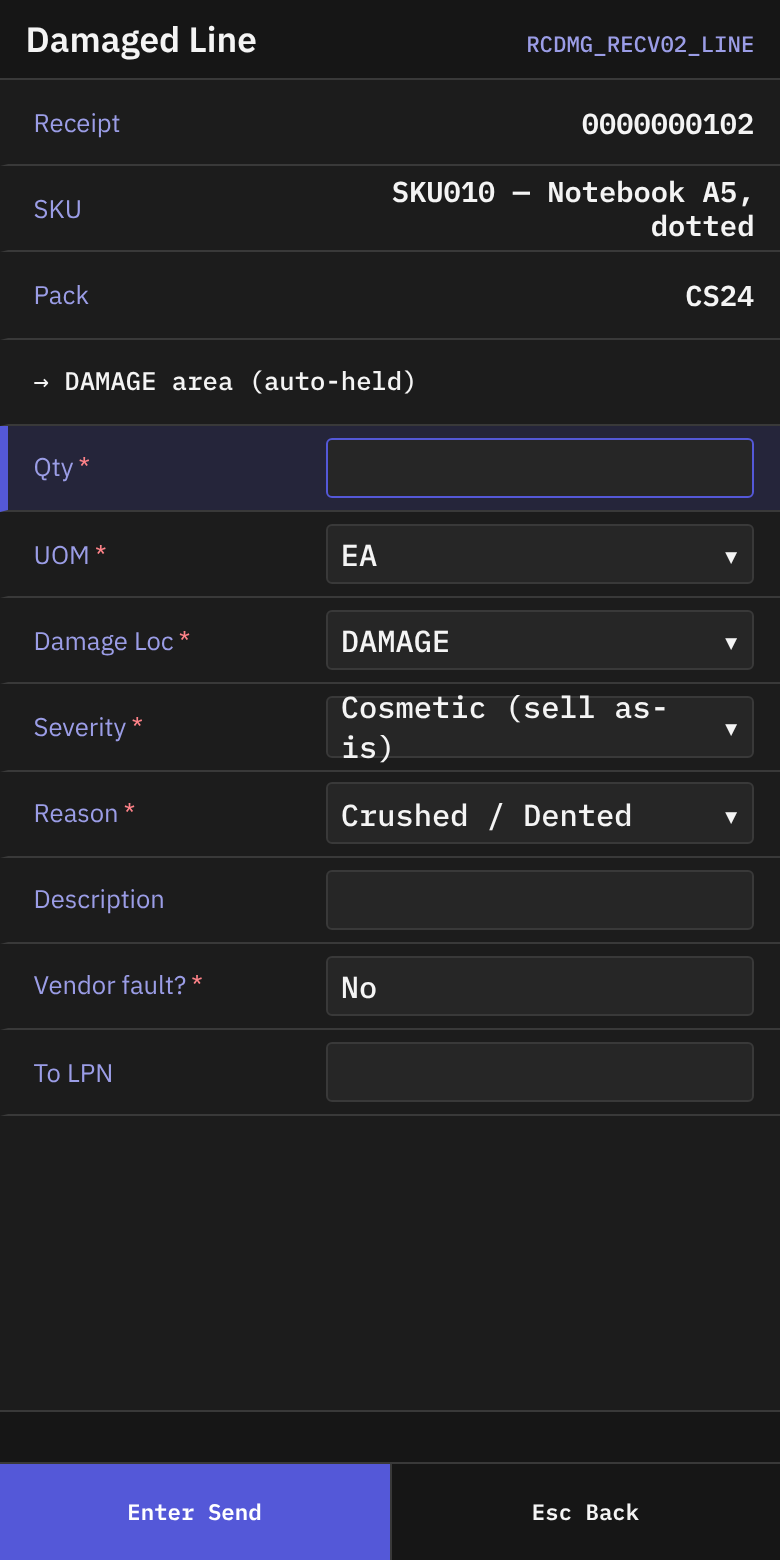
- On Damaged Line, read the line → DAMAGE area (auto-held). The goods go to the damage location and are held.
- Fill in the fields:
| Field | What to enter |
|---|---|
| Type | Normal (only choice). |
| Qty | The damaged quantity. |
| UOM | EA, IP, CS or PL. |
| Damage Loc | DAMAGE (only choice). The hint says Dedicated damage location — permanent hold auto-blocks ATP. |
| Lot attribute fields | Fill in each field the SKU asks for. |
| Severity | Cosmetic (sell as-is), Minor (discount), Major (refurb / hold) or Total (write-off). Default Minor. |
| Reason | The damage type: Crushed / Dented, Water damage, Torn / Punctured, Contamination, Temp breach, Transit damage or Other. Default Crushed / Dented. |
| Description | Optional text, up to 200 characters. It is used for disputes and vendor claims. |
| Vendor fault? | Space switches. Y is yes. N is no. Yes means the vendor is responsible. |
| To LPN | Pallet label. May be empty only if the owner policy allows it. |
- On the last field, press
Enter. The footer showsEscCancel.
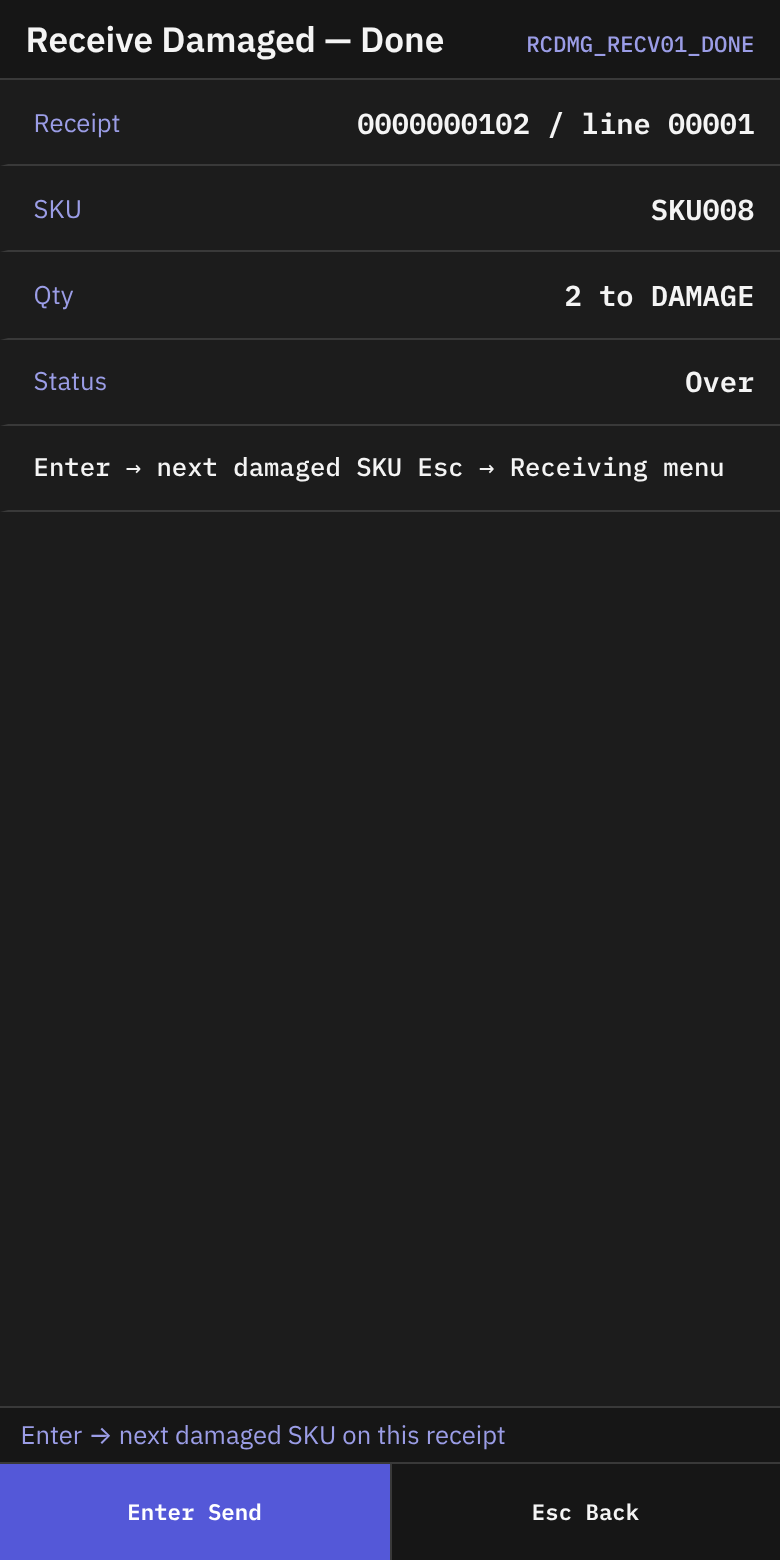
- On Receive Damaged — Done, check Receipt (
{number} / line {n}), SKU, Qty ({qty} to {location}) and Status. - The status line says Enter → next damaged SKU on this receipt. Press
Enter, or pressEscfor the Receiving menu.
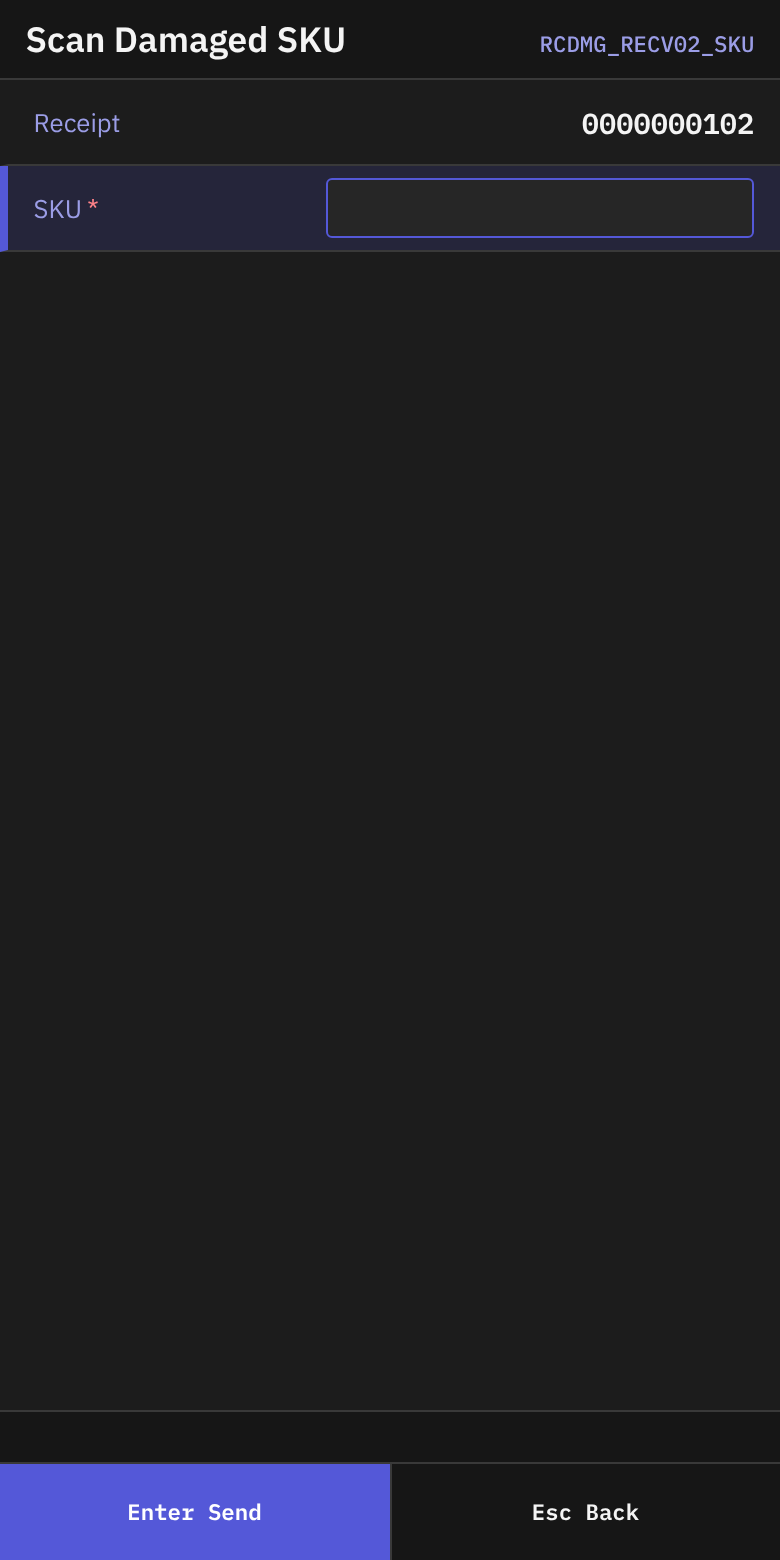
For the next damaged SKU, the terminal shows Scan Damaged SKU (with Receipt) and then Damaged Line with the same fields.
A2. During ASN receiving (the Damage key)
- On Receipt Summary, press
F4(Damage).
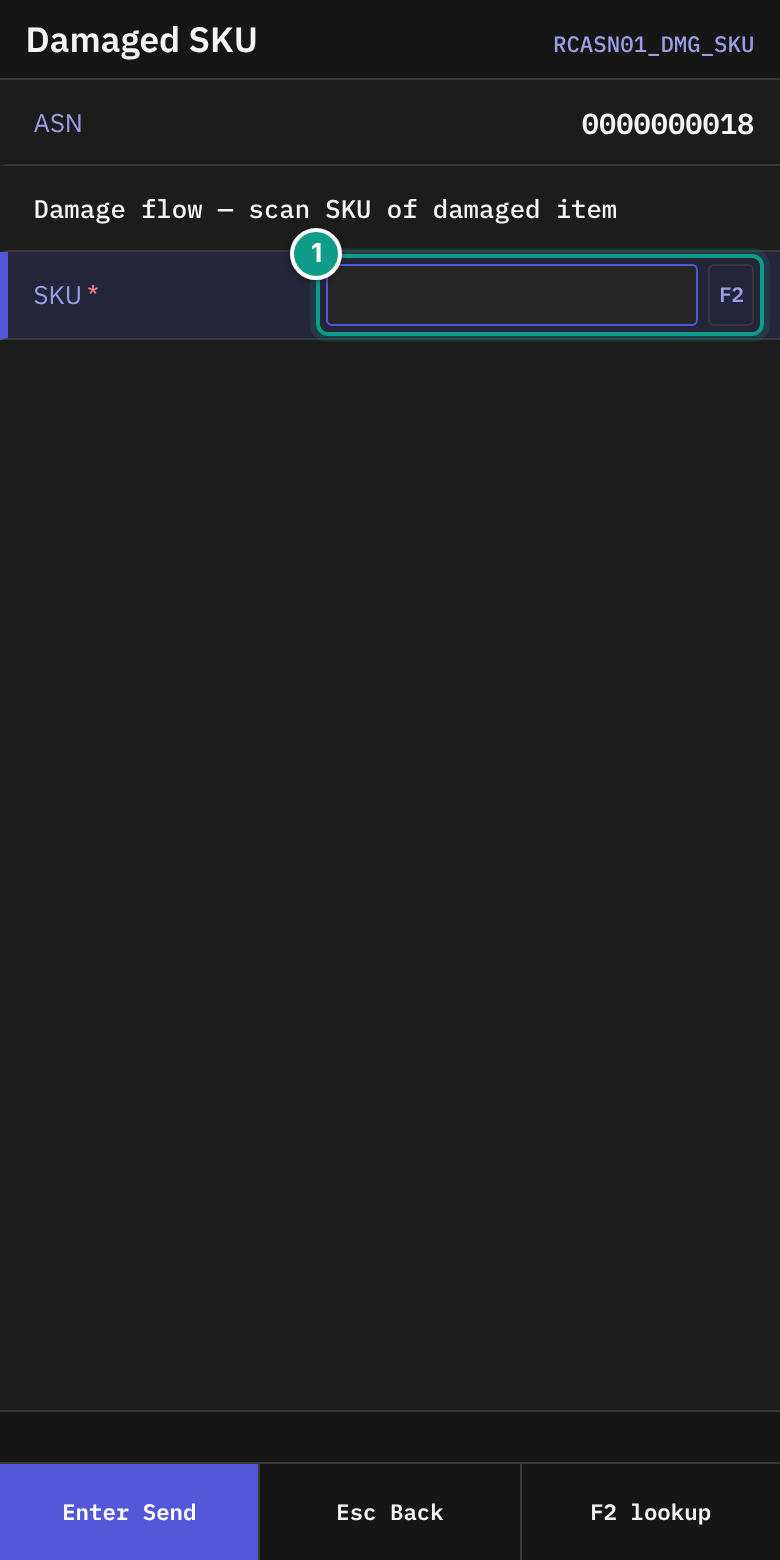
- On Damaged SKU, read Damage flow — scan SKU of damaged item. Check ASN.
- In SKU, scan the damaged item.
F2lists the SKUs of the receipt.
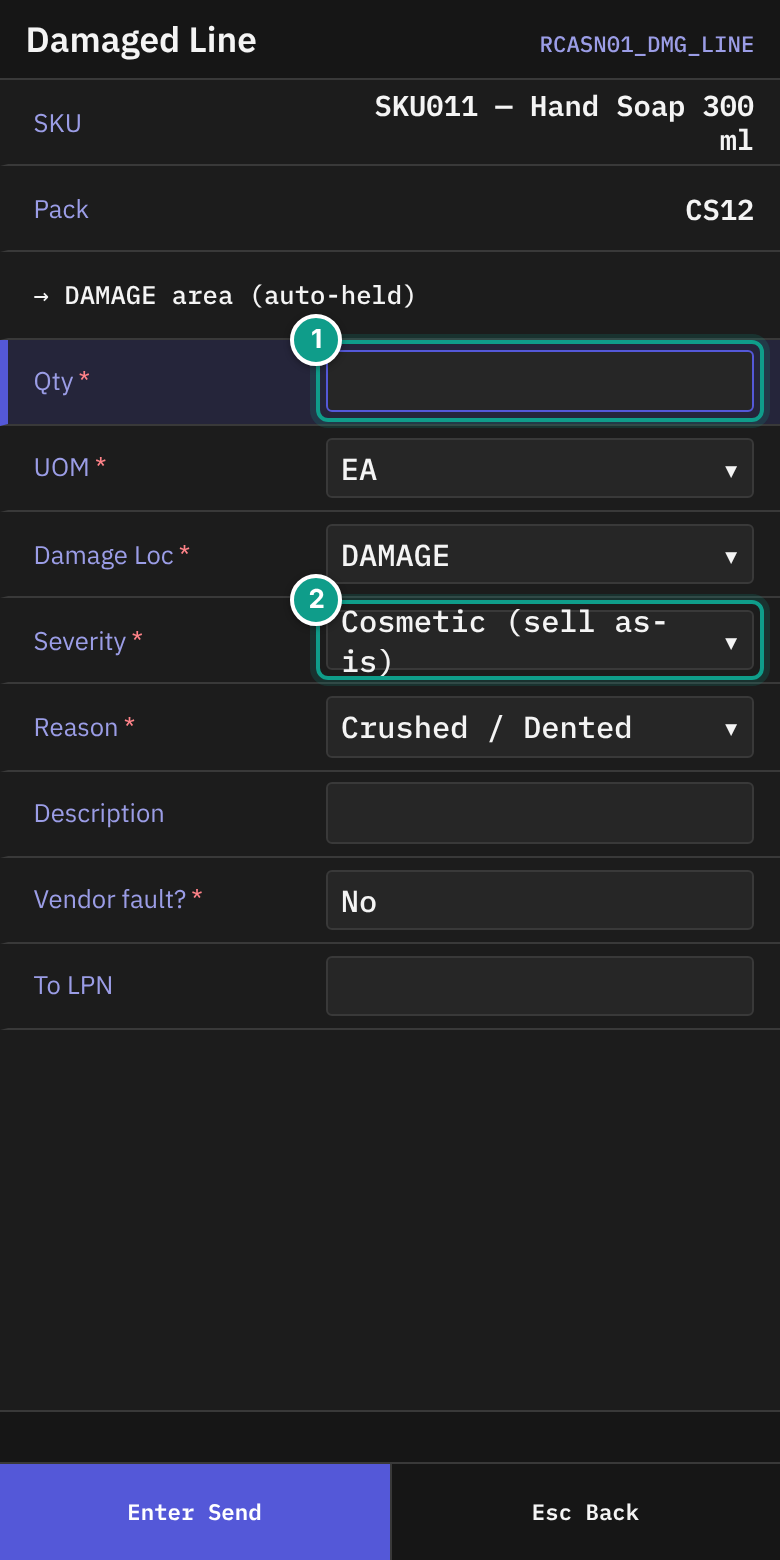
- On Damaged Line, fill in the same fields as in A1, without Type.
- Press
Enter. The terminal returns to Damaged SKU. Scan the next damaged SKU, or pressEscto go back to the summary.
B. Close a receipt
You can reach Close Receipt in three ways:
- From Receiving, press
5(Close Receipt). - From a Done screen of blind, return or case-level receiving, press
F8(Close). - From Receipt Summary (ASN receiving), press
F8(Close). This closes the receipt directly.
B1. Open the receipt
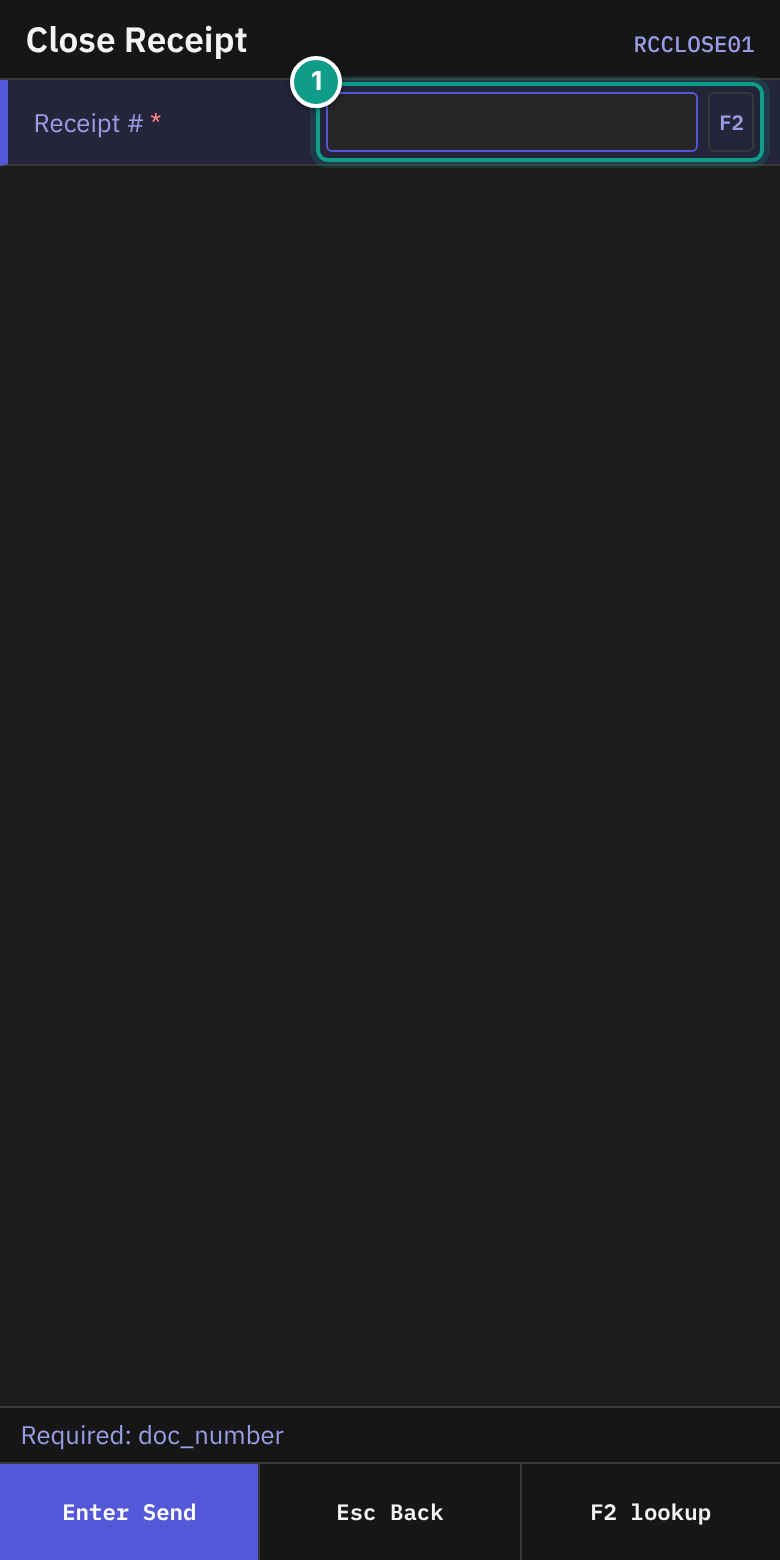
- On Close Receipt, read the status line: Scan the receipt number.
- In Receipt #, scan or type the number. If you came from a Done screen, the number is already there.
F2lists receipts. - Press
Enter.
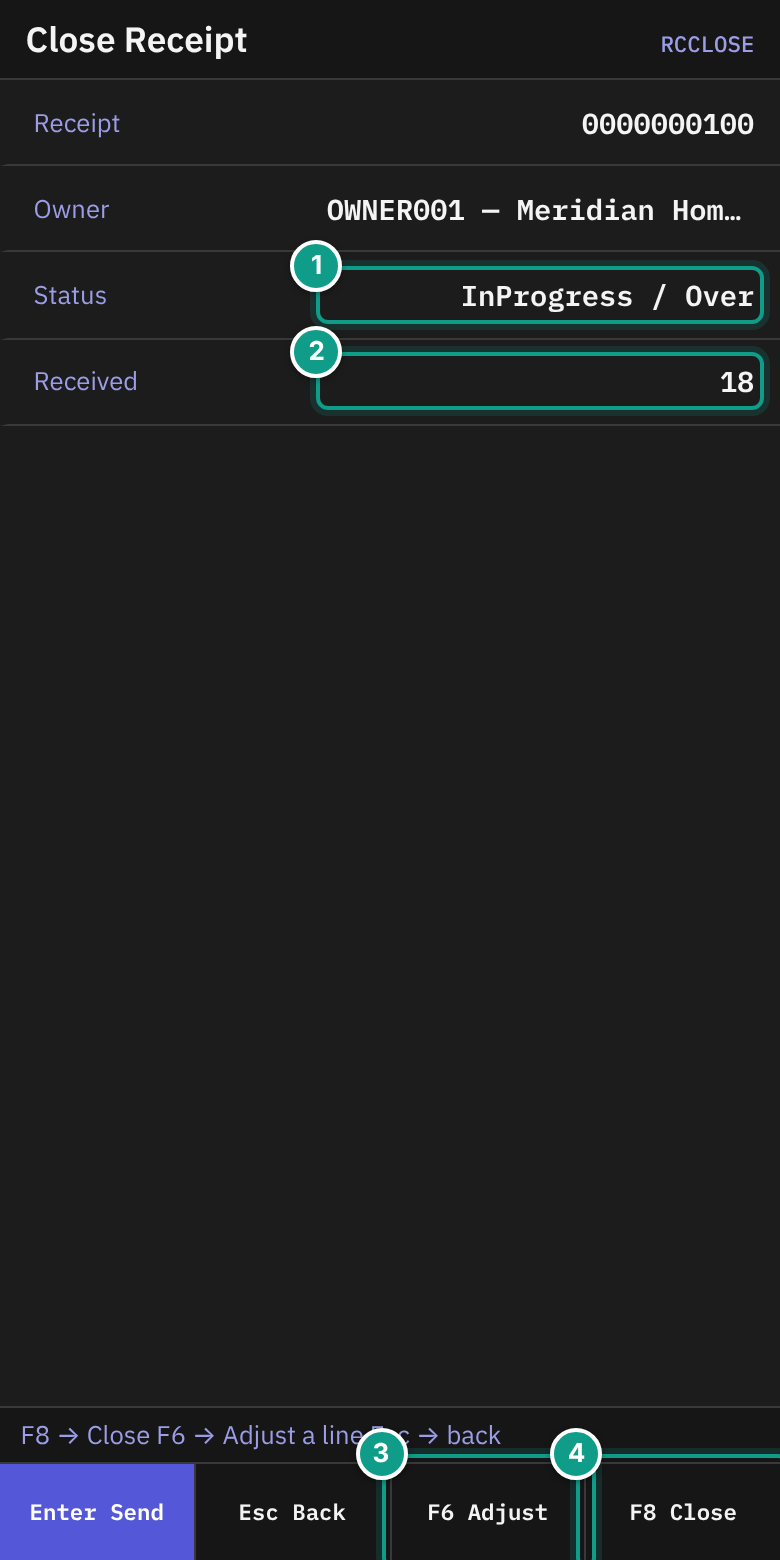
- Check the second Close Receipt screen:
| Line | What it shows |
|---|---|
| Receipt | The receipt number, and the external number if there is one |
| Owner | Owner code and company |
| Status | Status and completion |
| Received | Received over expected, with a percent bar. If no quantity is expected, it shows only the received quantity. |
| Adjusted | Only after a correction: {line} {sku}: {old} → {new} |
| (no label) | Supervisor authorized — F8 to close. Shown after a supervisor approved. |
The status line says F8 → Close F6 → Adjust a line Esc → back.
- To close, press
F8(Close). - If the receipt closes, Receipt Closed appears. Press
Enter.
B2. Correct a quantity before closing
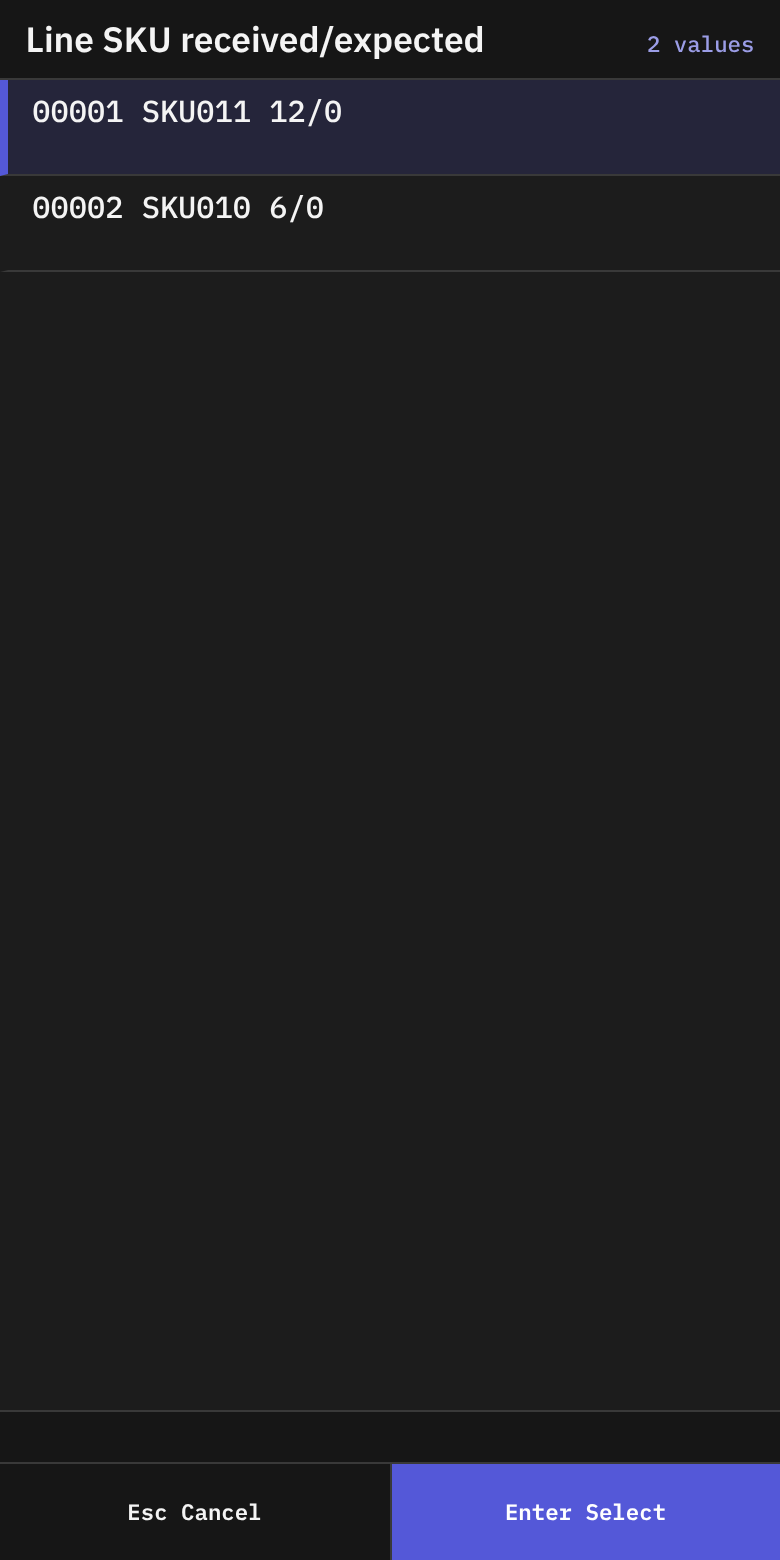
- On Close Receipt, press
F6(Adjust). - On Adjust — Pick Line, the list is titled Line SKU received/expected. Each row reads
{line} {sku} {received}/{expected}. - Choose the line with
Enter. If the receipt has no lines, you see No lines on this receipt. PressEsc.
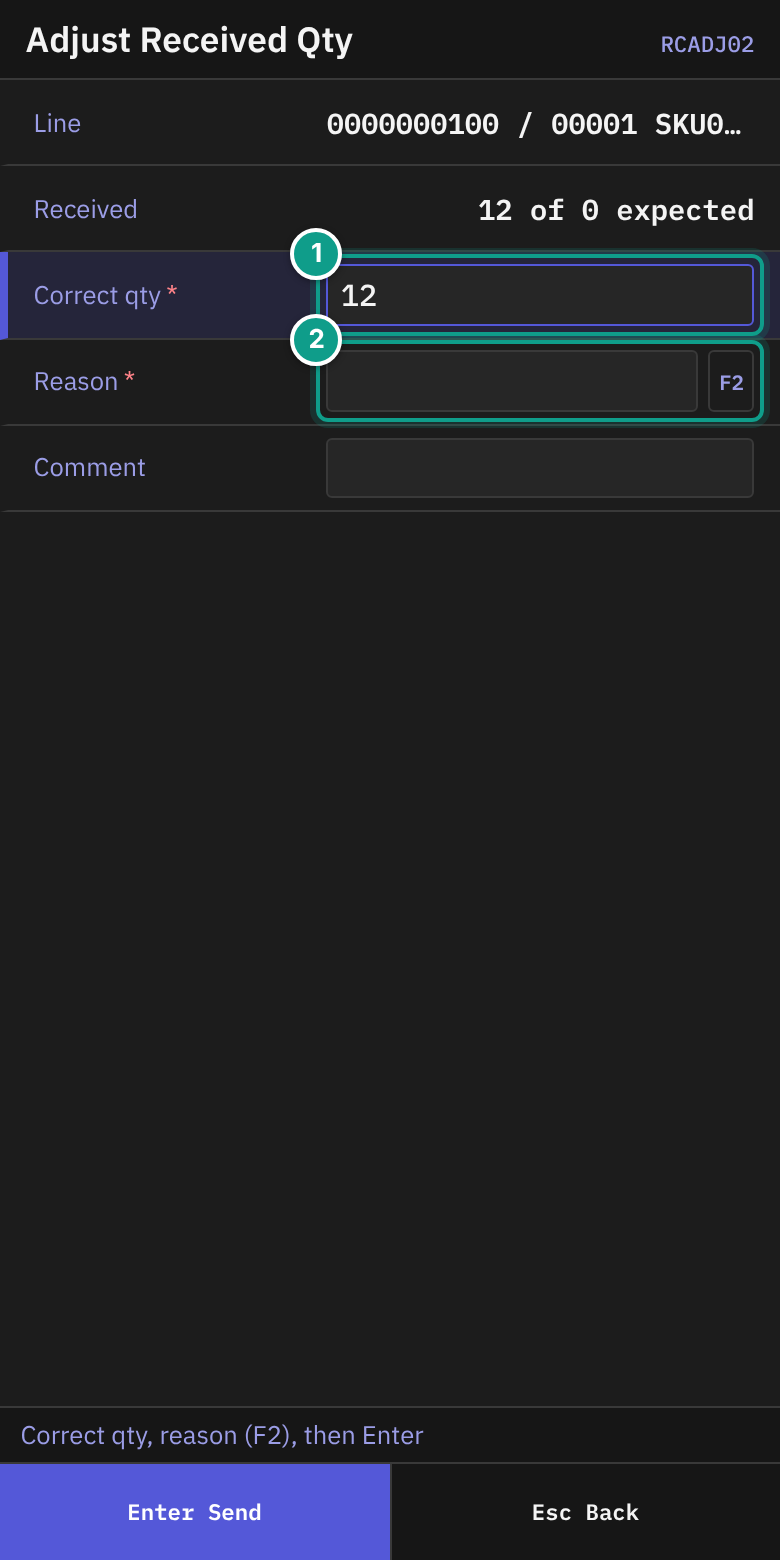
- On Adjust Received Qty, read the status line: Correct qty, reason (F2), then Enter.
- Check Line and Received (
{received} of {expected} expected). - In Correct qty, type the right quantity. The field starts with the current quantity.
- In Reason, press
F2and choose a reason. Required. - In Comment, type a note if needed (up to 200 characters).
- Press
Enter. If you left the quantity unchanged, nothing happens. - The terminal returns to Close Receipt. The line Adjusted shows your change.
B3. A supervisor must approve the close
If the receipt differs from its plan, the close is refused and the terminal opens Supervisor Override.
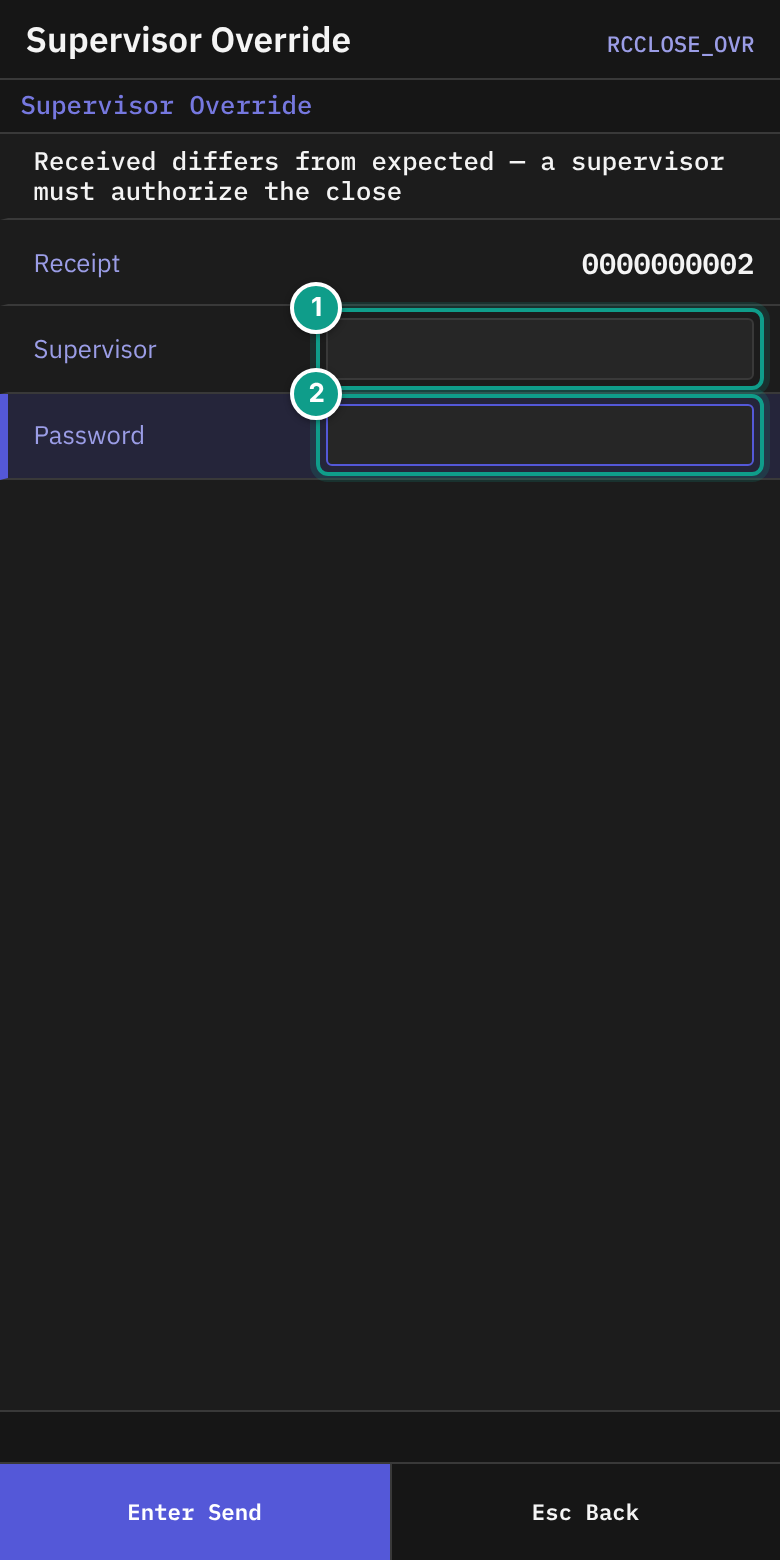
- Read the text: Received differs from expected — a supervisor must authorize the close. Check Receipt.
- Give the terminal to the supervisor.
- The supervisor types the user name in Supervisor and the password in Password, then presses
Enter. The status line shows Authorizing…. - The terminal returns to Close Receipt. The line Supervisor authorized — F8 to close appears.
- Press
F8(Close) again.
You can press Esc to cancel and go back.
C. Force-close a serial capture (supervisor)
Only a supervisor does this. Use it when an operator left a capture open and it cannot be finished.
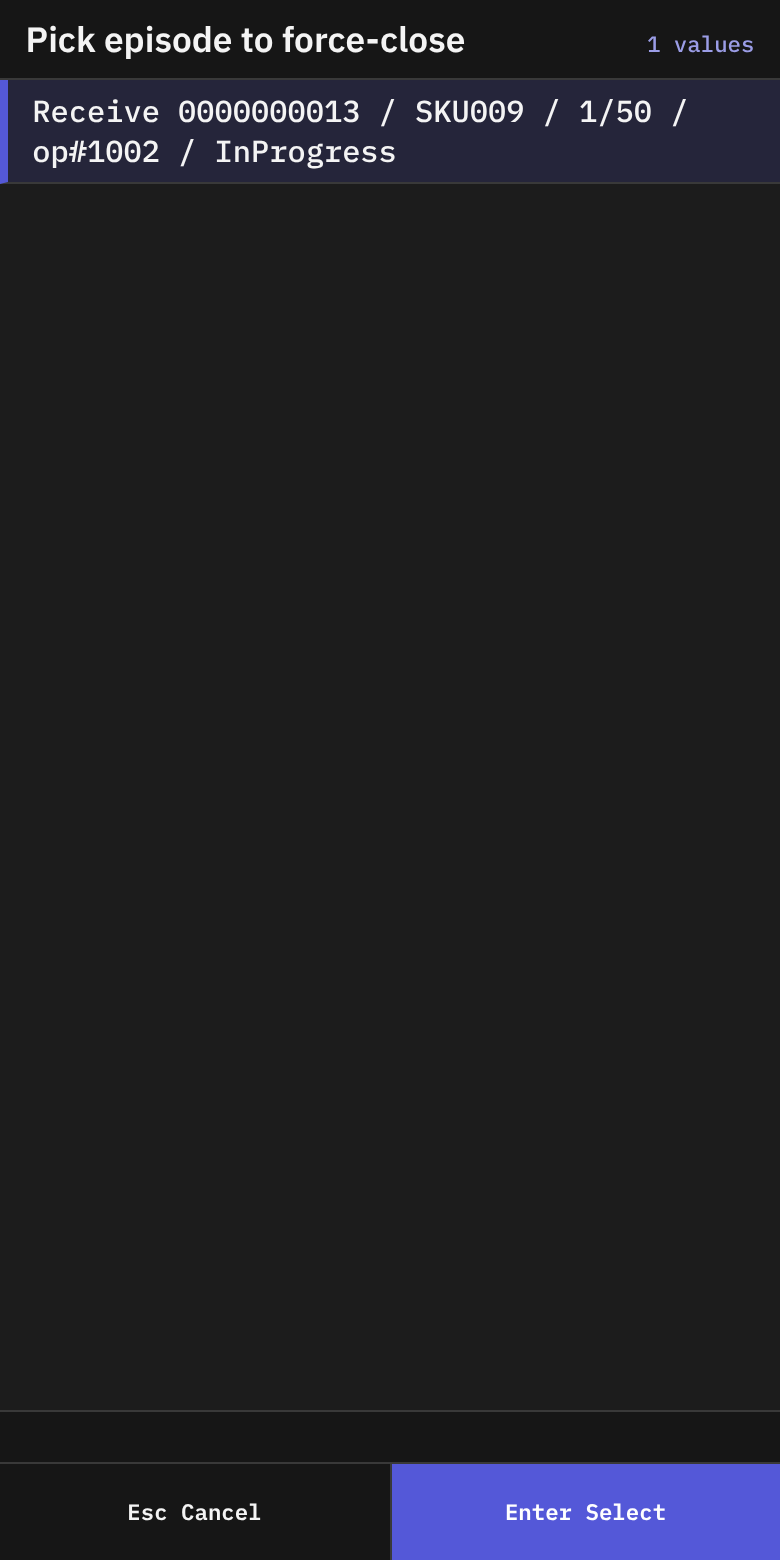
- On Receiving (or Picking), press the key for Force-Close Episode (supervisor).
- On Force-Close Episodes, read the list Pick episode to force-close. Each row reads
{operation} {document} / {sku} / {captured}/{expected} / op#{operator} / {status}. - Choose a row with
Enter. If nothing waits, the status line says No episodes need force-close. PressEsc.
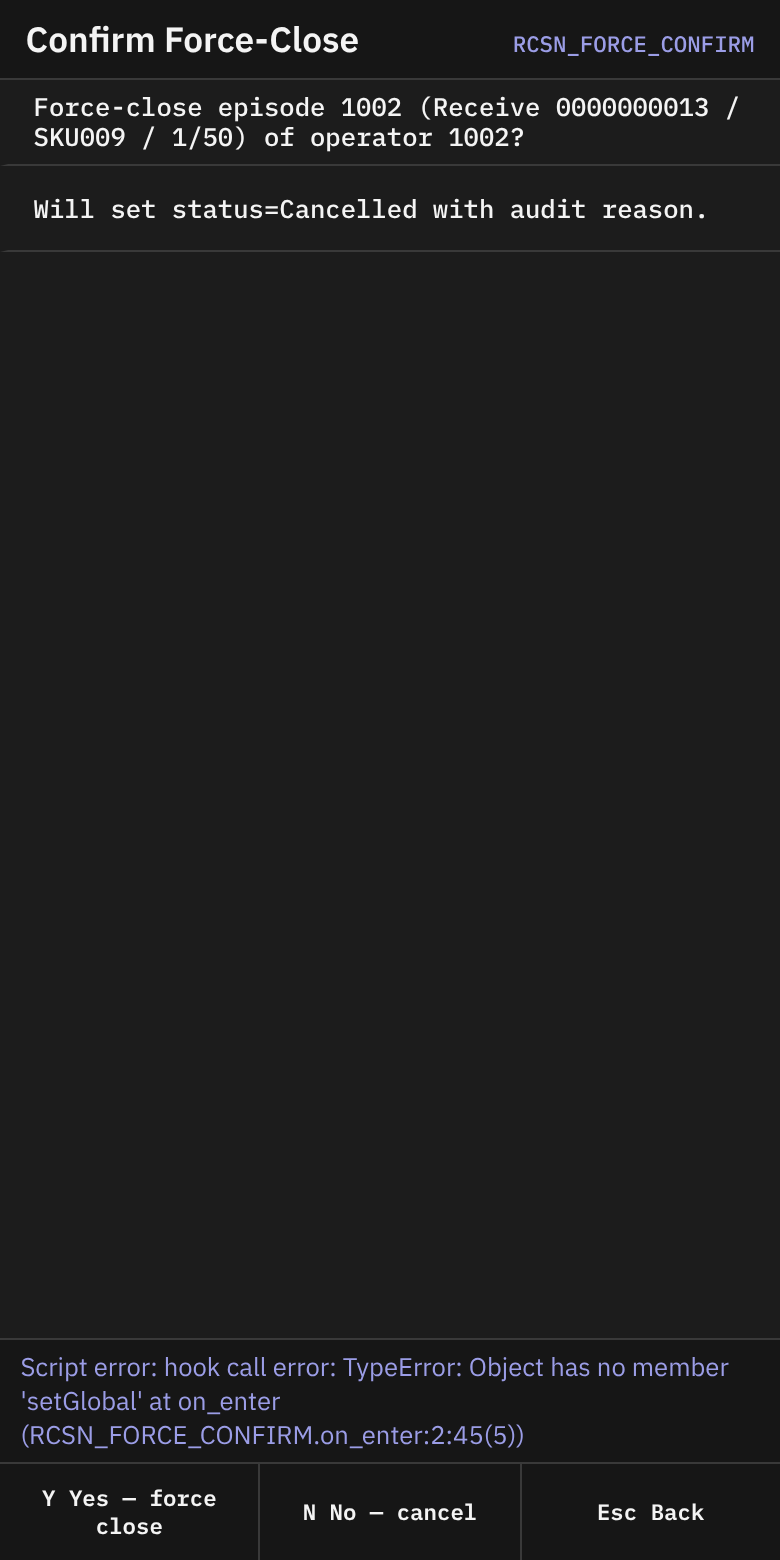
- On Confirm Force-Close, read the question Force-close episode {id} ({operation} {document} / {sku} / {captured}/{expected}) of operator {id}? and Will set status=Cancelled with audit reason. The status line says Y = force-close, N = back.
- Press
Y(Yes — force close) to force-close. PressN(No — cancel) to go back. - After
Y, the list reloads.
The system stores the reason supervisor force-close via RF menu with the change.
What you should see
- Receipt Closed after a successful close.
- A cleared Serials line and no open episodes before the close.
- After a supervisor approval, Supervisor authorized — F8 to close.
If something goes wrong
| Message | What it means | What to do |
|---|---|---|
| Receipt {number} has {n} unresolved serial-capture episode(s): {list}. Finish capturing serials or cancel the episode before close. | A serial capture is still open. | Use Resume Serial Capture and scan the serials. |
| ... Abandoned episodes need supervisor force_close to resolve; operator-active episodes need capture finish or cancel. | Some captures were left by an operator. | Ask a supervisor to force-close them (section C). |
| Receipt {number} has {n} damage record(s) awaiting final disposition | Damage records have no final decision. | Ask your supervisor to decide on the damaged goods first. |
| Receipt {number} is {completion} — supervisor override required to close | Received differs from expected. A supervisor can approve. | Follow section B3. |
| You don't have permission to close receipt {number} with a discrepancy. Ask a supervisor. | Your user may not approve this. | Ask a supervisor to approve on Supervisor Override. |
| Cannot close receipt {number}: completion is {completion} and ALLOW_CLOSE_WITH_DISCREPANCY is off | The warehouse does not allow closing with a difference. | Correct the quantities (B2) or ask your supervisor. |
| receipt was modified concurrently, please retry | Someone changed the receipt. | The terminal tries again up to three times. If it still fails, open the receipt again. |
| receipt is locked, please retry (timeout {ms}ms) | Someone else is using the receipt. | Wait. Try again. |
| override grant is not usable: {reason} | The supervisor approval cannot be used. See the reasons below. | Ask the supervisor to approve again. |
| asn {number} not found | No receipt has this number. | Check the number. |
| No permission: {screen} ({function}) | Your user may not do this. | Ask your supervisor. |
The {reason} in override grant is not usable: {reason} is one of these:
no such grant— the approval does not exist.it was granted to a different operator— the approval was made for another person.it has already been used— the approval was used once already.it has expired — ask the supervisor again— the approval is too old.it was issued for a different receipt— the approval is for another receipt.it was issued for a different line of this receiptorit names the receipt but not the line— the approval does not fit this line.it names a line, and a close is decided for the whole receipt— a line approval cannot close a receipt.it authorises closing the receipt (code {n}), and this command receives a lineorit authorises a line's quantity (code {n}), and this command closes the receipt— the approval is for the other action.this receive opens a new line, which no grant can name in advance — a supervisor must acknowledge it at this terminal— the supervisor must approve at your terminal.
Everyone sees Force-Close Episode (supervisor) in the menu. The server blocks it for users without the right. By default only Admin, Manager and Supervisor roles may force-close, and all three can open the list of episodes (a Supervisor could not before F-25). An operator can open the list, but Y on Confirm Force-Close is refused with No permission: force_close_episode.
What the supervisor sees
A closed receipt has status Closed. A close with a difference is stored with the supervisor who approved it. A force-closed episode gets status Cancelled with an audit reason.