Picking
What you will do
Pick goods for orders. There are two ways to work:
- Discrete Pick: you get one pick at a time and put the goods on a pallet.
- Pick by Area: you work in a work area. You may take a carrier with boxes and walk a route.
You also close pallets, deliver carriers, and report problems (short, reject, box full, box damaged).
Before you start
- Have empty pallet labels that start with
DRP(for discrete pick). - For carrier work, have an empty carrier and empty boxes.
- Know your work area and what equipment you use.
- Some picks ask you to confirm the source: location, item, LPN, lot or a lot attribute. The screens ask in the order the system sets.
- Your user must have the right to take pick work in your work area.
- A supervisor is needed to dissolve an assignment that already has picked goods, and to close a pallet that belongs to another operator.
Your supervisor gives each operator the right to take pick work per work area. The system checks this every time you ask for work, so a change applies at once. The zones your equipment cannot enter are left out. The terminal cannot show you the list of your areas. If a work area is not on your list, you see you have no right to take pick tasks in work area {area} — ask a supervisor.
Menu
- On Main Menu, press
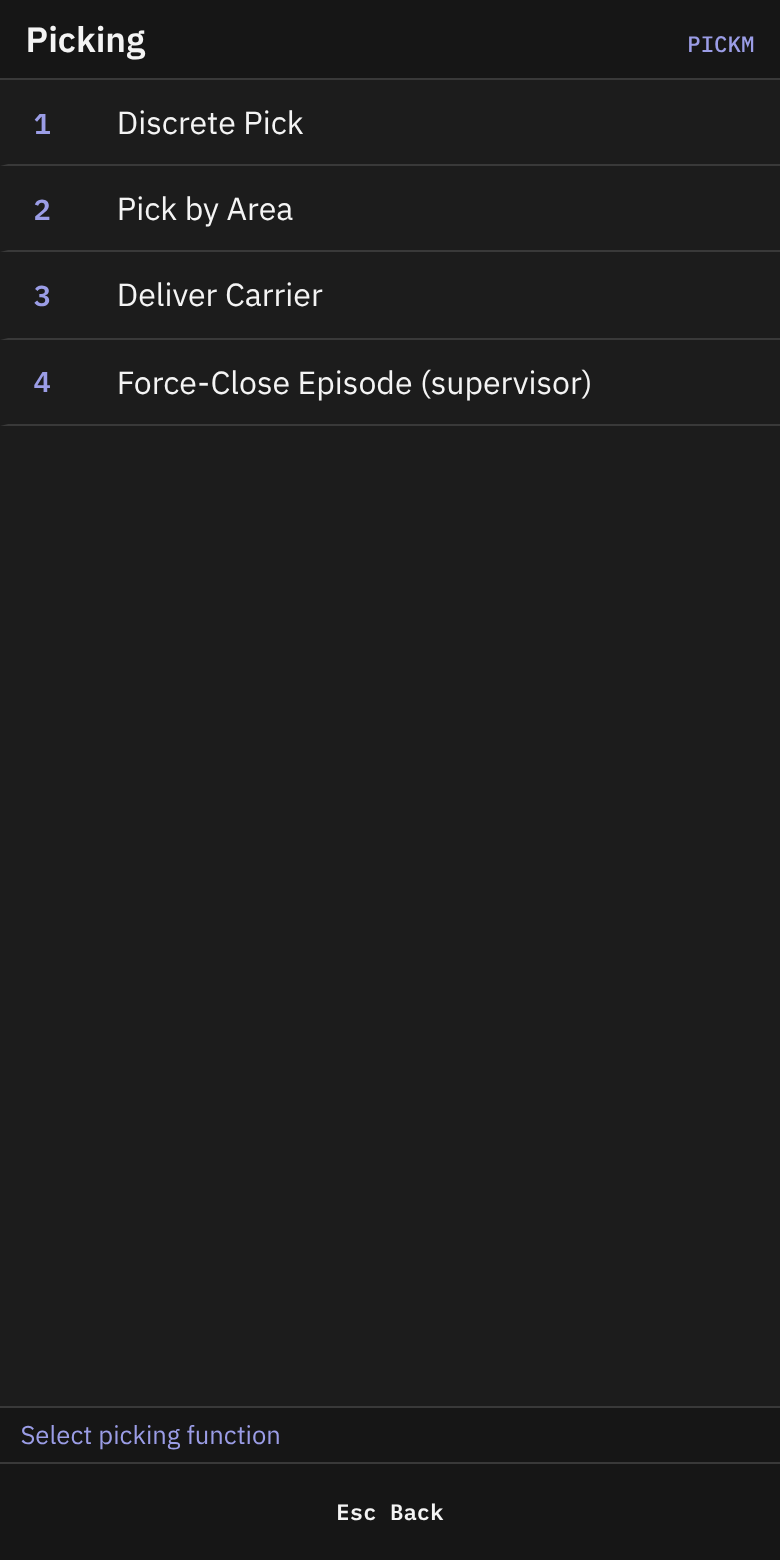
3(Picking). - On Picking (header Picking Menu), choose:
| Key | Item | Use it to |
|---|---|---|
1 | Discrete Pick | Pick one task at a time |
2 | Pick by Area | Work in a work area, with or without a carrier |
3 | Deliver Carrier | Deliver a carrier you scan |
4 | Force-Close Episode (supervisor) | Supervisor only. See 04. |
A. Discrete Pick
A1. Get work
- On Get Pick Work, read the status line: Enter current location or press Enter.
- In Current loc, scan your location, or leave it empty. Press
Enter. - The system gives you work, or shows a message in a line above the field.
The footer shows F2 Close pallet.
What happens next depends on the system:
- A pallet you must close first: Close Pallet opens.
- An open carrier assignment: the carrier screens in section B open.
- A new pick: Pick Work opens.
- Nothing: the screen stays and shows the message.
A2. Review the pick
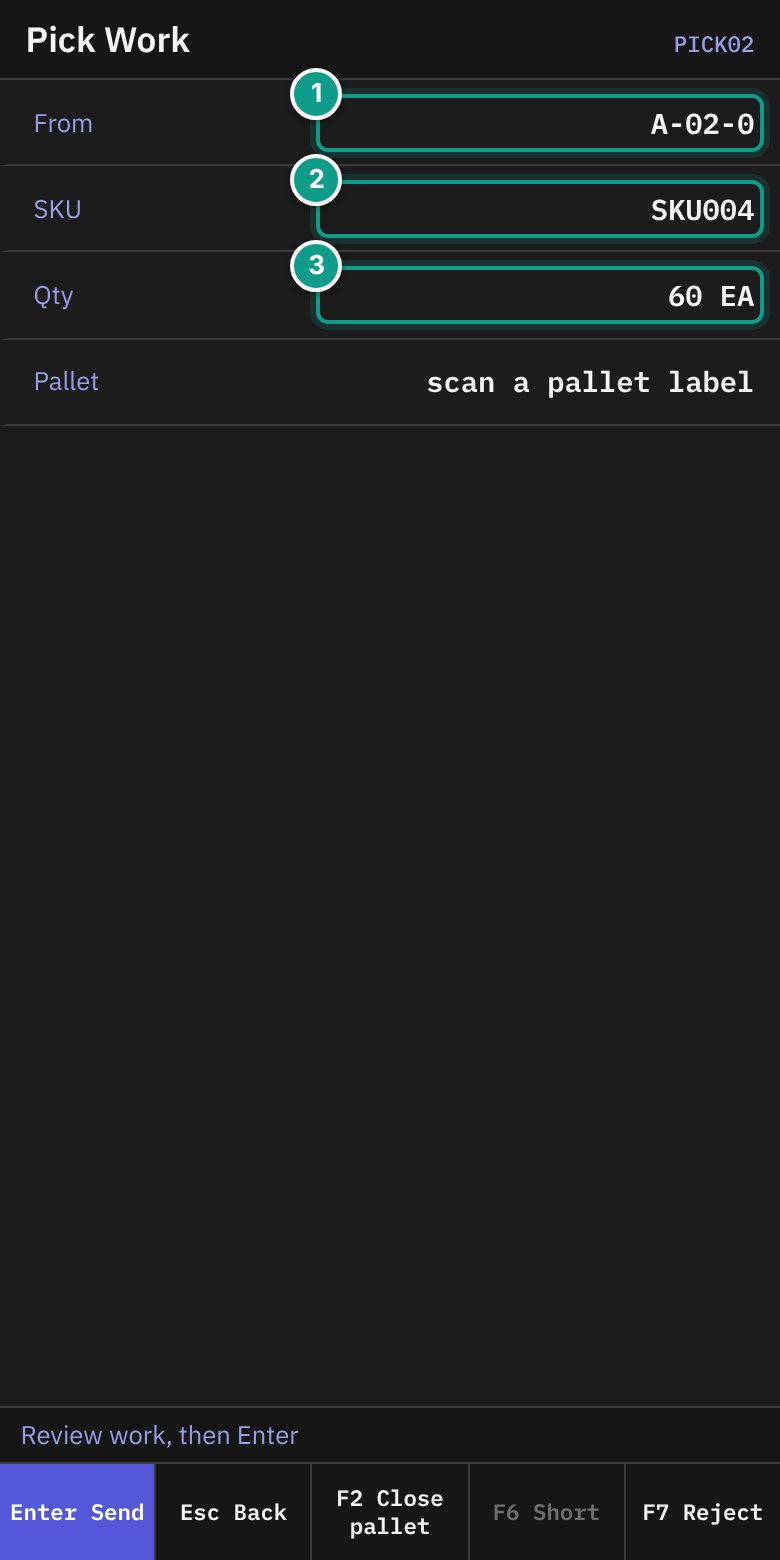
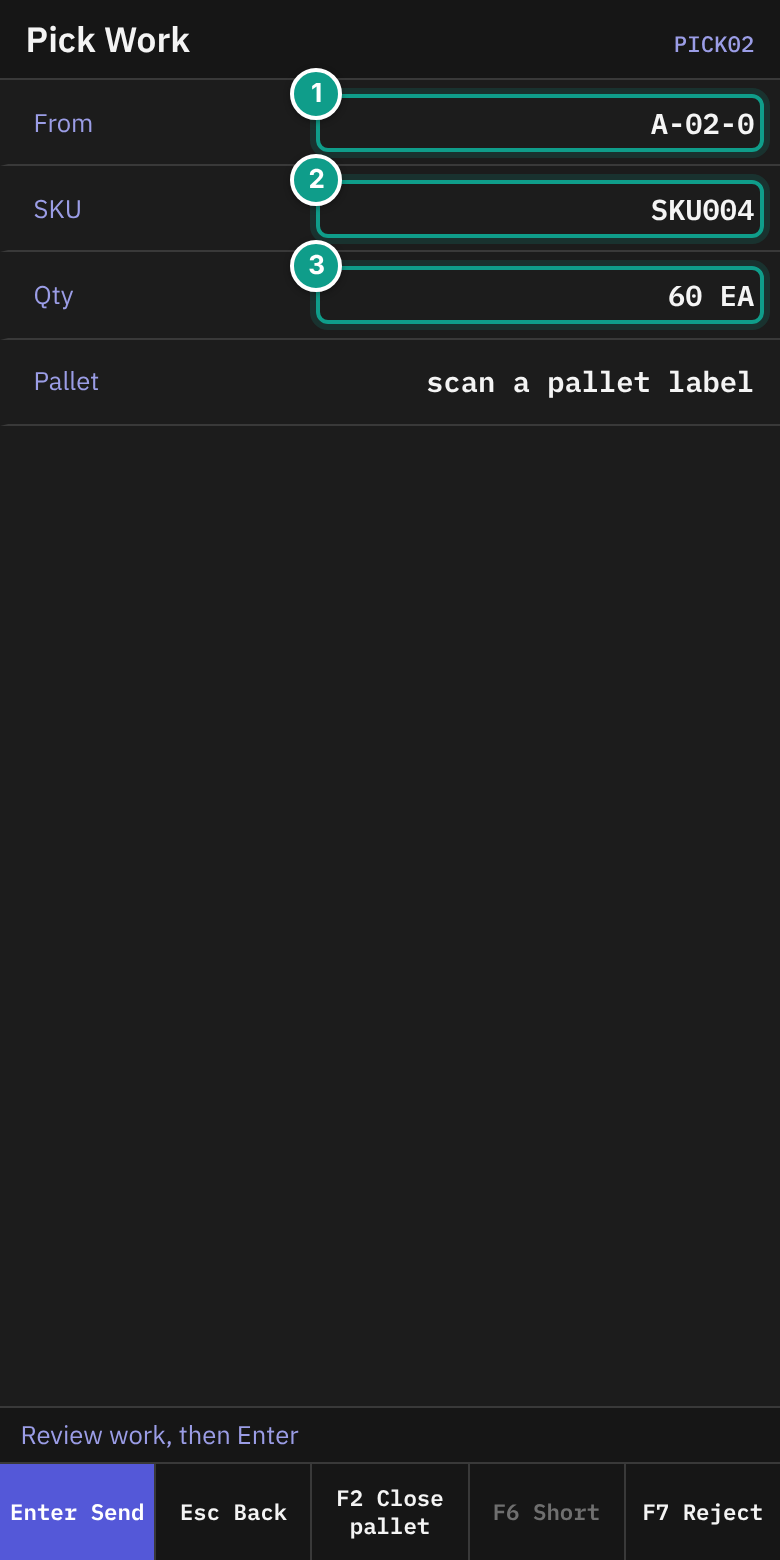
- On Pick Work, read the status line: Review work, then Enter.
- Check:
| Line | What it shows |
|---|---|
| From | The source location |
| Lot | The lot. Shown only if the pick has a lot. |
| SKU | The item |
| Qty | Quantity and unit |
| Pallet | Your pallet label, or scan a pallet label if you have none |
| Serials | Serials captured over expected. Shown only for serial-tracked items. |
| Blocked | Why you cannot go on. Shown only when the pick is blocked. |
- Press
Enter.
The footer shows F2 Close pallet, F6 Short and F7 Reject. F6 works only when the pick is blocked here. You can also use it on Confirm Quantity.
A3. Read the pick instructions
If the pick has instructions, Pick Instructions opens first.
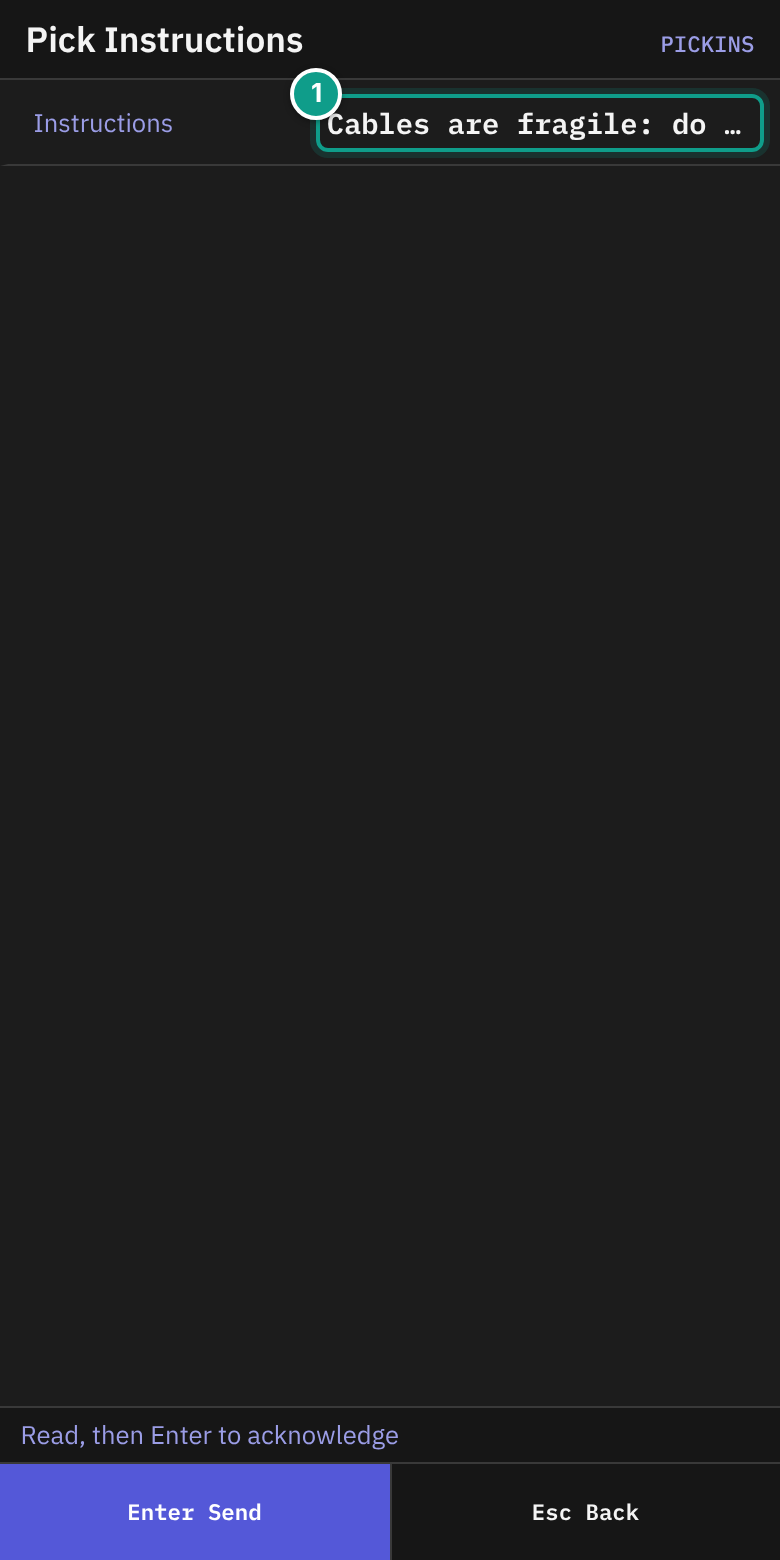
- Read Instructions. The status line says Read, then Enter to acknowledge.
- Press
Enter.
A4. Open a pallet
If you have no pallet, Open Pallet opens.
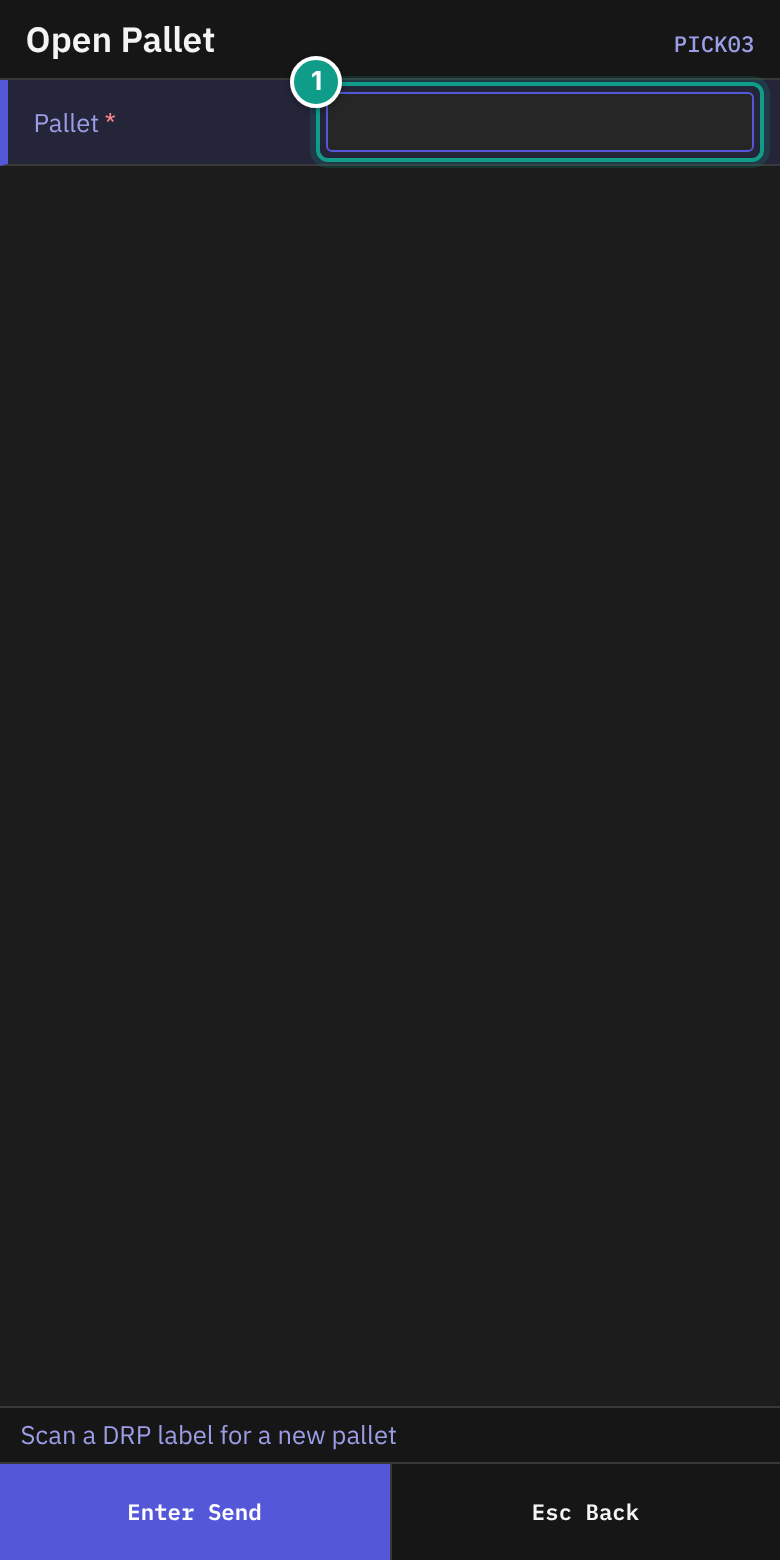
- Read the status line: Scan a DRP label for a new pallet.
- In Pallet, scan an empty pallet label. The label starts with
DRPand has 4 to 50 letters, digits,-or_.
A5. Confirm the source
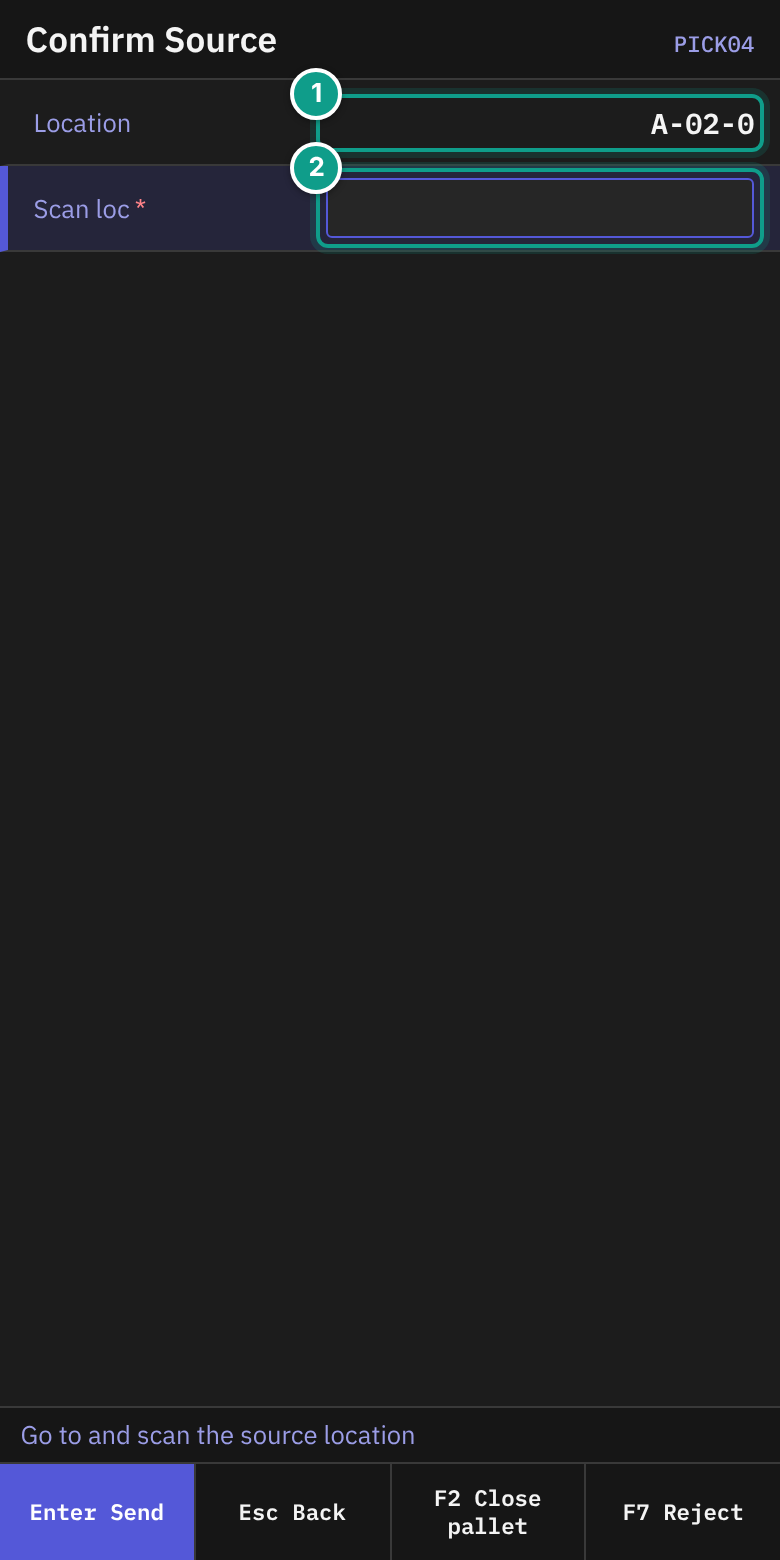
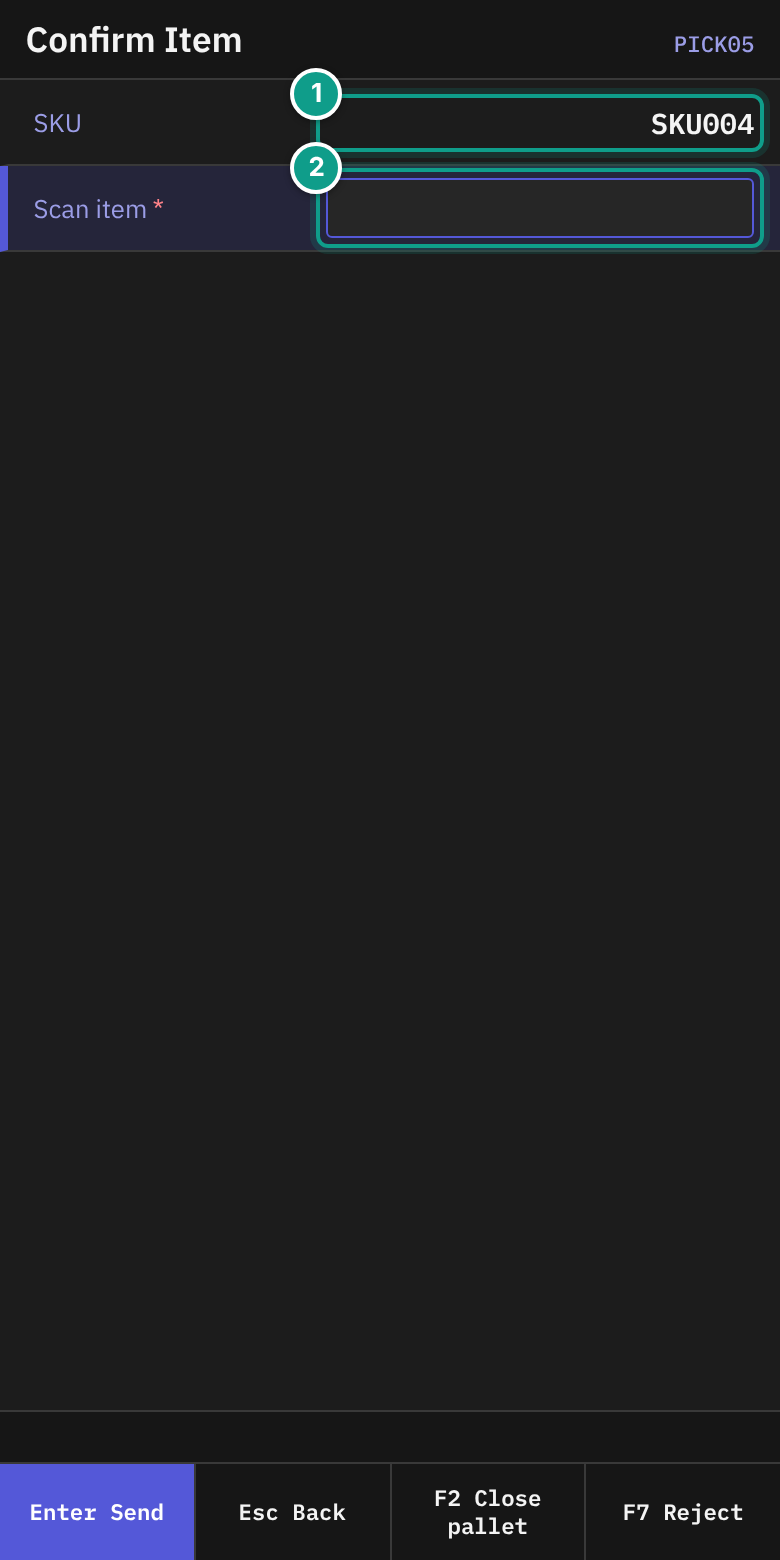
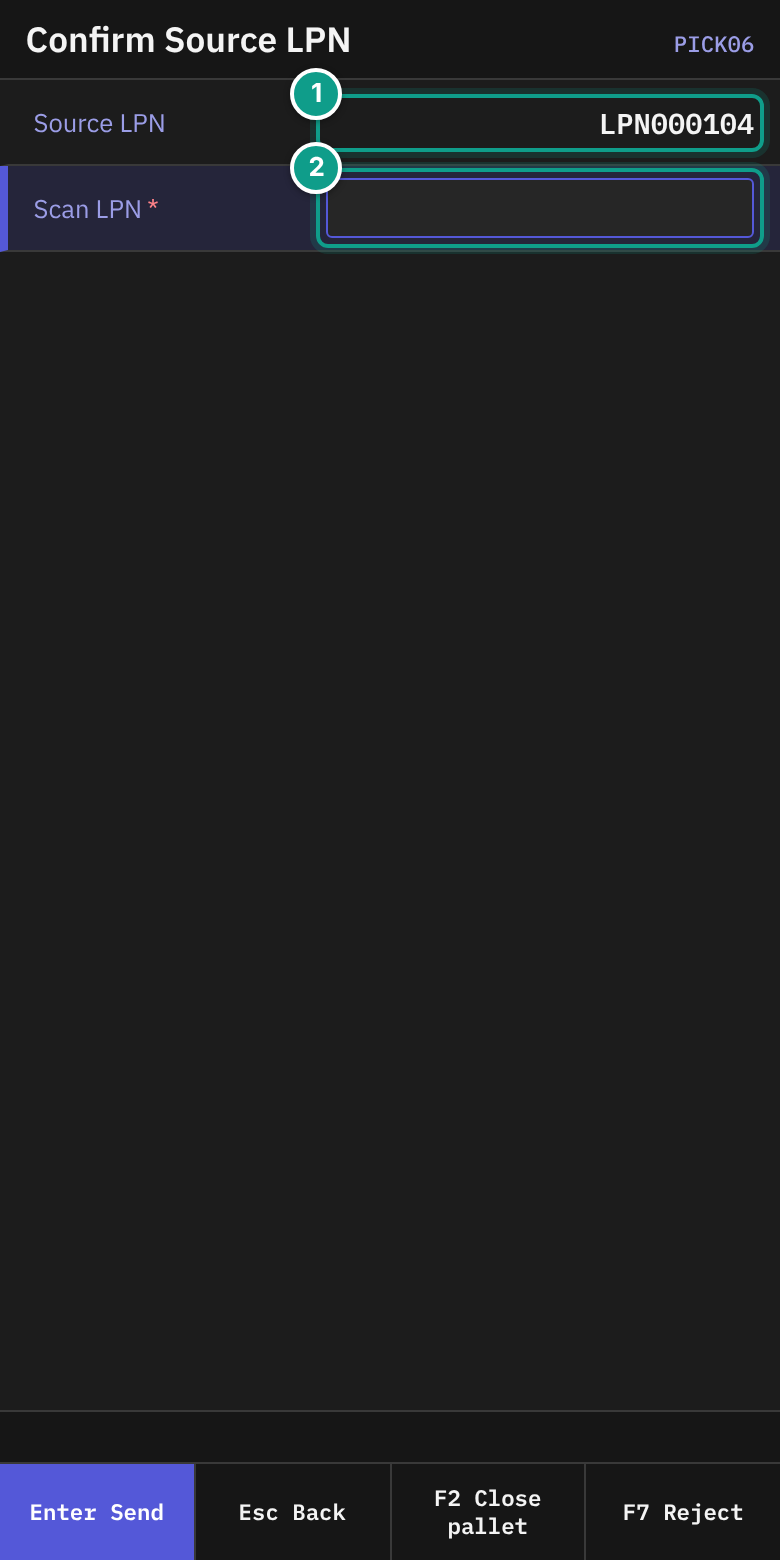
The system asks for some of these confirmations, one after the other.
| Screen | You scan | Prompt |
|---|---|---|
Confirm Source (PICK04) | The source location in Scan loc | Go to and scan the source location |
Confirm Item (PICK05) | The item in Scan item | (the line SKU shows the expected item) |
Confirm Source LPN (PICK06) | The pallet label in Scan LPN | (the line Source LPN shows the expected one) |
Confirm Lot (PICK14) | The lot label in Scan lot | Scan the lot label of the source |
Confirm Lot Attribute (PICK15) | The value in Value | Check the goods: scan or enter the value |
On each screen the line above the field shows what is expected. The footer shows F2 Close pallet and F7 Reject.
A6. Confirm the quantity
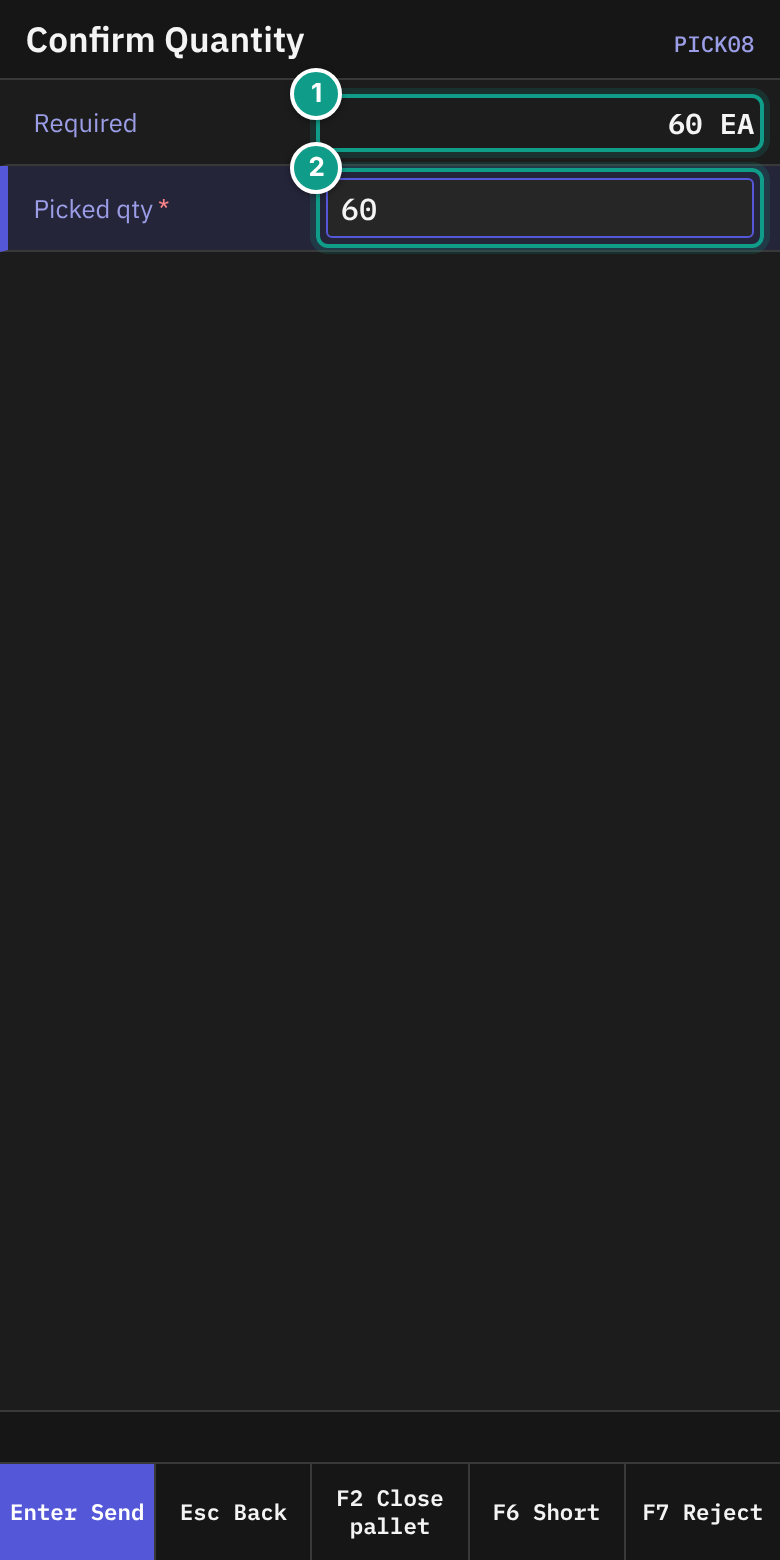
- On Confirm Quantity, check Required.
- In Picked qty, check the number. It starts with the required quantity. Change it only if you took another quantity.
- Press
Enter.
For a serial-tracked item, Pick Serials opens next.
- On Pick Serials, read the status line: Scan serials from the reserved source. Progress shows
{captured}/{expected}. - In Serial, scan one unit. Repeat until all are scanned.
- To leave, press
Esc. The terminal asks: Captured {n}/{m}. Exit and resume later? PressY(Exit) orN(Continue).
A7. Commit the pick
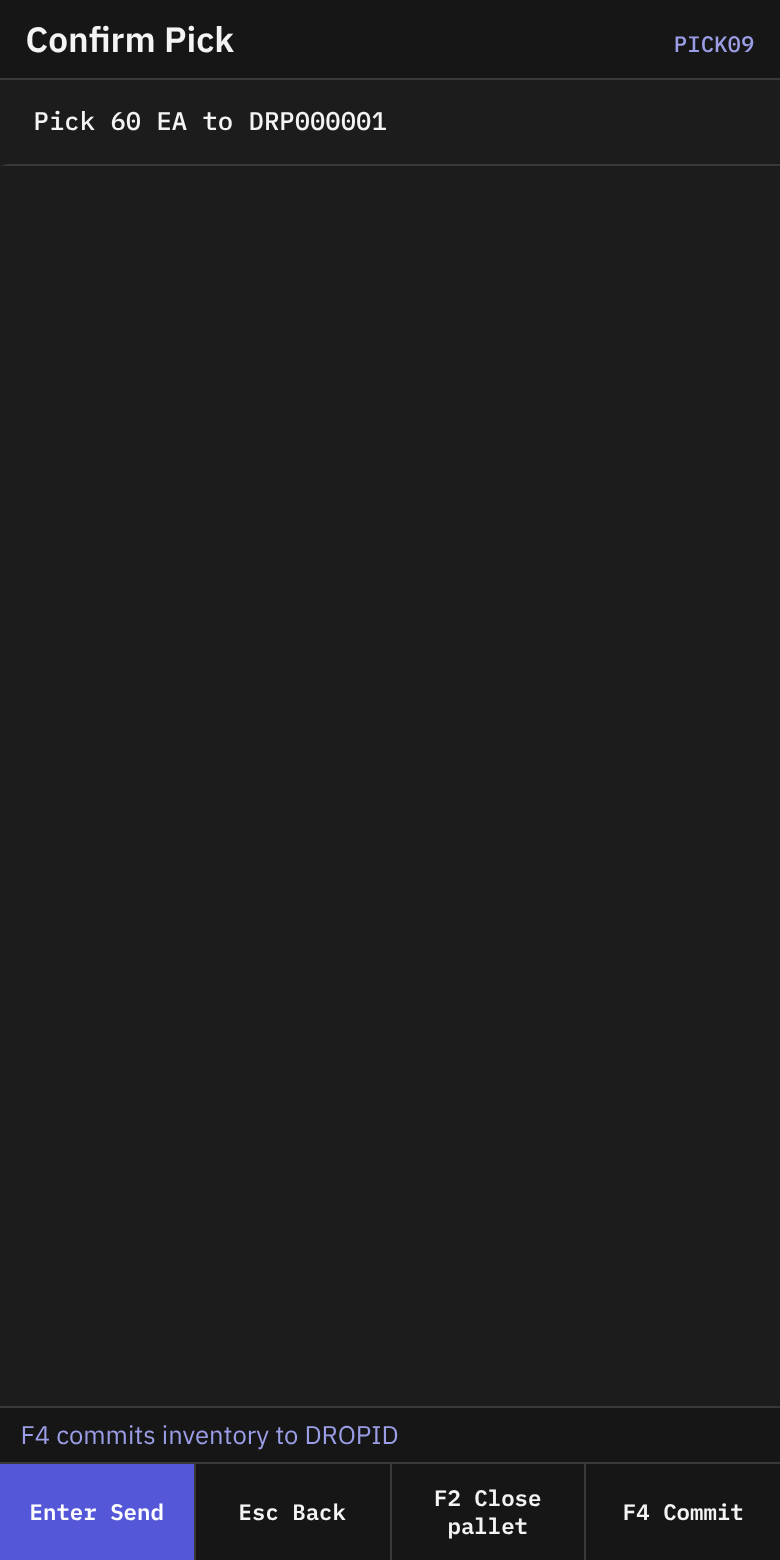
- On Confirm Pick, read the summary:
Pick {qty} {uom} to {pallet}. The status line says F4 commits inventory to DROPID. - Press
F4(Commit).
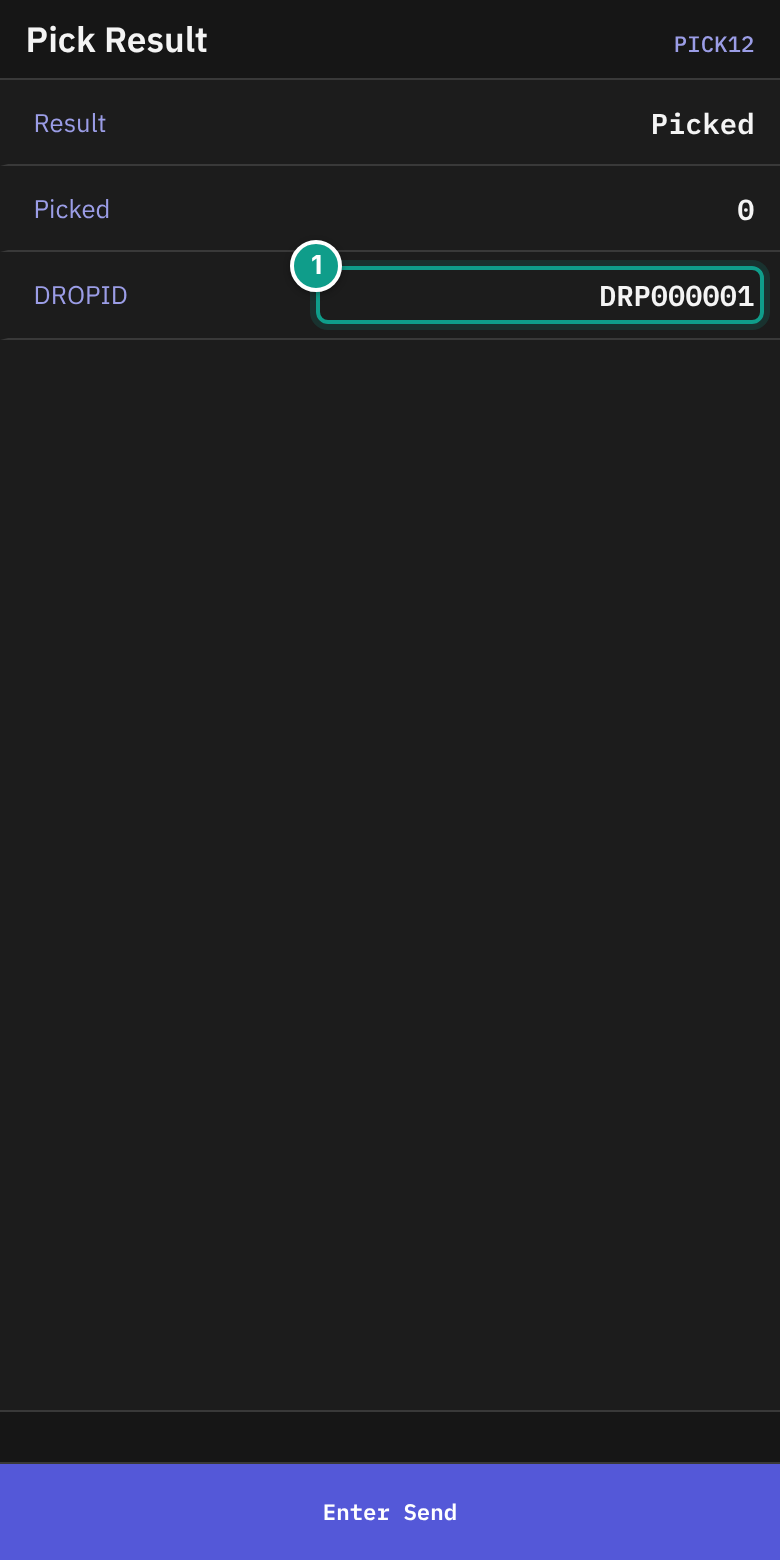
- On Pick Result, check Result (
Doneif there is no other text), Picked and DROPID. - The screen then returns to Get Pick Work (or to Get Area Work if you work by area).
A8. Short pick
Use this when you found less than the required quantity.
- On Pick Work or Confirm Quantity, press
F6(Short).
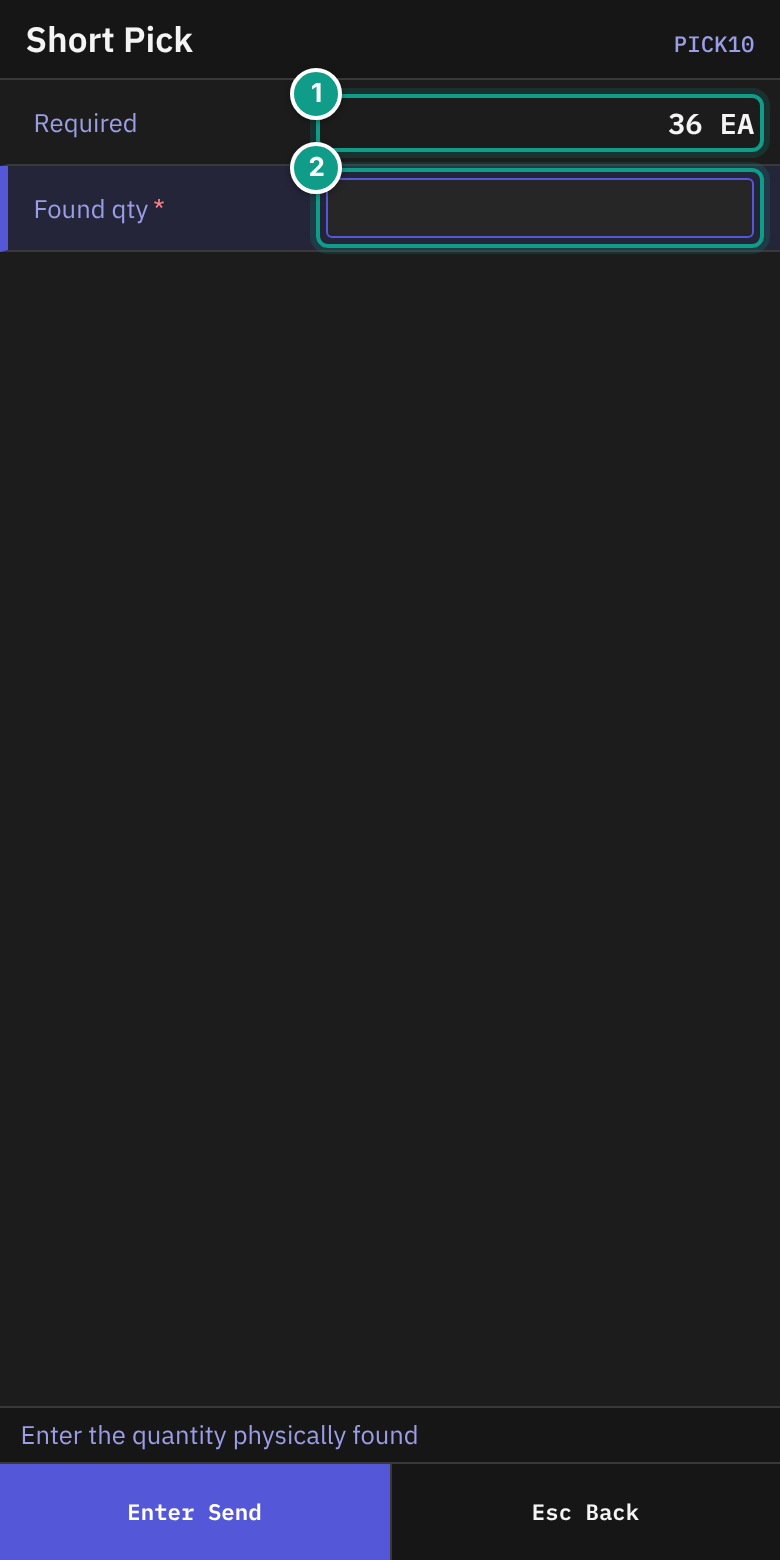
- On Short Pick, read the status line: Enter the quantity physically found. In Found qty, type the quantity. Press
Enter. - For a serial-tracked item with a quantity above 0, scan the serials first (Pick Serials).
- On Short Reason, read the status line: Enter a published short-reason code. In Reason, type the code (up to 50 characters). In Note, type a note if needed (up to 200). Press
Enter.
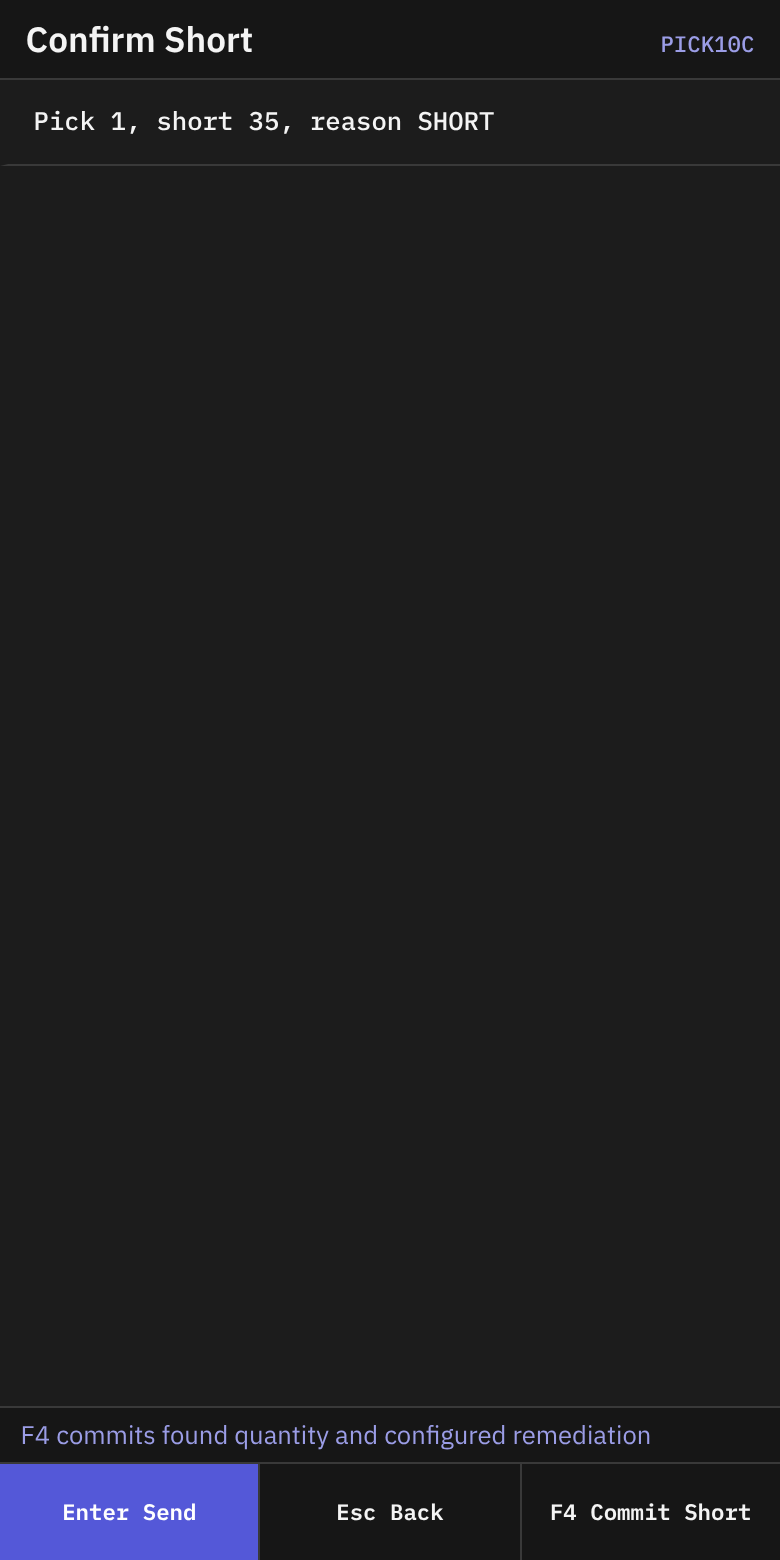
- On Confirm Short, read:
Pick {a}, short {b}, reason {code}. PressF4(Commit Short). - Pick Result appears.
A9. Reject a pick
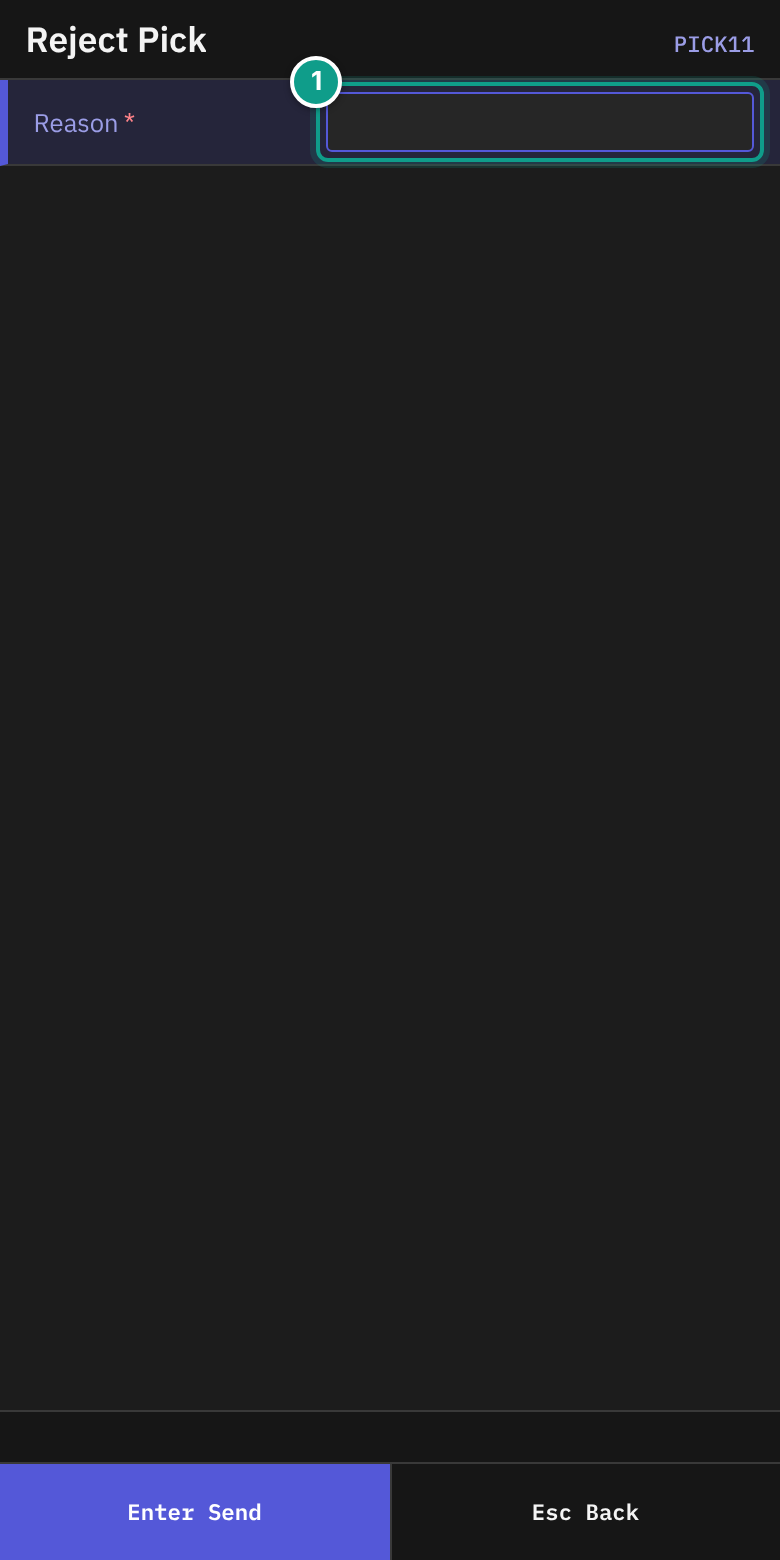
- Press
F7(Reject). - On Reject Pick, in Reason, type why (up to 80 characters). Press
Enter. - Pick Result appears.
A10. Close a pallet
Close a pallet when it is full or the order is done. F2 (Close pallet) works on most pick screens.
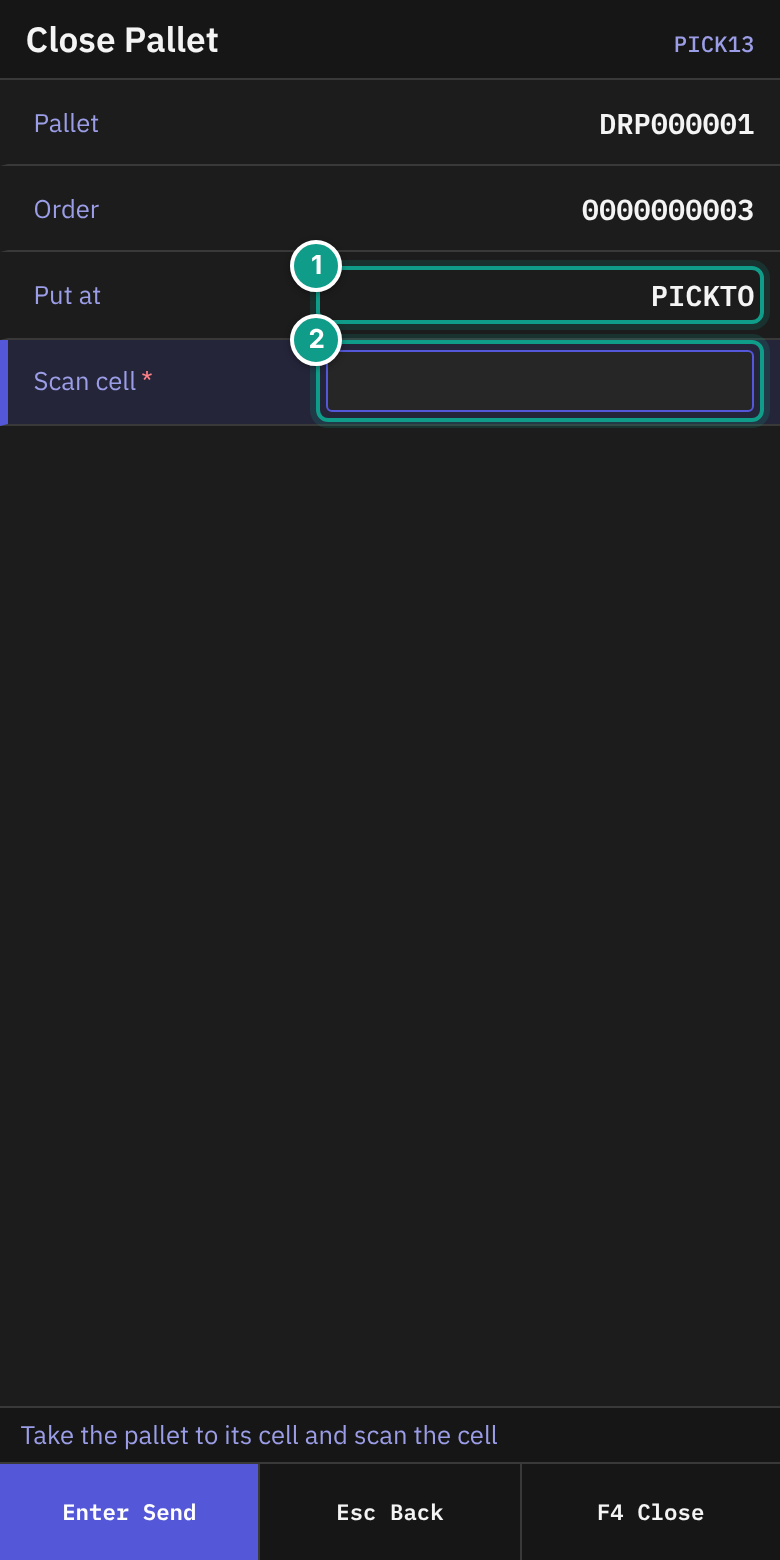
- Press
F2(Close pallet). The status line on Close Pallet says Take the pallet to its cell and scan the cell. - Check:
- Pallet: your pallet label, or no open pallet.
- Order: the order.
- Put at: where the pallet goes.
- If you have no open pallet, type its label in Pallet label.
- Take the pallet to the cell shown in Put at.
- In Scan cell, scan the cell label. The field sends itself.
- Press
F4(Close) if it did not send. - The terminal returns to your work.
If the pallet belongs to another operator, Supervisor Confirmation opens.
- Read This pallet belongs to another operator - a supervisor must confirm the close. Confirming shows
Close pallet {label}. The status line says Supervisor: login and password. - The supervisor types the user name in Supervisor and the password in Password, then presses
Enter. - On Close Pallet, the line Supervisor confirmed - F4 closes appears. Press
F4.
B. Pick by Area
B1. Choose the area and equipment
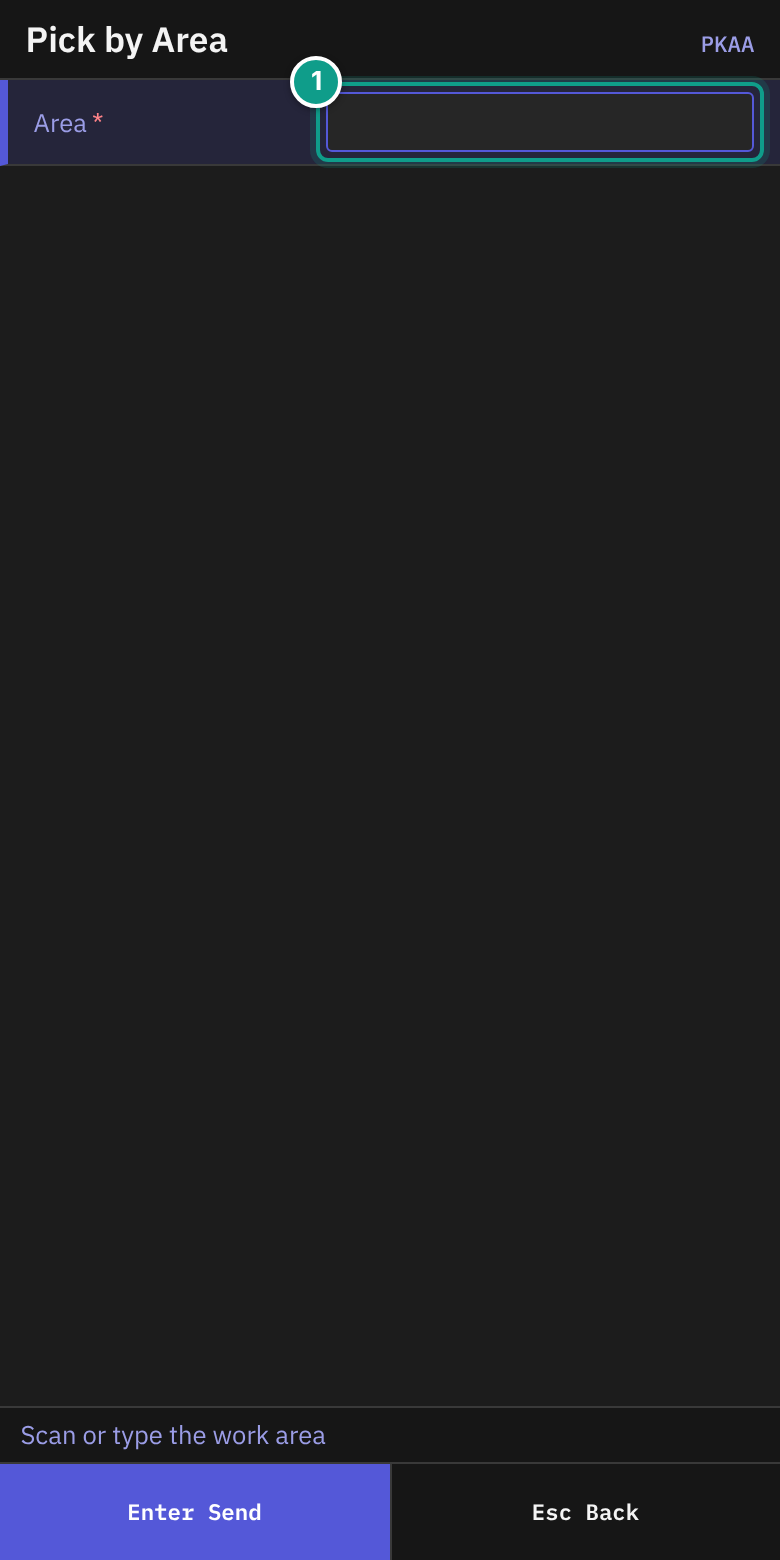
- On Pick by Area, read the status line: Scan or type the work area.
- In Area, scan or type the work area (up to 30 characters). Press
Enter.
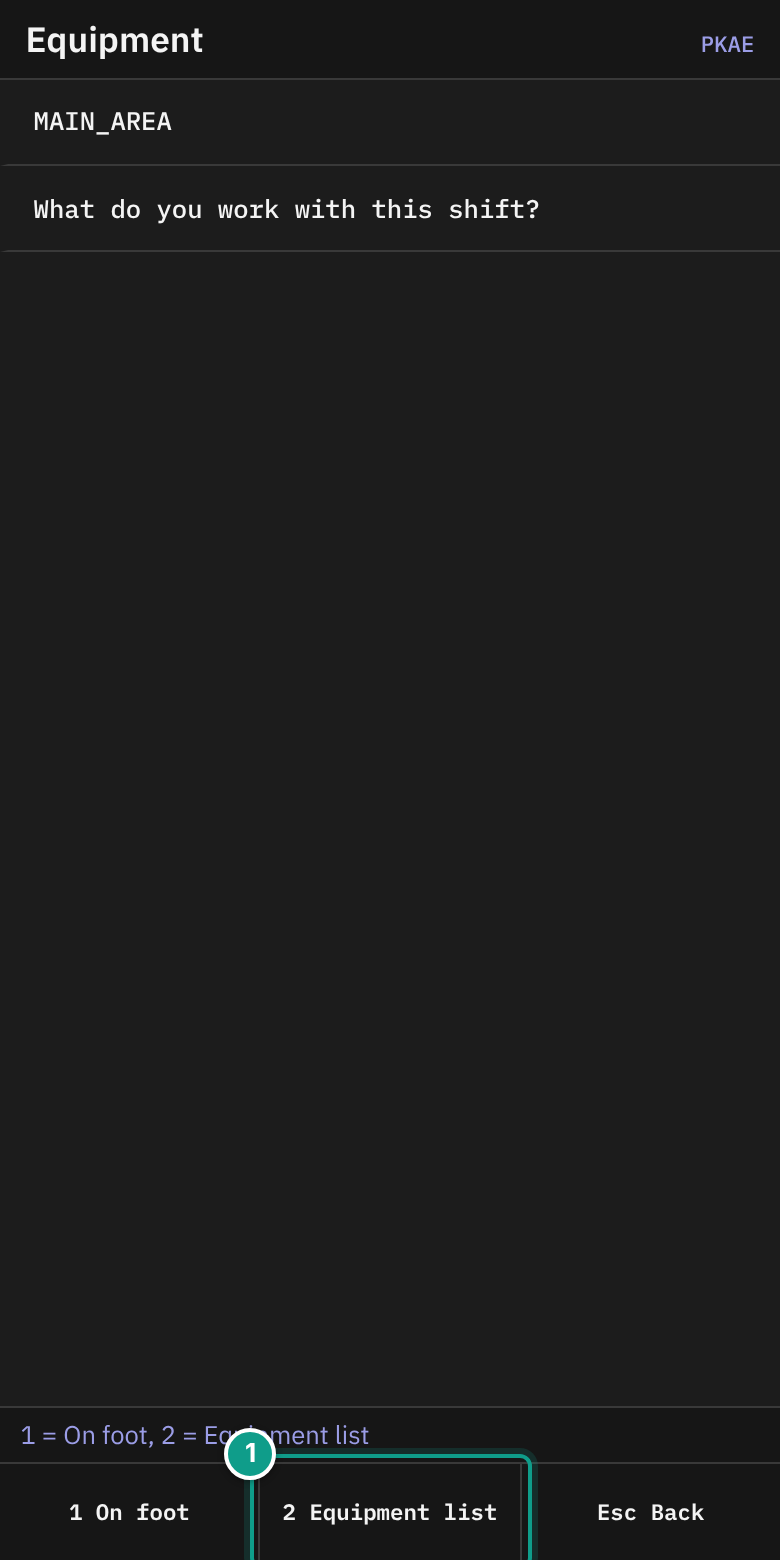
- On Equipment, read What do you work with this shift? The status line says 1 = On foot, 2 = Equipment list.
- Press
1(On foot) or2(Equipment list).
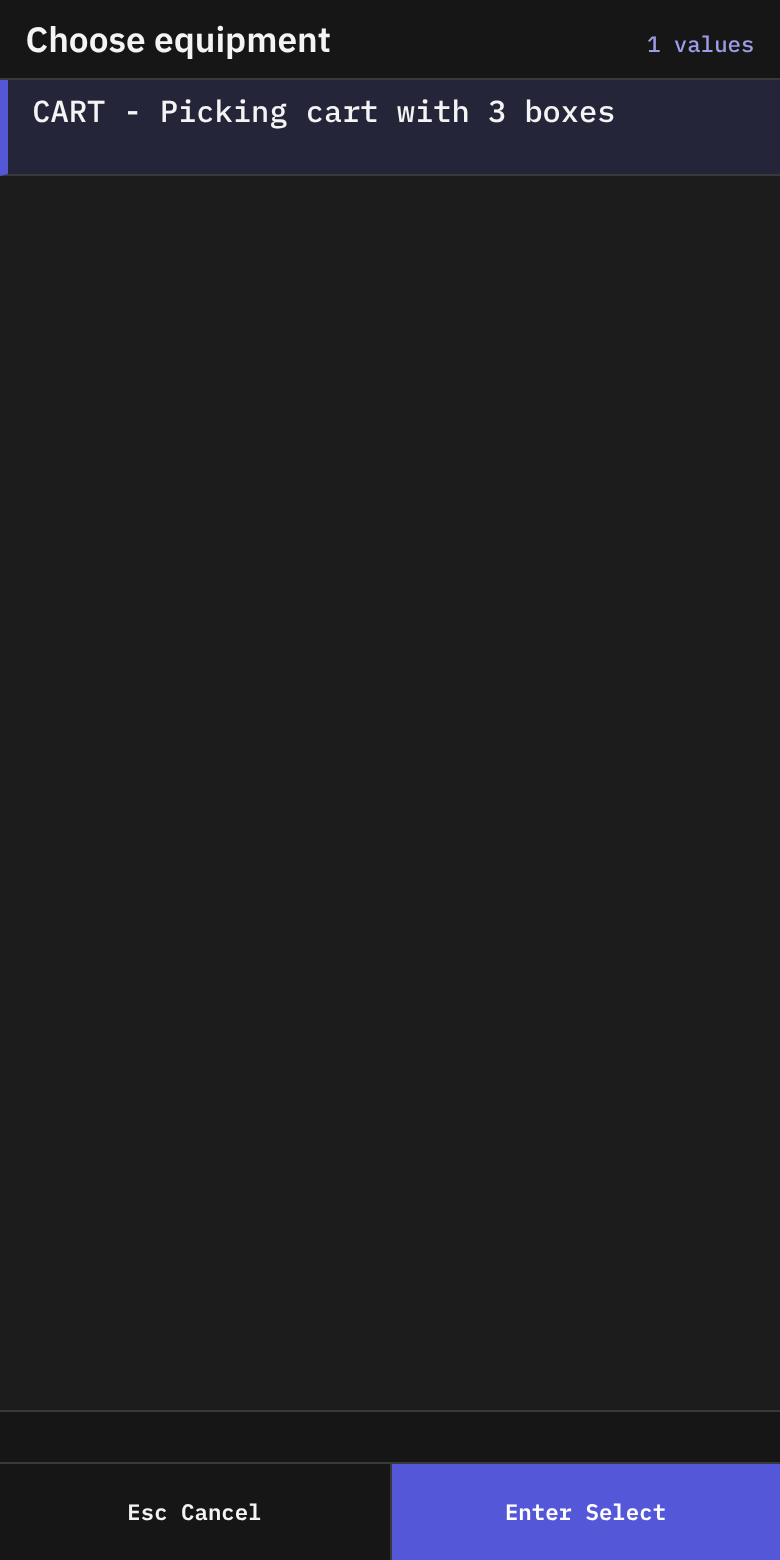
- If you pressed
2, choose equipment from the list Choose equipment. A row reads{code} - {description}, and adds(off)if the equipment is not active. If the list is empty, the status line says No equipment kinds - Esc, then 1 = On foot.
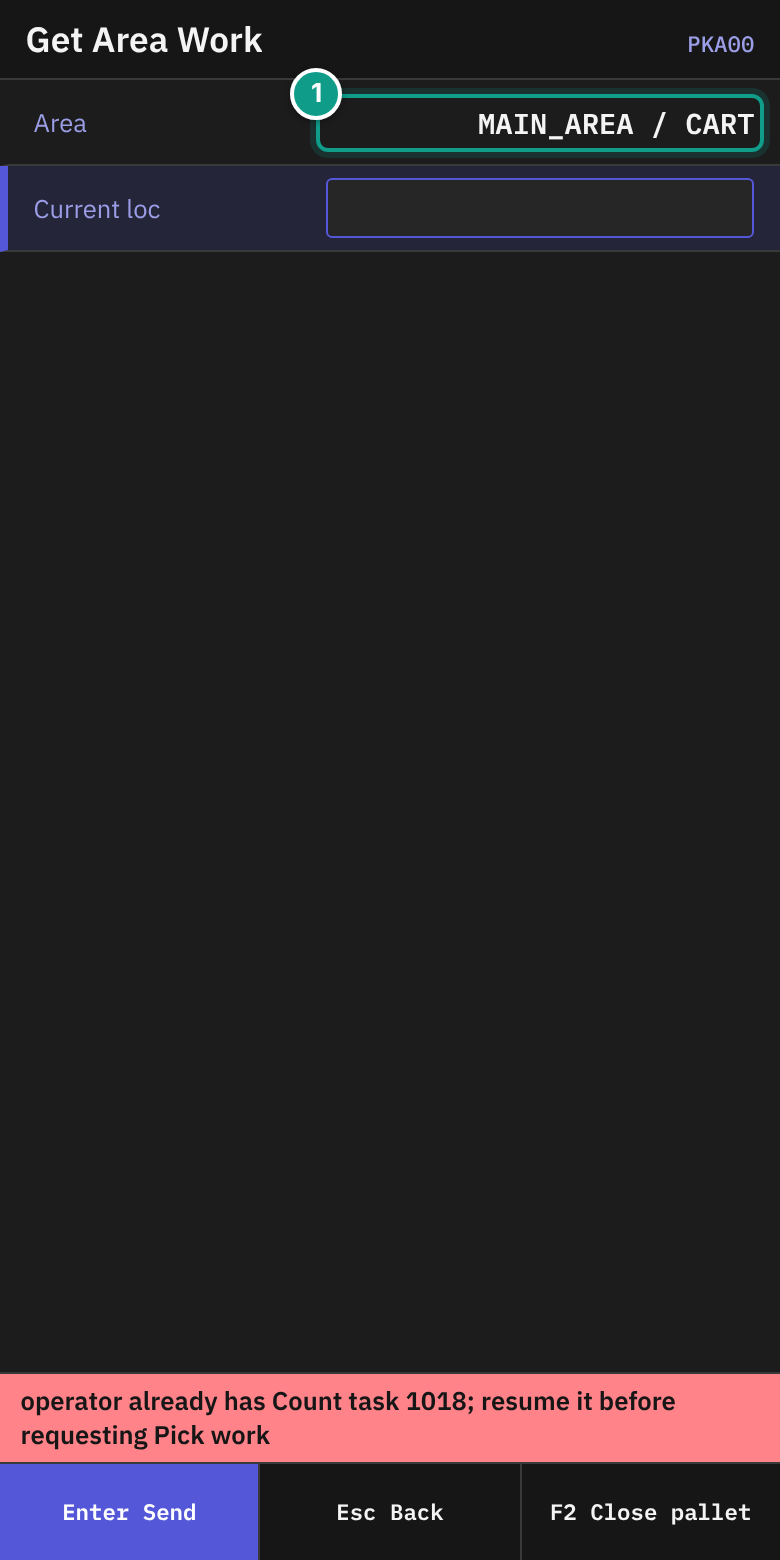
- Get Area Work asks for work. The line Area shows
{area} / on footor{area} / {equipment}. The status line says Getting work in the area - Enter asks again. - If nothing comes, press
Enterto ask again. In Current loc, you can scan your location.
What happens next: a new pick opens Pick Work (see section A). A carrier job opens the carrier screens below.
If you open a pallet for a pick that you took through Pick by Area, and the pick stands in a zone of your area, the pallet follows the picking policy of the area (for your equipment). The area can, for example, send the closed pallet to its pack station. A pick outside the area, or a pick taken through Discrete Pick, uses the default policy DISCRETE. If the terminal says UNKNOWN_WORK_AREA, the area code is wrong.
B2. Take and prepare a carrier
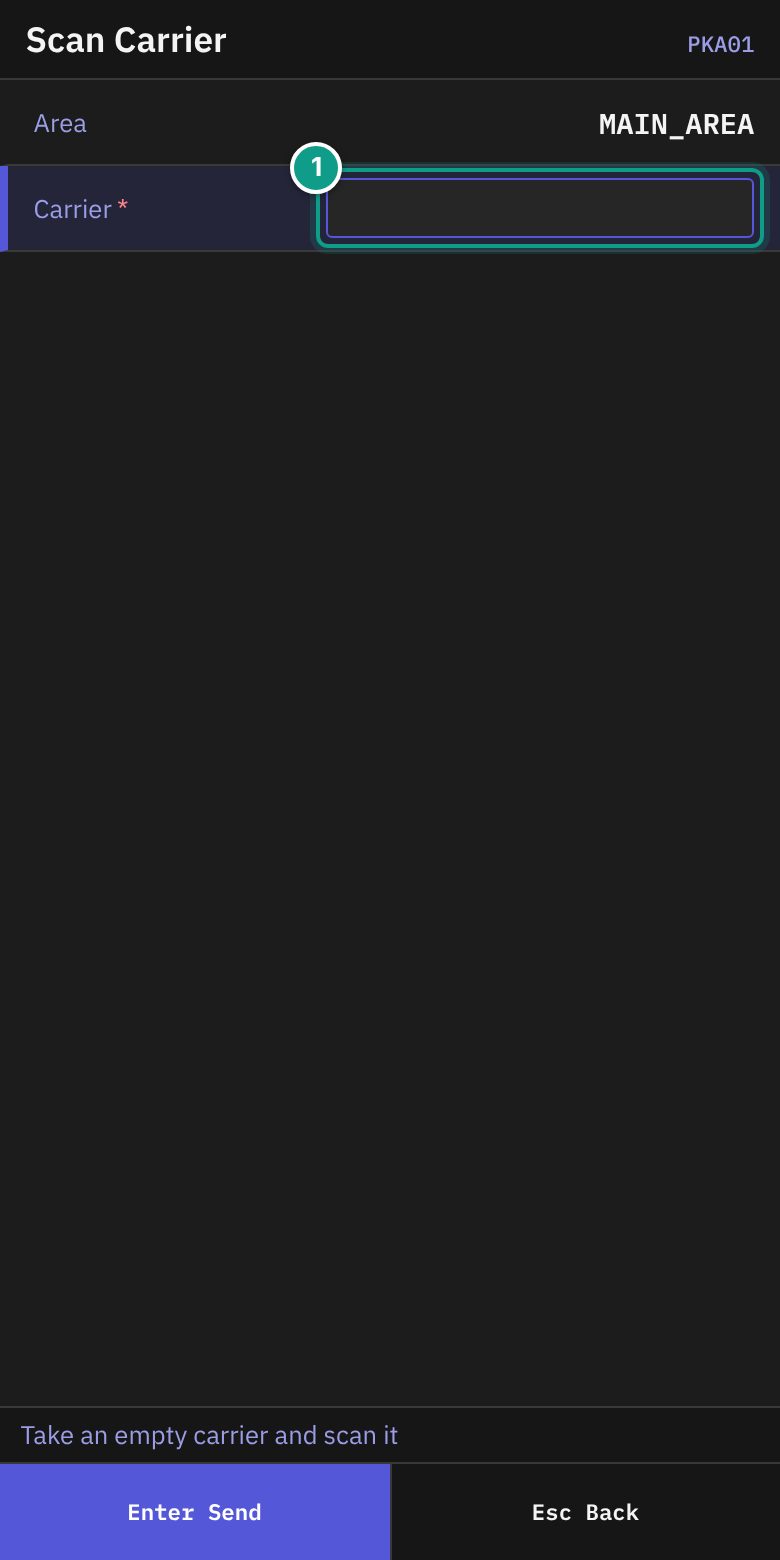
- On Scan Carrier, read the status line: Take an empty carrier and scan it.
- In Carrier, scan the carrier label (up to 50 characters).
If you already hold an assignment, the terminal resumes it.
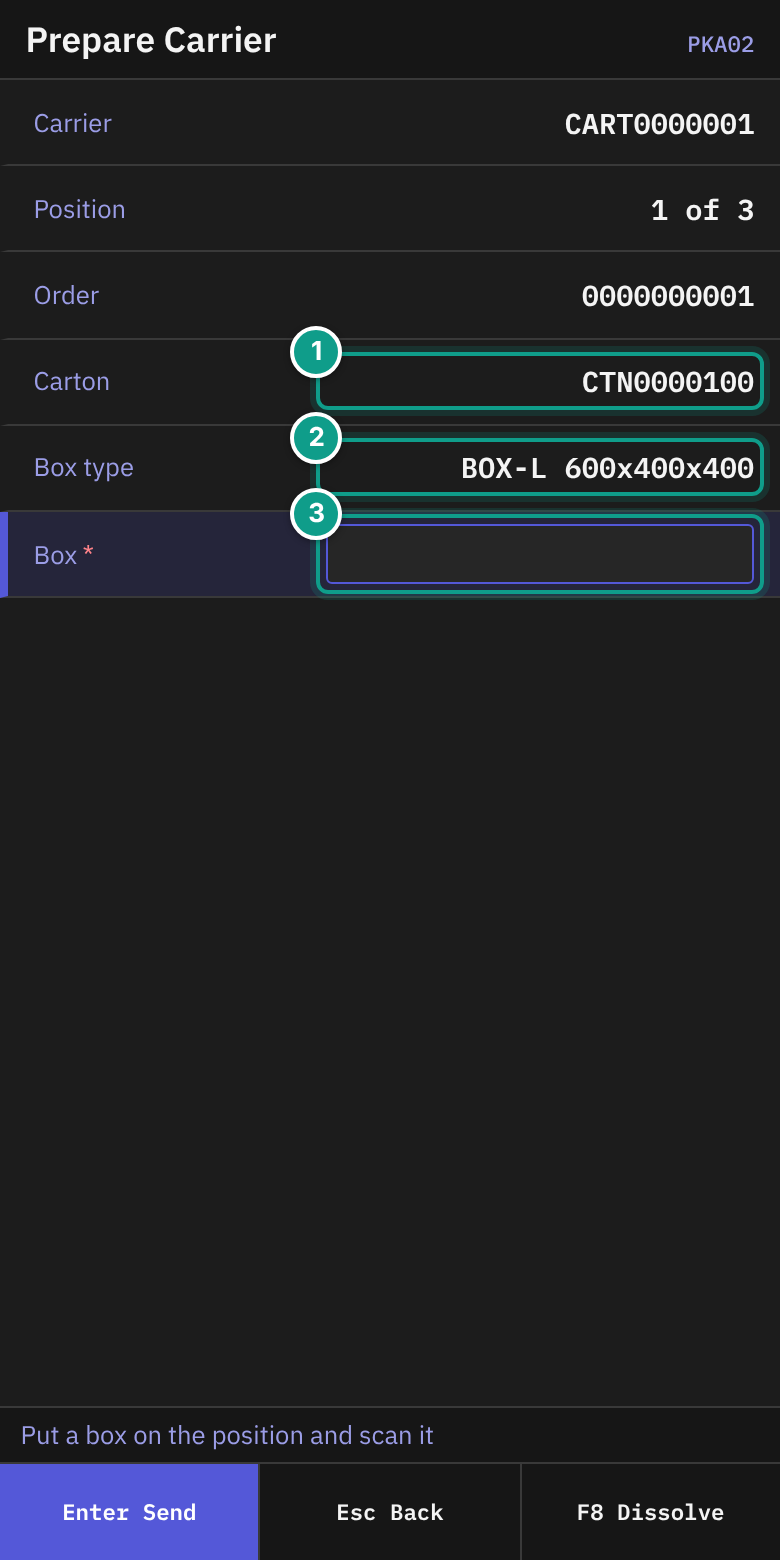
- On Prepare Carrier, read the status line: Put a box on the position and scan it. Check:
| Line | What it shows |
|---|---|
| Carrier | The carrier |
| Position | {n} of {total} |
| Order | The order for this position |
| Carton | The planned carton, or none ({kind}) |
| Box type | The planned box and its size, any box (no planned carton), or not sized |
| (no label) | Bound {box} to {position} after each box |
- Put an empty box on the position. In Box, scan the box label (up to 50 characters).
- Repeat for each position. When all positions have a box, Carrier Ready opens.
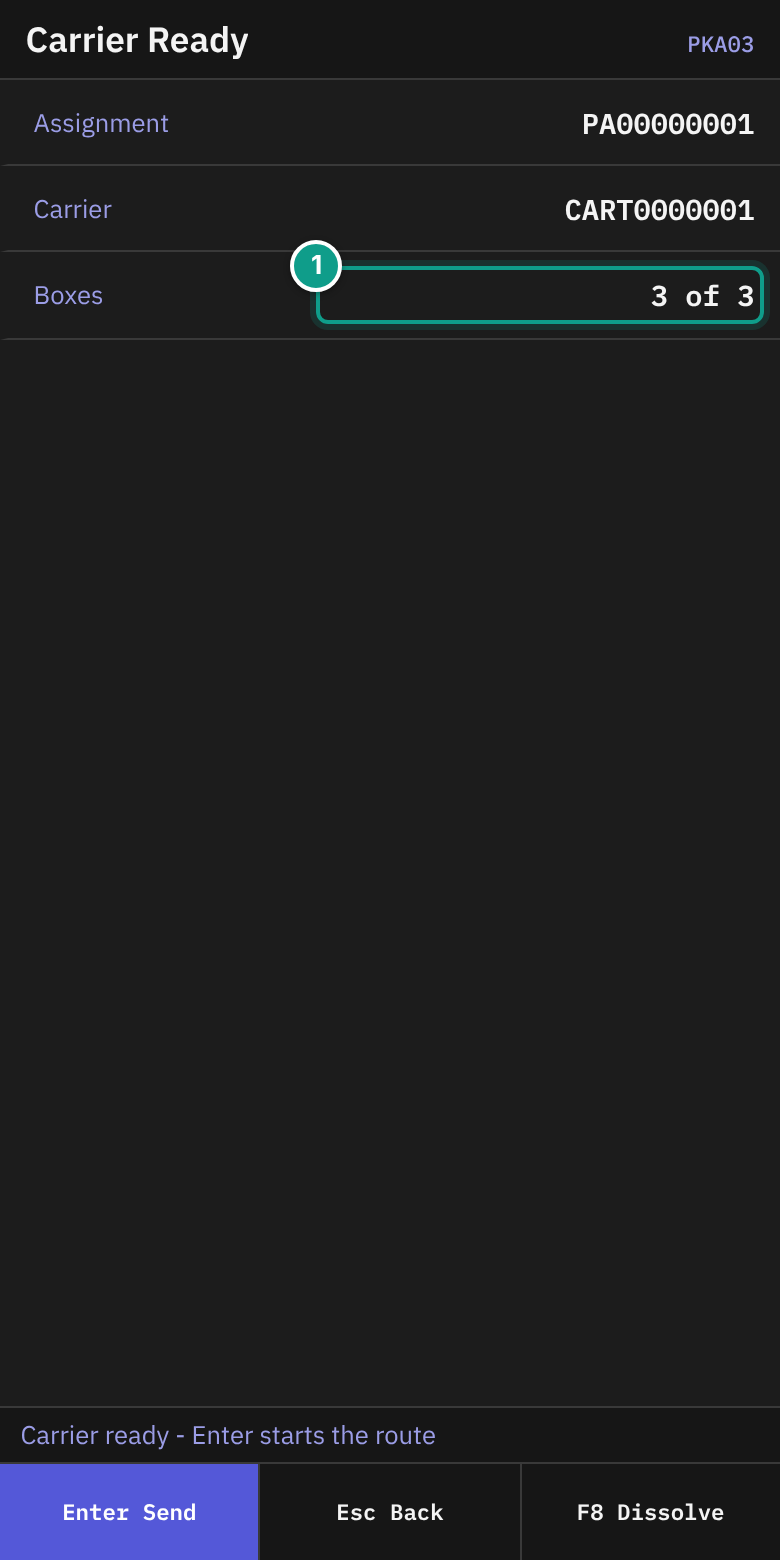
- On Carrier Ready, read Carrier ready - Enter starts the route. Check Assignment, Carrier and Boxes (
{bound} of {total}). - Press
Enterto start the route.
B3. Walk the route
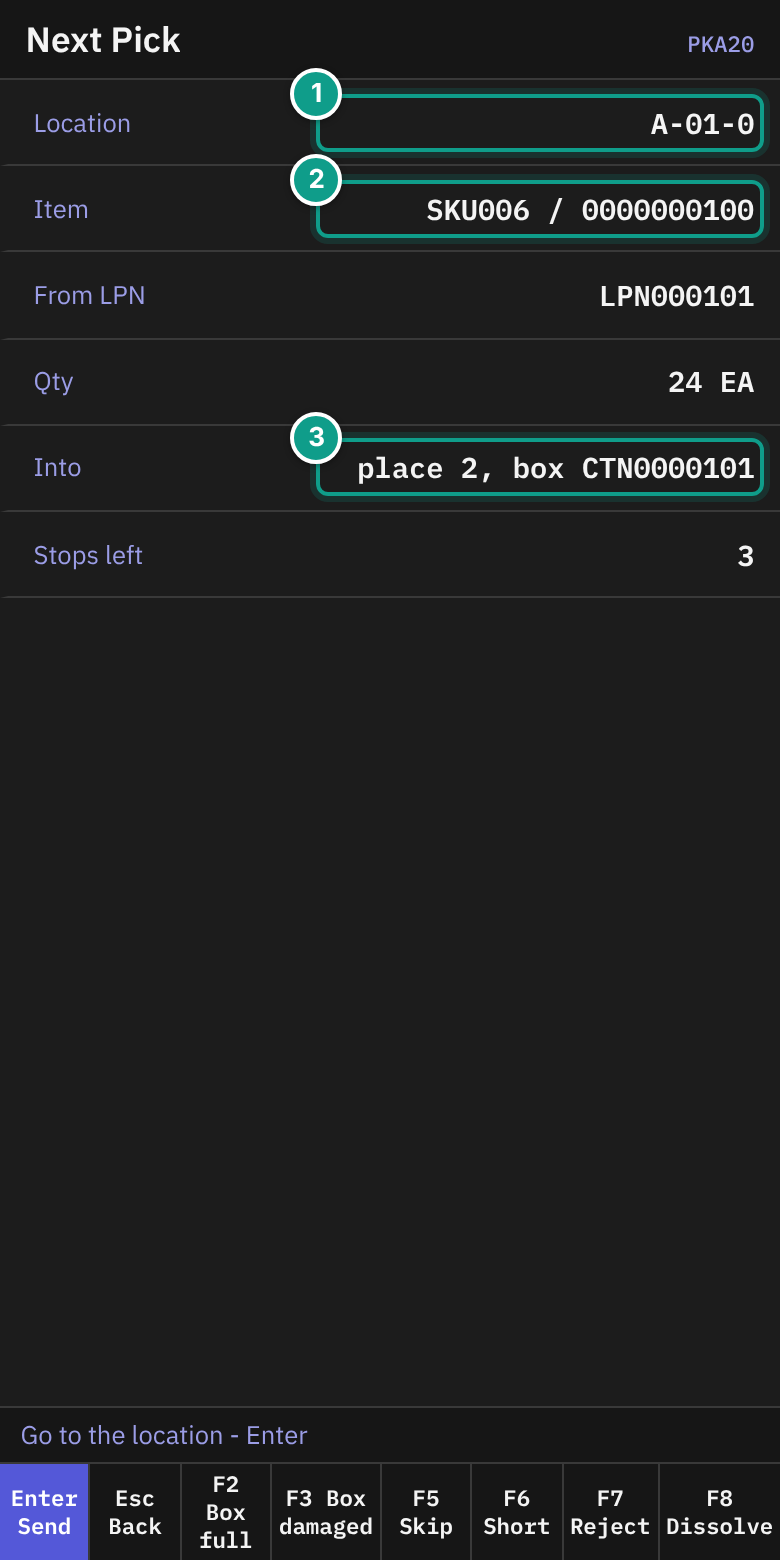
- On Next Pick, read the status line: Go to the location - Enter. Check:
| Line | What it shows |
|---|---|
| Location | Where to go |
| Lot | The lot, if any |
| Item | SKU and lot |
| From LPN | The source pallet, if any |
| Qty | Quantity and unit |
| Into | place {n}, box {code} |
| Stops left | Stops left. Adds (skipped before) if you skipped one. |
| Note | Instructions, if any |
| Blocked | Why the pick is blocked (see below) |
- Go to the location. Press
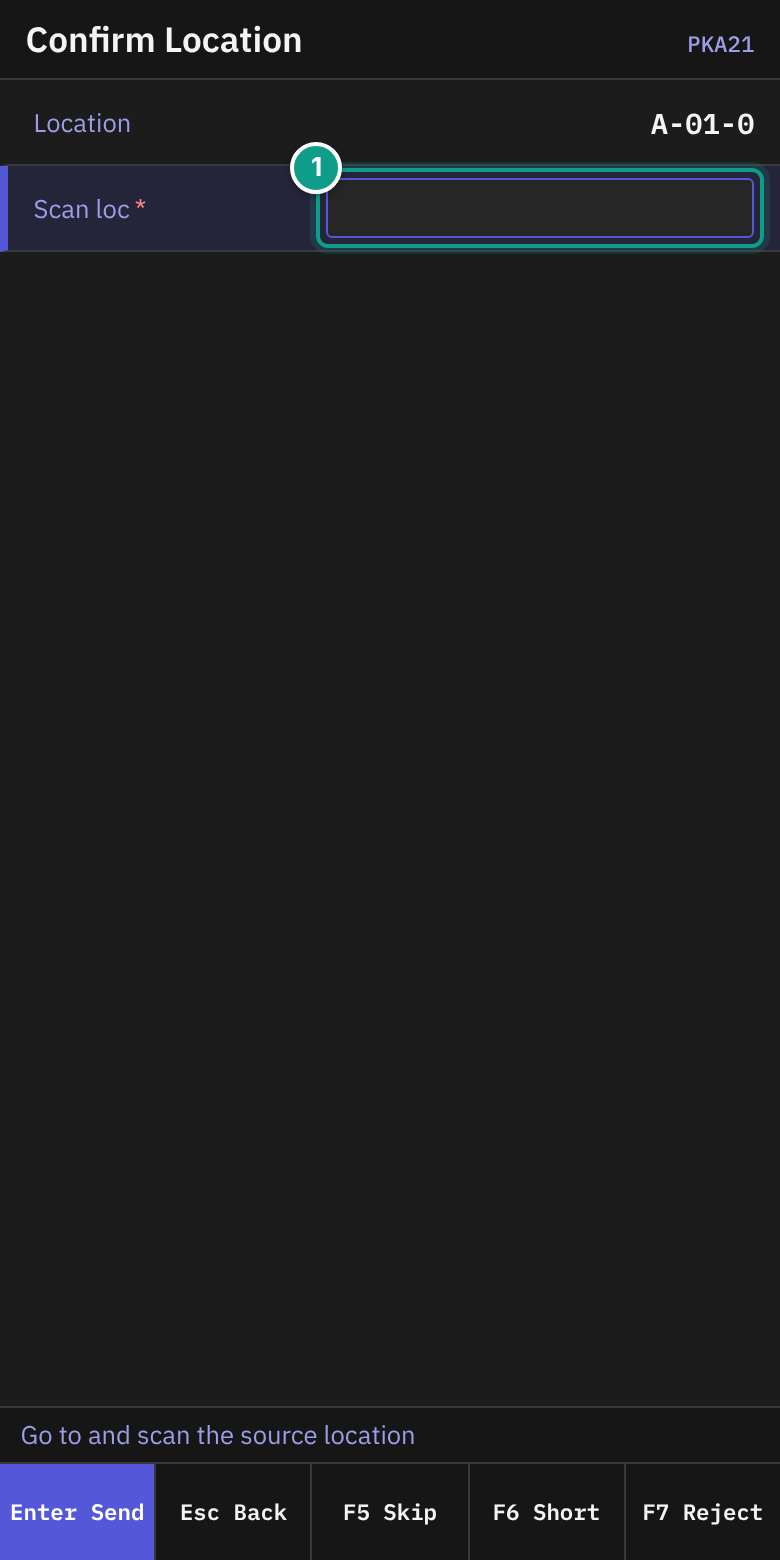
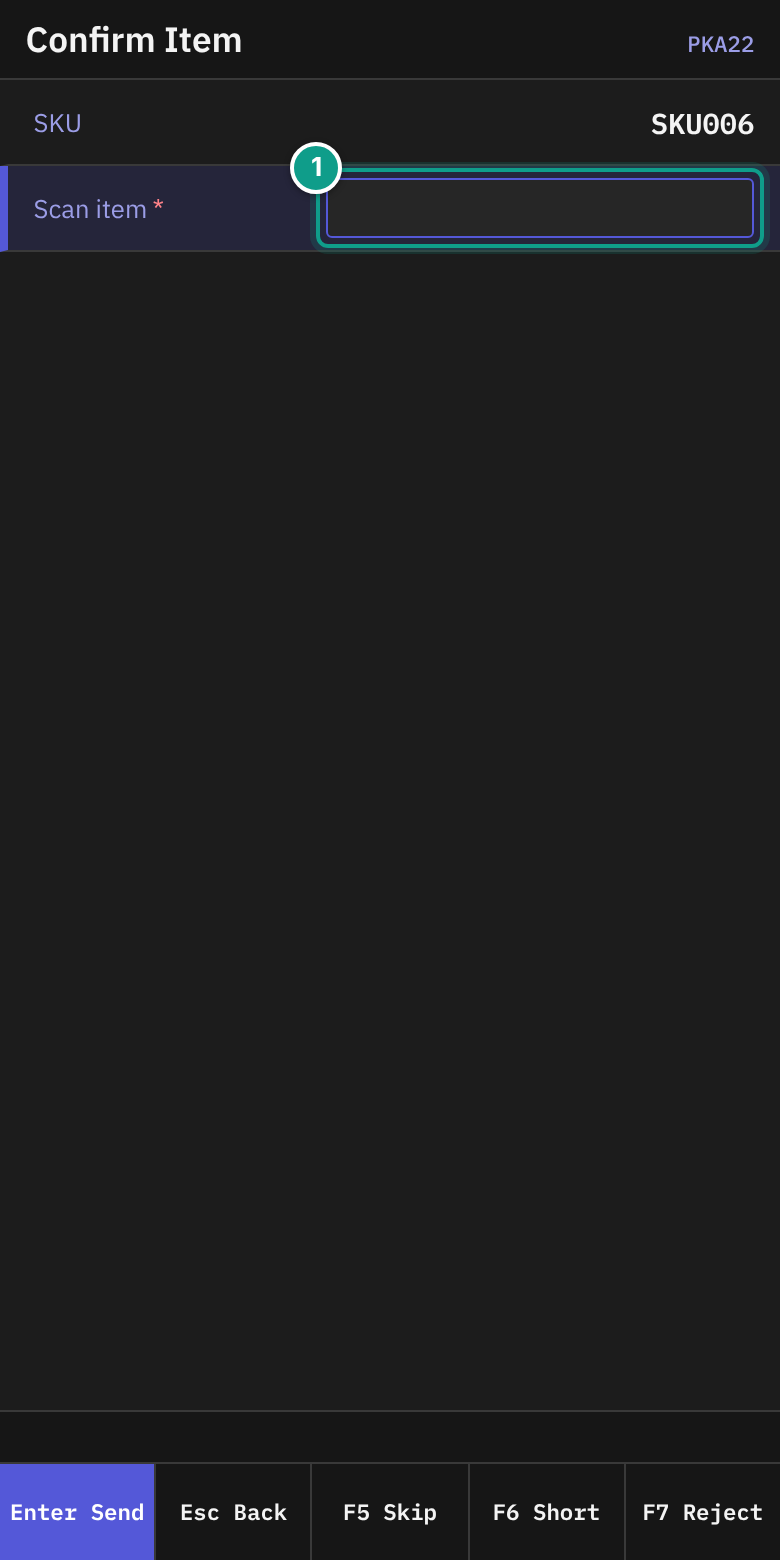
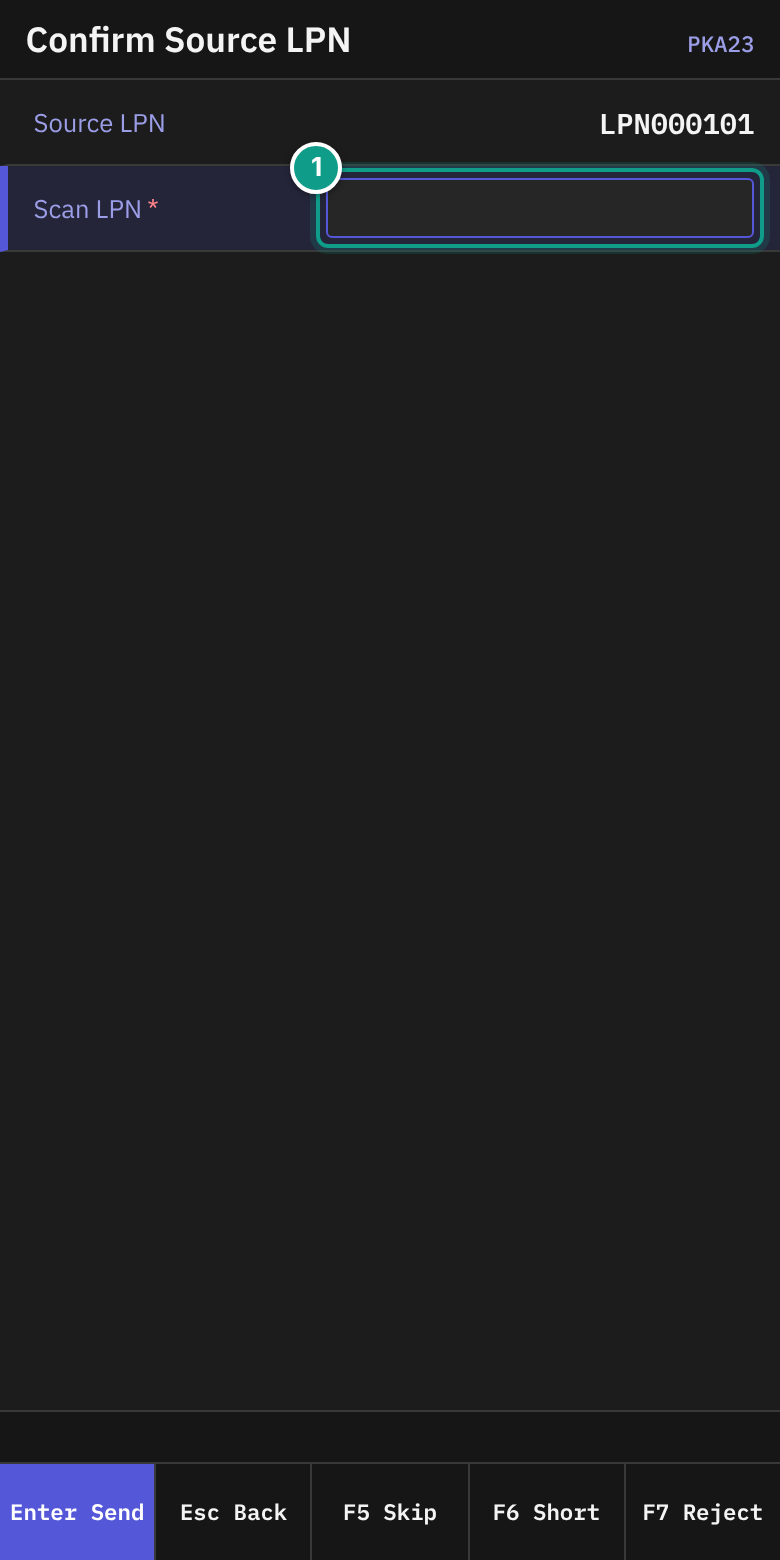
Enter. - Confirm the source. The screens follow the same pattern as section A5:
| Screen | Field |
|---|---|
Confirm Location (PKA21) | Scan loc |
Confirm Item (PKA22) | Scan item |
Confirm Source LPN (PKA23) | Scan LPN |
Confirm Lot (PKA21L) | Scan lot |
Confirm Lot Attribute (PKA21A) | Value |
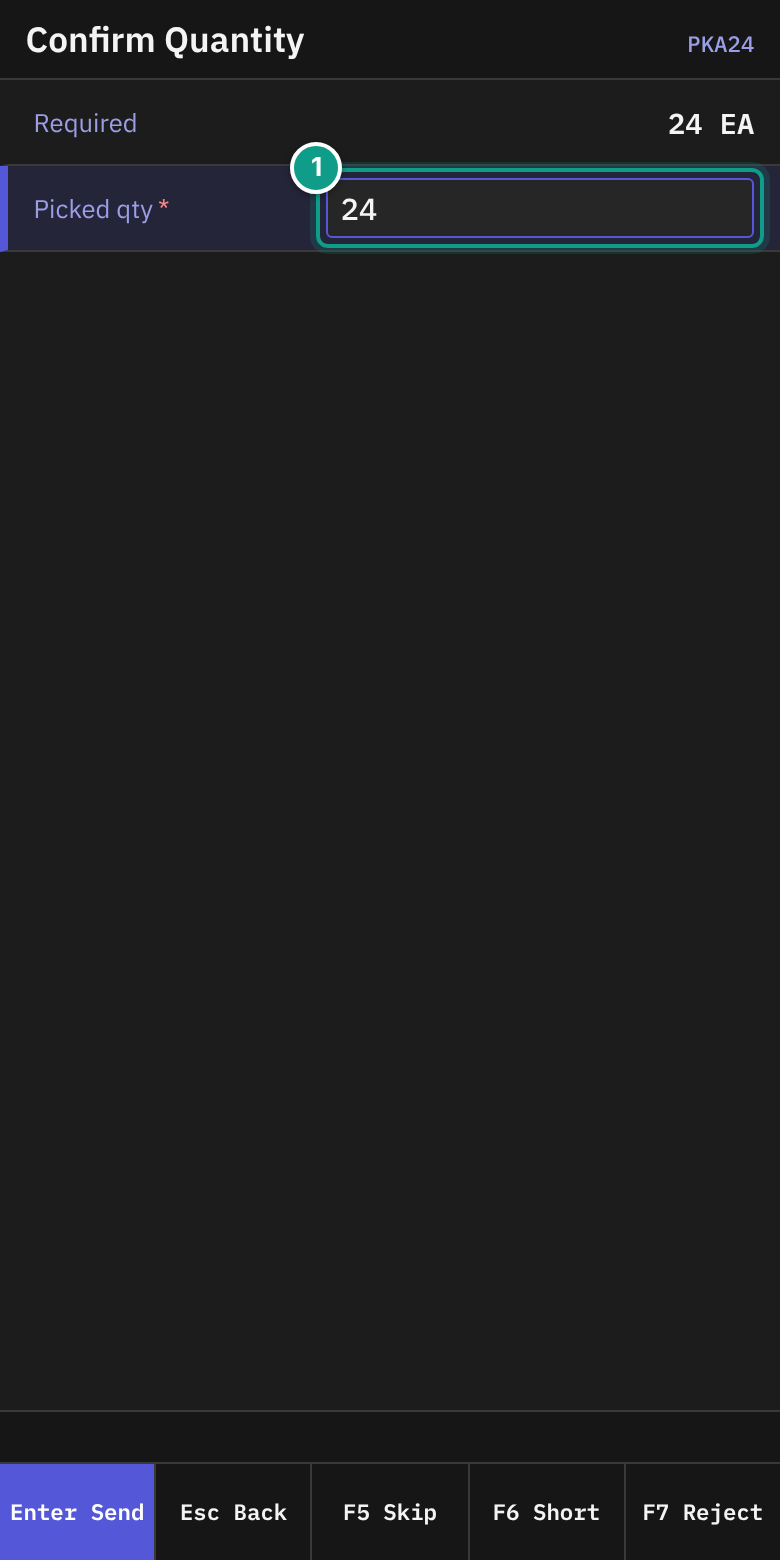
- On Confirm Quantity (
PKA24), check Required and Picked qty. PressEnter.
- For serial-tracked items, Pick Serials (
PKA24S) opens. Scan each serial in Serial.Escasks Captured {n}/{m}. Exit and resume later?
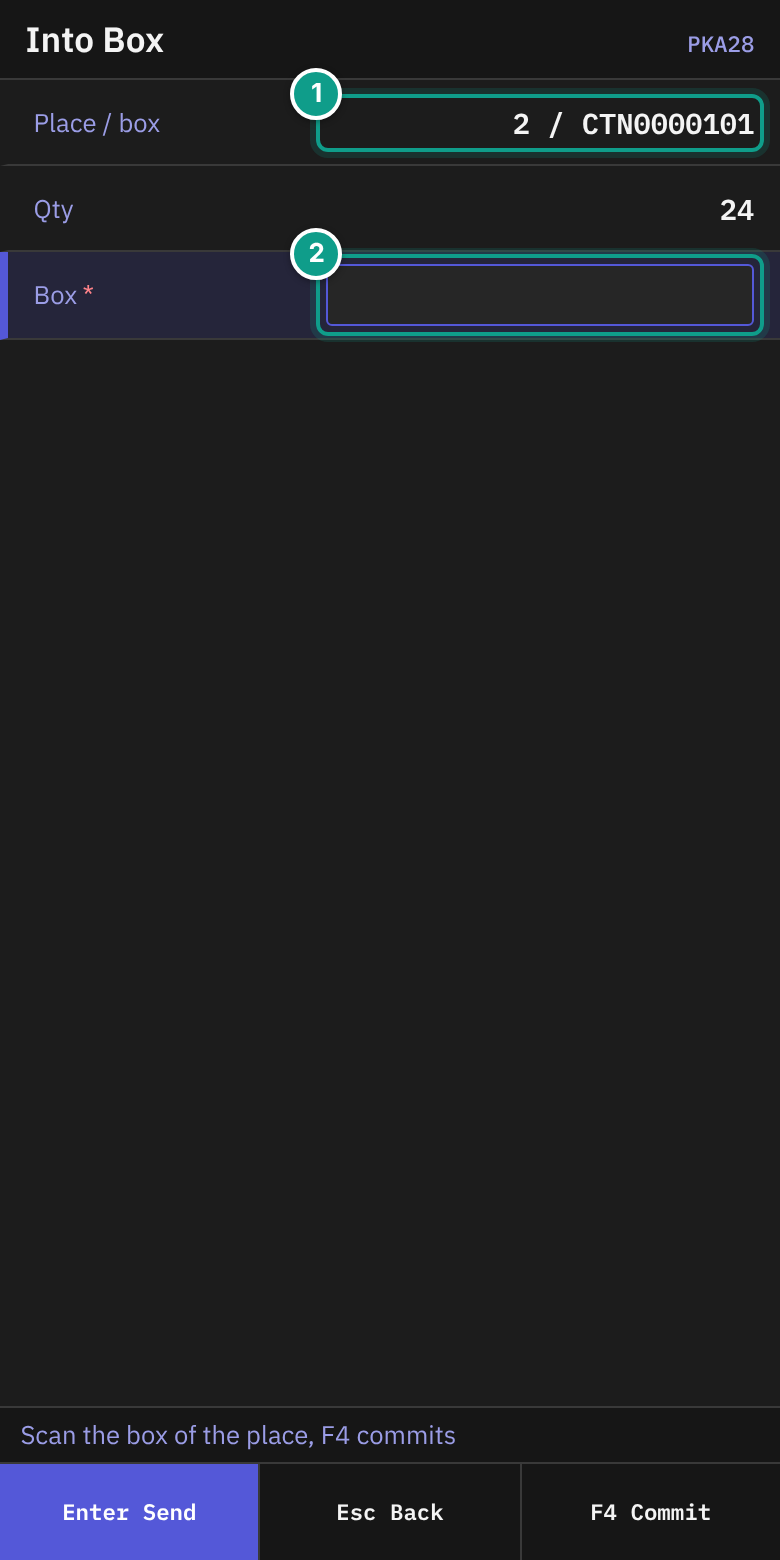
- On Into Box, read the status line: Scan the box of the place, F4 commits. Check Place / box and Qty. In Box, scan the box label (up to 50 characters). Press
F4(Commit).
- The terminal goes to the next stop, Next Pick.
- When the route is done, Next Pick shows Route done - Enter to deliver. Press
Enter. Deliver Carrier opens.
Footer keys on Next Pick (active only on a pick stop): F2 Box full, F3 Box damaged, F5 Skip, F6 Short, F7 Reject, F8 Dissolve. On the confirm screens the footer shows F5, F6 and F7.
Other lines on Next Pick:
| Line | What it means |
|---|---|
| New box on place {n} - Enter | Bind a new box. Press Enter. |
| Place {n} waits for recovery: {code} - Enter | A box needs recovery. Press Enter. See Recovery. |
| No route to walk - Enter for the menu | No route. Press Enter. |
| Blocked: carton plan not ready - F5 skip, F7 reject | The box plan is not ready. Skip or reject. |
| Blocked: carton plan blocked - F5 skip, F7 reject | The box plan is blocked. Skip or reject. |
| Blocked: carton plan invalid - F5 skip, F7 reject | The box plan is not valid. Skip or reject. |
B3a. A summary step
If your area uses a policy with Quantity = Aggregated, two or more orders on your cart can take the same item from the same location. The route then shows them as one step. You go to the location once and prove the item once. Then you put each order's quantity into its own box.
On Next Pick (PKA20) a summary step shows the Location, the Item and the From LPN as usual, and two more lines:
| Line | What it shows |
|---|---|
| Total | The whole quantity of the step and the number of places, for example Total 12 EA · 2 places. |
| Places | The quantity for each place, for example Place 1: 5 · Place 3: 7. |
Stops left counts a summary step as one stop.
- Go to the location. Press
Enter. - Confirm the location, item, LPN and lot on the usual screens (
PKA21,PKA22,PKA23,PKA21L,PKA21A). You do this once for the whole step. - On Confirm Quantity (
PKA24), the line Place names the place:Place {n}: put {qty} {unit} · box {code}. Picked qty is filled with the quantity of the place. The screen refuses a bigger number and says: This place takes only the quantity shown; if fewer are at the location press F6 Short. - Press
Enter. On Into Box (PKA28) scan the box of that place and pressF4(Commit). - The terminal returns to Next Pick. It shows the places that are left. You do not confirm the source again. Press
Enterfor the next place.
If fewer items are at the location than the place needs, press F6 (Short) on the place screen. It shorts that place only (section B5).
Keys on a summary step:
| Key | Where | What it does |
|---|---|---|
F5 Skip | On Next Pick | Skips every place that is left. The screen Skip asks the same question as for a plain stop. |
F7 Reject | On Next Pick | Rejects every place that is left. |
F7 Reject | On the place screen | Rejects this place only. |
F5 | On the place screen | Disabled. The screen says: F5 skip: on the route card — Esc, then F5 skips the whole location. |
F2, F3, F6, F8 | Place screen or card | Act on the current place, as on a plain stop. |
A serial-tracked item is never part of a summary step. It stays a stop of its own.
Source: crates/libs/wms-lib-sql/sql/rf-screens/110_uc_pick_aggregated_cart.sql, 112_uc_pick_aggregated_cart_followups.sql; crates/libs/wms-outbound/src/picking/README.md (Summary step).
B4. Skip a stop
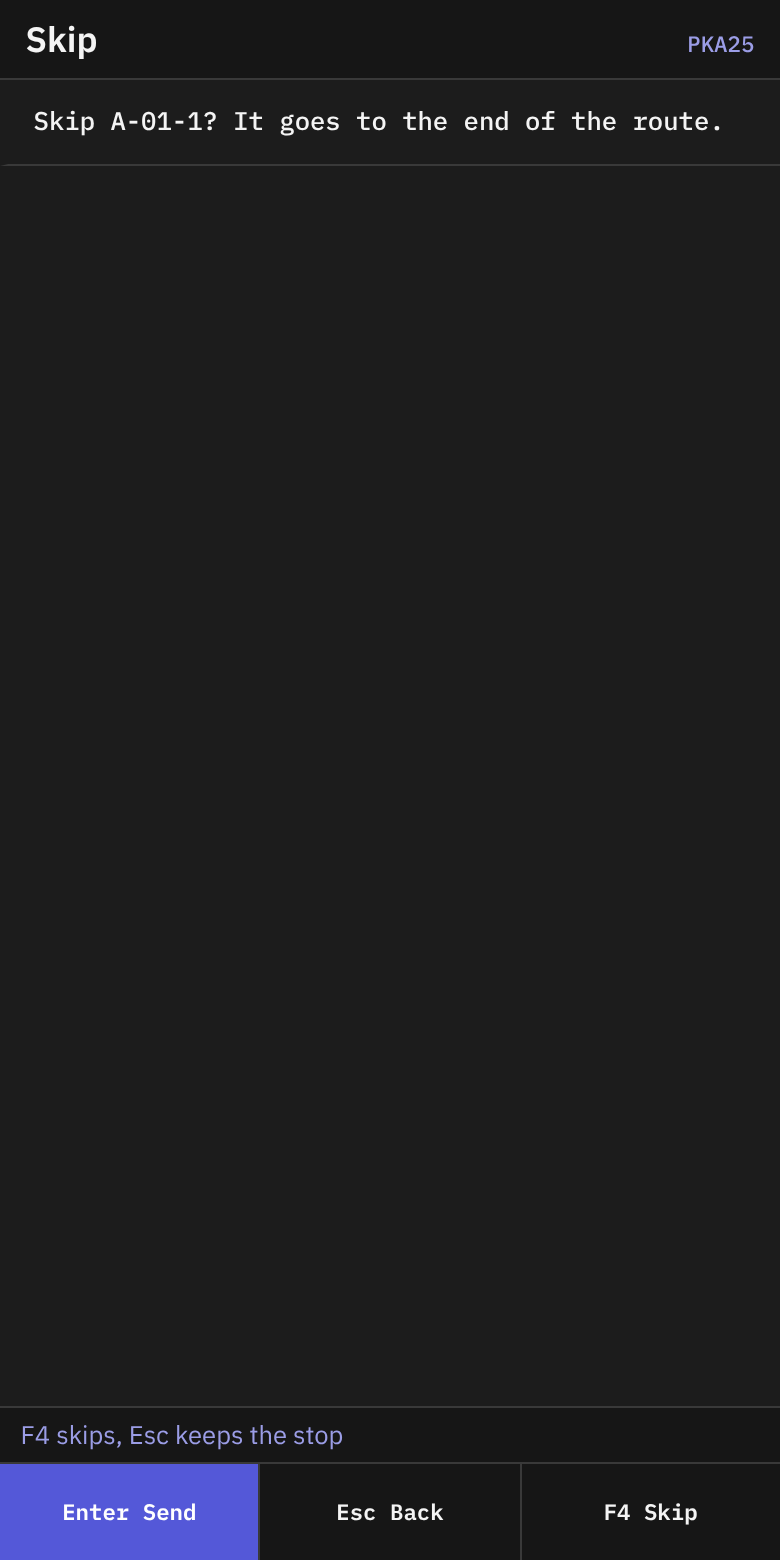
- Press
F5(Skip). - On Skip, read Skip {location}? It goes to the end of the route. The status line says F4 skips, Esc keeps the stop.
- Press
F4(Skip), orEsc.
B5. Short, reject
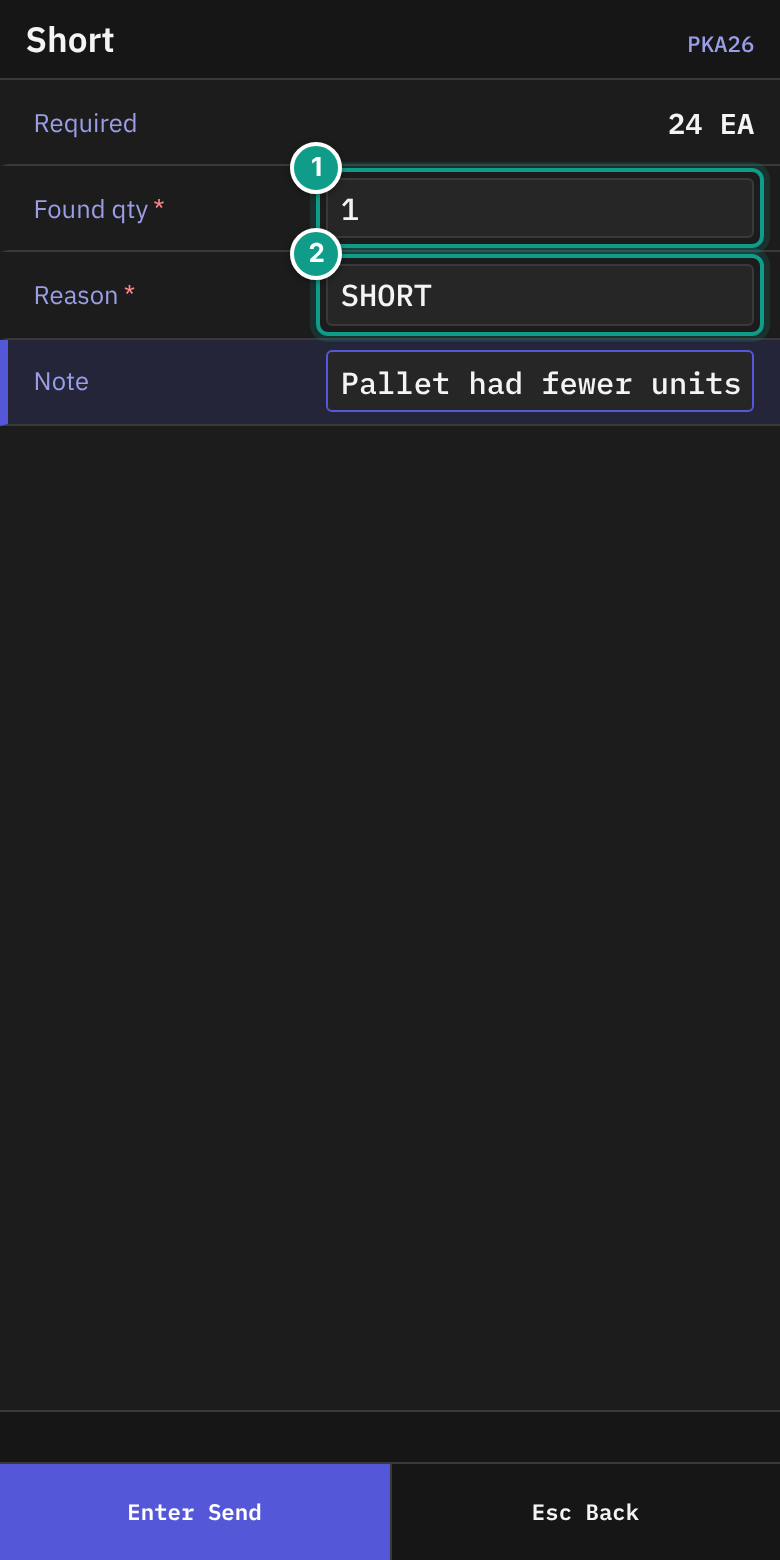
- Press
F6(Short). On Short, read the status line: Enter the quantity found and a short-reason code. - Fill in Found qty, Reason (code, up to 50) and Note (optional). Press
Enter.
- On Confirm Short, read
Pick {a}, short {b}, reason {code}. If you picked something, check Place / box and scan the box in Box. - Press
F4(Commit Short).
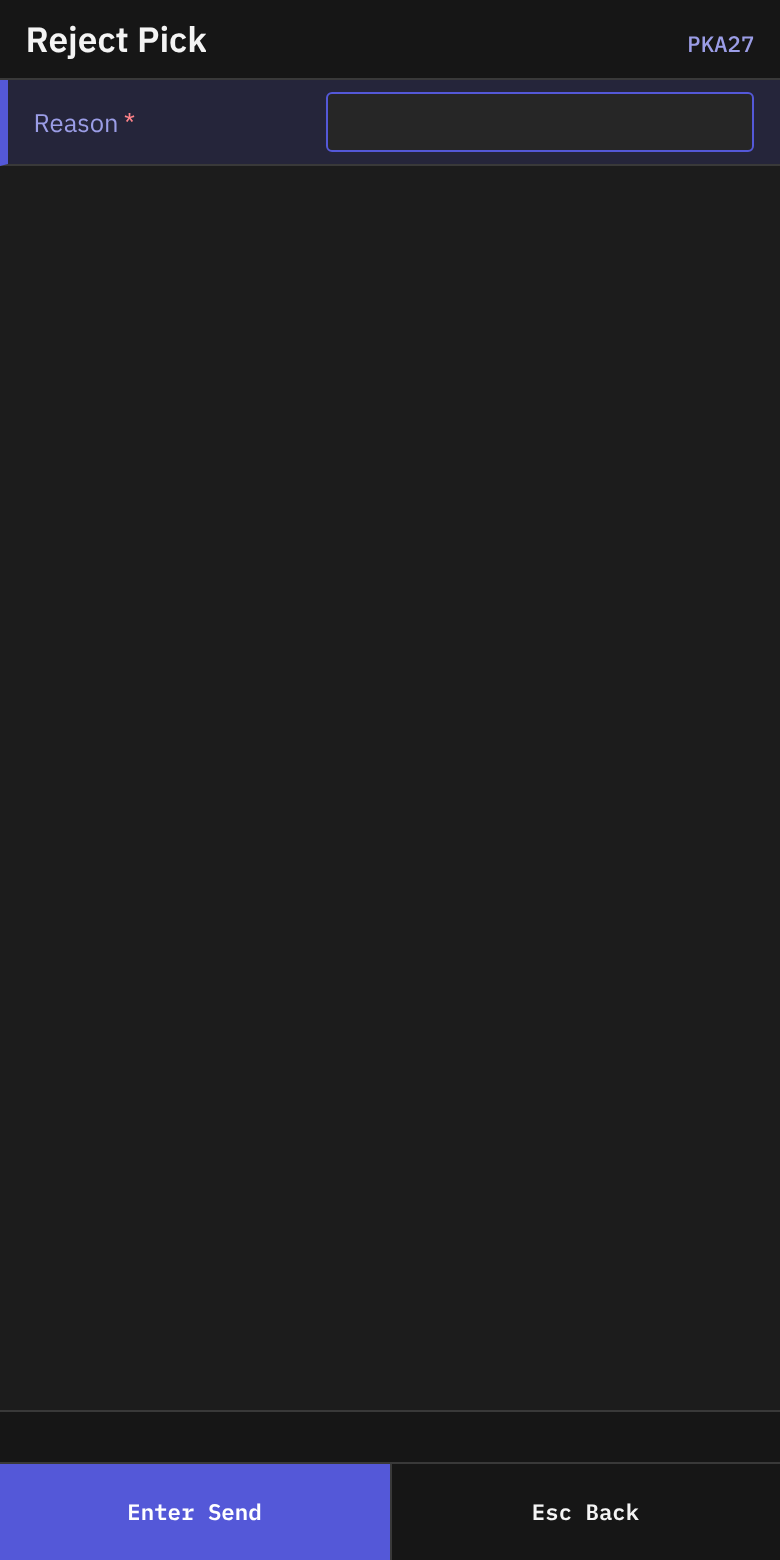
- To reject, press
F7(Reject). On Reject Pick, type a Reason (up to 80). PressEnter.
B6. Box full
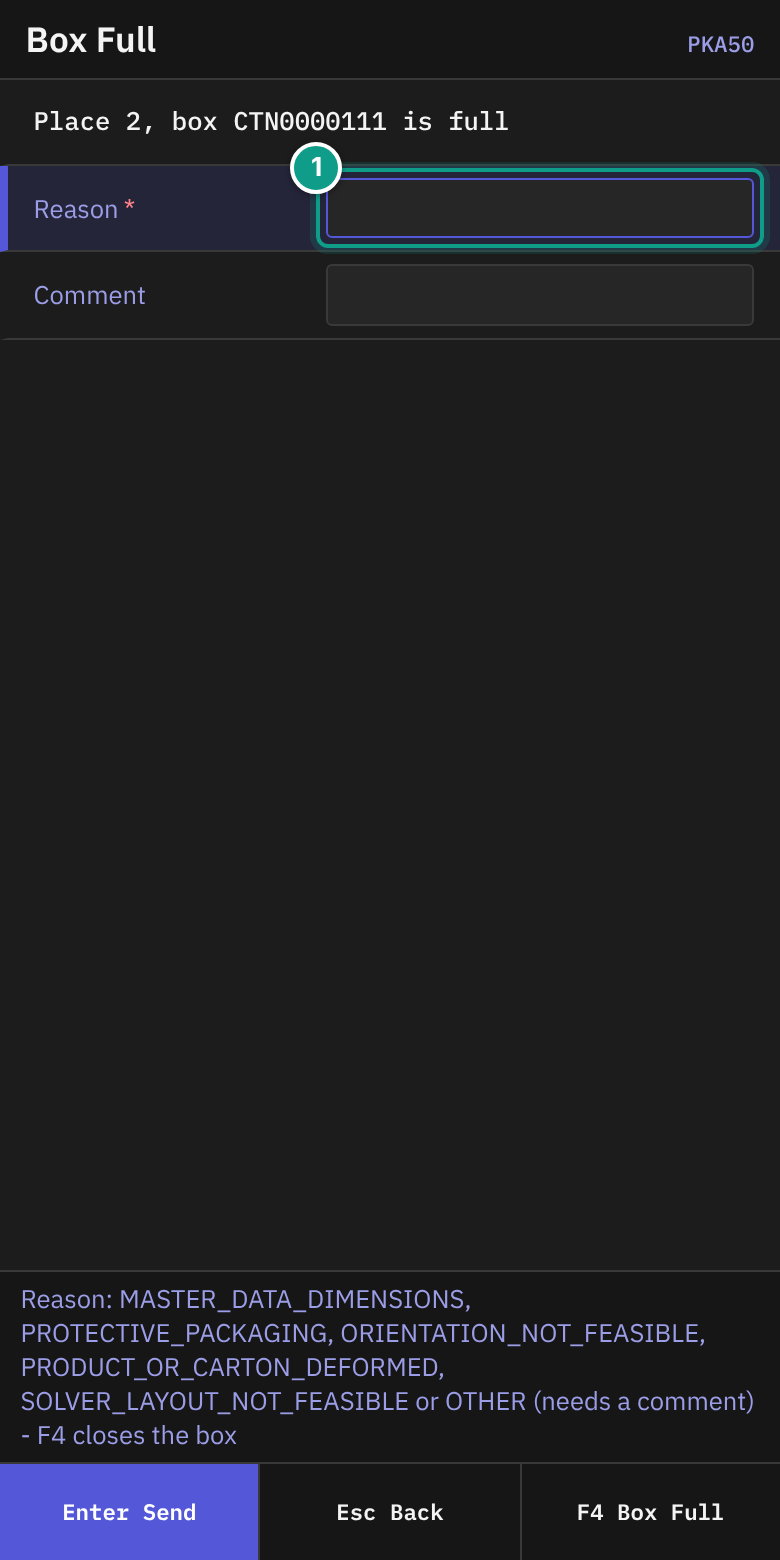
- On Next Pick, press
F2(Box full). - On Box Full, read
Place {n}, box {code} is full. The status line lists the reason codes:MASTER_DATA_DIMENSIONS,PROTECTIVE_PACKAGING,ORIENTATION_NOT_FEASIBLE,PRODUCT_OR_CARTON_DEFORMED,SOLVER_LAYOUT_NOT_FEASIBLEorOTHER(needs a comment). - In Reason, type one code (up to 50). In Comment, type a note (up to 500).
OTHERneeds a comment. - Press
F4(Box Full). - The terminal asks you to bind a new box (Prepare Carrier), or to hand over to recovery (Recovery), or goes on to Next Pick.
B7. Box damaged
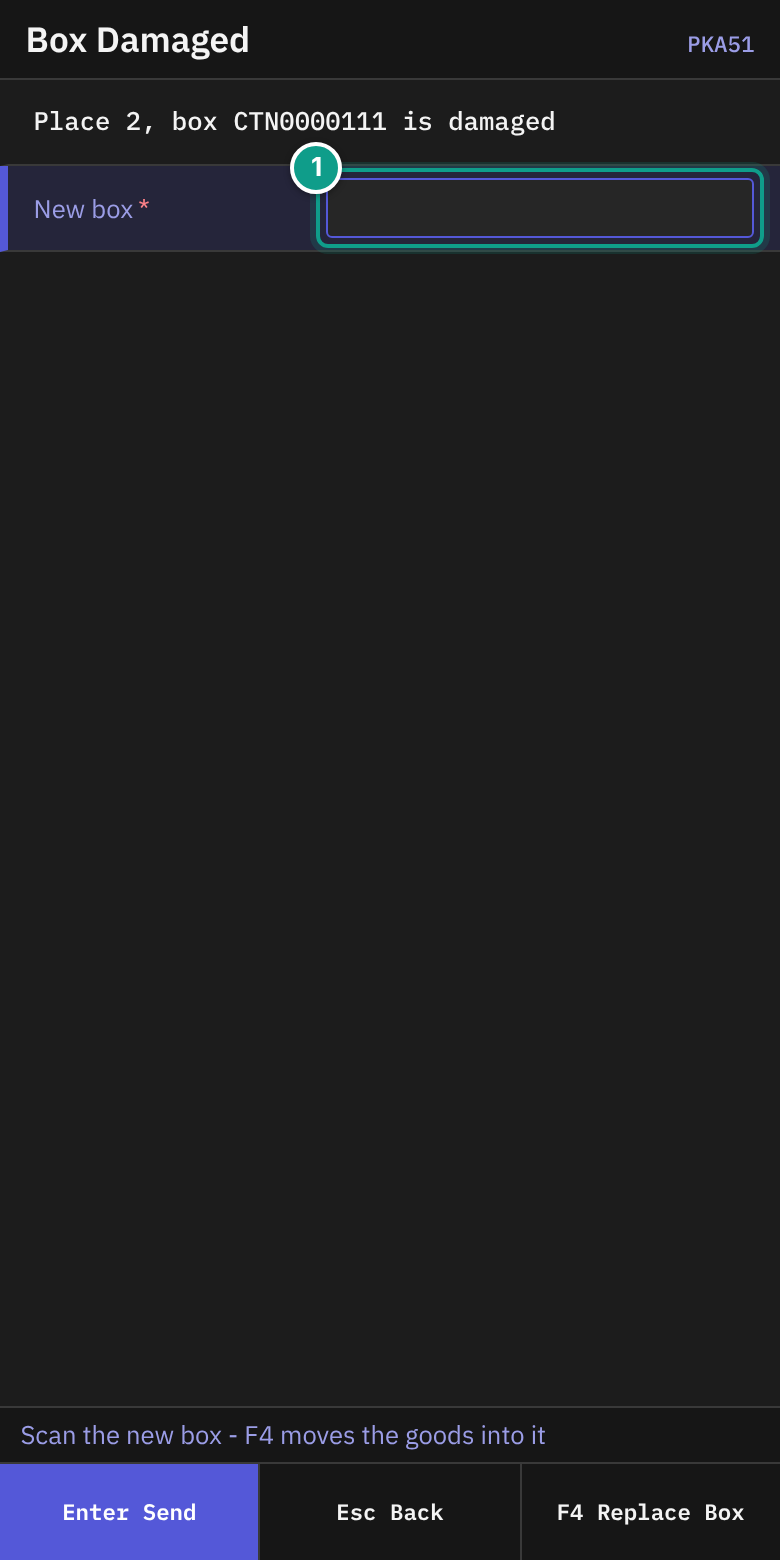
- On Next Pick, press
F3(Box damaged). - On Box Damaged, read
Place {n}, box {code} is damaged. The status line says Scan the new box - F4 moves the goods into it. - In New box, scan an empty box (up to 50 characters).
- Move the goods into the new box. Press
F4(Replace Box).
B8. Recovery
- On Recovery, check Place, Reason (the error code) and Picks left.
- Press
F4(Hand Over). The rest goes to the supervisor.
B9. Dissolve an assignment
Use this only when you must give up the whole carrier.
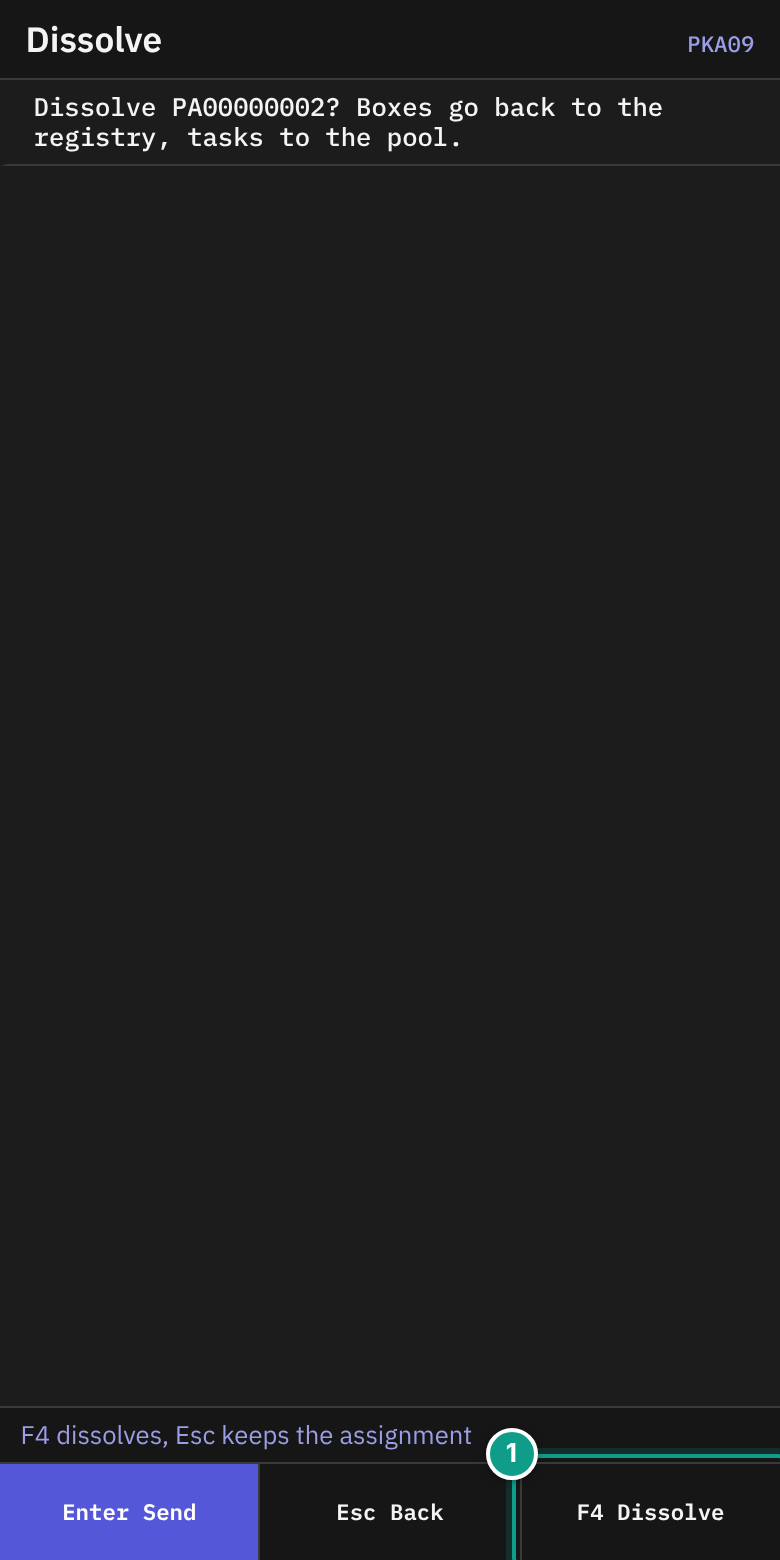
- Press
F8(Dissolve) on Prepare Carrier, Carrier Ready or Next Pick. - On Dissolve, read Dissolve {code}? Boxes go back to the registry, tasks to the pool. The status line says F4 dissolves, Esc keeps the assignment.
- Press
F4(Dissolve). - Dissolved shows Dissolved, Tasks back and Boxes off. Press
Enter.
If goods are already on the carrier, Supervisor Confirmation opens.
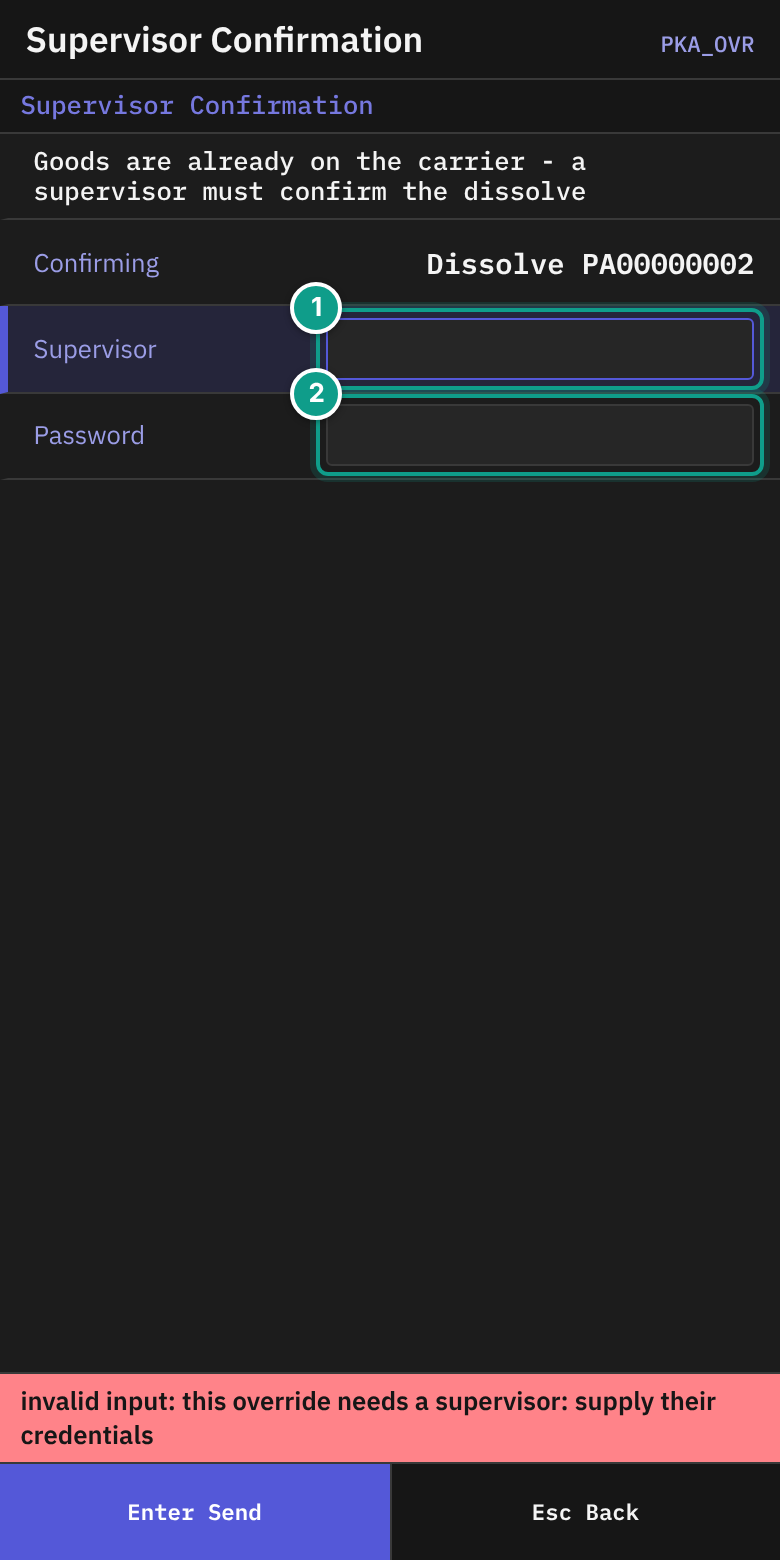
- Read Goods are already on the carrier - a supervisor must confirm the dissolve. Confirming shows
Dissolve {code}. - The supervisor types the user name in Supervisor and the password in Password, then presses
Enter. - On Dissolve, the line Supervisor confirmed - F4 dissolves appears. Press
F4.
B10. Deliver the carrier
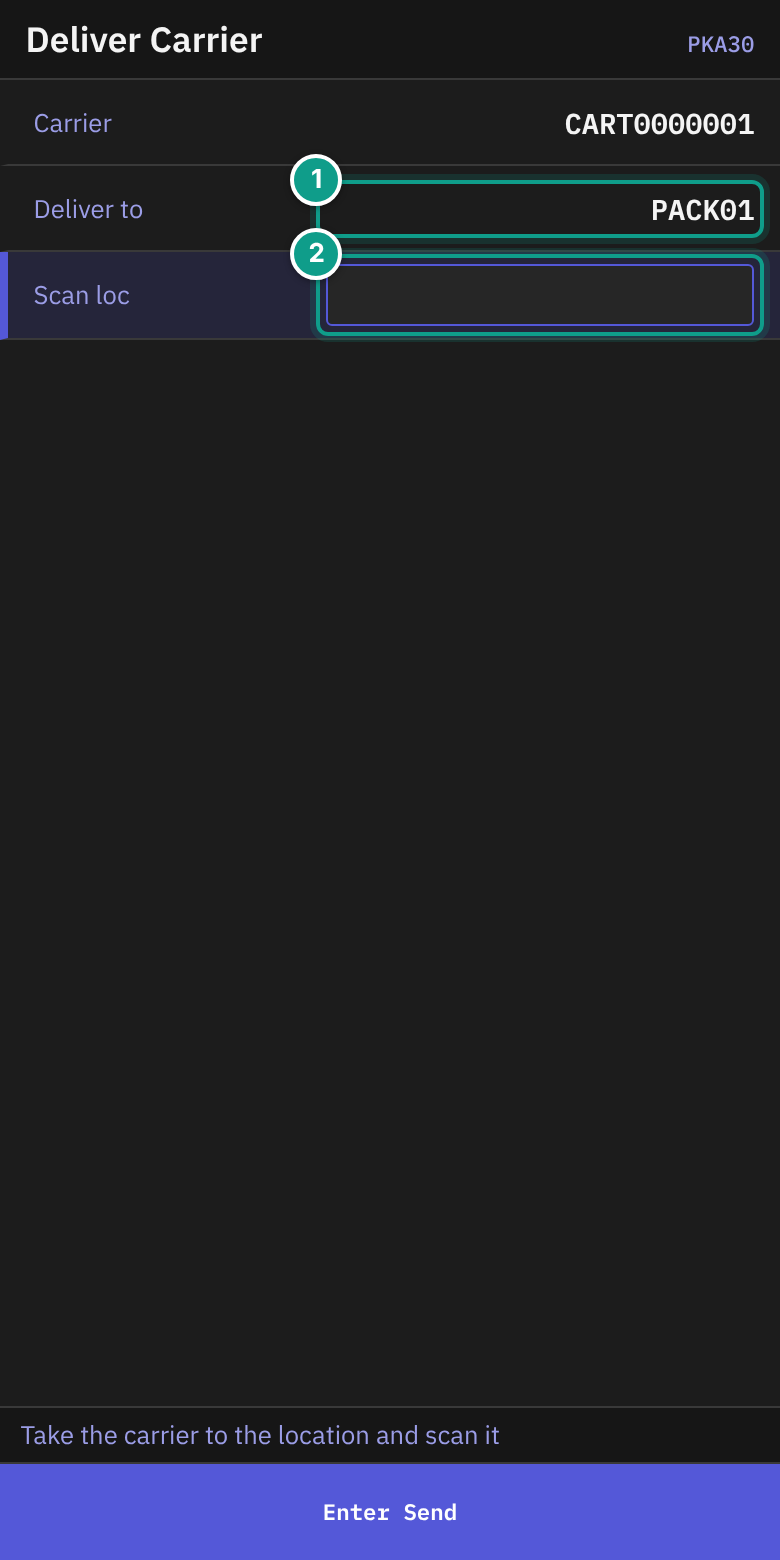
- On Deliver Carrier, read the status line: Take the carrier to the location and scan it.
- Check Carrier and Deliver to. Deliver to shows a location,
here (finish in place),its delivery location, orask the supervisor. - Take the carrier there.
- In Scan loc, scan the location (up to 30 characters). The field sends itself. If you finish in place, you may leave it empty.
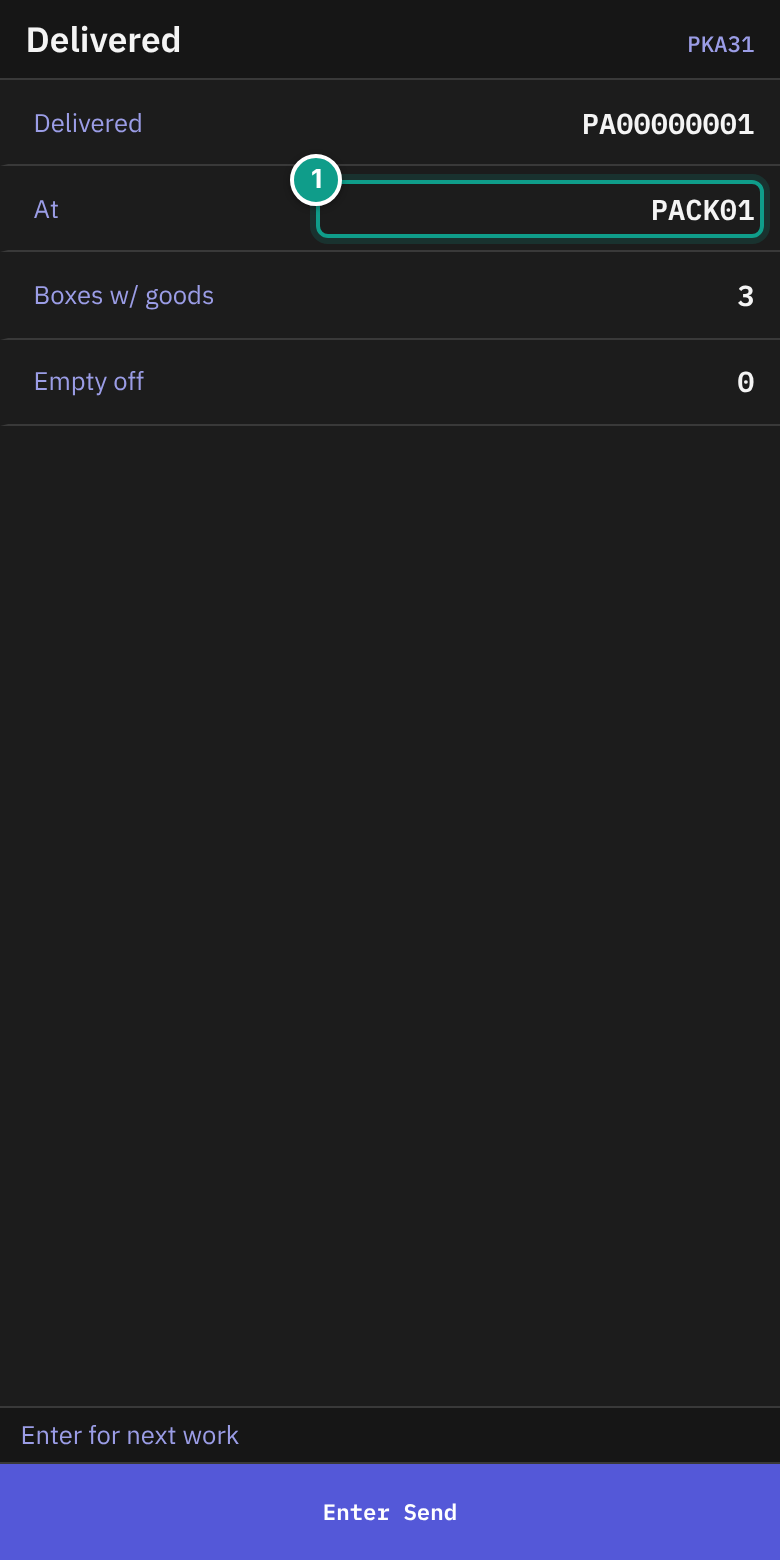
- On Delivered, check Delivered, At, Boxes w/ goods and Empty off. Press
Enterfor the next work.
To deliver a carrier from the menu, use Deliver Carrier (PKA40).
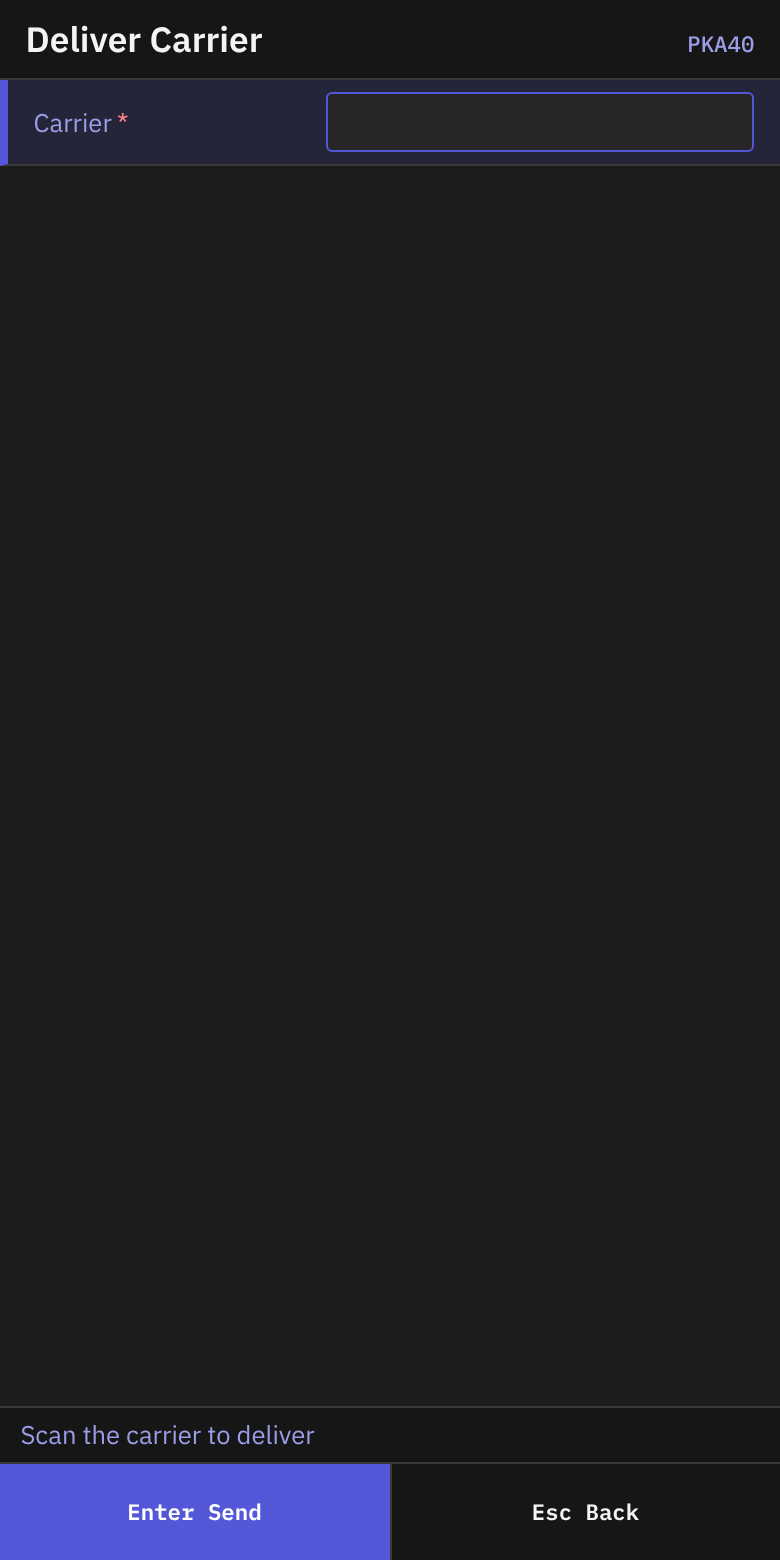
- On Picking, press
3(Deliver Carrier). - On Deliver Carrier, read the status line: Scan the carrier to deliver.
- In Carrier, scan the carrier. Then follow steps 2 to 5 above.
What you should see
- Pick Result after each discrete pick, with Picked and DROPID.
- Delivered after a carrier route.
- A pallet that belongs to another operator closes only after a supervisor confirms.
If something goes wrong
| Message | What it means | What to do |
|---|---|---|
| you have no right to take {type} tasks in work area {area} — ask a supervisor | Your user may not take this work. | Ask your supervisor. |
| you have no right to take {type} tasks in any work area — ask a supervisor | Your user has no work area. | Ask your supervisor. |
| there are {type} tasks in your work areas, but every one is heavier than your equipment lifts (up to {w} at ground level) — they wait for other equipment | Your equipment cannot lift the work. | Ask your supervisor. |
| operator already holds task {id}: finish it first | You already have a pick. | Finish it, or return it. |
| operator already has {type} task {id}; resume it before requesting Pick work | Same. | Resume your task. |
| task {id} lease has expired; claim the work again | You took too long. | Ask for work again. |
| task {id} is not assigned to you (currently: {user}) | Another user has the task. | Ask for work again. |
| Pick task {id} has instructions the picker has not acknowledged | You skipped the instructions. | Read and acknowledge them. |
| pick {id} needs source confirmation first: {list} | You must confirm the source first. | Scan the location, item, LPN or lot as asked. |
| scanned LPN {scanned} is not the reserved source LPN | You scanned the wrong pallet. | Scan the pallet shown in Source LPN. |
| scanned lot {scanned} is not the reserved internal lot | You scanned the wrong lot. | Scan the lot shown in Lot. |
| lot attributes do not match the reserved lot: {codes} | The goods in your hand have other lot attributes. | Check the goods. Use F7 (Reject) or F6 (Short) if needed. |
| {n} lots in the source match the confirmed attributes | The source has several matching lots. | Tell your supervisor. |
| {what} must be scanned, manual entry is not allowed | You typed a value that must be scanned. | Scan the label. |
| {what} is not asked for by this pick's confirmation plan | You scanned something the pick does not need. | Scan only what the screen asks. |
| lot {lot} expires on {date}, too soon to pick | The lot expires soon. | Reject the pick or tell your supervisor. |
| lot {lot} at the source is on an outbound-blocking hold | The lot is on hold. | Reject the pick. Tell your supervisor. |
| barcode {raw} could not be read | The scan is not readable. | Scan again. |
| the source of pick {id} changed after it was confirmed | The source changed after you confirmed. | Confirm the source again. |
| a short pick requires a reason code | You did not give a reason. | Type a reason code. |
| Pick short reason '{code}' is not published | The code is not valid. | Use a code your supervisor gives you. |
| picked quantity {a} exceeds requested quantity {b} | Picked qty is too high. | Lower it. |
| there is no open pallet for this order: scan a pallet label | You have no open pallet. | Scan a DRP label. |
| a pallet label starts with DRP and has 4 to 50 letters, digits, '-' or '_' | The label is not valid. | Use a DRP label. |
| label {code} is on a container that is not an empty pallet | The label is in use. | Use another label. |
| pallet {code} belongs to another order | The pallet is for another order. | Use your own pallet. |
| pallet {open_code} of order {order} is still open: close it first (F2) | You must close your open pallet. | Press F2 and close it. |
| pallet {code} goes to {destination}, not to {location}: scan {destination} | You scanned the wrong cell. | Scan the cell in Put at. |
| pallet {code} is empty: there is nothing to close | The pallet has no goods. | Do not close it. |
| pallet {code} belongs to another operator | Another operator opened the pallet. | A supervisor must confirm. |
| a closed pallet cannot stand in location {location} of type {type} | The cell is not allowed for a closed pallet. | Ask your supervisor. |
| carrier {code} is on live pick assignment {assignment} | The carrier is in use. | Use another carrier. |
| carrier {code} is not empty / carrier {code} is on hold | The carrier cannot be used. | Use another carrier. |
| box {code} is not empty ({status}) / box {code} is already on another carrier / box {code} is on hold | The box cannot be used. | Use another box. |
| box {code} is not registered: put it aside | The box label is unknown. | Use another box. |
| box {scanned} is not the box {expected} of position {n} | You scanned the wrong box. | Scan the box shown in Place / box. |
| box {code} is not the planned type {planned}: repack into the planned box | The box type differs from the plan. | Use the planned box type. |
| location {scanned} is not the delivery location {expected} | You scanned the wrong place. | Scan the Deliver to location. |
| pick assignment {code} has picked goods: a supervisor must dissolve it | A supervisor must approve the dissolve. | Follow the Supervisor Confirmation steps. |
| pick assignment {code} has {n} stops left on its route | The route is not done. | Finish the route, or dissolve. |
| the picks of position {n} wait for carton recovery: hand them over | A position needs recovery. | Use Recovery. |
| version conflict on task {id} (current version {n}) | Someone changed the task. | Ask for work again. |
| No permission: {screen} ({function}) | Your user may not do this. | Ask your supervisor. |
When there is no work, the line above Current loc says No eligible Pick work. On Get Area Work it says No eligible Pick work in the area. A refusal from the server shows in the same place.
A fresh system has three published short-reason codes: SHORT (the stock is below the system quantity), WRONG_LOCATION (the stock is not where the system says) and LPN_NOT_FOUND (the pallet is not in the location). LPN_NOT_FOUND takes no partial quantity: the pallet is there or it is not. Your administrator can add, change or retire codes, so ask your supervisor which codes your warehouse uses.
The server decides in this order. First, if you already hold a live carrier job, or a carrier that was dissolved with goods and not delivered, that job opens again. Next, if you did not name an area (Discrete Pick), you get a single pick. If you named an area, the picking policy for that area and your equipment decides. If the policy needs no carrier, you get a single pick. If it needs a carrier, you get a task you already hold, or else Scan Carrier.
What the supervisor sees
Each committed pick moves stock to the pallet (DROPID) or box. A short pick releases the rest. A dissolved assignment returns boxes to the registry and tasks to the pool. A rejected pick is stored with your reason.
Related guides
- 04 Damage and receipt close for Force-Close Episode (supervisor)
- 10 Packing and verify
- 11 Troubleshooting and messages