Inventory count
What you will do
Count the stock in a location that the system gives you. Record what you find. Finish the location.
Before you start
- A count must be open and have locations to count. A supervisor creates it, or a cycle-count policy makes it. A count can be of whole locations or only of an item (SKUs, lots or LPNs).
- A location must be free to count. A location that is blocked or already being counted is not given to you.
- Know your work area, or count in the whole warehouse.
- Decisions about differences (accept, recount, cancel) are made by a supervisor on another system, not on the RF terminal.
Steps
Get a location
- On Main Menu, press
2(Inventory). - On Inventory, press
4(Count Location).
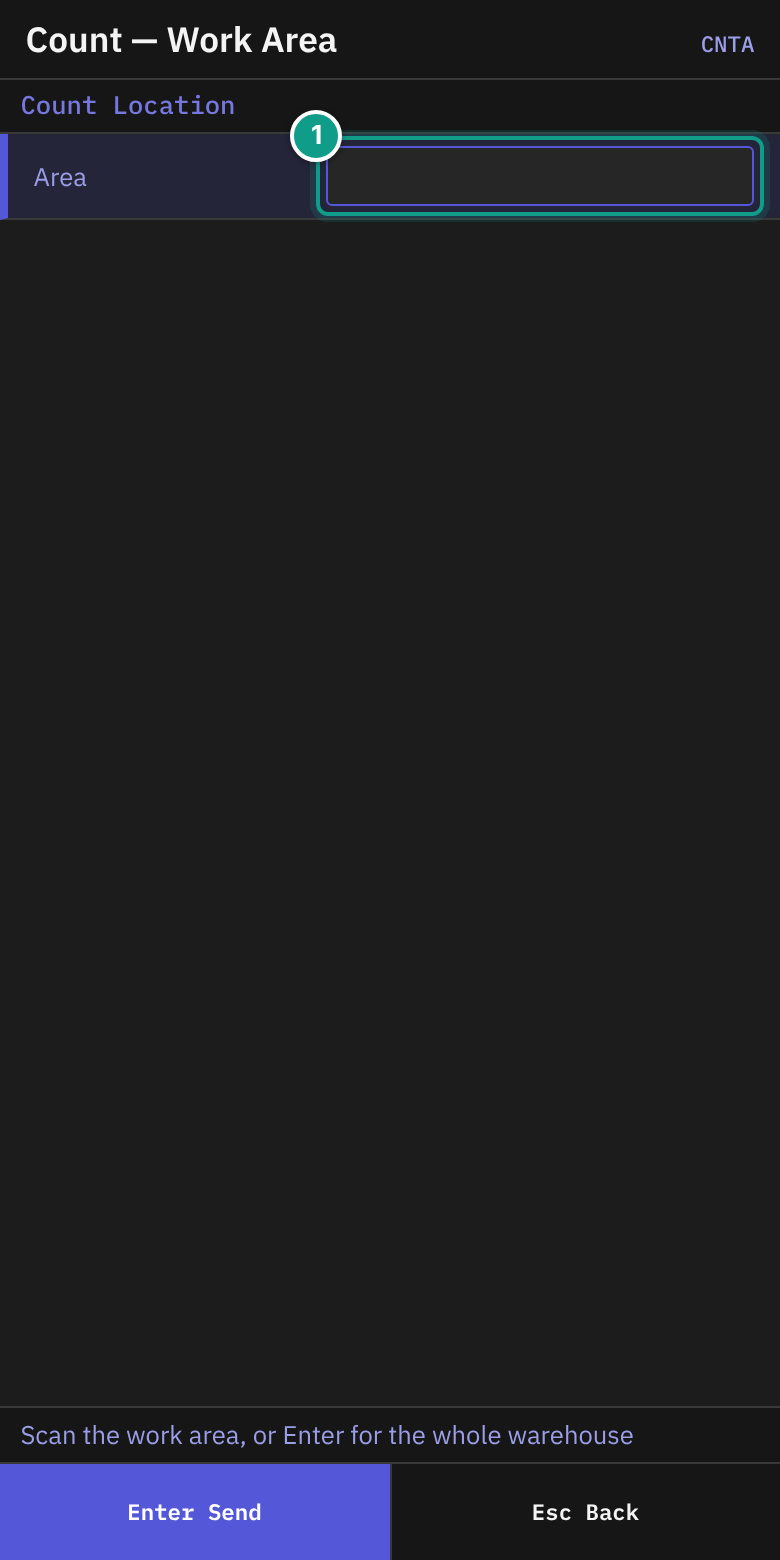
- On Count — Work Area (header Count Location), read the status line: Scan the work area, or Enter for the whole warehouse.
- In Area, scan the work area code (up to 30 characters). Or leave it empty. Press
Enter.
- On Count — Next Location, the terminal asks for your next location. The line Area shows the area, or whole warehouse. The status line says Getting a location - Enter asks again.
- If you see an error, press
Enterto ask again.
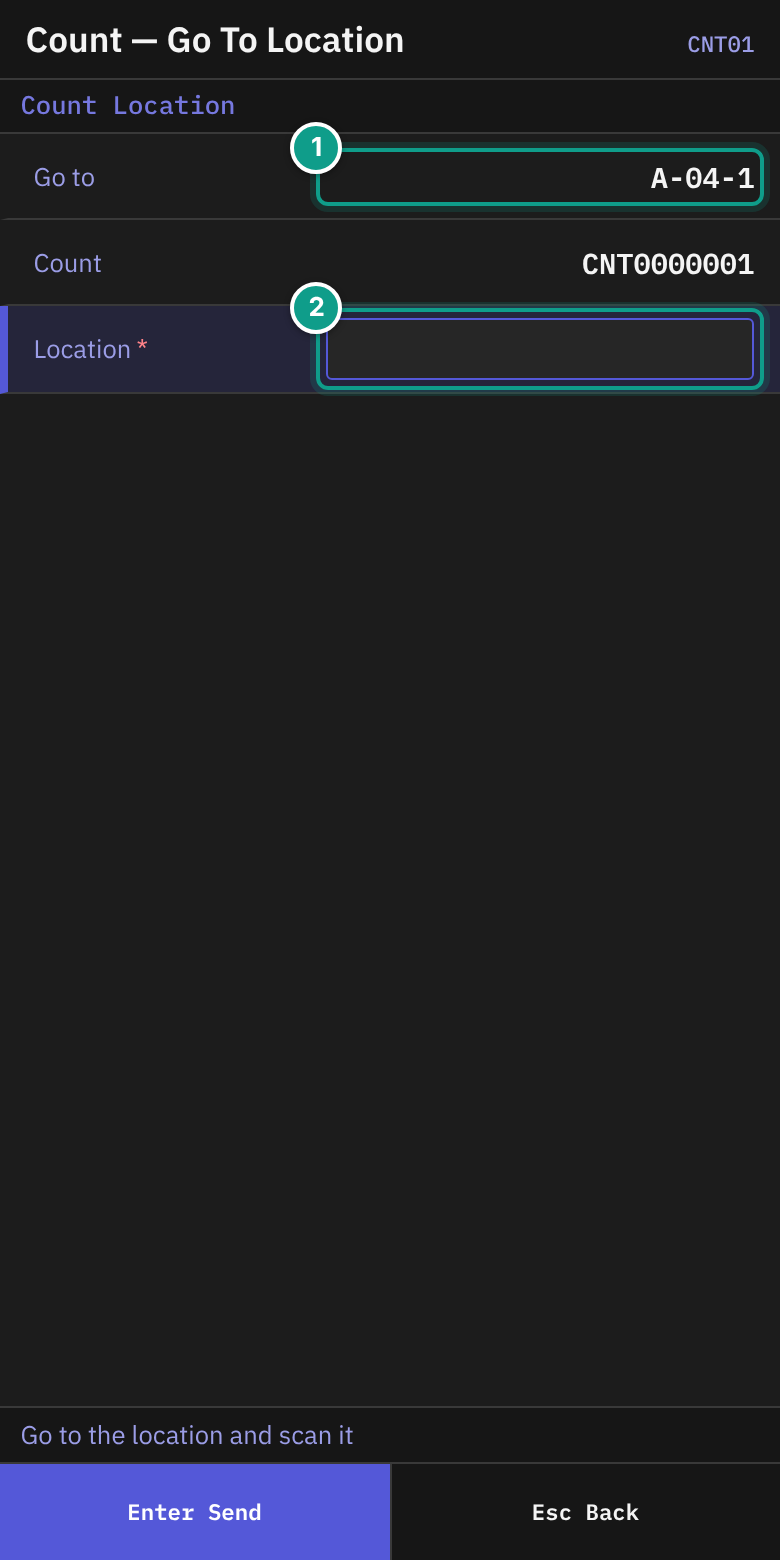
- On Count — Go To Location, read:
- Go to: the location to count. A recount adds
(recount {n}). - Count: the count number.
- Only: shown only when the count is a count by item. It names what to count in this location, for example
SKU A; lot L1. Count only that. Anything else you record is refused (COUNT_OUTSIDE_ITEMS). For a count of the whole location the line is not shown.
- Go to: the location to count. A recount adds
- Walk to the location.
- In Location, scan the location label (up to 20 characters). The field sends itself. The status line says Go to the location and scan it.
Record what is there
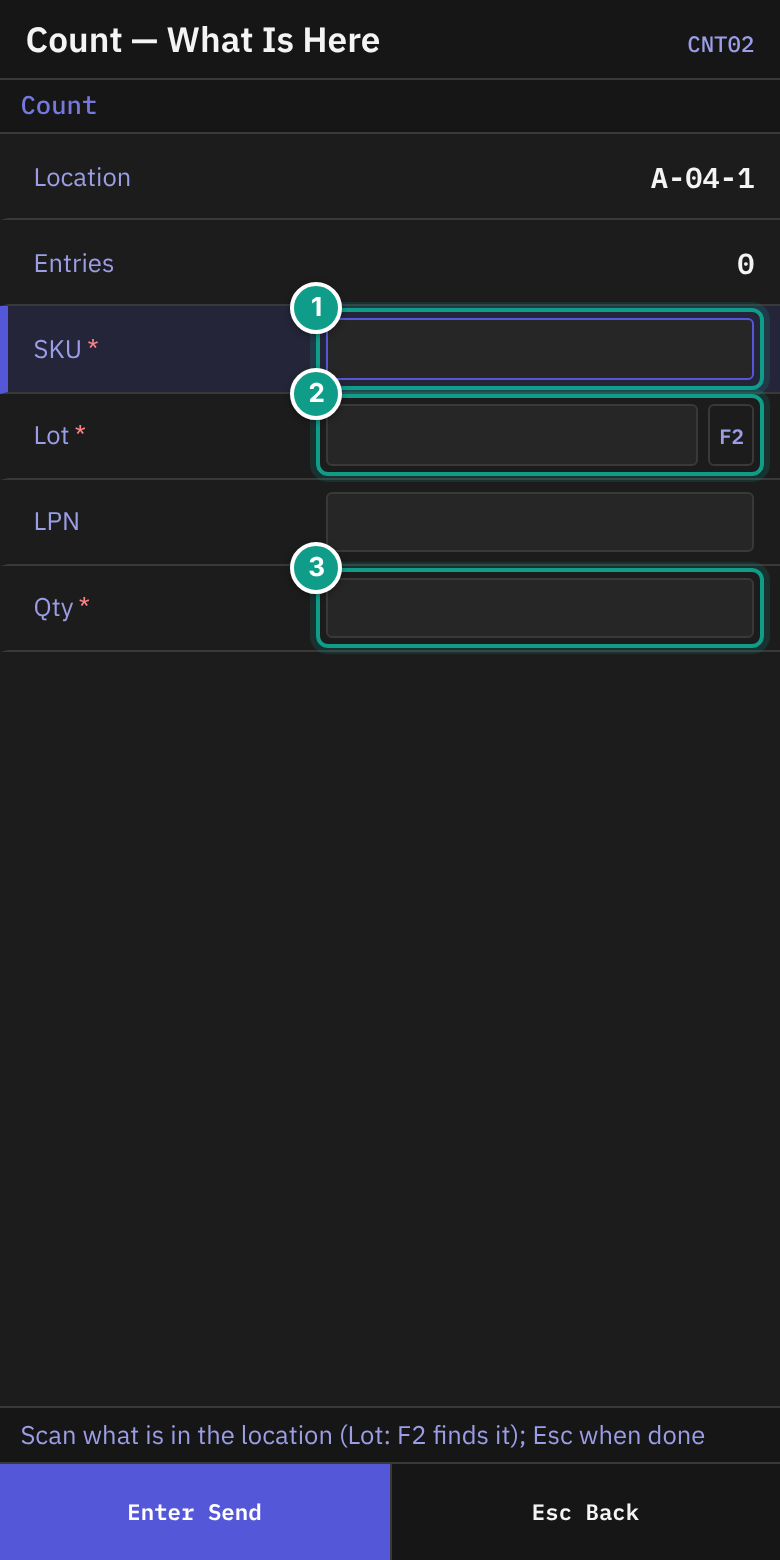
If the count is Informed, the screen also shows the line System. It shows what the system holds, so you can compare. Before you type a SKU it reads {n} line(s), {units} for the location (or nothing). After you type a SKU (and a lot or LPN) it reads {sku}: {qty}. A Blind count has no such line. A recount is always blind, even on an Informed count. The Only line is shown here too on a count by item.
- On Count — What Is Here (header Count), read the status line: Scan what is in the location (Lot: F2 finds it); Esc when done.
- Check Location and Entries (how many entries you made).
- For each thing in the location, fill in the fields:
| Field | What to enter |
|---|---|
| SKU | The SKU (up to 12 characters). Required. |
| Lot | The lot (up to 20). Required. Press F2 to find the lot. |
| LPN | The pallet label, if the stock is on a pallet (up to 40). |
| Qty | The quantity you count (up to 10 characters). Required. |
- Press
Enter. The screen clears for the next entry. Last shows{sku} {lot} x{qty}, and addsLPNif you entered one. - When you have recorded everything, press
Esc.
Find or create a lot
If you do not know the lot code, press F2 in Lot. Enter the SKU first. Otherwise you see Enter the SKU first: F2 finds a lot among the SKU's lots.
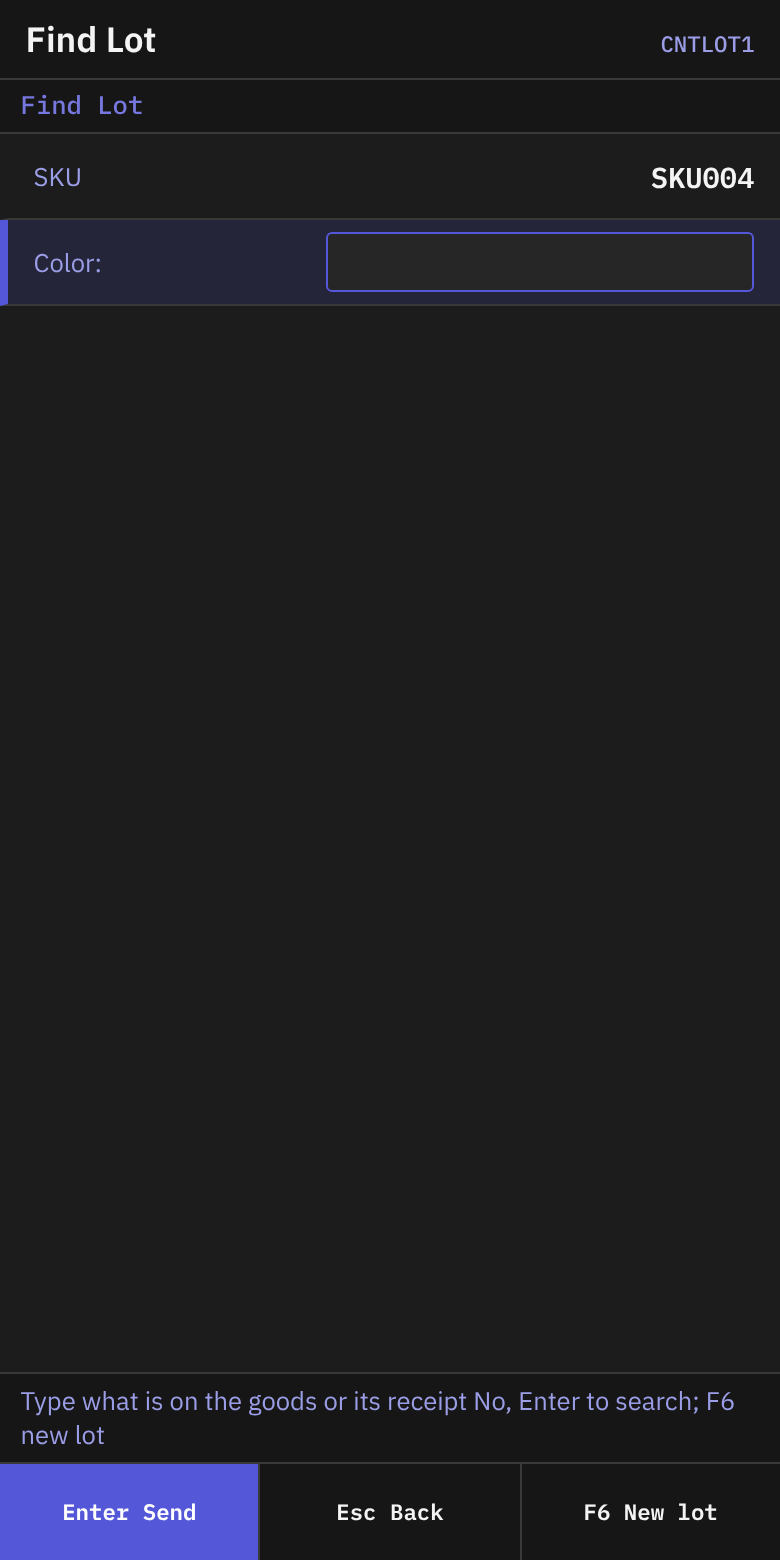
- On Find Lot, read the status line: Type what is on the goods or its receipt No, Enter to search; F6 new lot. Check SKU.
- Fill in the attribute fields the screen shows. Fill in Receipt No if it is shown.
- Press
Enter.
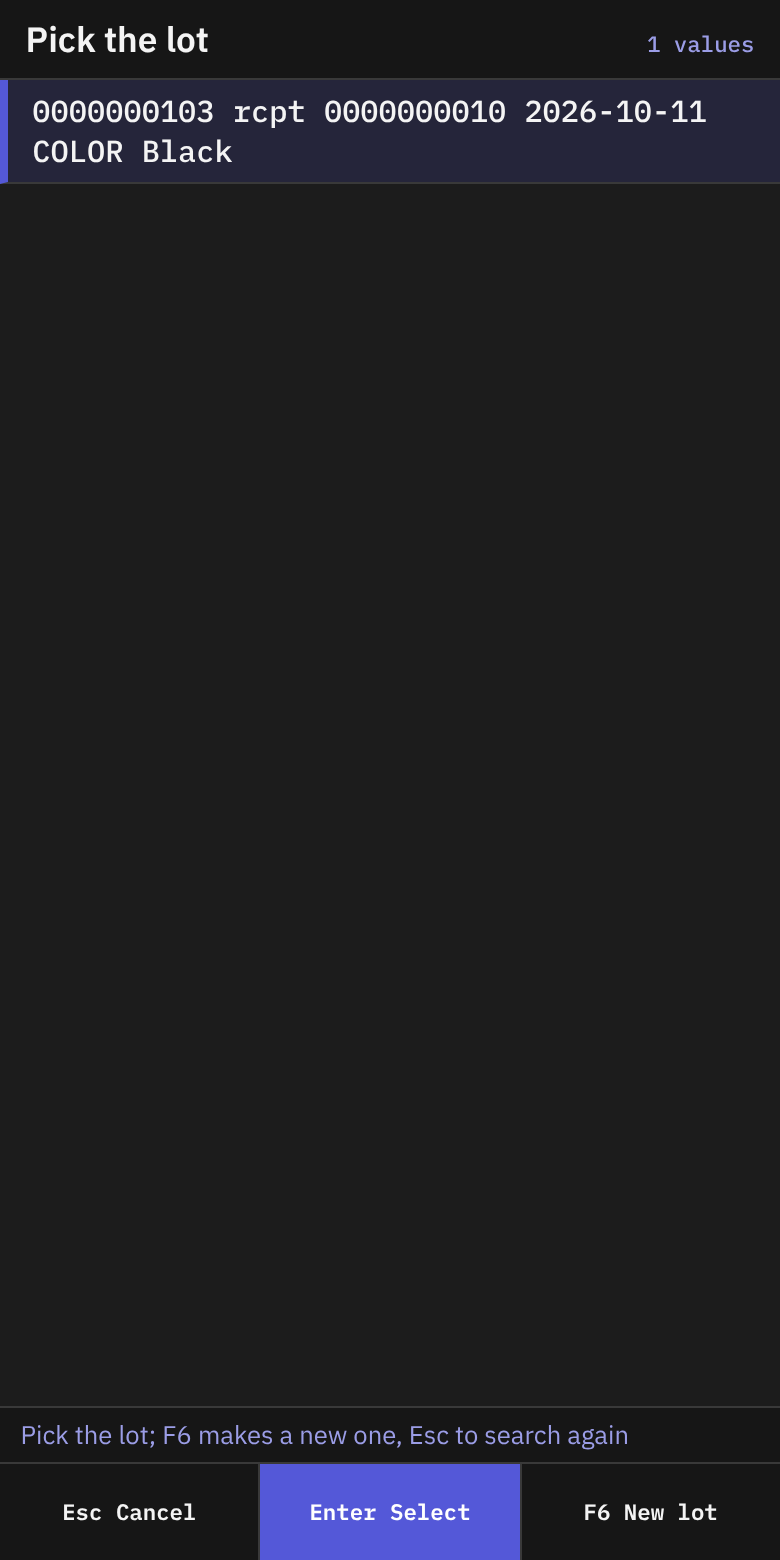
- On Pick Lot, choose the lot with
Enter. You return to Count — What Is Here with the lot filled in. - If no lot fits, the screen says No lot of {sku} has these attributes. F6: new lot. Press
F6(New lot), or pressEscto search again.
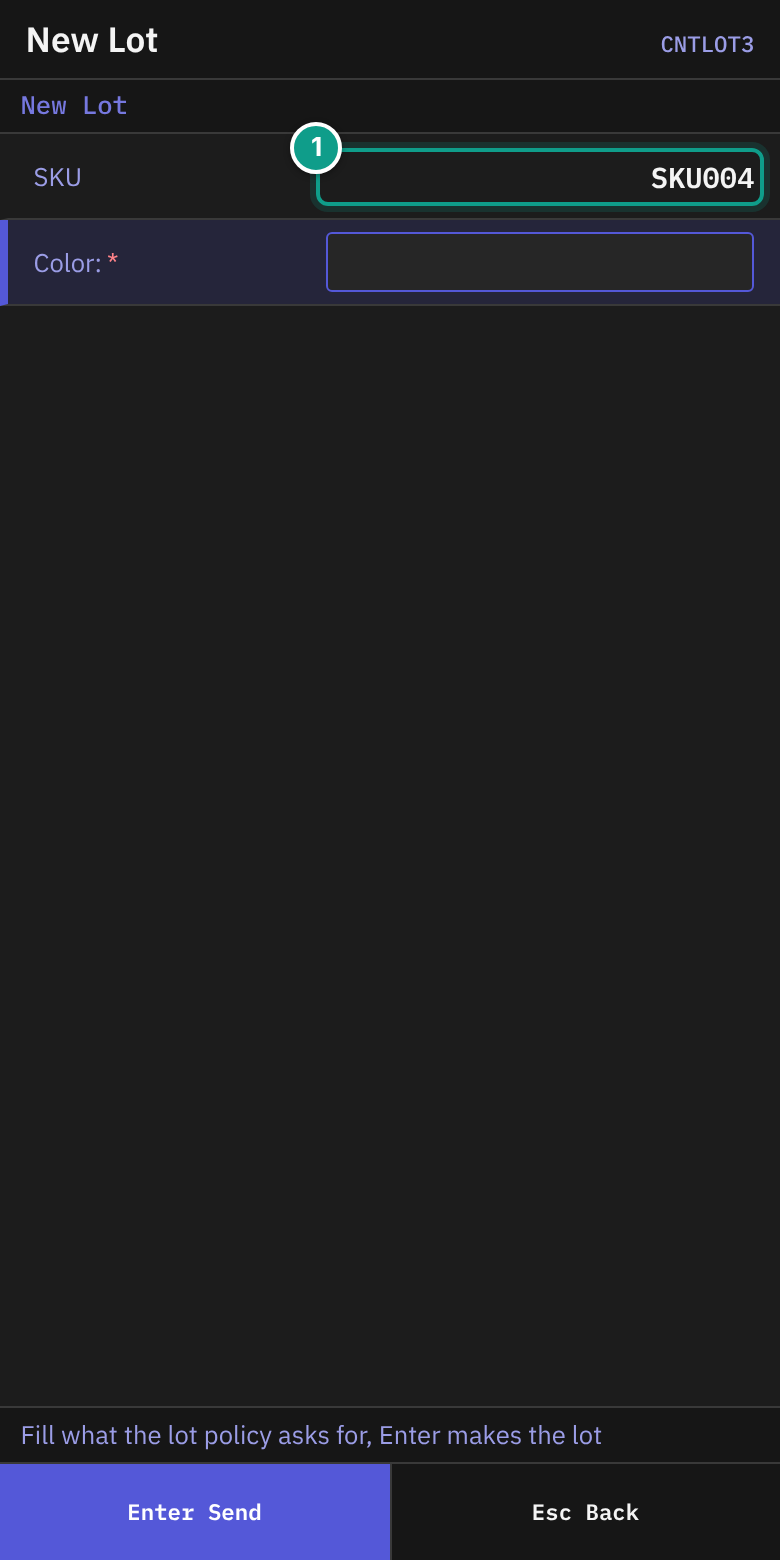
- On New Lot, read the status line: Fill what the lot policy asks for, Enter makes the lot. Fill in the fields. Press
Enter. - You return to Count — What Is Here with the new lot filled in.
Finish the location
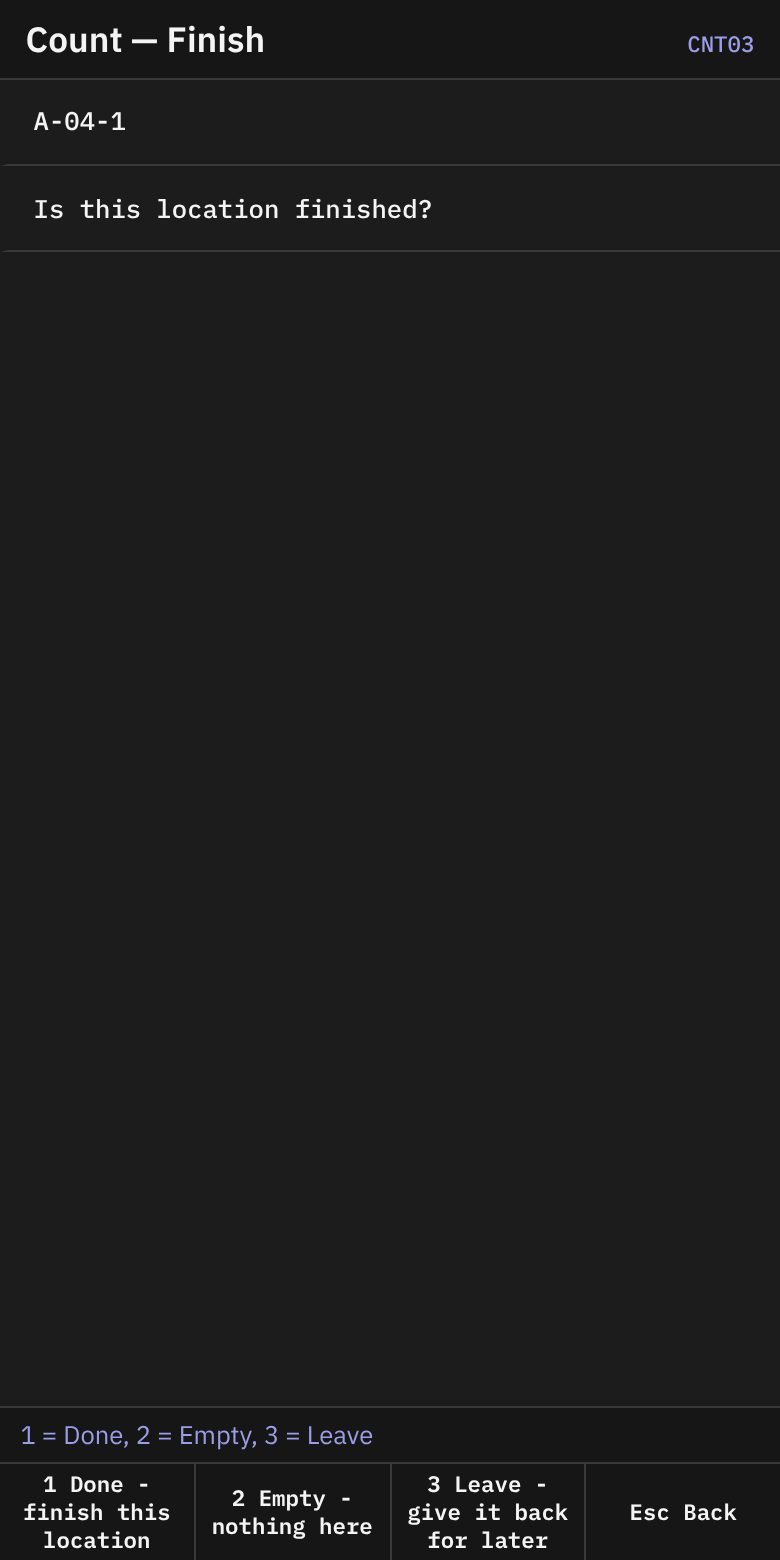
- On Count — Finish, read Is this location finished? Check Location. The status line says 1 = Done, 2 = Empty, 3 = Leave.
- Press a key:
| Key | Choice | What it does |
|---|---|---|
1 | Done - finish this location | Completes the location. |
2 | Empty - nothing here | Says the location is empty. Use it only if you recorded nothing. You return to Count — What Is Here. The line Entries shows EMPTY confirmed - Esc, 1 to finish. Then press Esc and 1. |
3 | Leave - give it back for later | Gives the location back. You return to the Inventory menu. |
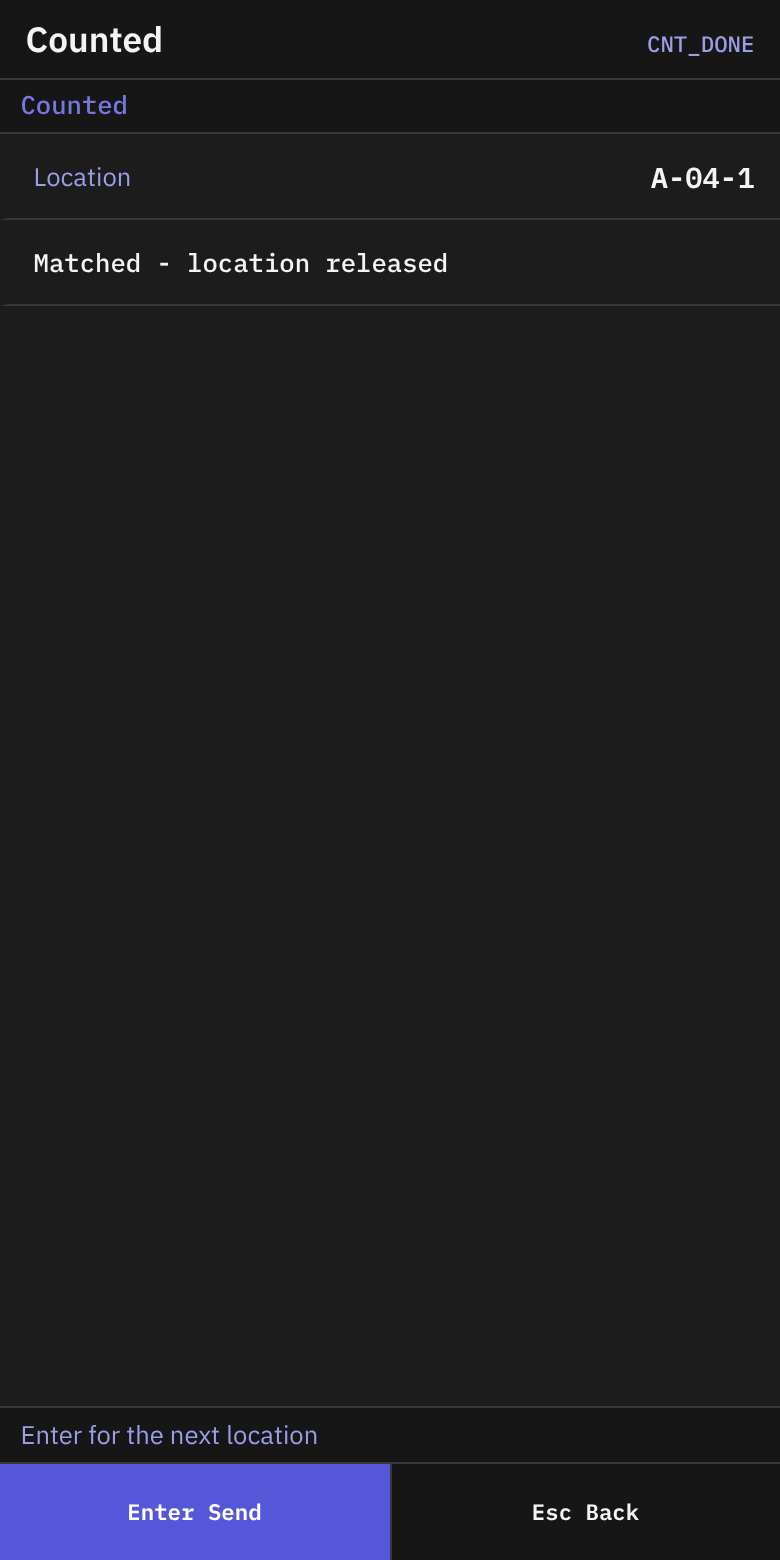
- After
1, Counted shows Location and one of these lines:- Matched - location released: your count matches the system.
- Within tolerance - adjusted, released: your count differs a little. The difference is within the tolerance your warehouse set, so the system adjusted the stock. No supervisor is needed.
- Difference found - a supervisor will review it: your count differs.
- Press
Enterfor the next location. PressEscto go to the Inventory menu.
What you should see
- Counted after each finished location.
- The next location when you press
Enter.
If something goes wrong
| Message | What it means | What to do |
|---|---|---|
| nothing to count / nothing to count in area {area} | No location is free to count. | Tell your supervisor. Try another area. |
| {location} is not given to you: take your next location | You scanned a location that is not yours. | Go to the location shown in Go to. |
| {location} is being counted by {holder} | Another user counts this location. | Wait. Ask for another location. |
| nothing was counted in {location}: record what is there, or confirm that it is empty | You pressed 1 with no entries. | Record the stock, or press 2 (Empty). |
| {location} holds counted stock, so it cannot be confirmed empty | You have entries, so the location is not empty. | Press 1 to finish. |
| {location} was confirmed empty: nothing more can be recorded in it | You marked it empty. | Press Esc, then 1. |
| SKU {sku_code} does not exist for this owner | The SKU is unknown. | Check the SKU. |
| SKU {sku_code} belongs to several owners: name the owner | Several owners have this SKU. | Tell your supervisor. |
| lot {lot} is not a lot of {sku_code}: F2 on Lot finds a lot by its attributes | The lot belongs to another SKU. | Press F2 on Lot. |
| quantity {qty} is not a positive number | Qty is zero or not a number. | Type a quantity above 0. |
| a recount of {location} is counted by somebody other than the first counter | A recount needs a different person. | Tell your supervisor. |
| the count of {location} is {status}: it is not being counted | The location is no longer open for counting. | Press Esc. Take the next location. |
| No permission: {screen} ({function}) | Your user may not count. | Ask your supervisor. |
What the supervisor sees
Each location you finish is compared with the system stock. A small difference within the tolerance is adjusted at once. Any other difference goes to a supervisor, who accepts it, orders a recount or cancels. To accept, the supervisor records why the count differs, for example a pick error or a mix-up. While you count a location, it is frozen.