Login and warehouse
What you will do
Sign in to the RF terminal. Choose the warehouse you work in. Reach Main Menu.
Before you start
- You need a user name and a password from your administrator.
- You need access to at least one warehouse.
- The terminal must be connected to the server.
Steps
Sign in
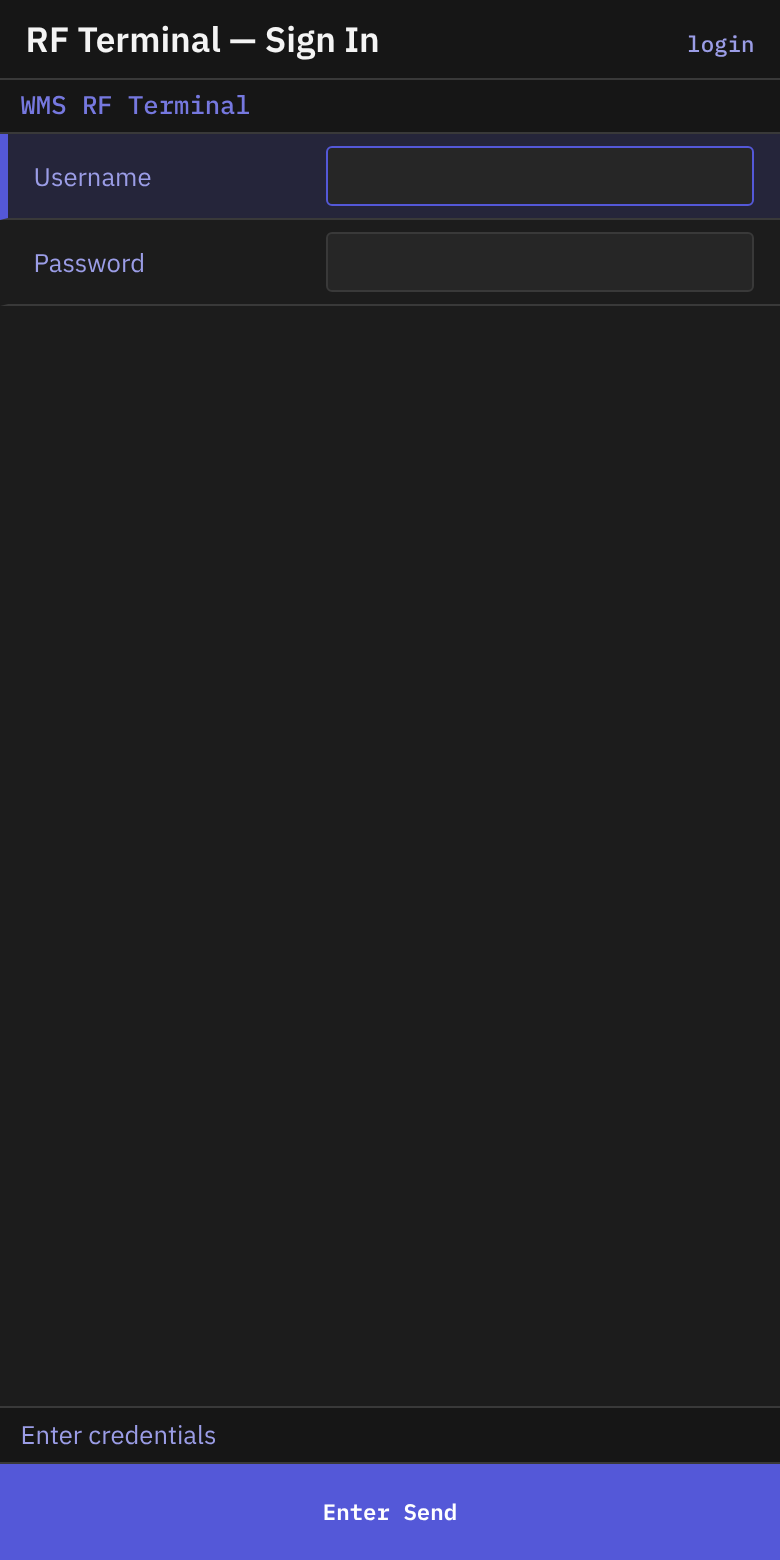
- Read the header WMS RF Terminal. The status line says Enter credentials.
- In Username, type your user name. Press
Enter. - In Password, type your password. The screen shows
*for each letter. - Press
Enter.
The screen title is RF Terminal — Sign In. Username holds up to 64 characters. Password holds up to 128.
Choose a warehouse
If you have more than one warehouse, the terminal opens Select Warehouse. If you have one warehouse, it is chosen for you and the terminal opens Main Menu.
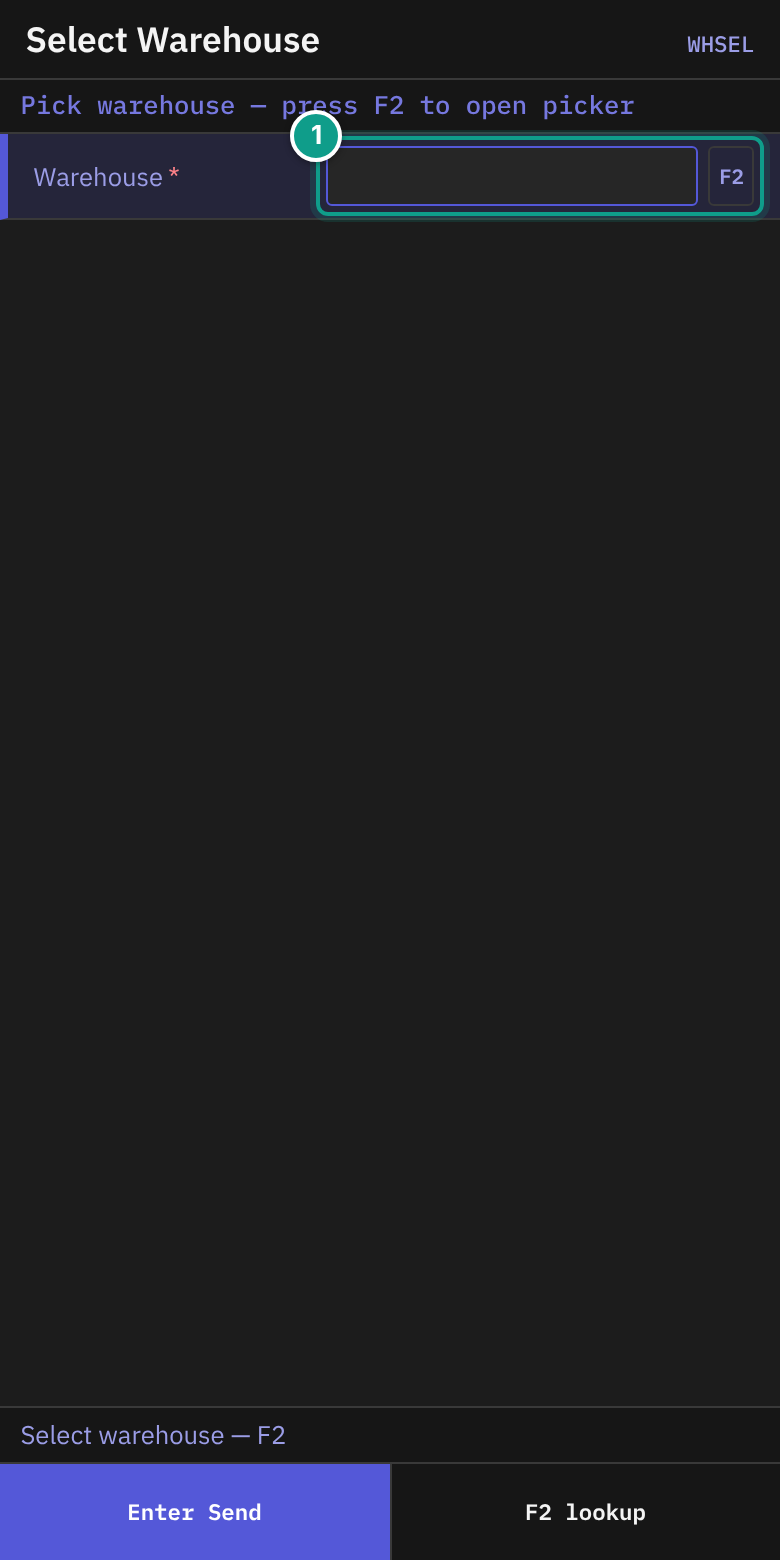
- Read the header Pick warehouse — press F2 to open picker. The status line says Select warehouse — F2.
- In Warehouse, press
F2. The terminal shows your warehouses. - Move to your warehouse with
UporDown. PressEnter.
You can also type the warehouse id in Warehouse. The hint says Type warehouse_id or F2 to pick from your accessible warehouses.
Change the warehouse later
- On Main Menu, press
Esc. The terminal opens Select Warehouse. - Choose the warehouse as above.
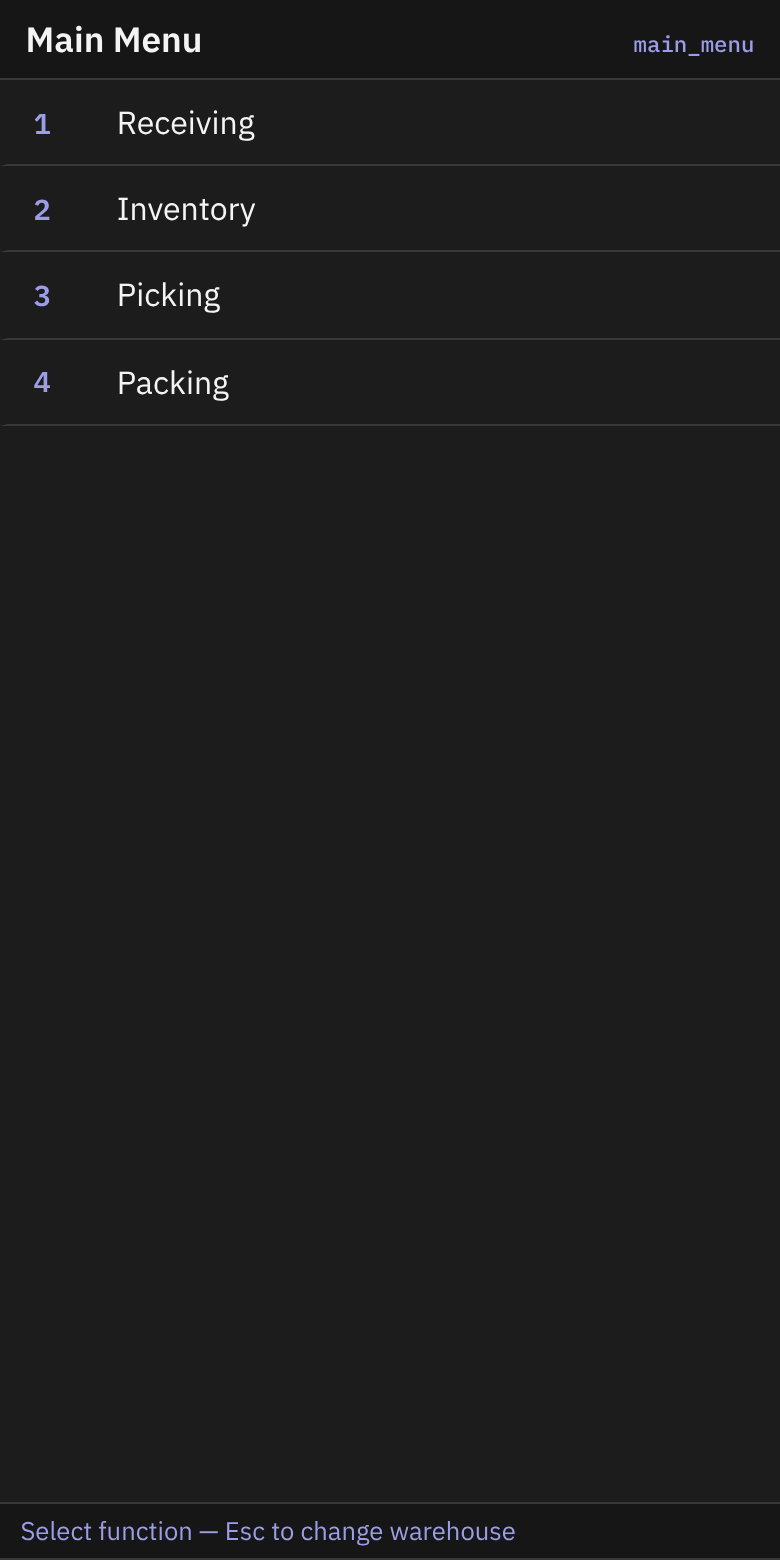
What you should see
- After a correct choice, Main Menu appears with Receiving, Inventory, Picking and Packing.
- You cannot go back to the sign-in screen with
Esc. To sign in as another user, close the RF session and start it again.
If something goes wrong
| Message | What it means | What to do |
|---|---|---|
| Invalid username or password (red status line, the screen stays on RF Terminal — Sign In) | The sign-in was not accepted. The screen stays so you can type again. The same message shows if your user is not allowed to sign in on RF terminals. | Check the user name and password. Type them again. If it keeps failing, ask your administrator. |
| No permission: {screen} ({function}) | Your user may not use this function. | Tell your supervisor. |
| The warehouse list is empty | Your user has no warehouse. | Ask your administrator to give you access. |
If your session ends while you work, the terminal shows Session expired. Please sign in again.
If the terminal cannot load your list of warehouses after sign-in, it does not stop. It opens Main Menu without a chosen warehouse. The server then uses your default warehouse, but only when exactly one warehouse is marked as your default. If none or more than one is marked, the server refuses your requests (code warehouse_required). In that case ask your administrator to set one default warehouse for you.
Not confirmed by code: the exact words the terminal shows when the server refuses a request with
warehouse_required. To verify: sign in with a user that has no warehouse assigned (the same case as an empty warehouse list), press1on Main Menu, and read the status line.
Related guides
- 00 README for the RF keys.
- 02 Receiving against an ASN
- 11 Troubleshooting and messages