Receiving against an ASN
What you will do
Receive goods against an ASN, line by line. Capture serial numbers when the SKU needs them. When all goods are in, close the receipt from the summary screen.
Before you start
- The ASN must exist and be open.
- You must know the ASN number.
- Have the goods and their labels in your hands.
- If the SKU has lot attributes (for example colour), read them from the goods.
- You need a location to put the goods in. The default is
STAGE. - To close a receipt that differs from the ASN, a supervisor must be near. See 04 Damage and receipt close.
For case-level ASNs, use Receive Case-Level. See 03 Blind receiving and returns.
Steps
Open the ASN
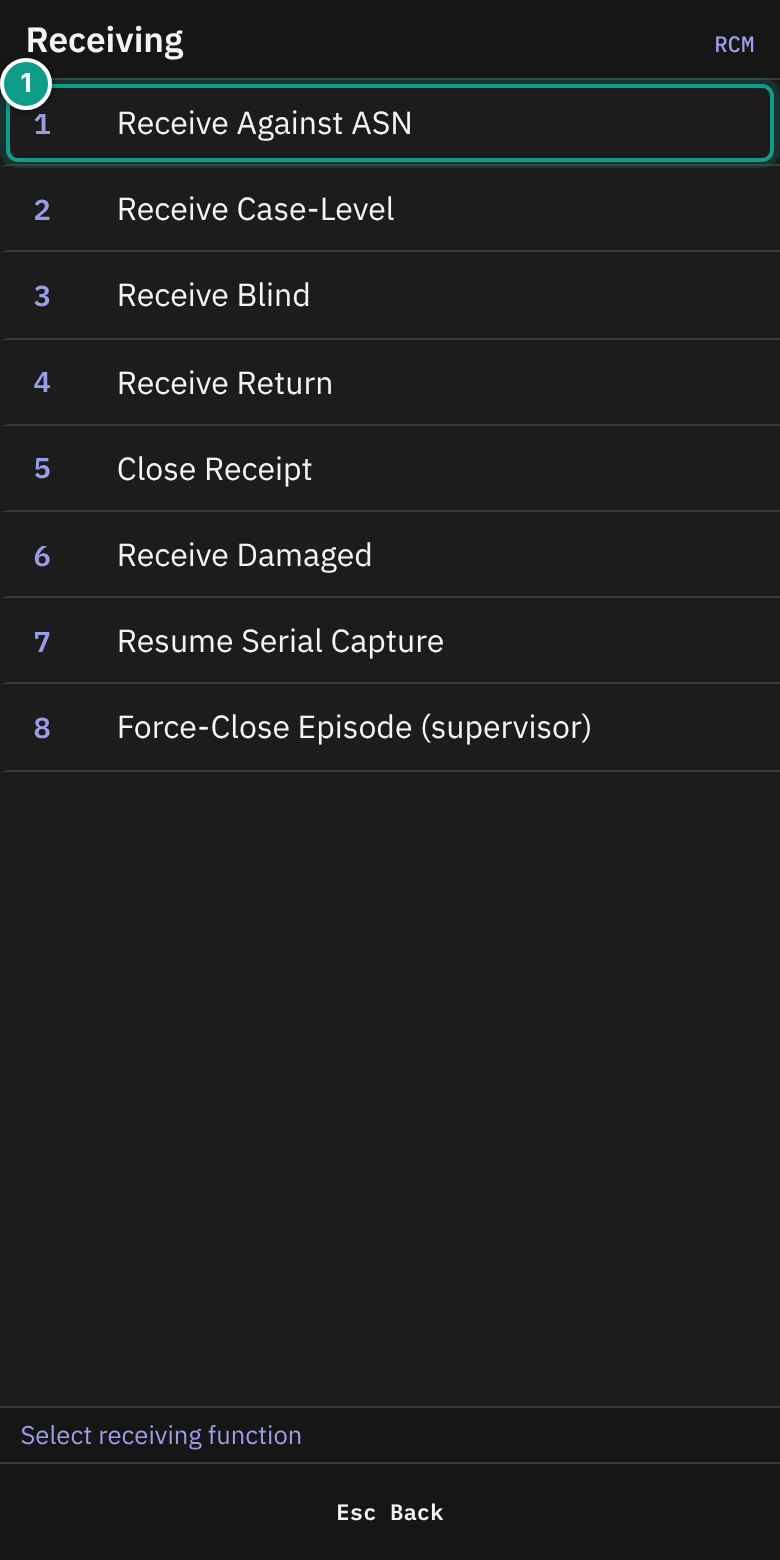
- On Main Menu, press
1(Receiving). - On Receiving, press
1(Receive Against ASN).
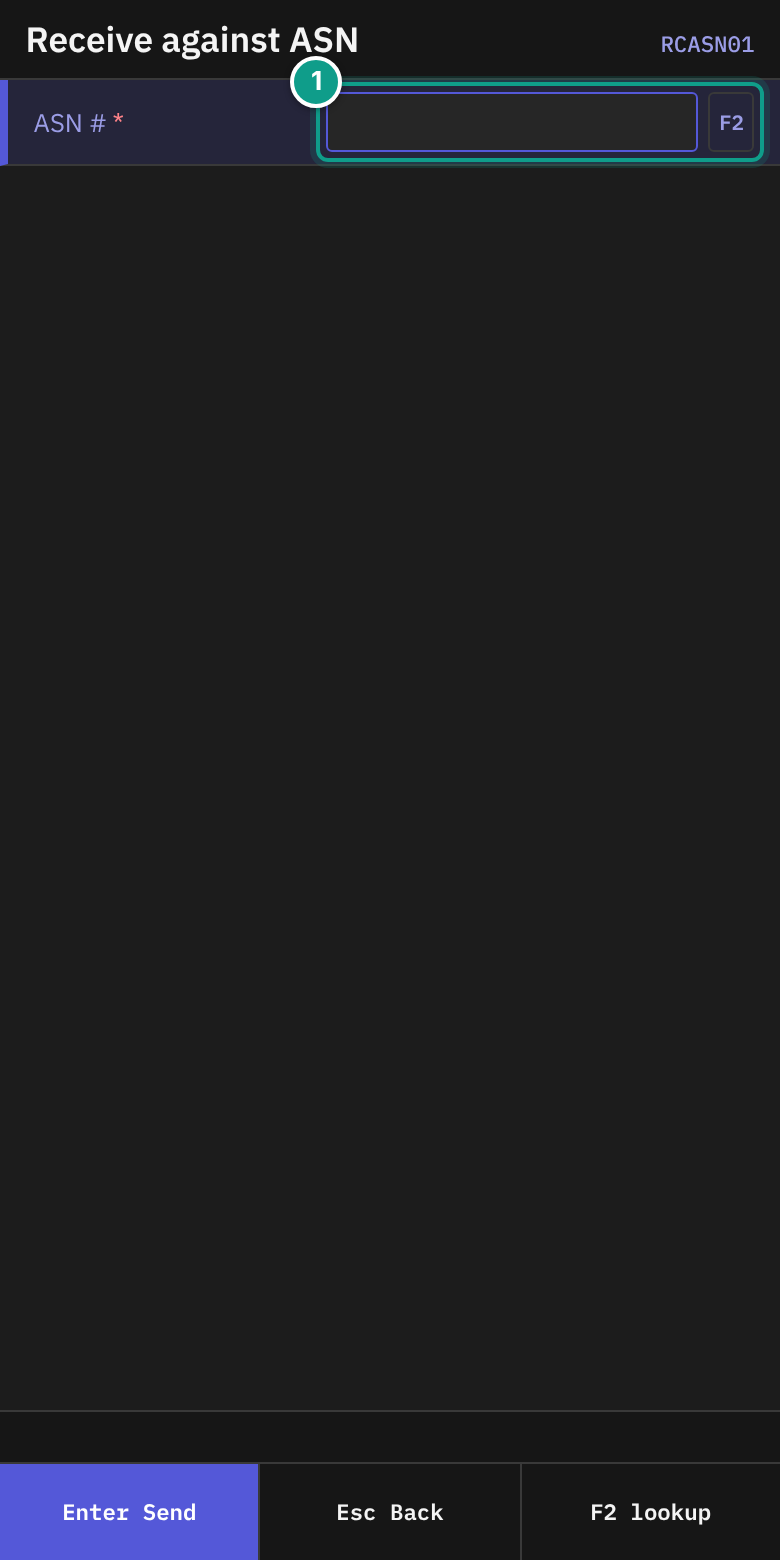
- On Receive against ASN, in ASN #, scan or type the ASN number. The field holds up to 30 characters and changes letters to upper case. It sends itself when you press
Enter. - To find an ASN, press
F2in ASN #. The terminal shows a list of ASNs. Choose one withEnter.
If an earlier serial capture on this ASN is still open, the terminal opens Serial Capture instead. Go to "Capture serial numbers" below.
Read the summary
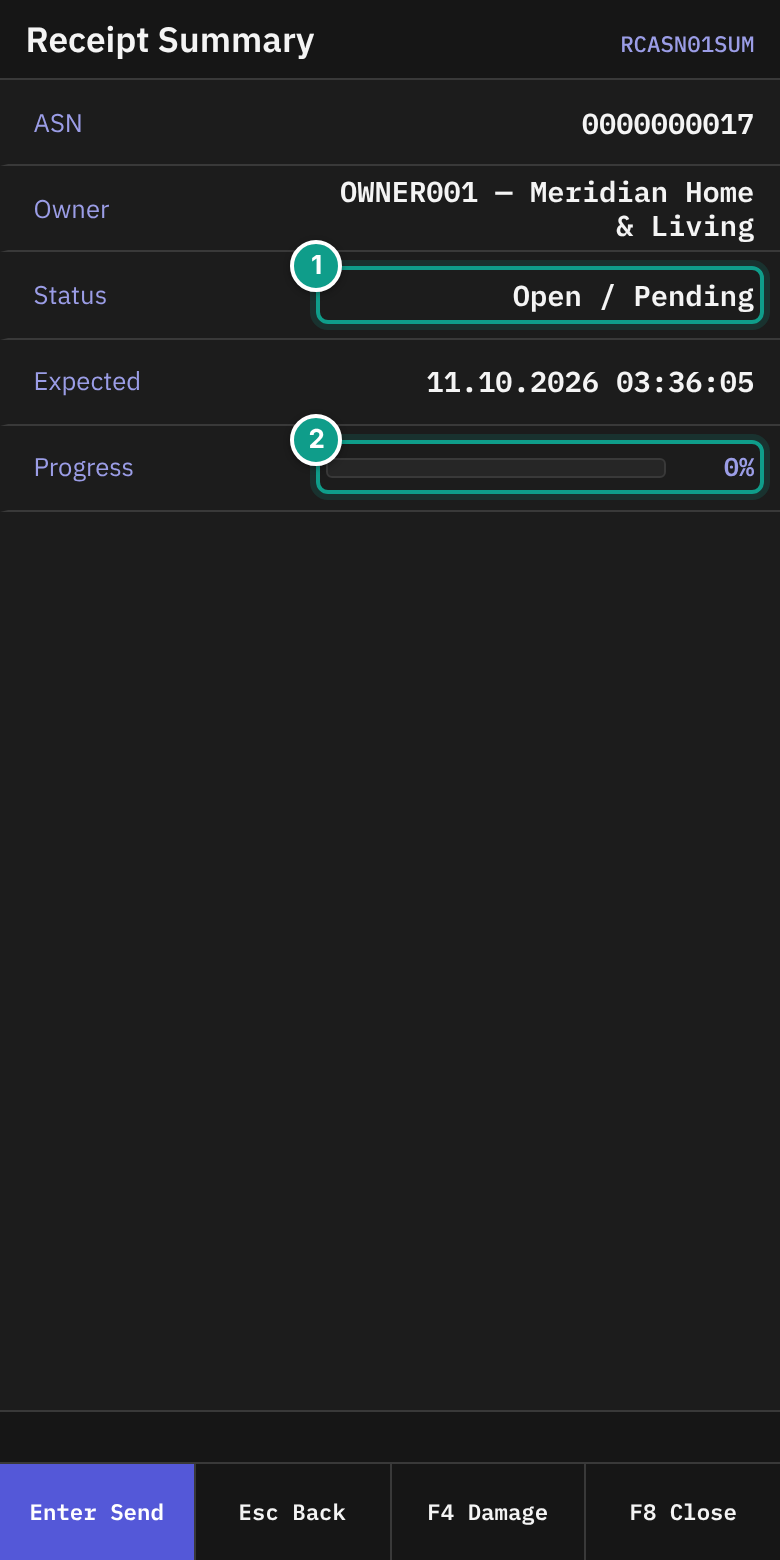
- On Receipt Summary, check these lines:
| Line | What it shows |
|---|---|
| ASN | The ASN number |
| Owner | Owner code and company |
| Status | Status and completion, for example Open / Pending. Green when the completion is Full, yellow when it is Over. |
| Expected | The expected date. Shown only if the ASN has one. |
| Progress | Received quantity over expected quantity, with a percent bar. Shown only if a quantity is expected. |
| Serials | Serials collected over serials required. Shows — missing {n} when some are missing. Shown only if serials are required. Yellow while some are missing, green when all are collected. |
- Press
Enter. The terminal opens Scan SKU.
The footer shows F8 Close and F4 Damage.
F8 is greyed out while serials are missing.
Scan the SKU
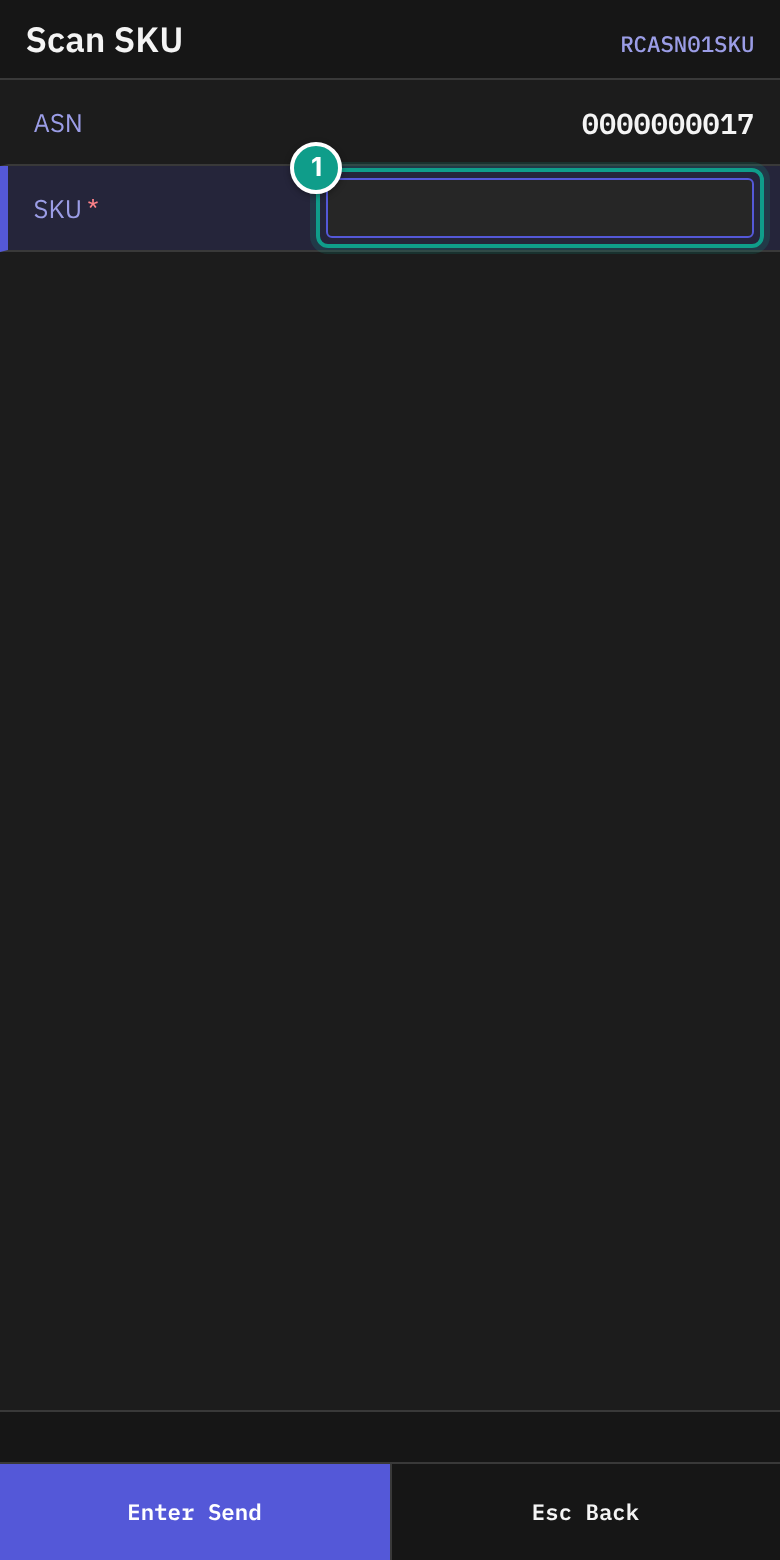
- On Scan SKU, check ASN.
- In SKU, scan the item barcode, or type the SKU code. The field holds up to 50 characters. It sends itself.
If the SKU is not found, you see SKU not found: {code}. Check the code and scan again.
Enter the quantity
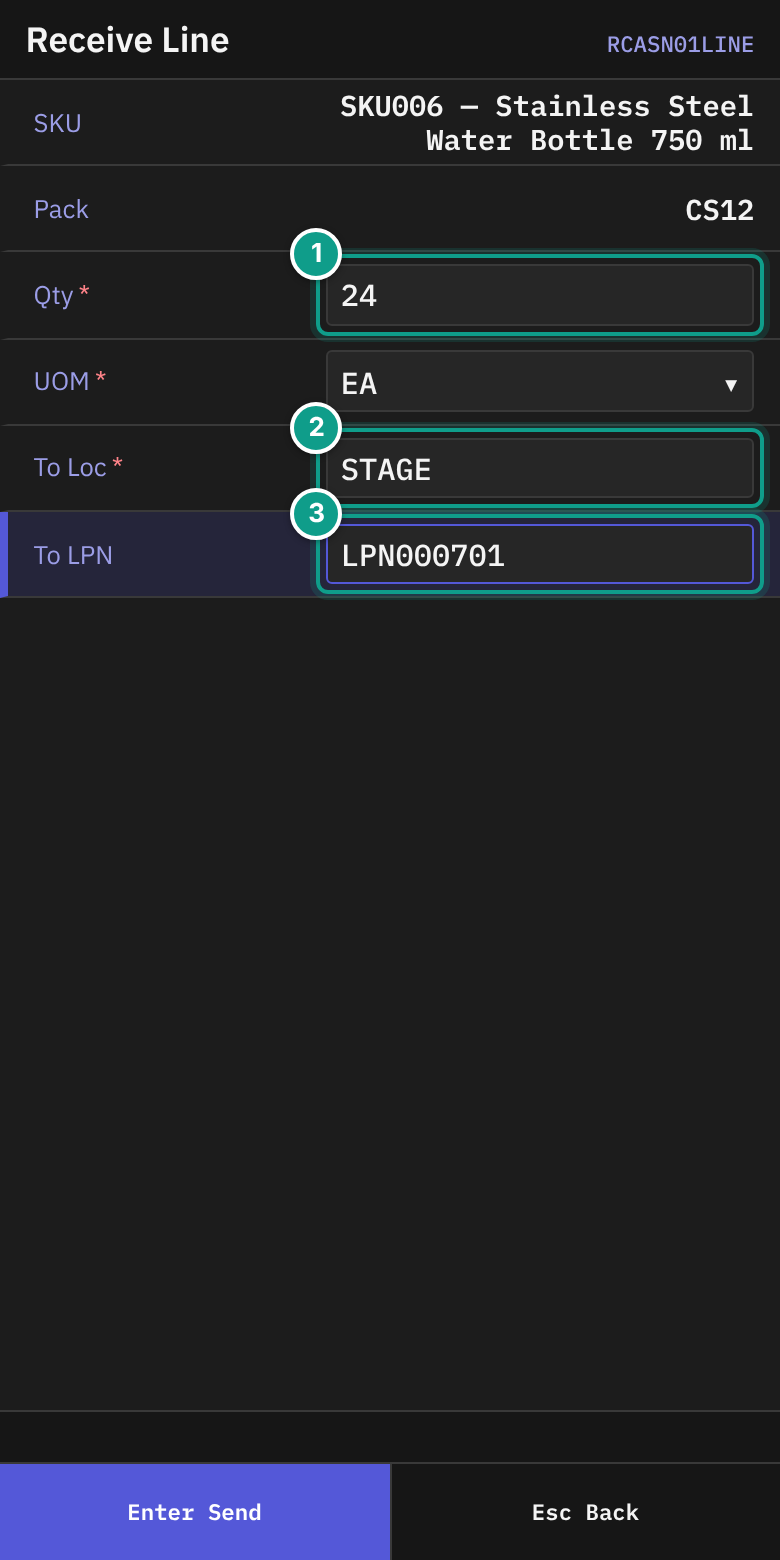
- On Receive Line, check SKU and Pack. They are read-only.
- Fill in the fields:
| Field | What to enter |
|---|---|
| Qty | The quantity you hold in your hands. It must be more than 0. Up to 8 characters. |
| UOM | The unit of the quantity. Press Left or Right to choose EA, IP, CS or PL. |
| To Loc | The location to put the goods in. Default STAGE. After the first line, it starts with the location you sent last. Required. Up to 10 characters. |
| Lot attribute fields | Some SKUs ask for lot attributes, such as colour or dates. Fill in each field. A field can be prefilled and locked. Its name comes from the SKU lot policy. |
| To LPN | Scan the pallet label. It can be prefilled with the expected LPN. You may leave it empty only if the owner policy allows it. |
- On the last field, press
Enter. The goods are received.
What happens next
- Normal case: the terminal returns to Scan SKU. Scan the next SKU, or press
Escto go back to the summary. - Serial-tracked SKU: the terminal opens Serial Capture.
- Shortage: if you receive less than expected and the system needs a reason, the terminal opens Shortage Reason.
Give a shortage reason
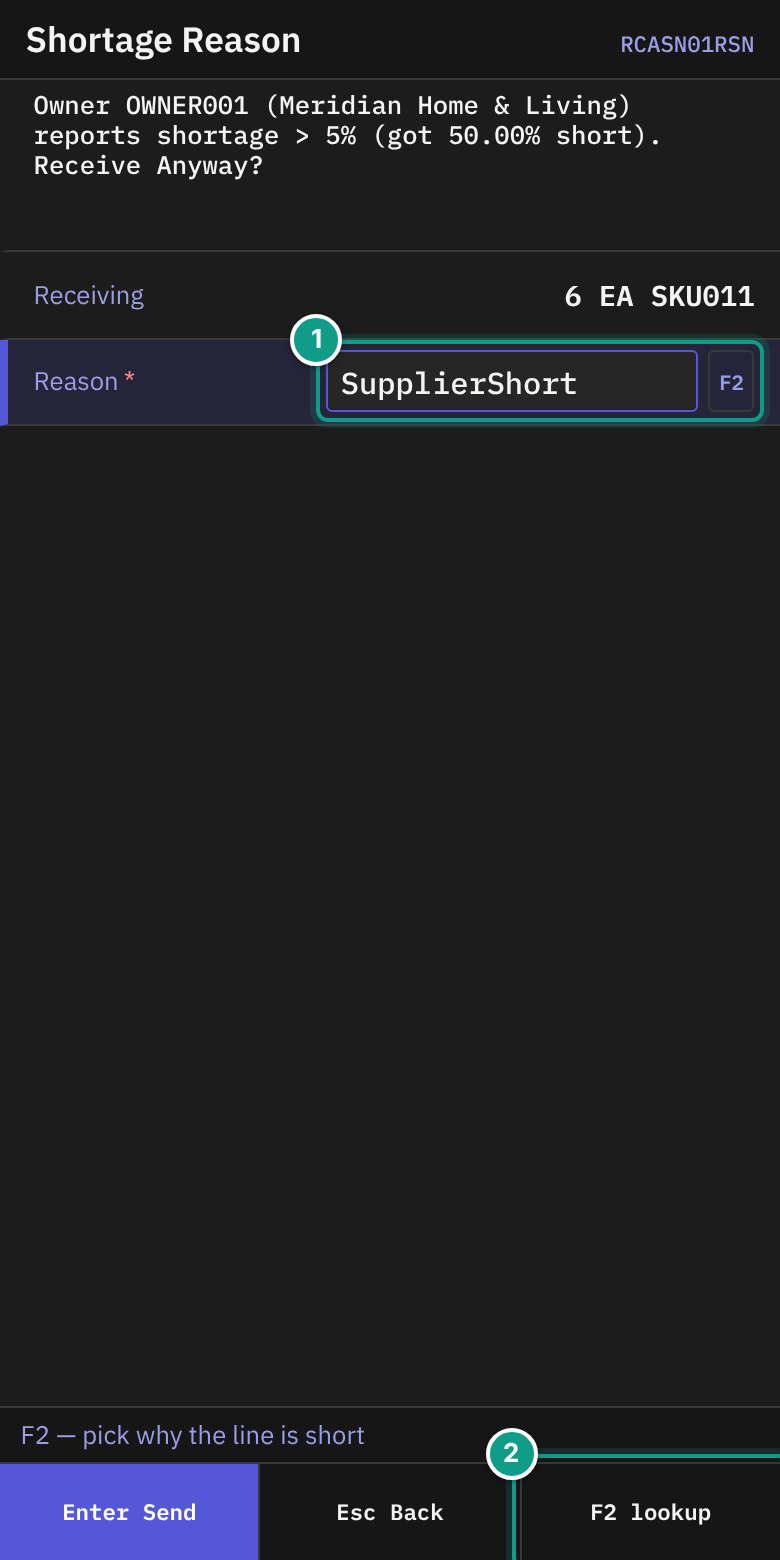
- On Shortage Reason, read the top line, for example Receiving less than expected. The status line says F2 — pick why the line is short.
- Check Receiving. It shows your quantity, unit and SKU.
- In Reason, press
F2. Choose a reason from the list. PressEnter. - Press
Enterto send. The terminal returns to Scan SKU.
You can also type a reason code in Reason (up to 32 characters).
Capture serial numbers
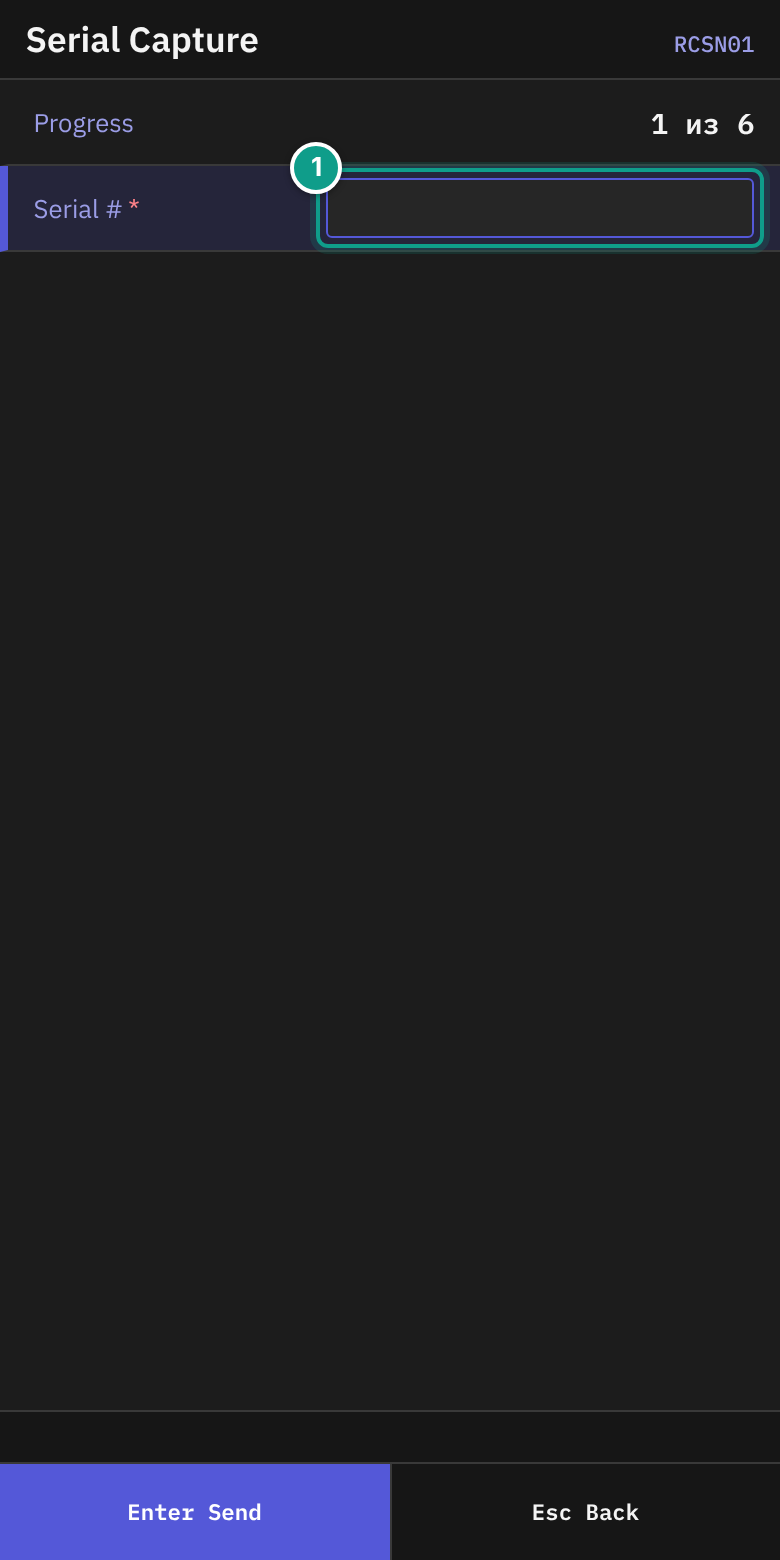
- On Serial Capture, read Progress. It looks like
1 из 5. - In Serial #, scan one serial. The field holds up to 64 characters and sends itself.
- Repeat step 17 for each unit.
- If you scan the same serial twice, a line shows ⚠ Already scanned: {serial}. Scan a different unit.
Label missing in English:
из(in the Progress line,1 из 5). It means "of". The terminal shows the Russian word.
When the last serial is accepted, the terminal shows Serial Capture Complete with ✓ Captured {n} serials and the SKU.
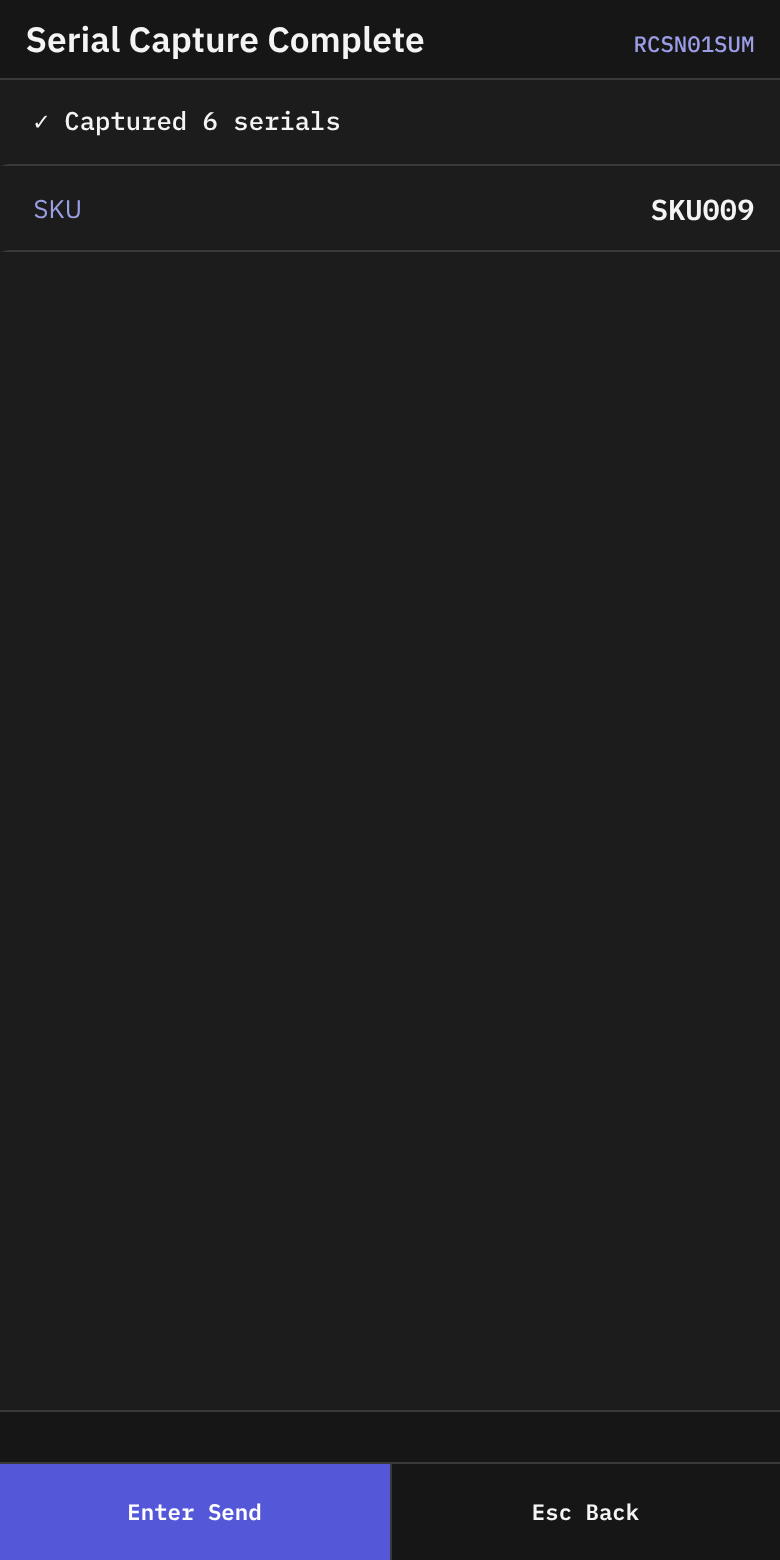
It goes straight back to Scan SKU.
Stop in the middle of a capture
- On Serial Capture, press
Esc. - The terminal asks: Captured {n} of {m} serials. Capture not finished — the receipt cannot be closed until all serials are entered. Exit and resume later?
- Press
Y(Exit) to leave. PressN(Keep scanning) to stay.
Resume a capture later
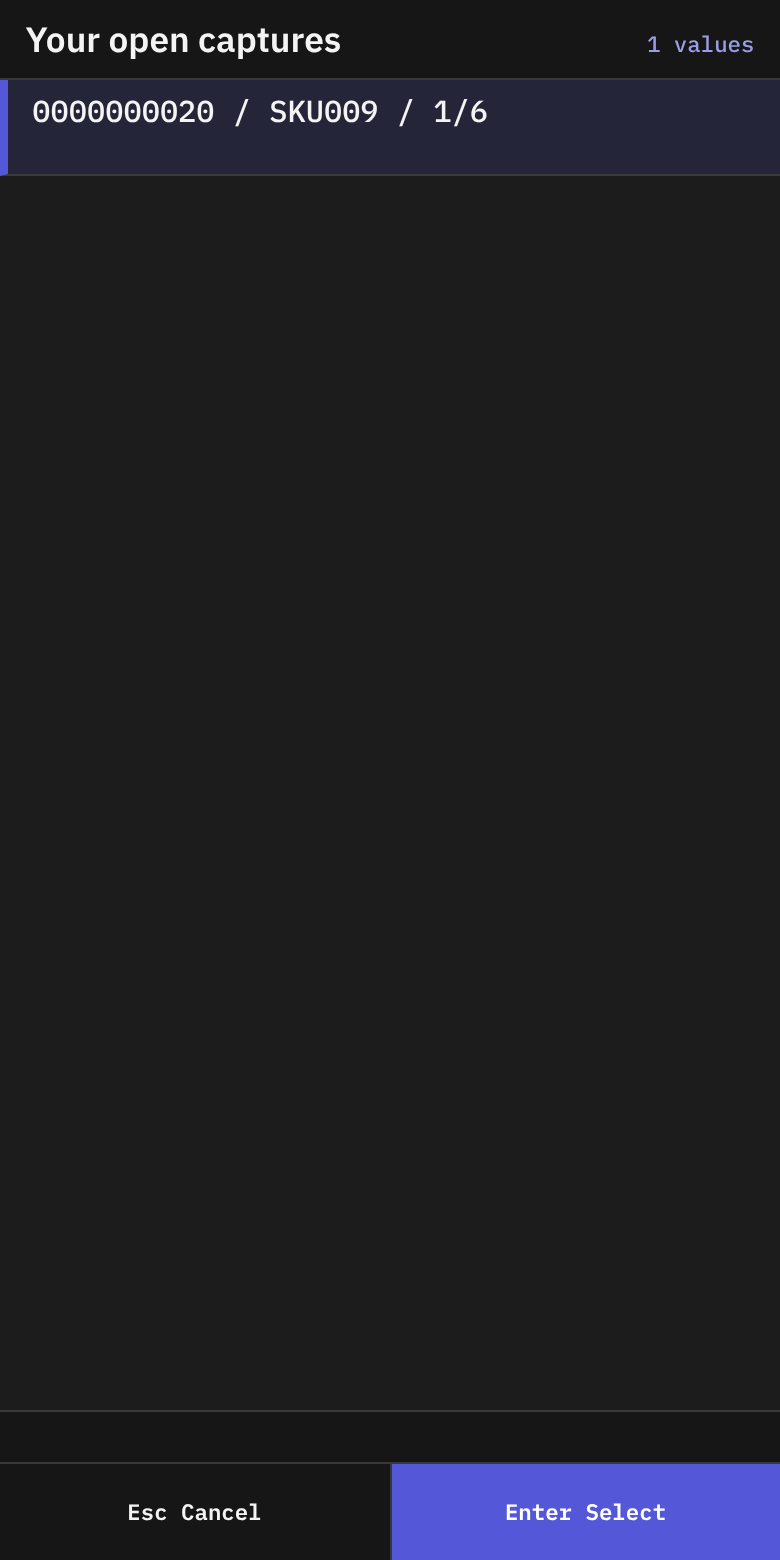
- On Receiving, press
7(Resume Serial Capture). - The list Your open captures shows one row for each open capture. A row reads
{receipt} / {sku} / {captured}/{expected}. - Choose a row with
Enter. The terminal opens Serial Capture. - If the list is empty, the status line says No outstanding captures. Press
Esc.
Close the receipt
- When all lines are received, go back to Receipt Summary with
Esc. - Press
F8(Close). - If the receipt closes, the terminal shows Receipt Closed.
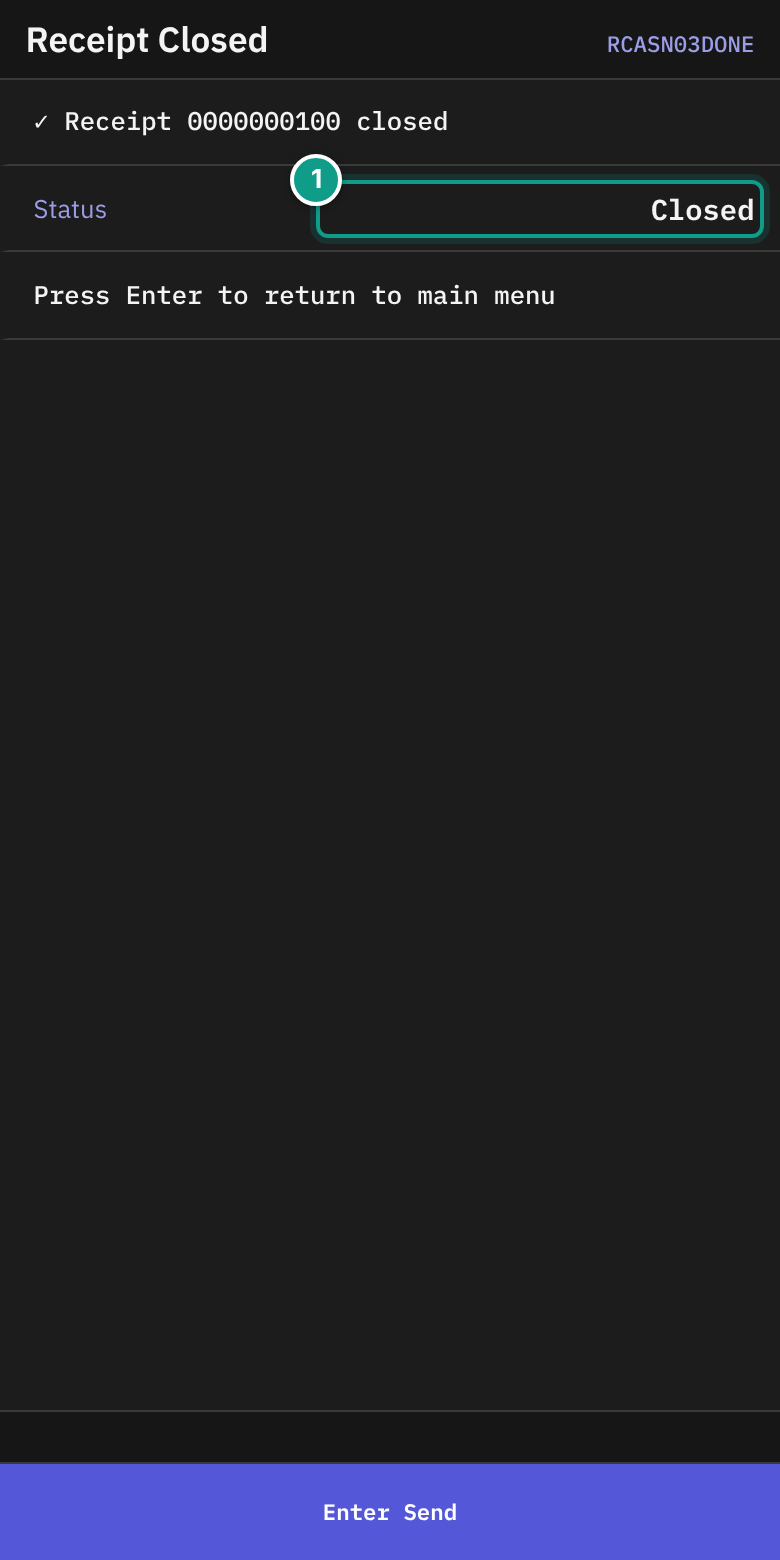
It shows ✓ Receipt {number} closed, Status and Received (quantity over expected). The last line says Press Enter to return to the Receiving menu. Press Enter: the terminal opens the Receiving menu. Press Esc there to reach Main Menu.
If the receipt differs from the ASN, a supervisor must approve. See 04 Damage and receipt close.
To report damaged goods during receiving, press F4 (Damage) on Receipt Summary. See 04 Damage and receipt close.
What you should see
- After each line, Progress on Receipt Summary goes up.
- After the last serial, Serials shows equal numbers.
- After close, Receipt Closed appears.
If something goes wrong
| Message | What it means | What to do |
|---|---|---|
| asn {number} not found | No ASN has this number. | Check the number. Use F2 to find the ASN. |
| SKU not found: {code} | The scanned SKU or barcode is unknown. | Scan again. If it keeps failing, tell your supervisor. |
| Owner not found: {code} | The owner code is unknown. | Check the code. |
| Receiving less than expected — say why (shortage reason) | You receive less than the ASN line says. | Choose a reason on Shortage Reason. |
| '{reason}' is not a shortage reason — pick one from the list | The reason you typed is not in the list. | Press F2 and choose from the list. |
| This SKU is not on the receipt. Receive it anyway? [Y/N] | The SKU is not on this ASN. The owner policy lets you decide. | Check the SKU. Press Y to receive it anyway, or N (or Esc) to stop. If unsure, ask your supervisor first. |
| This SKU is not on the receipt, and owner policy does not allow receiving what the document does not carry. | The owner does not allow extra SKUs. | Do not receive it. Tell your supervisor. |
| Receipt without LPN is not allowed by owner policy | You left To LPN empty and the owner requires a pallet label. | Scan an LPN. |
| This receive has no LPN [Y/N] | To LPN is empty and the owner policy asks for a confirmation. | Scan an LPN, or press Y to receive without one. |
| qty {qty} is not a multiple of pack {pack_qty} | The quantity does not fit the pack size. | Check the count and the unit. |
| SKU {code} requires serial per unit | This SKU needs serial numbers. | Capture a serial for each unit. |
| receipt id={id} is OnHold — release the hold before receiving | The receipt is on hold. | Tell your supervisor. |
| receipt id={id} is in terminal state {status} — cannot receive | The receipt is already closed or cancelled. | Tell your supervisor. |
| receipt was modified concurrently, please retry | Someone changed the receipt at the same time. | Send the form again. |
| receipt is locked, please retry (timeout {ms}ms) | Someone else is using the receipt. | Wait a moment. Send again. |
| No permission: {screen} ({function}) | Your user may not do this. | Ask your supervisor. |
Any refusal that the server marks as "can be overridden" shows its message with [Y/N] on the status line. The screen files do not define this question. The terminal program raises it. Press Y to send the same entry again with your agreement. Press N or Esc to stop; the status line says Cancelled. For some questions (receiving more or less than expected) your user also needs a supervisor right. Without it the server refuses again after Y. Then ask your supervisor.
To LPN is prefilled only when the SKU leaves no choice. Every open line of this SKU on the receipt must announce the same expected LPN, and none of them may be received into another LPN already. If the lines announce different LPNs, or none, To LPN stays empty. Scan the pallet label yourself.
What the supervisor sees
Each received line adds stock in the location you typed and updates Progress. A shortage reason is stored with the line. An open serial capture blocks the receipt close.