Stock inquiry
What you will do
Look up stock by location, pallet, SKU, lot, serial or owner. See what is available and what is held. The inquiry only reads. It changes nothing.
Before you start
- Know at least one of: lot, location, LPN, serial, SKU, owner.
Steps
- On Main Menu, press
2(Inventory). - On Inventory, press
1(Stock Inquiry).
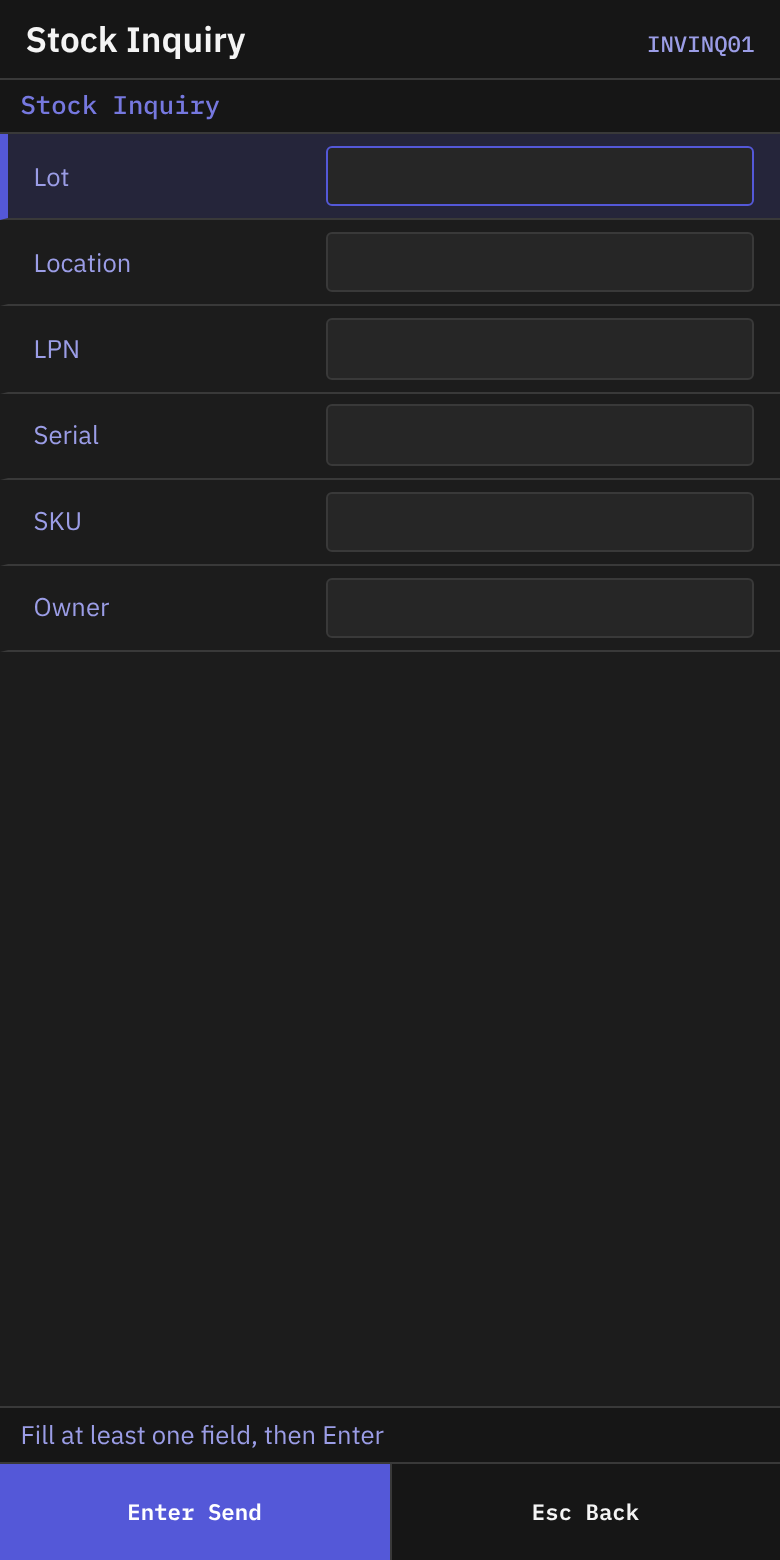
- On Stock Inquiry, read the status line: Fill at least one field, then Enter.
- Fill in at least one field. See the table.
| Field | What to enter |
|---|---|
| Lot | A lot code (up to 40 characters) |
| Location | A location code (up to 30) |
| LPN | A pallet label (up to 40). A label with several data fields can be scanned here. |
| Serial | A serial number (up to 60) |
| SKU | A SKU or barcode (up to 50) |
| Owner | An owner (up to 50) |
- Press
Enter.
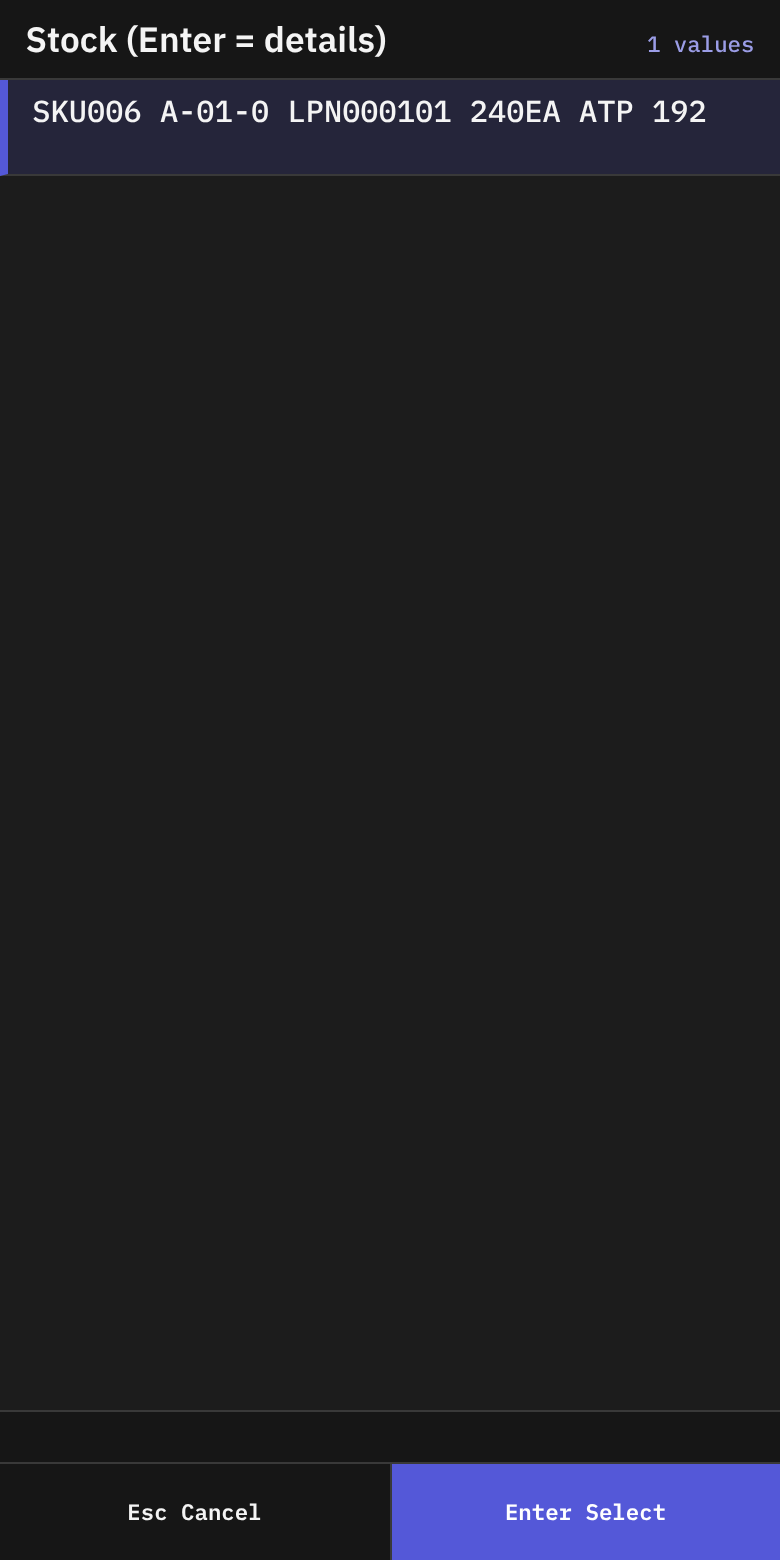
- On Stock, the list Stock (Enter = details) shows one row for each position. A row reads
{sku} {location} {lpn or loose} {qty}{uom}. It addsATP {n}when the available quantity differs, andHOLDwhen the stock is held. - Choose a row with
Enter. - If nothing is found, the status line says Nothing found — Esc to change the filter. Press
Escand change the fields. If you searched a location and you see stock there, pressF6(Report stock) — see Report stock the system does not show.
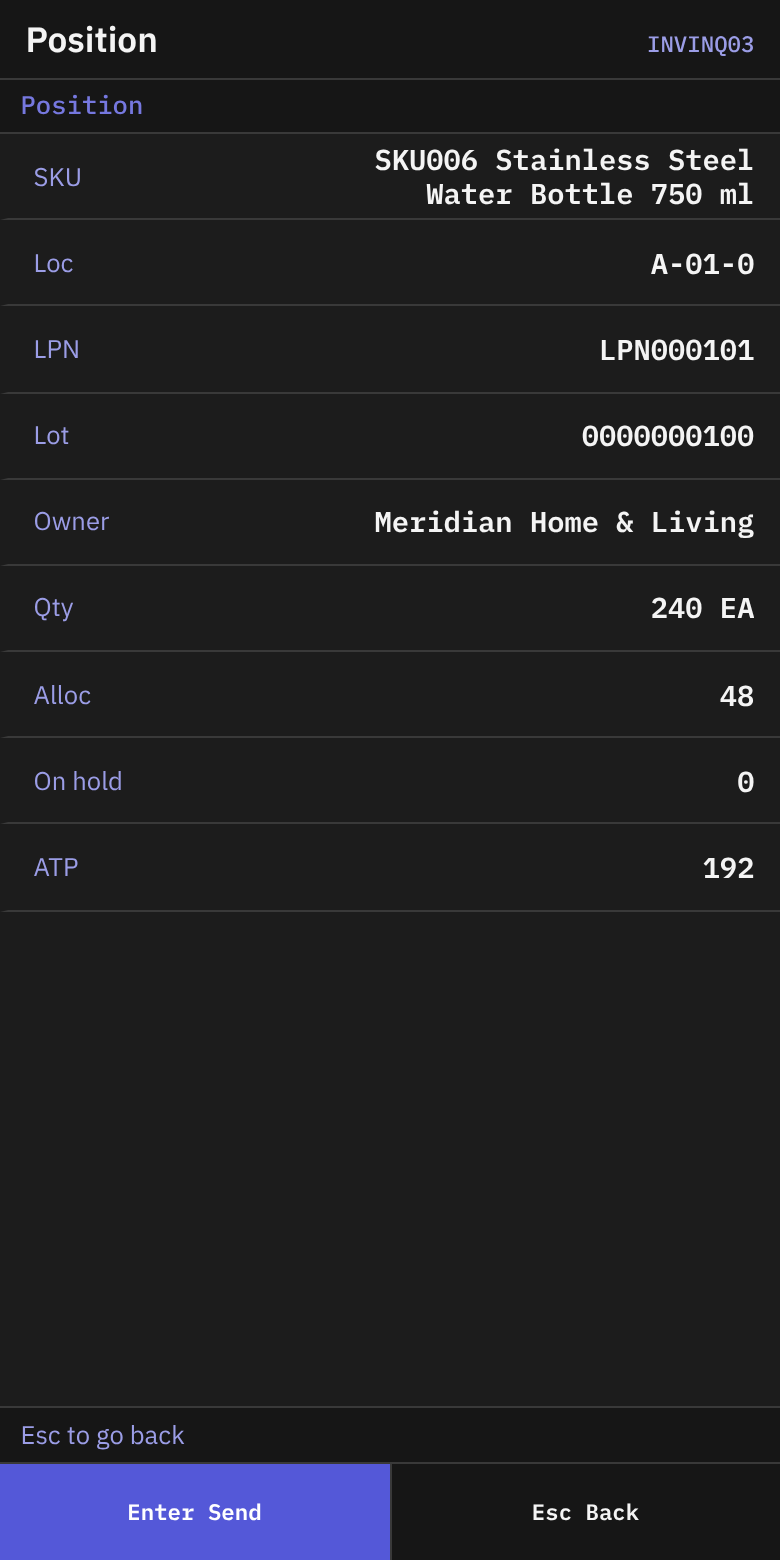
- On Position, read the details:
| Line | What it shows |
|---|---|
| SKU | SKU code and description |
| Loc | The location |
| LPN | The pallet label, or loose |
| Lot | The lot, or - |
| Owner | The owner name |
| Qty | Quantity and unit |
| Alloc | Quantity reserved for orders |
| On hold | Quantity on hold |
| ATP | Quantity available now |
| Hold | Hold details. Shown only if the position is held. |
- If you searched by serial, a line says Serial {serial} — qty below is the whole position. The quantity is for the whole position, not for one unit.
- Press
Escto go back to the list.
Look at the serial numbers
If the line Serial-tracked — F2 lists the units shows, press F2 (Check Serials).
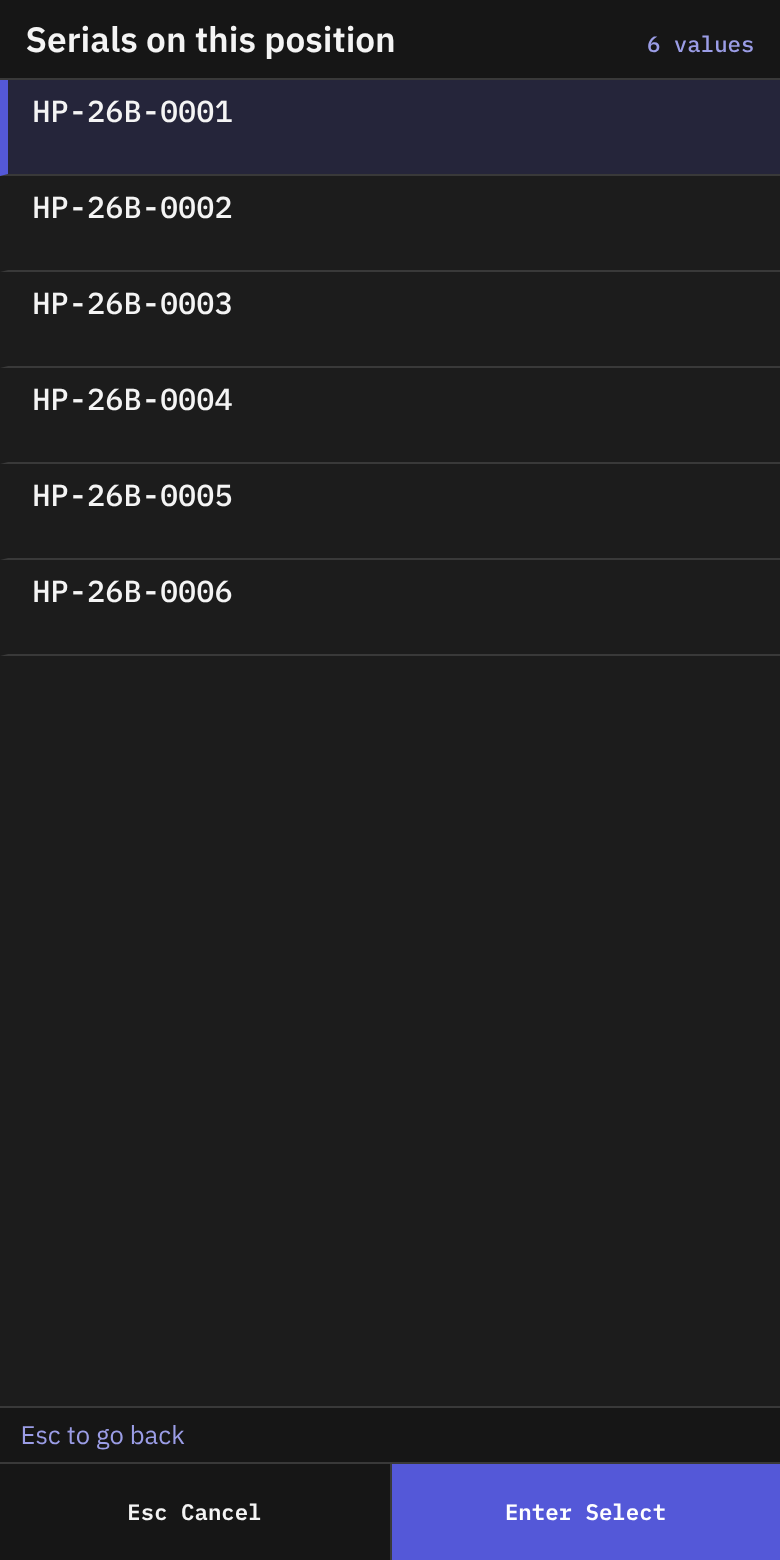
- On Serials Here, check Position (
{location} {lpn or loose}) and What ({sku} lot {lot}). - The list Serials on this position shows each serial.
- If no serial is recorded, the status line says No serial numbers recorded on this position.
- Press
Escto go back.
Report stock the system does not show
Use it when you see stock in a location, and the system shows nothing there (or not this stock). Open it from the Inventory menu, Report Unexpected Stock (screen INVUX01), or with F6 on an empty Stock list — then the location, LPN and SKU of your search are already filled in.
- On Report Unexpected Stock, scan Location.
- Scan LPN if the stock has a pallet label. Otherwise press
Enter. - Scan SKU if you can read it. Otherwise press
Enter. The report is sent. - Reported shows
{location} will be counted. PressEnterto go back.
The report never changes the stock. The location is always counted, and the report is kept on the location card, tab Checks (UnexpectedStock, Report: LPN … / SKU …).
What you should see
- A list that matches your filter.
- On Position, the quantity you can use now is in ATP.
ATP (available to promise) is the quantity minus what is already allocated to orders and what is already picked. If a hold that blocks outbound work covers the position (by lot, location or pallet), ATP is 0. ATP is never below 0. The list shows ATP next to the quantity only when the two numbers differ.
If something goes wrong
| Message | What it means | What to do |
|---|---|---|
| Nothing found — Esc to change the filter | No stock matches. | Press Esc. Change the filter. |
| No stock matches the filter. Esc to change it. | Same. | Same. |
| No serial numbers recorded on this position | The position has no serials on record. | Nothing to do. |
| location {code} does not exist | The report names a location the warehouse does not have. | Scan the location label again. |
| No permission: {screen} ({function}) | Your user may not look up stock. | Ask your supervisor. |