Receipt screen
The receipt screen opens when you click a row of the receipts list or press New.
It shows one receipt. The header is in the top part. The lines are in the bottom part.
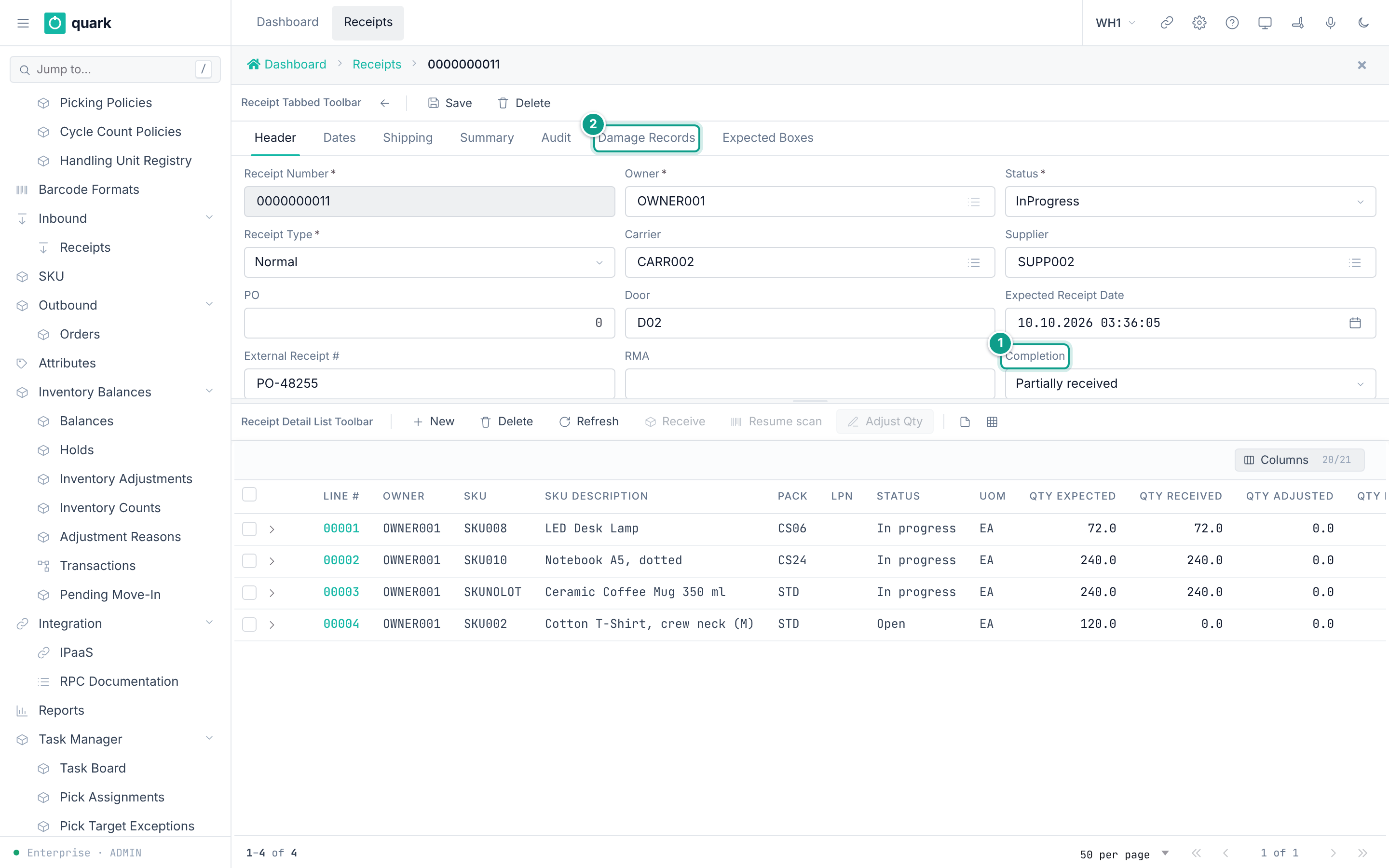
Layout
The screen is a shell form (receipt_shell) with two slots.
| Slot | Form | Share of the height | Content |
|---|---|---|---|
| Top | receipt_tabbed ("Receipt") | 40% | The header, in seven tabs. |
| Bottom | receipt_detail_list ("Receipt Lines") | 60% | The lines of the receipt. |
The breadcrumb shows Dashboard > Receipts > {receipt number}.
The arrow at the left of the toolbar goes back to the list.
Header tabs
| Tab | Page | What it holds |
|---|---|---|
Header | Header tab | Number, owner, status, type, carrier, supplier, PO, door, expected date. |
Dates | Dates tab | Eight dates. |
Shipping | Shipping tab | Vehicle, driver, trailer, temperature, weight, volume. |
Summary | Summary tab | Completion, version, close summary, cancel summary. Read only. |
Audit | Audit tab | The change history of the header. Read only. |
Damage Records | Damage Records tab | Reported damage. Read only. |
Expected Boxes | Expected Boxes tab | Planned pallets and boxes, with Move Boxes and Cancel Box. |
Header toolbar (receipt_tabbed_toolbar)
| Button | What it does |
|---|---|
| Back arrow | Returns to the receipts list. |
Save | Checks that Receipt Number and Owner are filled, then saves the header. A new receipt is created. A saved receipt is updated. |
Delete | Deletes this receipt and its unreceived lines, then returns to the list. See Deleting receipts. |
The status buttons (hold, release, cancel, close) are on the receipts list, not on this screen.
Lines area
The lines list has its own toolbar. See Receipt lines list. Click a line to open the line card. The card replaces the lines list in the bottom slot. The card has its own tabs. See Line detail tab.
What changes on screen with the status
| Status of the receipt | Header fields | Lines toolbar |
|---|---|---|
| New, not saved | Receipt Number, Owner and Receipt Type can be edited. | Buttons are grey with the text "Save receipt first". |
Open, InProgress | Reference fields can be edited. Receipt Number, Owner, Status and Completion cannot. Receipt Type can be edited only for types Sscc and CaseLevel in status Open. | New and Delete work. |
OnHold | Same as above. | New and Delete are grey: "The receipt is closed, cancelled or on hold - lines can no longer be added or removed". |
Closed, Cancelled | Every field is read only. | New and Delete are grey with the same text. |
Source: crates/services/web-ui-server/src/extensions/customization/receipt/header_render_action.rs:29-83 and the bindings of the form receipt_detail_list.