Receipts list
The receipts list shows every receiving document of the active warehouse. A receipt is the one document type for all receiving. An advance ship notice (ASN) is a receipt that has expected lines. There is no separate ASN screen.
How to open it
- Sign in and select a warehouse. The list is not available in Enterprise mode.
- In the left sidebar open
Inbound. - Click
Receipts.
The sidebar item is Inbound > Receipts (menu item receipt_list_menu, form receipt_list).
The page opens in the main work area. The breadcrumb reads Dashboard > Receipts.
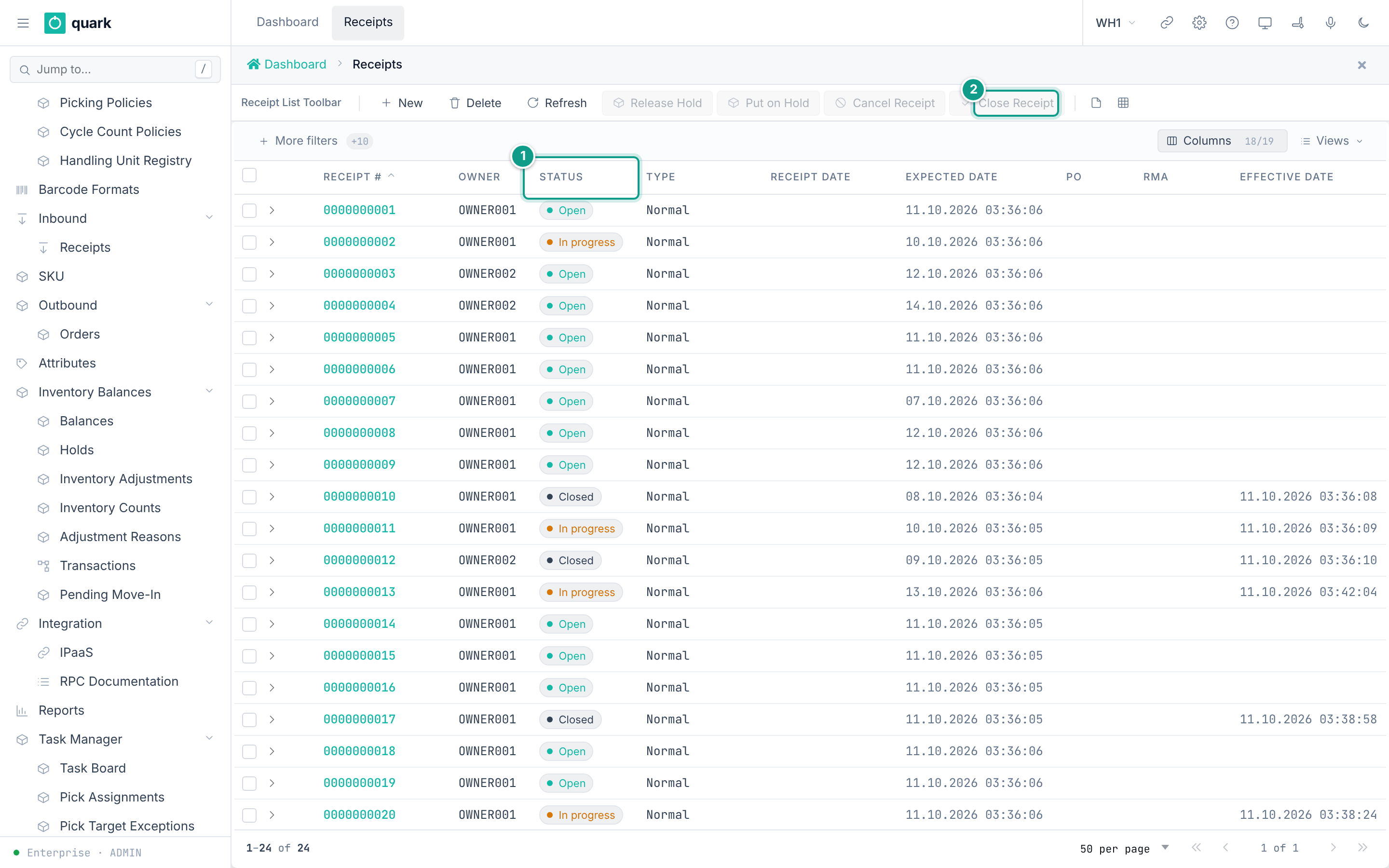
What the screen has
| Part | What it is |
|---|---|
| Toolbar | Seven buttons, described below. |
| Filter bar | More filters opens filters for the filterable columns. |
| Grid | One row per receipt, 50 rows per page. A check box at the start of each row selects it. |
Columns | Shows or hides columns (18 of 19 are shown at first). |
Views | Saves a set of filters and columns. |
Click a receipt number, or anywhere on a row, to open the receipt. The receipt opens in the receipt screen.
Columns
The list reads from the API method list_receipt. Every column is read only.
| Label | Column | Type | Filter | Notes |
|---|---|---|---|---|
ID | id | Whole number | Number | Hidden. It is the row key. |
Receipt # | receipt_number | Text | Text | The list is sorted by this column at first. |
Owner | owner_id | Whole number | Number | Shows the owner code. |
Status | status | Badge | Text | Shows Open, In progress, On hold, Closed or Cancelled. See Receipt statuses. |
Type | receipt_type | Text | Text | Normal, CustomerReturn, InterFacilityTransfer, Sscc, CaseLevel. |
Receipt Date | receipt_date | Date and time | Date | |
Expected Date | expected_receipt_date | Date and time | Date | |
PO | po_id | Whole number | none | See the note below. |
RMA | rma | Text | none | |
Effective Date | effective_date | Date and time | Date | |
Arrival Date | arrival_date | Date and time | Date | |
Carrier | carrier_id | Whole number | none | Shows the owner code of the carrier. |
Supplier | supplier_id | Whole number | none | Shows the owner code of the supplier. |
Door | door | Text | none | |
Vehicle Plate | vehicle_plate | Text | none | |
Total Weight | total_weight | Number | none | Shown in the warehouse weight unit. |
Total Volume | total_volume | Number | none | Shown in the warehouse volume unit. |
Temperature | temperature | Number | none | |
Completion | completion | Text | Text | Pending, Partial, Full or Over. See Completion values. |
The metadata has 10 filterable columns: ID, Receipt #, Owner, Status, Type, Receipt Date, Expected Date, Effective Date, Arrival Date, Completion.
The screen counts them as +10 beside More filters.
The column PO is set up to show a purchase order number from a table called purchase_order.
This product has no such table. The PO column therefore shows no number.
Not confirmed by code: what the
POcolumn shows when a receipt has a PO id. To verify: open a receipt, type5inPOon theHeadertab, save, and look at the list.
Toolbar buttons
The buttons are defined in the toolbar receipt_list_toolbar.
Some buttons are grey when the selection does not fit. The grey text says why when you point at the button.
| Button | Needs | What it does | Task page |
|---|---|---|---|
New | Nothing | Opens a new empty receipt. The receipt number is filled in for you. | Creating a receipt |
Delete | One or more rows | Deletes the selected receipts and all their unreceived lines. | Deleting receipts |
Refresh | Nothing | Reads the list again. | |
Release Hold | One or more rows | Takes each selected receipt off hold. | Releasing a receipt from hold |
Put on Hold | One or more rows | Opens the window Put Receipt on Hold and holds each selected receipt. | Putting a receipt on hold |
Cancel Receipt | Exactly one row, status Open, InProgress or OnHold, completion Pending | Opens the window Cancel Receipt. | Cancelling a receipt |
Close Receipt | Exactly one row, status Open, InProgress or OnHold | Opens the window Close Receipt. | Closing a receipt |
The grey text of the conditional buttons is:
Release HoldandPut on Hold: "Select at least one receipt".Cancel Receipt: "Select one receipt that is still open and has nothing received".Close Receipt: "Select one receipt that is not already closed or cancelled".
Source: the bindings of the toolbar items rcpt_lrh, rcpt_hold, rcpt_cancel, rcpt_close in crates/libs/wms-lib-sql/sql/wms-meta-ui/migrations/001_baseline.sql.
The buttons follow the selection. The toolbar is redrawn each time you tick or untick a row (interaction int_receipt_list_selection).
Row actions
| Action | Result |
|---|---|
| Click a row | Opens the receipt (interaction Interaction_ReceiptRowClick). The header is in the top part, the lines in the bottom part. |
| Tick the check box | Selects the row for the toolbar buttons. You can tick several rows. |
Who can use it
| Role | Open the list | New, Delete | Put on Hold, Release Hold, Cancel Receipt, Close Receipt |
|---|---|---|---|
ADMIN | Yes | Yes | Yes |
MANAGER | Yes | Yes | Yes |
SUPERVISOR | Yes | No | No. The buttons are refused by default. |
OPERATOR | Yes | Yes | No. The buttons are refused by default. |
VIEWER | Yes (read only) | No | No |
These are the defaults that the server writes at start-up. An administrator can change them. The full table, button by button, is on Who can do what.
What this screen affects
Delete,Put on Hold,Release Hold,Cancel ReceiptandClose Receiptchange the status of the receipt and of its lines.- A closed receipt sends events to subscribers (
process.receipt.closedandprocess.receipt.ready_for_putaway). - Stock is created by receiving, not by this list. See Receiving a line.
Related pages
- Receipt screen
- Creating a receipt
- Receipt statuses and transitions
- Who can do what
- API:
list_receipt,count_receipt - RF terminal:
Receiving > Receive Against ASNfinds an ASN withF2. See Receiving against an ASN.