First Login and Navigation
1. Sign in
What you will do
Sign in to the web UI and reach the main screen.
Before you start
- You need a user name and a password from the person who installed the tenant.
- For a new tenant, the first administrator is created by an operator command, not by a screen.
The command is
app-server bootstrap-adminand it needs three settings:BOOTSTRAP_ADMIN_USERNAME,BOOTSTRAP_ADMIN_EMAIL,BOOTSTRAP_ADMIN_PASSWORD(app-server/src/cli.rs). Four more settings are optional:BOOTSTRAP_ADMIN_LOCALE(defaulten-US),BOOTSTRAP_ADMIN_DATE_FORMAT(yyyy-MM-dd),BOOTSTRAP_ADMIN_TIMEZONE(UTC),BOOTSTRAP_ADMIN_MODE(light). - That command works only when the tenant has zero users.
It needs at least one warehouse and the
ADMINrole to exist (wms-lib-core/src/model/initial_admin.rs). The new user gets theADMINrole in the first warehouse and signs in with the password you set. - Change the password after the first sign-in. Nothing forces you to do it.
Steps
- Open the web UI address your installer gave you.
- In the field
Username, type your user name. - In the field
Password, type your password. Use the eye button to show or hide it. - Click
Sign in. - Optional: use the
RU/ENbutton on the sign-in page to change the language of the sign-in page. Use the moon/sun button to change the theme.
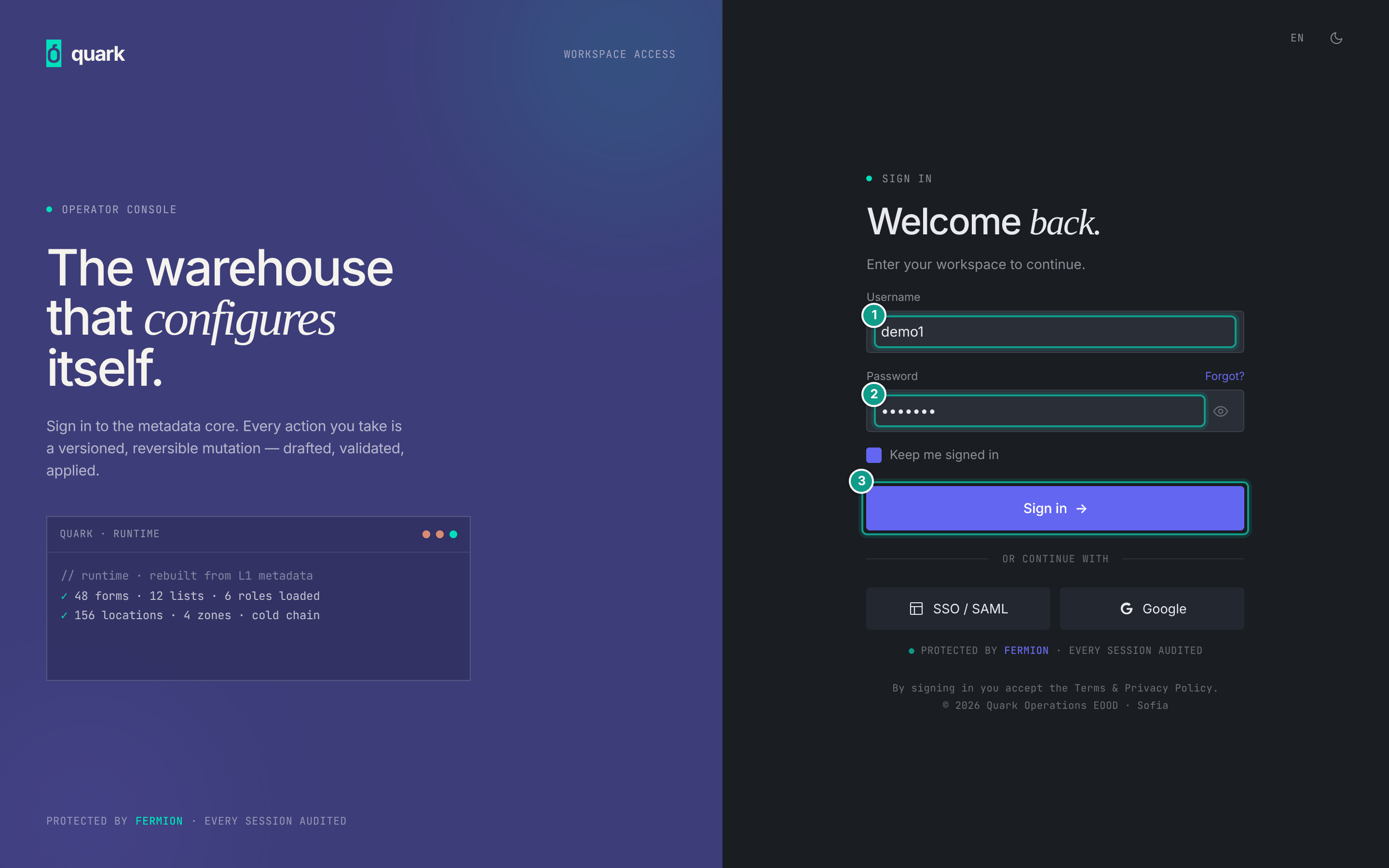
Field reference
| Field | Meaning | Allowed values | Example |
|---|---|---|---|
Username | Your login name. | Any text. Must match an existing user. | demo1 |
Password | Your password. | At least 8 characters. | welcome1 |
The sign-in form and user administration use the same eight-character minimum. Passwords shorter than eight characters are rejected before any user data is written.
What you should see
- The main screen opens with the left sidebar.
- Your active warehouse is part of your session. The visual position is not documented in the metadata.
If something goes wrong
| Message | Meaning | Fix |
|---|---|---|
| A password length message | The password field failed the form check. | Type a longer password. |
Login failed. | The server did not accept the credentials. | Check the user name and the password. |
| Login is refused for an RF terminal only | The user has RF device login turned off (rf_login = false). The refusal looks the same as a wrong password. | Turn on RF device login for the user (see 02-users-roles-permissions.md). |
| Sign-in returns an error with no detail after a database reset | The session table was wiped. | Restart web-ui-server (project note in .claude/CLAUDE.md). |
What this affects later
- Your session stores your user, your active warehouse and your permissions. Menus and buttons depend on the role you hold in that warehouse.
2. Warehouse and Enterprise mode
What you will do
Understand which warehouse you work in, and when you are in Enterprise mode.
Before you start
- A user can have several warehouses. Each assignment has a role (see
02-users-roles-permissions.md). - The assignment marked
Defaultopens first (is_default).
Steps
- After sign-in, look at the warehouse button in the top bar. It shows the code of the active warehouse.
- To change the warehouse, click that button (tooltip
Switch warehouse). A pop-upSwitch warehouseopens. It has a search field and one row per warehouse (name, code and your role). Click a row. The server route isPOST /warehouse/switch. It clears all form and navigation state and reloads the app (web-ui-server/src/routes/warehouse_handler.rs). - To work on users, roles, translations and integration settings, switch to Enterprise.
The Enterprise entry exists only for users who hold the
ADMINrole in at least one warehouse.
If you hold ADMIN in any warehouse, the first row of the pop-up is Enterprise (tag admin). If you hold no warehouse assignment, the pop-up says No warehouses assigned
(web-ui-server/src/components/partials/masthead.rs, application_menu.rs).
What you should see
- In a warehouse: the warehouse sidebar (section 3).
- In Enterprise mode: the enterprise sidebar (section 4). The warehouse code is
ENTERPRISEand the warehouse id is0.
If something goes wrong
| Message | Meaning | Fix |
|---|---|---|
The Reports page shows a banner instead of reports | In Enterprise mode the report data sets have no warehouse schema. | Switch to a real warehouse (web-ui-server/.../reports_iframe.rs, "enterprise context" case). |
| You are in Enterprise mode but every screen is denied | Your role in the linked warehouse is not ADMIN. | Ask an administrator to give you ADMIN on a warehouse. |
What this affects later
- Data is stored per warehouse schema. A record made in
WH1is not visible inWH2. - Users, roles, event settings and the code lists of the enterprise live above all warehouses.
3. Warehouse sidebar (menu 1, "Sidebar navigation")
The tree below comes from the table menu_items of the meta-ui database after all migrations.
Labels are the English labels. The order follows sort_order.
Items with the same sort_order appear in the order the database returns them.
Code
  Code List
  Hold Codes
Owners
Topology
  Locations
  Putaway Zones
  3D Warehouse
  Work Areas
  Equipment Profiles
System Settings
Control Center
  Board Settings
  Metric Thresholds
Packs
Policy
  Allocation Policy
  Replenishment Policy
  Putaway Policy
  Cartonization Policy
  Lot Policy
  Receipt Policy
  Pick Short Reasons
  Picking Policies
  Cycle Count Policies
  Handling Unit Registry
Barcode Formats
Inbound
  Receipts
SKU
Attributes
Outbound
  Orders
  Transport Resources
  Waves
  Dispatches
  Load Plans
  Loads
Inventory Balances
  Balances
  Holds
  Inventory Adjustments
  Inventory Counts
  Replenishment
  Adjustment Reasons
  Transactions
  Pending Move-In
Integration
  IPaaS
  RPC Documentation
Reports
Task Manager
  Task Board
  Pick Assignments
  Pick Target Exceptions
  Skip History
  Operators
Notes:
- There are two items named
Reports. The one with codereport_def_menuis inactive (is_active = false). Only the item with codereports_iframe_menushows. - There is no separate item named
Shipping. UseOutbound > Orders > Ship orderfor a complete order, orOutbound > Loadsfor whole-Load Goods Issue after loading. Replenishment(afterInventory Counts) lists the replenishments of pick locations.Replenishment Policyopens the urgency settings read by the planner; each pick location'sMinandMaxstill decide when and how much to replenish.Dashboardis a form (dashboard, kindDashboard). It has no sidebar item in the warehouse tree.
The dashboard form is the home page. It is the default tab of the main work area (tab_containers.default_tab_id = tab dashboard), so it opens right after sign-in. The breadcrumb entry Dashboard brings you back to it and clears the other screens (web-ui-server/src/services/viewport_service.rs, routes/breadcrumb_handler.rs).
Menu item to screen
| Menu path | Opens (form code) | Covered in |
|---|---|---|
Code > Code List | code_list_list_form | 11-faq.md, 05-inbound-setup.md |
Code > Hold Codes | hold_code_list_form | 05-inbound-setup.md |
Owners | owner_list_form | 04-owners-sku-uom-pack-hierarchy.md |
Topology > Locations | location_list_form | 03-warehouse-structure.md |
Topology > Putaway Zones | putawayzone_list_form | 03-warehouse-structure.md |
Topology > 3D Warehouse | warehouse_3d (HTML page) | 03-warehouse-structure.md |
Topology > Work Areas | work_area_list_form | 03-warehouse-structure.md |
Topology > Equipment Profiles | equipment_profile_list_form | 03-warehouse-structure.md |
System Settings | sys_settings_list_form | 10-checklist-go-live.md |
Control Center > Board Settings | dashboard_setting_list_form | 08-reports-and-dashboards.md |
Control Center > Metric Thresholds | dashboard_threshold_list_form | 08-reports-and-dashboards.md |
Packs | pack_list_form | 04-owners-sku-uom-pack-hierarchy.md |
Policy > Allocation Policy | allocation_policy_list_form | 06-outbound-setup.md |
Policy > Putaway Policy | putaway_policy_list_form | 05-inbound-setup.md |
Policy > Cartonization Policy | cartonization_policy_list_form | 06-outbound-setup.md |
Policy > Lot Policy | lot_policy_list_form | 04-owners-sku-uom-pack-hierarchy.md |
Policy > Receipt Policy | receipt_policy_list_form | 05-inbound-setup.md |
Policy > Pick Short Reasons | pick_short_reason_list_form | 06-outbound-setup.md |
Policy > Picking Policies | picking_policy_list_form | 06-outbound-setup.md |
Policy > Cycle Count Policies | inventory_count_policy_list_form | 03-warehouse-structure.md (short note) |
Policy > Handling Unit Registry | handling_unit_registry_type_list_form | 04-owners-sku-uom-pack-hierarchy.md |
Barcode Formats | barcode_format_list_form | 07-printing-and-labels.md |
Inbound > Receipts | receipt_list | 05-inbound-setup.md |
SKU | sku_list | 04-owners-sku-uom-pack-hierarchy.md |
Attributes | attribute_def_list_form | 04-owners-sku-uom-pack-hierarchy.md |
Outbound > Orders | shipment_order_list | 06-outbound-setup.md |
Inventory Balances > ... | inventory_balances (tabs), inventory_hold_list, inventory_adjustment_list_form, inventory_count_list_form, inventory_adjust_reason_list_form, txn_log_list_form, pending_move_in_list_form | 05-inbound-setup.md (holds), 11-faq.md |
Integration > IPaaS | integration_platform (HTML page) | 09-integrations-and-api.md |
Integration > RPC Documentation | rpc_playground (HTML page) | 09-integrations-and-api.md |
Reports | reports_iframe (HTML page) | 08-reports-and-dashboards.md |
Task Manager > Task Board | task_board_list_form | 06-outbound-setup.md |
Task Manager > Pick Assignments | pick_assignment_board_list_form | 06-outbound-setup.md |
Task Manager > Pick Target Exceptions | pick_target_exception_list_form | 06-outbound-setup.md |
Task Manager > Skip History | task_skip_board_list_form | 06-outbound-setup.md |
Task Manager > Operators | operator_list_form | 03-warehouse-structure.md |
Every form code in this table is traced in the migrations: menu item, then a menu-click event (ui_event), then a tab (tab_items.target_form_id), then the form (form_base.code). Only Task Board, Skip History, Users, Roles, Audit Log, Permission Matrix and Translations also have a direct target_form_id on the menu row.
The items added after the first baseline (for example Inventory Counts, Pick Assignments, Handling Unit Registry, Board Settings) are wired the same way in wms-meta-ui migrations 073 to 123.
Policy > Handling Unit Registry opens the list of registry types (handling_unit_registry_type_list_form). The shell form handling_unit_registry_shell_form is a different form.
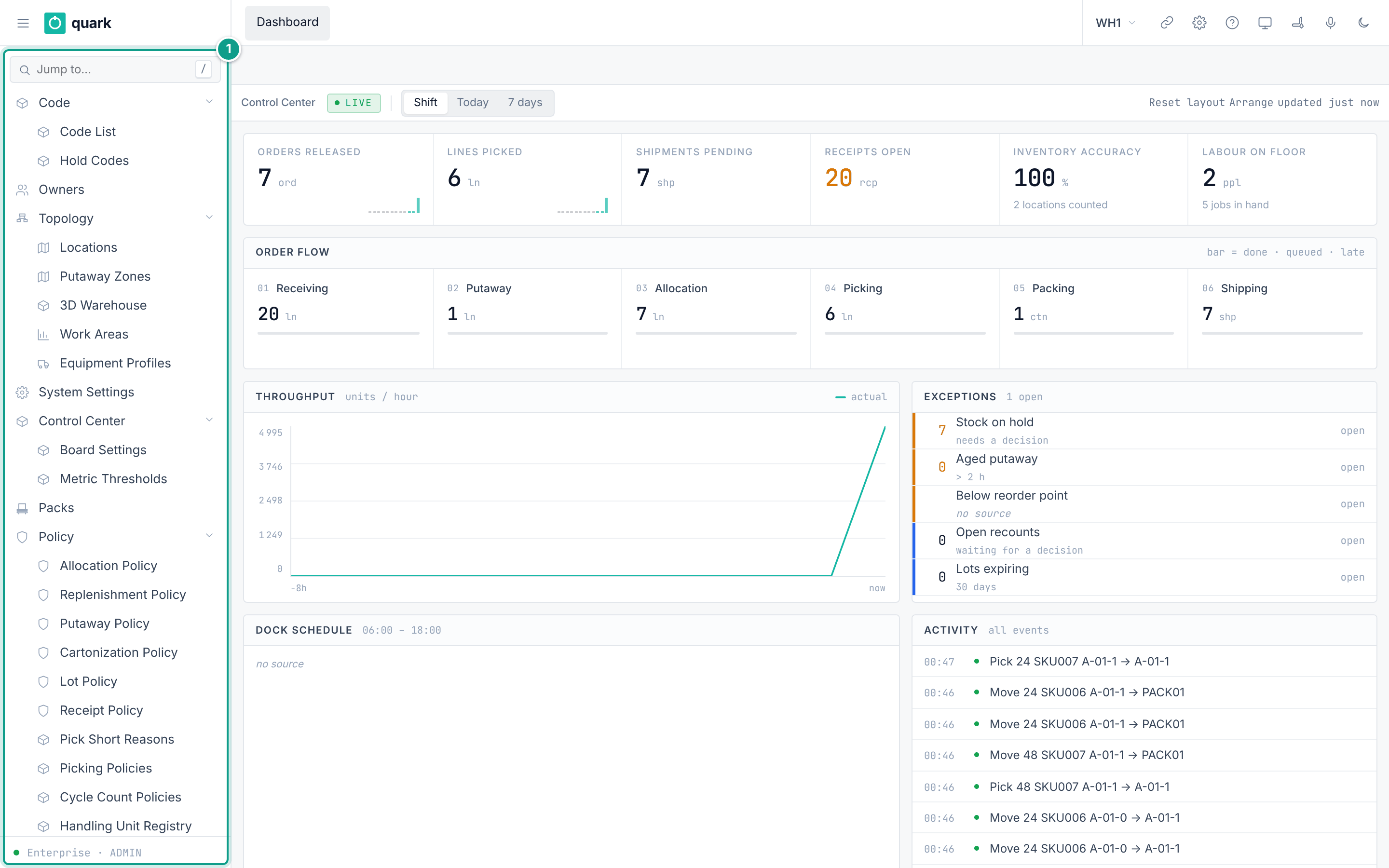
Topology expanded. Focus: The teal frame (1) marks the sidebar: Code, Topology, Policy and the other groups.4. Enterprise sidebar (menu 3, "Enterprise Sidebar")
Dashboard
Configuration
  Warehouses                  (no screen is attached)
  Owners                      (no screen is attached)
  Users & Roles
    Users
    Roles
    Audit Log
    Permission Matrix
  Translations
  Handling Unit Types
Integration
  Event Registry
  Event Monitor
  Subscribers
  Delivery Log
Notes:
Dashboardopens the Enterprise landing page andWarehousesopens warehouse administration. Owners are warehouse-scoped, so the obsolete EnterpriseOwnersplaceholder is inactive; select a warehouse to manage owners.Translationshas a seeded menu permission (menu_itemresource id9109).ADMINcan read it.MANAGERandVIEWERare denied. No other menu item has a seeded permission row.
| Menu path | Form code |
|---|---|
Users & Roles > Users | enterprise_users_shell |
Users & Roles > Roles | enterprise_role_detail |
Users & Roles > Audit Log | enterprise_audit_log |
Users & Roles > Permission Matrix | enterprise_permission_matrix |
Translations | translations_tabbed |
Handling Unit Types | handling_unit_type_list_form |
Integration > Event Registry | ent_event_registry_list_form |
Integration > Event Monitor | ent_integration_event_list_form |
Integration > Subscribers | ent_integration_subscriber_list_form |
Integration > Delivery Log | ent_event_delivery_list_form |
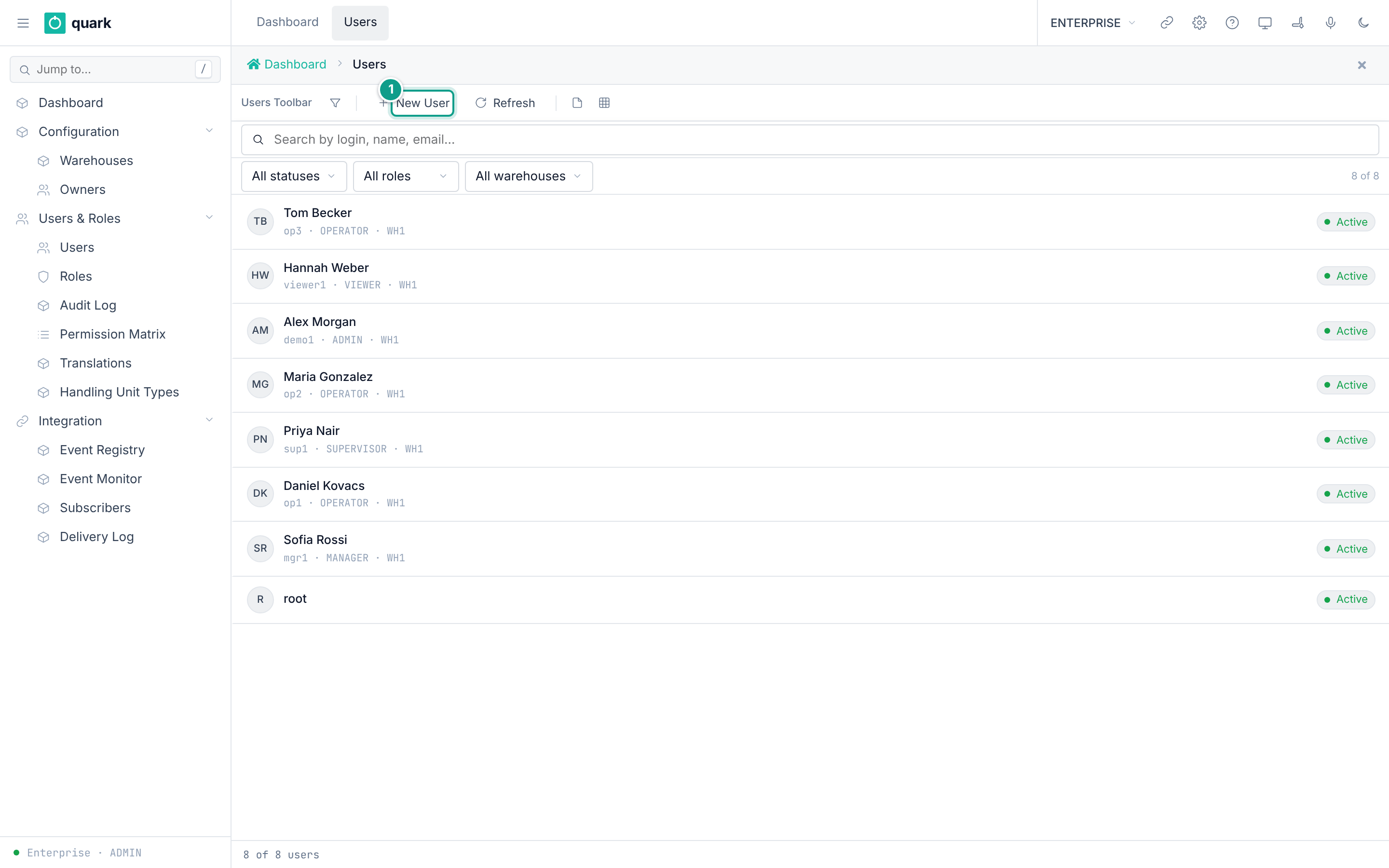
5. Common screen types
| Screen type | What it looks like | Typical buttons |
|---|---|---|
| List | A table with filters, paging (10, 20, 50 or 100 rows) and row selection. | New, Delete, Refresh |
| Card (Normal form) | Fields in a form. | Save, Delete |
| Tabbed card | A card with several tabs. | Save, Delete |
| Modal | A pop-up with a short form. | A confirm button and a cancel button. |
| Wizard | A pop-up with steps. | Back, Next, Finish |
Rules that apply everywhere:
- A field marked required in the metadata cannot be left empty.
- A field with a picker (type
PopupValuePicker) opens a list. Pick one row. - Lists that show "Version" use optimistic locking. If someone else saved first, you get a conflict message:
Someone changed this record after you opened it. Look at the current version and make your change again.Refresh and repeat your change.
The generic message for an empty required field is <Field name> is required, for example Code is required. The field name comes from the column name with the first letter in capitals and underscores turned into spaces (web-ui-server/src/extensions/generic/validate_action.rs, resolve_required_message). A form can set its own text per field (<field>_required). The message key validation.required_field ("Field {0} is required") exists only in the archived migrations. The current product does not use it.