Users, Roles and Permissions
1. How access works
A user can sign in only after an administrator creates the user. A user can work in a warehouse only after an administrator assigns that warehouse and a role.
| Concept | Meaning | Where it is stored |
|---|---|---|
| User | A person or a system account. | enterprise."user" |
| Role | A named set of permissions, for example OPERATOR. | enterprise.role |
| Warehouse assignment | The link user + warehouse + role. One assignment per user per warehouse. | enterprise.user_warehouse |
| Permission | A right on one resource. Four bits: read, write, delete, execute. | enterprise.role_permission |
| Resource type | What the permission applies to: api, server_action, menu_item. | role_permission.resource_type |
Rules that come from the database:
- The user name is unique (
user_username_key). - A user can have only one warehouse assignment per warehouse (
user_warehouse_user_id_warehouse_id_key). - A user can have only one default assignment (
idx_user_warehouse_default). - The role code is unique (
role_code_key). - You cannot delete a role that a user still holds (
user_warehouse_role_id_fkey ... ON DELETE RESTRICT). - You cannot set your own status to
LockedorDisabled, or delete your own account. - Every active warehouse must keep at least one
ADMINwhose status isActiveorInvited. Disabling or deleting the last such administrator is refused, including a bulk delete.
How a request is checked:
- The server finds your role in the active warehouse.
- Users of type
AdminorSysskip permission checks. All other users are checked againstrole_permission. - In Enterprise mode, only the
ADMINrole is accepted. - The default mode is
Enforce. An operator can set the environment variableRBAC_ENFORCEMENT_MODE=log_onlyto log denials without blocking.
What the user sees:
- A sidebar item is not drawn when the role has no right for the menu item, or may not open its form (
web-ui-server/src/components/partials/body.rs,sidenav.rs). - On the special "component" screens (for example allocation and putaway steps), a button whose command the role may not run is not drawn (
services/component/gate.rs). - On ordinary screens the toolbar buttons stay visible (
components/partials/toolbar.rshas no permission check). The click is denied by the server-action gate withForbidden("<handler name>").
2. Seeded roles
The baseline creates six roles (enterprise/migrations/001_baseline.sql).
| Code | Name | System role | Description in the database |
|---|---|---|---|
ADMIN | Administrator | yes | Full access to all forms |
MANAGER | Warehouse Manager | yes | Config and operations access |
OPERATOR | Operator | yes | Day-to-day warehouse operations |
VIEWER | Viewer | yes | Read-only access |
SUPERVISOR | Supervisor | yes | Authorizes overrides (close-with-discrepancy etc.) |
metadata_admin | RF Metadata Admin | no | Can read AND write RF screen metadata |
The server fills the permission rows at start-up (the RBAC seeder).
It uses ON CONFLICT DO NOTHING, so your edits in the permission matrix are kept.
The defaults for each API method are written in the code of that method (roles = [...]).
What each role can do by default
The table shows the defaults found in app-server/src/web/rpcs/*.rs.
Yes means the role is in the default list of every create, update and delete method of that area.
Edit the defaults in Users & Roles > Permission Matrix.
| Area | ADMIN | MANAGER | SUPERVISOR | OPERATOR | VIEWER |
|---|---|---|---|---|---|
| Users, roles, role permissions, API keys, user warehouses | Write | Read only (roles, user warehouses) | None | Read only (roles, user warehouses) | Read only (roles, user warehouses) |
| Owners, owner config, addresses, bank accounts | Write | Write | Read (get_owner only) | Read | Read |
| Locations (create, update, delete) | Write | Write | None | Write | Read |
Location generator (gen_locs) | Run | Run | None | None | None |
| Putaway zones | Write | Write | None | Read | Read |
| SKU (create, update, delete) | Write | Write | None | Write | Read |
| SKU serial config | Write | Write | None | Read | Read |
| Packs | Write | Write | None | Write (items) | Read |
| Code values (code lists) | Write | Write | None | Read | Read |
| System settings | Write | Write | None | Read | Read |
| Putaway policy | Write | Write | Write | Read | Read |
| Allocation policy | Write | Write | Write | Read | Read |
| Cartonization, lot, receipt, replenishment policy | Write | Write | None | Read | Read |
| Picking policy | Write | Write | Read | Read | Read |
| Pick short reasons | Write | Write | Write | None | None |
| Wave and wave policy (API) | Write | Write | Write (part) | None | None |
| Work areas, operators, equipment profiles | Write | Write | None (equipment: read) | Read | Read |
| Printers, printer assignments, label definitions and templates, report definitions | Write | Write | None | Read | Read |
| Inventory adjustments | Write | Write | Write | None | Read |
| Inventory counts | Write | Write | Write | Execute (part) | Read |
| Receiving, order entry, allocation, task claim | Yes | Yes | Yes | Yes (see below) | No |
Notes:
OPERATORcan create, update and delete locations, SKUs and pack items by default. Remove these rights in the matrix if your policy says only managers may do this.SUPERVISORis a custom role. Server actions that are not in its allow-list start closed (default_server_action_grant, last arm). Its API rights come from the code lists above and from migrations 224, 271, 279 and 287.SUPERVISORalso holds these special rights by default:receipt.override_close_discrepancy,receipt.override_qty_excess,receipt.override_qty_shortage(seeded rows) andpick_drop.close_foreign(withADMINandMANAGER).- Only
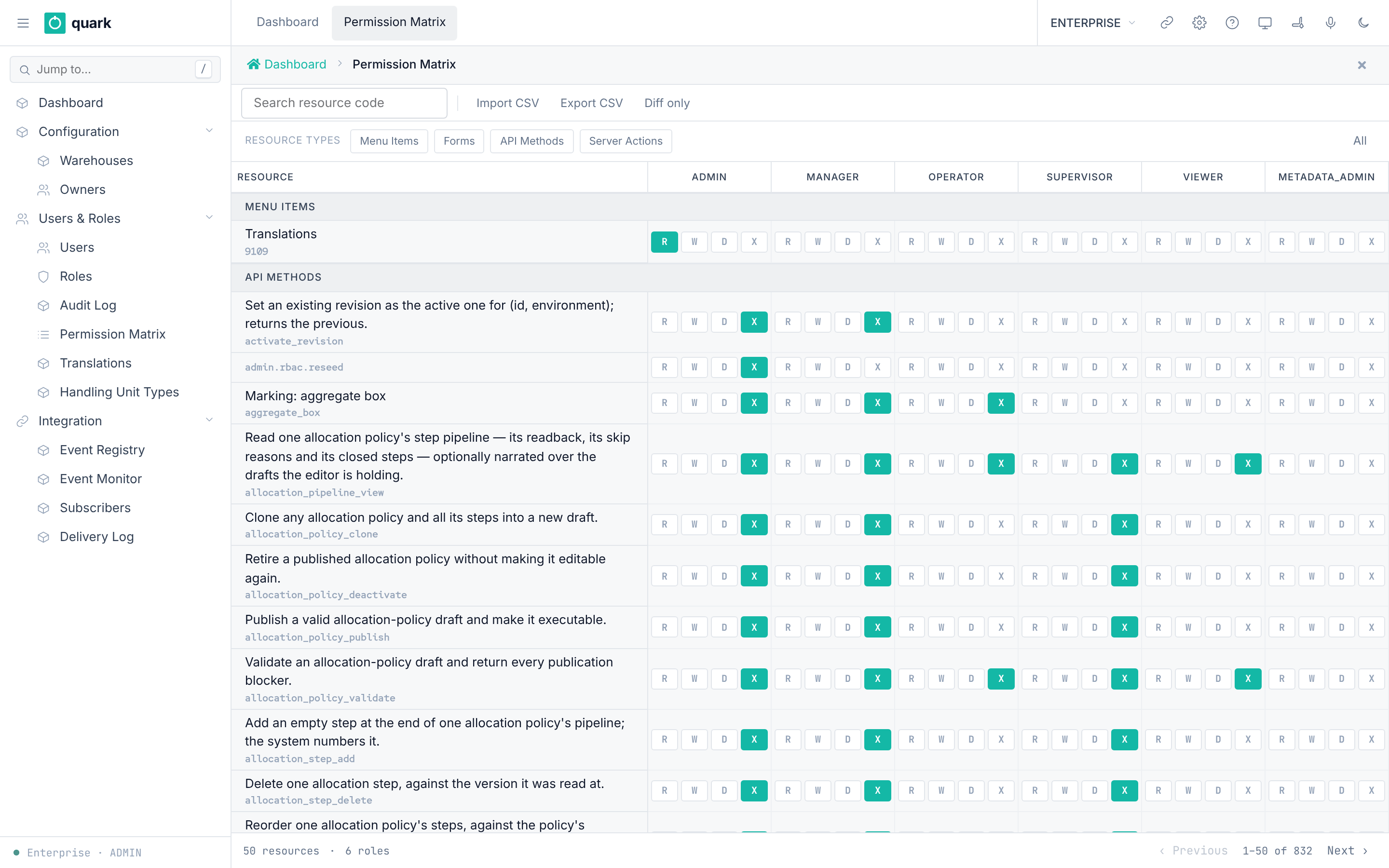
ADMINholdsadmin.rbac.reseedby default. VIEWERkeeps read-only server actions:generic_refresh,query_list_form,generic_rpc_query,generic_rpc_form_load,generic_tree_query,generic_toolbar_render,me. It also runsprint_report,set_report_favoriteanddashboard_snapshot_rpc.OPERATORserver actions: the generic save, new, delete and grid actions,shipment_order_allocate,receipt_receive,receipt_capture_serial,receipt_resume_serialsandgeneric_rpc_command(seeseeder.rs).SUPERVISORadds:allocation_policy_duplicate,shipment_order_release,shipment_order_line_cancel_qty,shipment_order_unallocate,pick_detail_delete_selected,task_delete_confirm.- Only
ADMINcan openTranslations(menu permission9109).
Not confirmed by code: a complete per-method list of API rights for every role. The rights come from code lists, from the seeder that runs when app-server starts, and from many migrations. They cannot be merged by reading alone. To verify: start the system, sign in as
ADMIN, openUsers & Roles > Permission Matrix, pick the role and filter the resource typeAPI. Or runSELECT resource_code, can_read, can_write, can_delete, can_execute FROM enterprise.role_permission rp JOIN enterprise.role r ON r.id = rp.role_id WHERE r.code = '<ROLE>' AND rp.resource_type = 'api'.
3. Create a user
What you will do
Create a new user and set a password.
Before you start
- Role:
ADMIN(the methodcreate_userisExecuteforAdminonly). - You are in Enterprise mode.
- You know the user name, e-mail and language of the person.
Steps
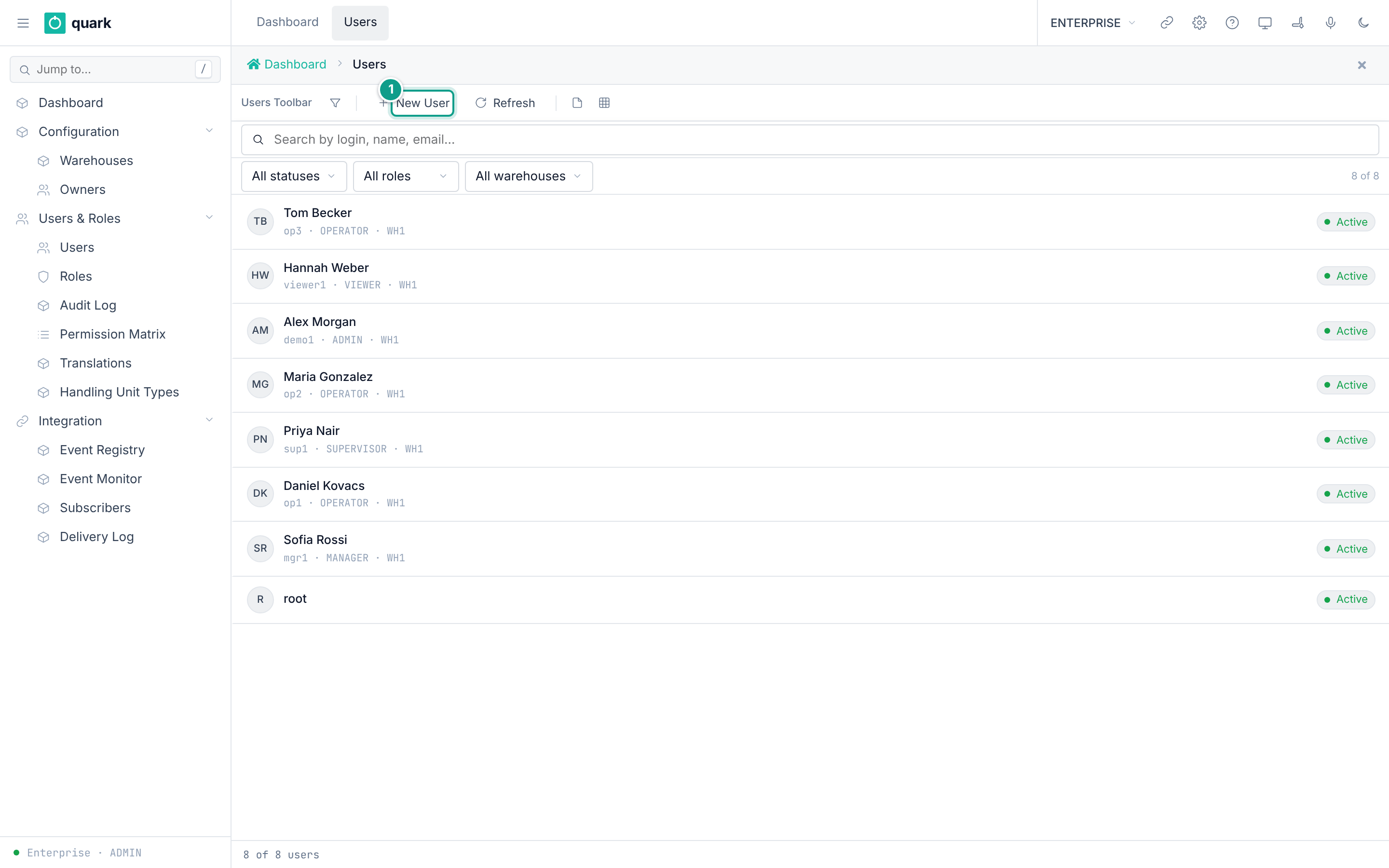
- Open
Sidebar > Configuration > Users & Roles > Users. - Click
New User. - On the tab
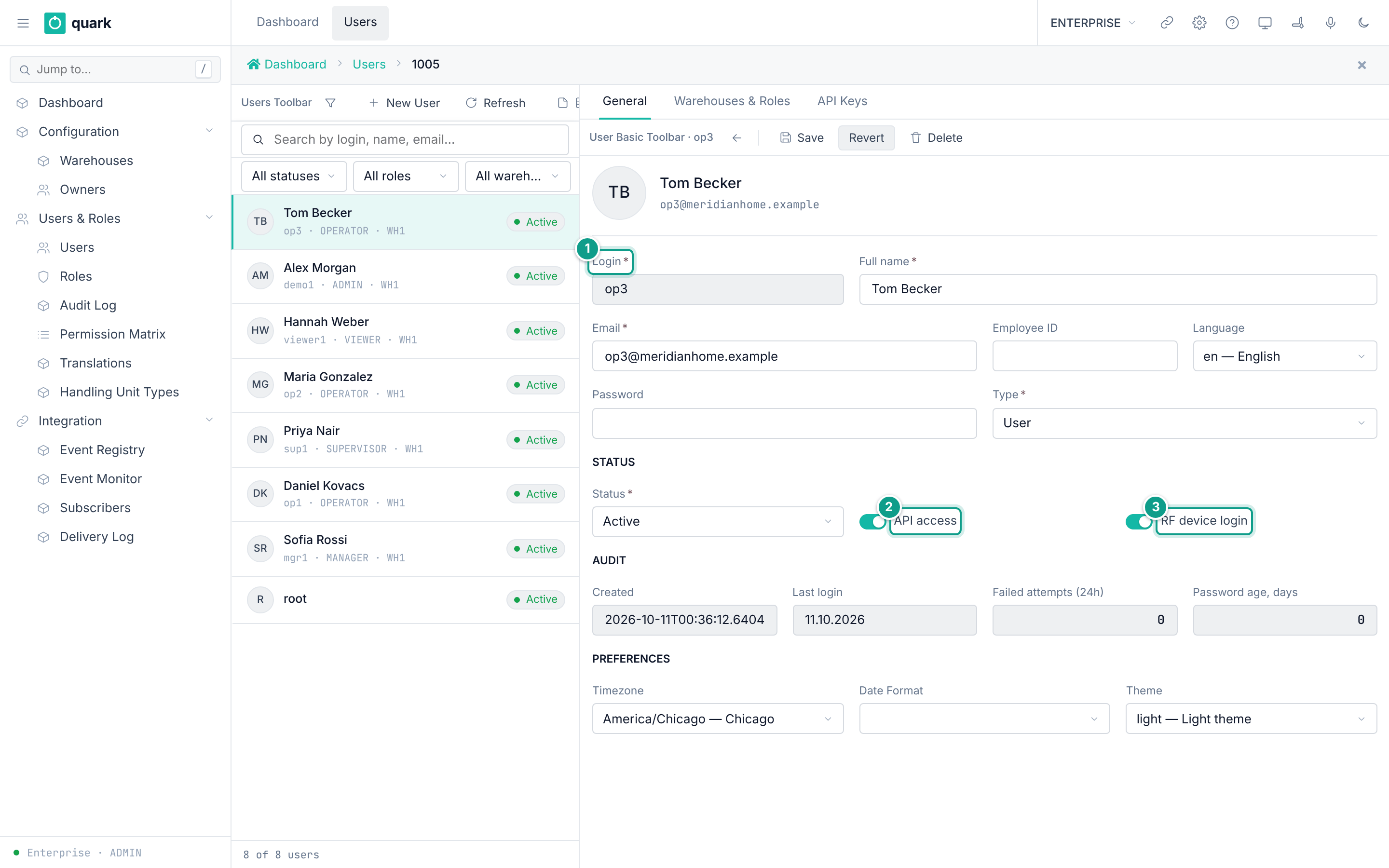
General, fillLogin,Full name,Email,TypeandStatus. - Fill
Password. - Set
Language,Timezone,Date FormatandTheme. - Click
Save. The buttonRevertundoes unsaved edits. - Open the tab
Warehouses & Rolesand assign a warehouse (section 4).
Field reference
Form enterprise_user_basic. Labels are the English labels.
| Field | Meaning | Allowed values | Example |
|---|---|---|---|
Login (required) | Login name. Unique. | Text up to 128 characters. | op2 |
Full name (required in the form) | Name shown in lists. | Text up to 200 characters. | Anna Petrova |
Email (required) | Contact address. | Text up to 120 characters. | anna@example.com |
Employee ID | Personnel number. | Text up to 50 characters. | E-0042 |
Language | UI language. | Codes from the locale registry: en, ru, kk. | en |
Password | Initial password. The form hint says: "Leave empty to keep current". | Any text. The API requires it on create. | (secret) |
Type (required) | Account type. | User, Admin, Sys, Agent. Only a superuser (Admin or Sys) can set a value other than User. | User |
Status (required) | Account status. | Active, Invited, Locked, Disabled. Locked and Disabled block sign-in, open sessions and API keys. Active and Invited are let in. | Active |
Created | Audit. Read-only. | Date and time. | |
Last login | Audit. Read-only. | Date and time. | |
Failed attempts (24h) | Audit. Read-only. | Whole number. | |
Password age, days | Audit. Read-only. Hint: "Days since the password was last changed". | Whole number. | |
Timezone | Used to show dates. | Values from the TIMEZONE code list (17 values in the enterprise database). | Europe/Sofia |
Date Format | Date format. | Values from the DATEFORMAT code list (9 values). | dd.MM.yyyy HH:mm:ss |
Theme | Light or dark. | Values of THEME (2 values). | dark |
API access | May this user call the API with a key? | On or off. Default on. | on |
RF device login | May this user sign in on an RF terminal? | On or off. Default on. | on |
What you should see
- The user appears in the list
Users. Createdshows the time of creation.- The
Password age, daysfield starts counting from the password change.
If something goes wrong
| Message | Meaning | Fix |
|---|---|---|
UserAlreadyExists (user name taken) | The user name is already in the database. | Choose another Username. |
UserTypNotPermitted | You tried to set Type to a value other than User without being a superuser. | Leave Type as User, or ask a superuser. |
SuperuserAccountNotPermitted | You tried to change, re-password or delete an Admin or Sys account without being a superuser. | Ask a superuser. |
UserSelfLockoutNotPermitted | You tried to lock, disable or delete the account you are currently using. | Use another ADMIN account to make the change. |
LastActiveAdminNotPermitted | The change would leave an active warehouse without a sign-in-capable ADMIN. | Assign or activate another ADMIN for every listed warehouse first. |
Forbidden(...) | Your role cannot run create_user. | Use an ADMIN account. |
Field {0} is required | A required field is empty. | Fill the field. |
What this affects later
- The user can sign in with the user name and password.
- Without a warehouse assignment, the user has no data and no role (section 4).
Language,TimezoneandDate Formatset what the user sees.- The operator list in each warehouse is built from users (see
03-warehouse-structure.md, section 7).
The server has no password rule when you create a user or set a password (UserBmc::create, update_pwd in wms-lib-core/src/model/user.rs; RPCs create_user and update_user). Any text is stored, even an empty one on create.
Only the sign-in form checks the length: at least 6 characters. A user with a shorter password is created but cannot sign in. Always set 8 or more characters.
When you edit a user and leave the password field empty, the old password stays.
4. Assign a warehouse and a role
What you will do
Give a user access to a warehouse with a role.
Before you start
- Role:
ADMIN. - The user exists. The warehouse exists in
enterprise.warehouse.
Steps
- Open
Sidebar > Configuration > Users & Roles > Users. - Open the user.
- Open the tab
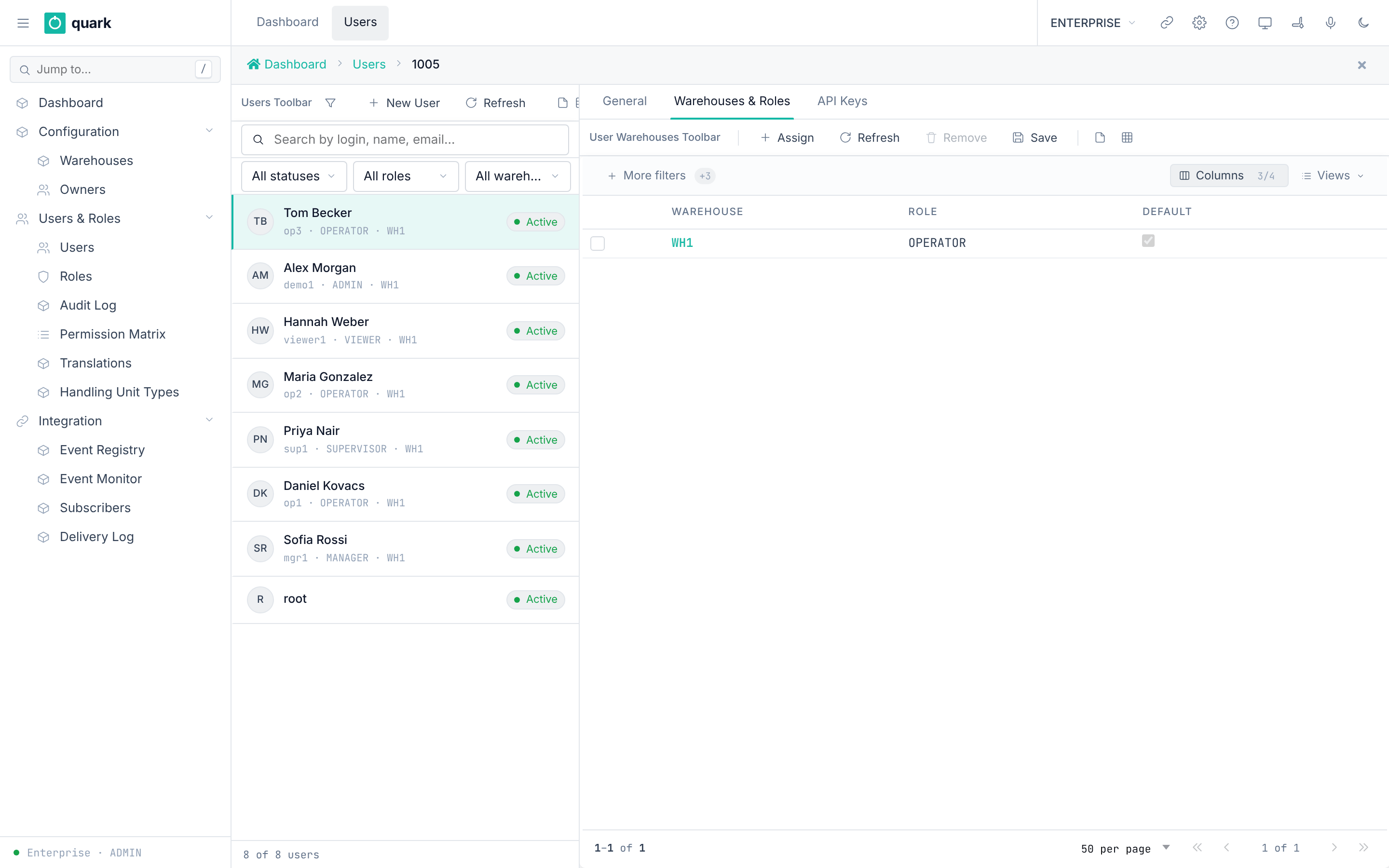
Warehouses & Roles. - Click
Assign. - In the new row, pick
WarehouseandRole. - Turn on
Defaultfor the warehouse that should open first. - Click
Save. - To remove access, select the row and click
Remove.
Field reference
| Field | Meaning | Allowed values | Example |
|---|---|---|---|
Warehouse | The warehouse to open. | An existing warehouse. One row per warehouse per user. | WH1 |
Role | The role in that warehouse. | An active role. | OPERATOR |
Default | Opens first at sign-in. | On for at most one row of the user. | on |
What you should see
- The row appears in the grid.
- At the next sign-in the user sees the default warehouse.
If something goes wrong
| Message | Meaning | Fix |
|---|---|---|
Duplicate key on user_warehouse_user_id_warehouse_id_key | The user already has this warehouse. | Edit the existing row. |
Duplicate key on idx_user_warehouse_default | Another row is already the default. | Turn off Default on the other row first. |
What this affects later
- The role decides which menus, buttons and API methods the user can use in that warehouse.
- A user with the
ADMINrole in any warehouse can open Enterprise mode. - Changes to roles and permissions are shared between server copies through the table
enterprise.rbac_cache_epoch(seedocs-obsidian/architecture/rbac-cache-invalidation.md).
The server does not show the constraint name. For a duplicate key on user_warehouse it answers Record already exists (HTTP 400, wms-lib-web/src/error.rs, code 23505). The same text appears for a duplicate role code.
A delete that a foreign key refuses (a role still held by a user) answers Cannot delete: record is in use.
5. Create or edit a role
What you will do
Create a custom role and set its permissions.
Before you start
- Role:
ADMIN(create, update and delete role methods areAdminonly).
Steps
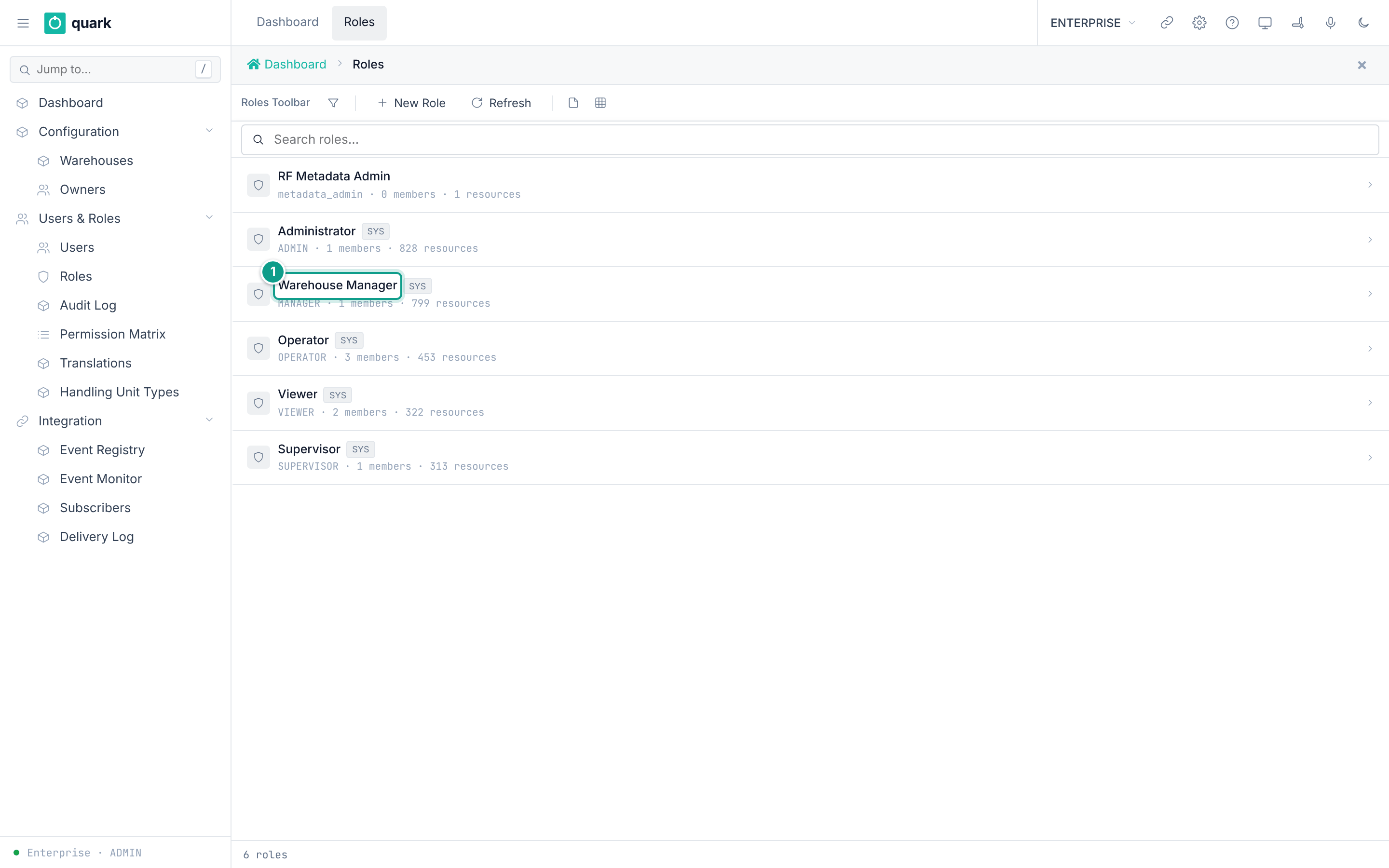
- Open
Sidebar > Configuration > Users & Roles > Roles. - Click
New Role. - Fill
Code,NameandDescription. KeepActiveon. - Click
Save. - Open
Sidebar > Configuration > Users & Roles > Permission Matrix. - Find the new role in the columns. Set read, write, delete and execute bits for each resource.
- Save the matrix.
Field reference
Form enterprise_role_basic.
| Field | Meaning | Allowed values | Example |
|---|---|---|---|
Code (required) | Stable identity of the role. It cannot change after creation. | Unique text up to 50 characters. | PICKER |
Name (required) | Display name. | Text up to 200 characters. | Picker |
Description | Free text. | Text. | Floor pickers |
Active | Inactive roles are not used by the seeder. | On or off. | on |
List columns: Code, Name, Description, Members, Resources, Active, System. Buttons: New Role, Refresh.
What you should see
- The role shows in the list with
Members= 0. - In the matrix, the seeder adds rows for the new role at the next server start. Rows that do not exist yet are created when you save the matrix (
batch_upsert_permission_matrix).
If something goes wrong
| Message | Meaning | Fix |
|---|---|---|
Duplicate key role_code_key | The code exists. | Use another code. |
Delete refused (user_warehouse_role_id_fkey) | A user still holds the role. | Change the users to another role first. |
Forbidden(...) on a screen button | The server action is not granted to your role. | Grant it in the matrix. |
What this affects later
- A new custom role starts with no server-action rights, except the rights you give it.
- Every permission change is written to
Users & Roles > Audit Log.
The flag is_system only shows a "system" badge in the role list (web-ui-server/src/components/layout/cortive_role_list.rs). No rule in code or in the database protects a system role from deletion. Only the foreign key user_warehouse_role_id_fkey blocks it, and only while a user still holds the role. Do not delete ADMIN, MANAGER, OPERATOR, SUPERVISOR or VIEWER.
6. Read the audit log
What you will do
See who changed permissions and which calls were denied.
Steps
- Open
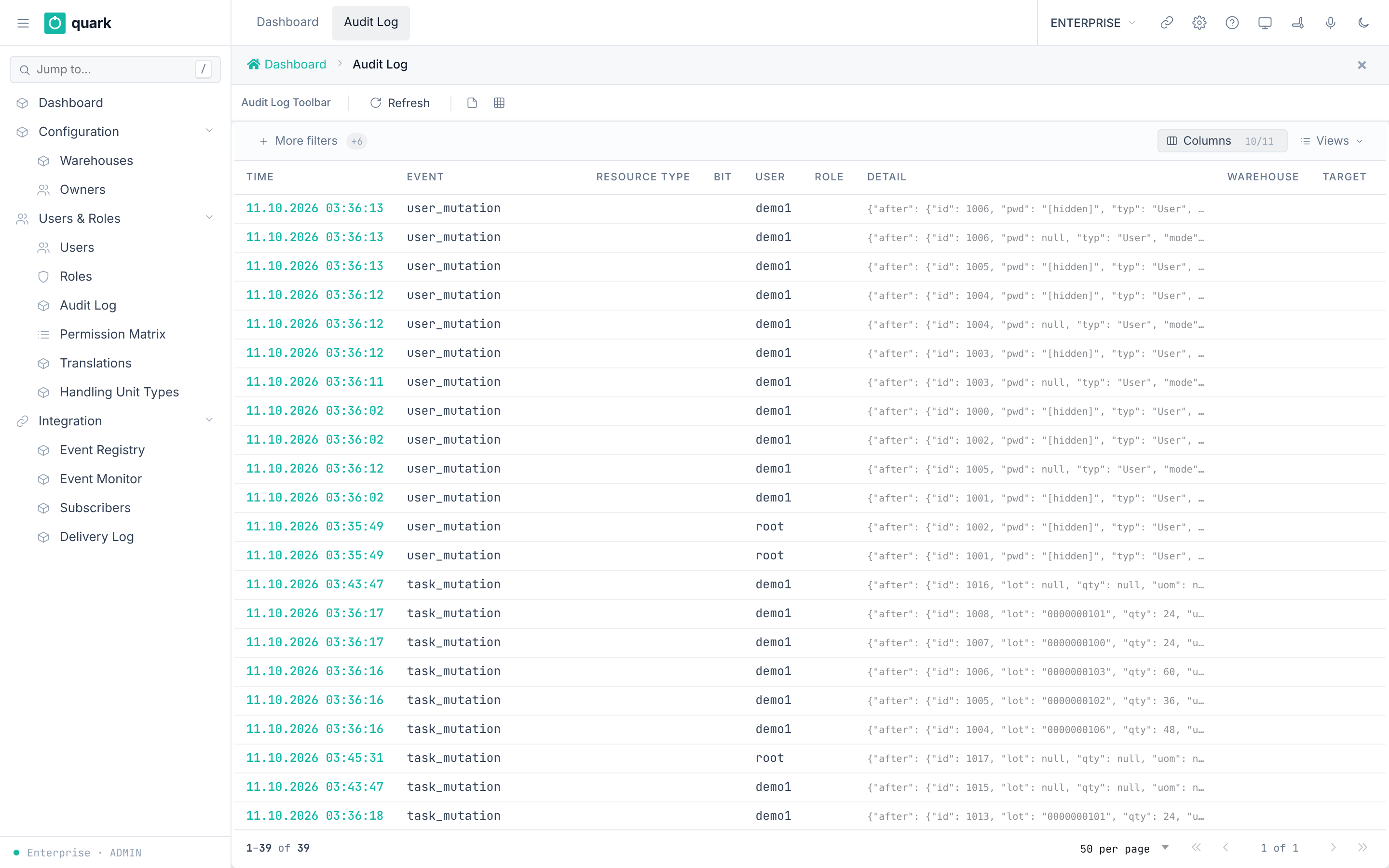
Sidebar > Configuration > Users & Roles > Audit Log. - Use the column filters. Click
Refresh.
Field reference (columns)
Warehouse, Target, Resource, Bit, Time, Resource Type, User, Role, Detail, Event.
What you should see
- One row per audited event.
If something goes wrong
| Message | Meaning | Fix |
|---|---|---|
| Empty list | No event matches or no event was written. | Clear the filters. |
What this affects later
- Nothing. The log is read-only.
7. Create an API key
What you will do
Create a key so another system can call the API as a user.
Before you start
- Role:
ADMIN(the API key methods areAdminonly). - The user has
API accessturned on.
Steps
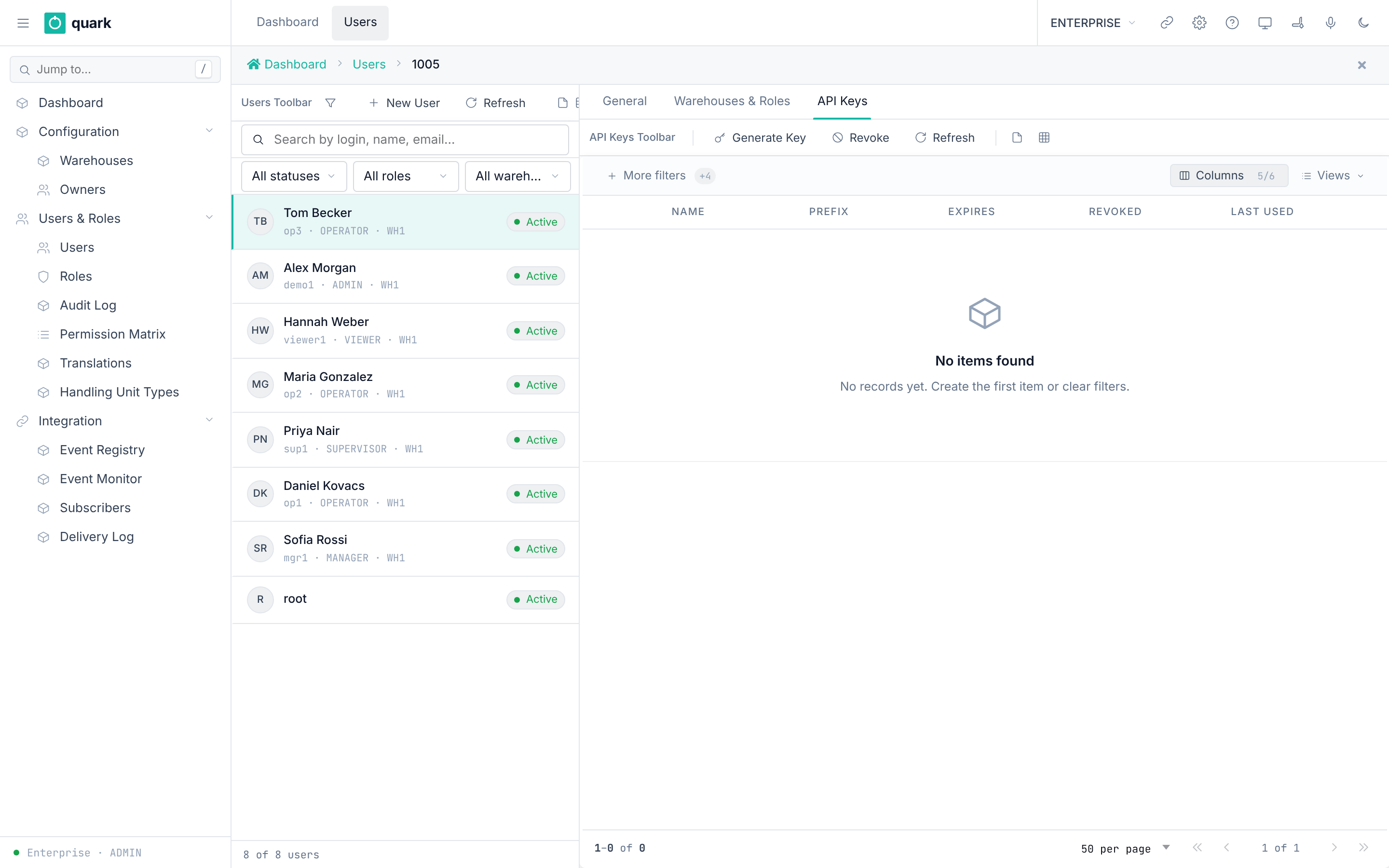
- Open the user card. Open the tab
API Keys. - Click
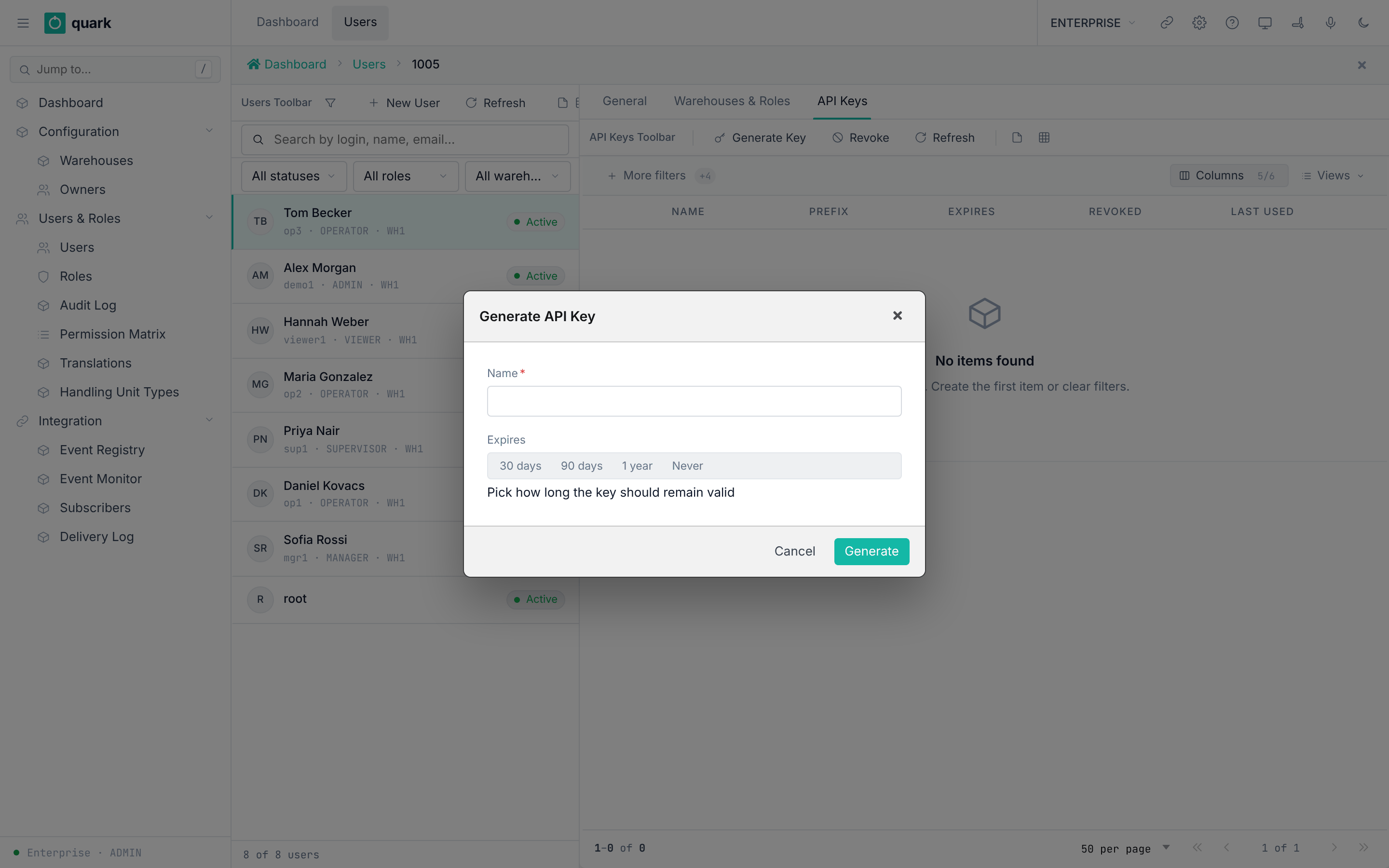
Generate Key. - Fill
Name. PickExpires. - Click
Generate. - Copy the key from the window. It says
API key created successfullyandThis key will not be shown again — copy it now.This is the only time the key is shown. - Click
I saved it — Close. The server forgets the plain key. - To stop a key, select it and click
Revoke. The window saysRevokes immediately. Services using this key get 401. Cannot be undone.ClickRevokeagain.
Field reference
| Field | Meaning | Allowed values | Example |
|---|---|---|---|
Name (required) | Label in the list and the audit log. | Text. | ERP link |
Expires (required) | How long the key stays valid. | Never, 1 year, 90 days, 30 days (code list API_KEY_EXPIRY). | 90 days |
List columns: Expires, Prefix, Status, Name, Revoked, Last Used.
What you should see
- A key that starts with
wms_live_sk_. Send it asAuthorization: Bearer <key>. - The list shows the key
PrefixandStatus.
If something goes wrong
| Message | Meaning | Fix |
|---|---|---|
| HTTP 401 on a call | The key is revoked, expired or unknown. | Generate a new key. |
The key is rejected and the log says api_access disabled | The key owner has API access off. | Turn on API access for the user. |
What this affects later
- The external system acts with the role of the key owner. Use a user with a limited role.
- Only a hash of the key is stored.
The shared sign-in middleware (wms-lib-web/src/middleware/mw_auth.rs) reads the key from the header Authorization: Bearer wms_live_sk_.... It does this for every route that sits behind it. Without a key it falls back to the session cookie.
8. Roles and the warehouse operator list
Users with a warehouse assignment, RF device login on and status Active become operators in that warehouse.
A background job copies them every 5 minutes (OPERATOR_SYNC_INTERVAL). See 03-warehouse-structure.md, section 7.
9. Passwords and sessions
- Passwords are stored as hashes. The hashing code is in
wms-lib-auth/src/pwd. API keys use Argon2id. - Signing out ends the server session and clears the cookie.
- The bootstrap administrator should change the password after the first sign-in. The column
must_rotate_passwordexists, but no code reads it, andbootstrap-adminno longer sets it (wms-lib-core/src/model/initial_admin.rs). Nothing forces the change. - There is no password complexity rule. The only length check is on the sign-in form: 6 characters (section 3).
- There is no lock-out. An account is never disabled after failed sign-ins.
- A throttle slows guessing. After 10 failed attempts within 60 seconds for one user name, or from one client address, further attempts are refused with the same error as a wrong password. Every attempt renews the 60 seconds. The counters live in the memory of each server process (
wms-lib-auth/src/authentication/login_throttle.rs). - The user card shows
failed_login_attemptsas a rolling 24-hour count. It starts again at 1 when the last failure is older than 24 hours, and it resets on a good sign-in. It never blocks a sign-in (wms-lib-core/src/model/user.rs,record_login_failure).