Printing and Labels
1. What exists
| Part | What it does | Web screen? |
|---|---|---|
| Label definitions | Name, size and DPI of a label. Point to a template. | Yes, in the label designer (see below). Also by API. |
| Label templates | The layout (JSON). | Yes, in the label designer (see below). Also by API. |
| Printer configurations | Network printers (host and port). | No. API only. |
| Printer assignments | Which printer a user, zone, owner or warehouse uses. | A form printer_assignments_list_form exists, but no menu item or tab opens it. |
| Zone printer settings | Default printers in a putaway zone. | Yes. Topology > Putaway Zones > Printer Settings. |
| Label renderer | A separate service that turns a template into ZPL. | Setting LABEL_RENDERER_URL. |
| Barcode formats | Rules to read scanned barcodes (GS1 and others). | Yes. Sidebar > Barcode Formats. |
Labels are made in ZPL for Zebra printers. The server sends the ZPL to the printer's network port (default 9100).
There is no web screen for printer configurations. Use the API methods (section 7).
Label design has a web screen. Open Sidebar > Reports. If you pass the Studio-admin check, the page shows the buttons Report designer and Label designer above the frame. Label designer opens the designer of the report service (/designer?surface=labels). It reads and writes label_definitions and label_templates, the same tables the printing code uses. Users who are not Studio admins do not see these buttons.
2. Seeded labels
Table label_definitions (all active, DPI 203):
| Code | Name in the database | Category | Size (mm) | Used by |
|---|---|---|---|---|
pallet_label | Паллетная этикетка | pallet | 100 x 150 | API print_label. |
sku_label | Этикетка товара | sku | 50 x 30 | API print_label. |
location_label | Этикетка ячейки | location | 70 x 40 | API print_label. |
lpn_id_label | LPN ID этикетка | lpn | 100 x 50 | Auto-print after a receive (Auto-Print LPN), and LPN print on the move path. |
handling_unit_label | Handling unit label | custom | 100 x 50 | Printed once for each registered handling unit. |
shipping_label | Shipping label | shipping | 100 x 150 | Printed when a pack carton is closed. |
Label missing in English:
Паллетная этикетка(pallet_label). Label missing in English:Этикетка товара(sku_label). Label missing in English:Этикетка ячейки(location_label). Label missing in English:LPN ID этикетка(lpn_id_label).
The code looks up a label by its exact, case-sensitive code. Do not rename the codes lpn_id_label, handling_unit_label, shipping_label. If the lookup fails, best-effort callers log it and print nothing.
Seeded templates: pallet_100x150, sku_50x30, location_70x40, lpn_id_100x50, handling_unit_100x50, shipping_100x150 (status applied).
3. Printer settings in a putaway zone
What you will do
Set default printers for a zone and turn on automatic printing.
Before you start
- Role:
ADMINorMANAGER. - The zone exists.
Steps
- Open
Sidebar > Topology > Putaway Zones. - Open the zone. Open the tab
Printer Settings. - Fill the fields. Click
Save.
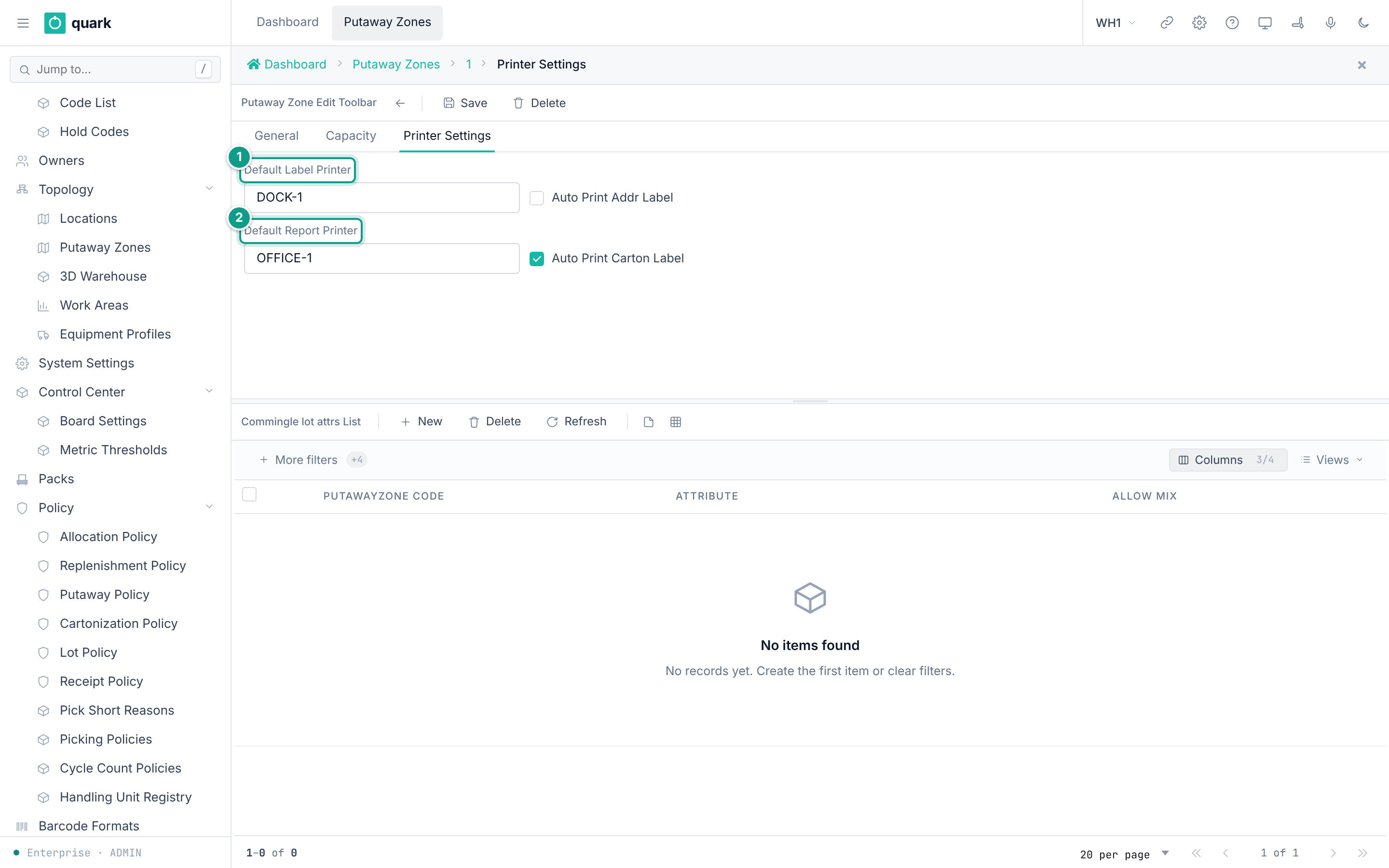
Field reference
| Field | Meaning | Allowed values | Example |
|---|---|---|---|
Default Label Printer | Name of the label printer. | Text up to 45 characters. | ZEBRA-01 |
Auto Print Addr Label | Print an address label automatically. | On or off. | off |
Default Report Printer | Name of the report printer. | Text up to 45 characters. | HP-OFFICE |
Auto Print Carton Label | Print a carton label automatically. | On or off. | off |
What you should see
- The values are saved with the zone.
If something goes wrong
| Message | Meaning | Fix |
|---|---|---|
| Nothing prints | No printer is resolved. | Check the printer assignments (section 5). |
What this affects later
- These fields do not change where a label prints. A label printed at a place goes to the
Zoneprinter assignment of that place first (section 5).
These zone fields are plain text. They are not linked to printer_configurations, and no printing code reads them. The printer is chosen only from printer_assignments (section 5). To make a zone use a printer, add a Zone assignment whose Scope ID is the zone id (putawayzone.id). The same holds for the fields zone_code and is_default of a printer configuration: they are stored, but the lookup does not use them. Auto Print Addr Label and Auto Print Carton Label are not read by any printing code either.
4. Printer configurations (API)
Table printer_configurations. Methods create_printer_configuration, update_printer_configuration, list_printer_configuration (create, update and delete: ADMIN, MANAGER; read: all roles).
| Field | Meaning | Allowed values | Example |
|---|---|---|---|
code | Key. | Text up to 50 characters. | ZEBRA-01 |
name | Display name. | Text up to 200 characters. | Dock printer |
printer_host | Network address. | Text up to 200 characters. | 10.0.0.50 |
printer_port | TCP port. | Whole number. Default 9100. | 9100 |
printer_model | Model text. | Text. | ZT411 |
zone_code | Zone text. | Text. | RACK |
is_default | Default printer. | true or false. | false |
label_definition_id | Label for this printer. | A label definition id. | |
is_active | In use. | true or false. | true |
No printer is seeded.
5. Printer assignments
Rule for choosing a printer (PrinterAssignmentBmc::resolve_for_scope_at):
- Only active rows count.
- Order of scope: Zone, then User, then Owner, then Warehouse.
- Inside one scope, the lowest
prioritynumber wins (default 100). - The zone tier is used only when the print has a location. Without a location the order is User, Owner, Warehouse.
If no row matches, nothing is printed and the log says NoPrinter.
Form printer_assignments_list_form (when reachable): columns ID, Scope ID, Printer, Priority, Active, Scope; buttons New, Edit, Delete, Refresh.
Edit window Edit Printer Assignment:
| Field | Meaning | Allowed values | Example |
|---|---|---|---|
Scope Type (required) | Level. | User, Zone, Owner, Warehouse. | Warehouse |
Scope ID | Who the row applies to. Empty for Warehouse. | A user, zone or owner id. | |
Printer (required) | The printer configuration. | A printer id. | |
Priority (required) | "Lower wins; default 100." | Whole number. | 100 |
Active (required) | In use. | On or off. | on |
Minimum for a working print: one printer_configurations row and one Warehouse assignment pointing to it.
An administrator cannot reach this form in the UI today. No menu item, tab, navigation or button opens it. The code lists the form as a screen with no door (surface_census.rs). Until a door is added, manage assignments with the API (printer_assignments_rpc.rs).
6. Label renderer
- The setting
LABEL_RENDERER_URL(seedhttp://localhost:8086) names the renderer service. - Open
Sidebar > System Settingsto change it. - The server posts the template and data to the renderer and gets ZPL bytes back. A failed render sends nothing to the printer.
| Failure stage (log token) | Meaning | Fix |
|---|---|---|
stage=render | No ZPL: label not found, renderer unreachable, non-2xx answer, or unreadable body. | Check the label code and LABEL_RENDERER_URL. |
stage=send | The printer did not accept the bytes: unreachable host, connection or write timeout. | Check the printer address, port and network. |
7. Label API methods
| Method | Use |
|---|---|
generate_label_data | Render data for a label code (preview). |
print_label | Returns ZPL bytes for a label code and data. |
send_label_to_printer | Sends a label to a printer host and port. |
list_label_definition, update_label_definition | Read or change definitions. The code cannot change. |
list_label_template, update_label_template | Read or change templates. The code cannot change. |
print_lpn_label | LPN label print. |
Role: read for all roles; write for ADMIN and MANAGER.
8. Barcode formats
What you will do
Define how the system reads scanned barcodes such as GS1-128.
Before you start
- Role:
ADMINorMANAGER. - Seeded formats:
GS1-128-STANDARD,GS1-128-SIMPLE,GS1-DATAMATRIX,UPC-FIXED,PIPE-DELIMITED,GS1-DATABAR,GS1-QR.
Steps
- Open
Sidebar > Barcode Formats. - Click
New. Fill the tabConfiguration. ClickSave. - Open the detail list
Format Details. ClickNew. Fill each element in order. ClickSave. - Use
Test Barcode: paste a barcode inScan or Paste Barcodeand clickTest. ReadParsed Result.
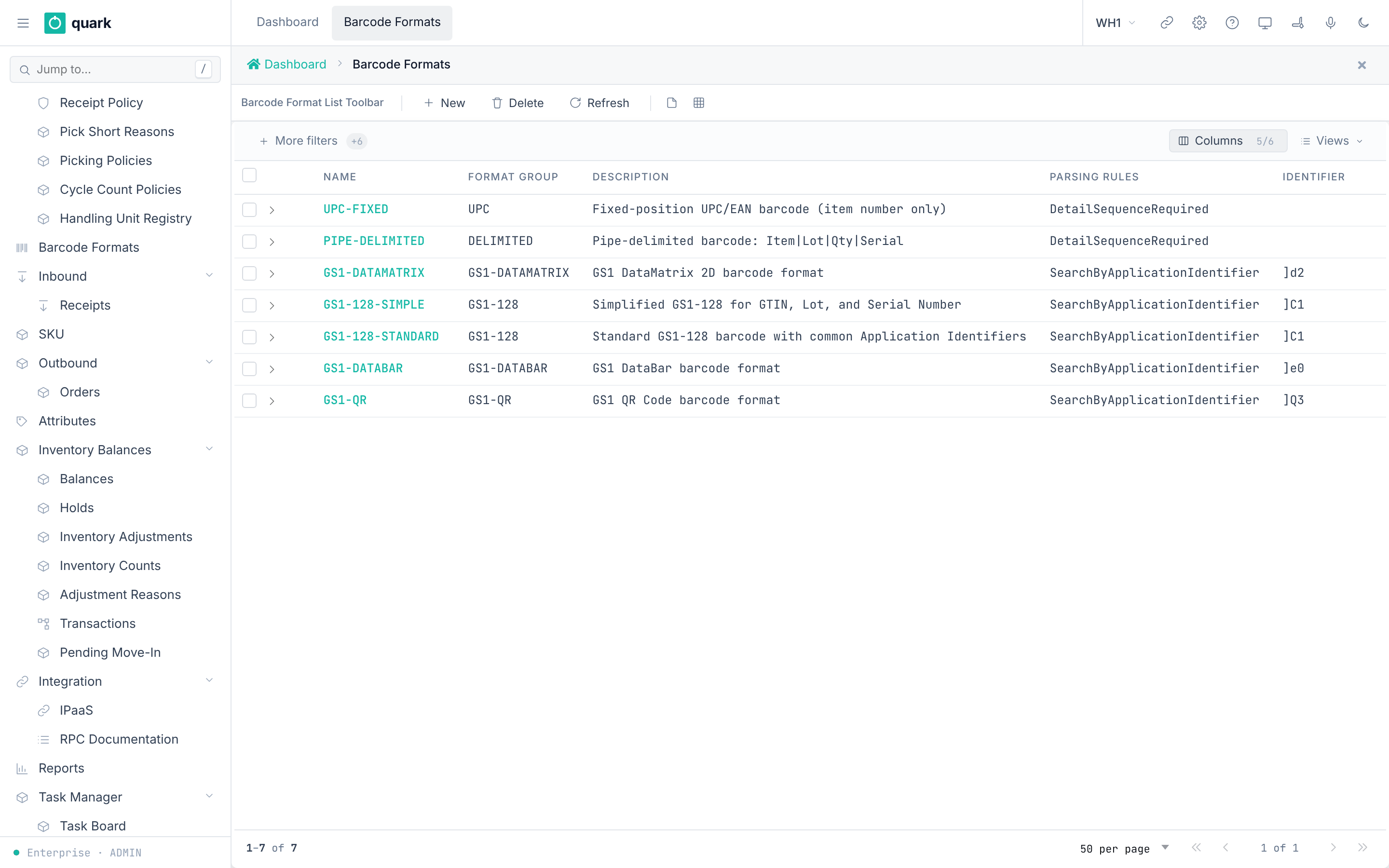
Field reference
Format (barcode_format_edit_form):
| Field | Meaning | Allowed values | Example |
|---|---|---|---|
Name (required) | Key. | Text. | GS1-128-STANDARD |
Format Group (required) | Family. | Text. | GS1-128 |
Description (required) | Free text. | Text. | |
Barcode Identifier | Symbology prefix. | Text. | ]C1 |
Chars to Trim | Characters to remove. | Whole number. | 0 |
Auto Detect Identifier | Find the prefix automatically. | On or off. | on |
Notes | Free text. | Text. | |
Parsing Rules (required) | How to read. | Detail Sequence Required, Search by Application Identifier. | Search by Application Identifier |
Default Ending Delimiter | End-of-field mark. | Code list BCDDELIMITER. | GS1128FNC1 |
Detail (bf_detail_edit_form): Sequence, App Identifier, Data Group Name, Data Length, Prefix Trim, Suffix Trim, Start Position, Stop Position, Repeats Until End, Decimal Place, Lot Policy, Data Length Type (Fixed Length, Variable Length), Delimiter Before, Delimiter After, Date Format, Validation, Data Element Name.
Data elements include Item Number, Location, License Plate Number, Serial Number, Lot Number, Manufactured Date, Expiration Date, Delivery By Date, Best By Date, Quantity, Case ID, Alternate SKU, Unit of Measure, Net Weight.
What you should see
- The test shows the parsed values.
If something goes wrong
| Message | Meaning | Fix |
|---|---|---|
| The parsed result is empty | The identifier or the details do not match the barcode. | Check Barcode Identifier and the details. |
What this affects later
-
RF scanning uses these formats to split one barcode into item, lot, dates and serial.
-
A format is chosen by its
Barcode Identifier, not by SKU. The scan must start with the identifier, andAuto Detect Identifiermust be on. If several formats match, the longest identifier wins, then the lowest id. A format with an empty identifier claims nothing. If no format claims the scan, it is read as a plain code.barcode_scan_parseis a query: it changes nothing.