Warehouse Structure
This chapter covers the physical map of a warehouse: the warehouse itself, putaway zones, locations, work areas, equipment and operators.
1. The warehouse record
What you will do
Understand what a warehouse is and what the web UI can and cannot do with it.
Before you start
- A warehouse is a row in
enterprise.warehouseplus one database schema (fieldschema_name, for examplewh1). - The warehouse schema holds all warehouse data. It is built by running the
wms-appmigrations on that schema.
Steps
There is no screen that creates a warehouse.
The menu entry Sidebar > Configuration > Warehouses (Enterprise mode) has no form behind it.
The API has only list_user_warehouses and get_warehouse_defaults (read-only).
To add a warehouse, the installer must:
- Create the schema in the tenant database.
- Run the
wms-appmigrations on the schema. - Insert the row into
enterprise.warehouse. - Assign users and roles (see
02-users-roles-permissions.md).
The design document docs-obsidian/serial-numbers/SPEC_serial_numbers_full_cycle.md (section 13.4) lists the same five actions.
What the code gives you for steps 1 to 3:
- The tenant manager (
services/tenant-manager/src/web/rpcs/tenant_rpc.rs) creates a tenant database with the schemawh1and runs the enterprise andwms-appmigrations. It does not insert a row intoenterprise.warehouse. app-server bootstrap-adminneeds that row to exist already (NoWarehouseotherwise).- Only the development reset tool (
wms-dev-db) creates the schemaswh1andwh2and the warehouse rows (sql/dev_only/install-db/900-dev-seed.sql).
Not confirmed by code: a supported production command or procedure that creates the first warehouse row or a further warehouse schema, and that makes the app-server know the new schema. To verify: ask the product owner for the install runbook. Then, on a test tenant, add a second warehouse by hand with steps 1 to 4 and check that it appears in the
Switch warehousepop-up.
Field reference
Columns of enterprise.warehouse that matter to you:
| Field | Meaning | Allowed values | Example |
|---|---|---|---|
code | Short code. | Text up to 20 characters. | WH1 |
name | Display name. | Text up to 200 characters. | Main Warehouse |
schema_name | Database schema of the warehouse. | Text up to 50 characters. | wh1 |
is_active | Is the warehouse in use? | true or false. | true |
weight_uom | Unit in which weights are stored. | Default G. | G |
length_uom | Unit in which lengths are stored. | Default MM. | MM |
volume_uom | Unit in which volumes are stored. | Default MM3. | MM3 |
weight_display_uom, length_display_uom, volume_display_uom | Units shown on screens. | Optional. | KG |
A trigger (trg_warehouse_units_are_frozen) blocks later changes of the stored units.
A second trigger (warehouse_defaults_seed_trg) creates the row in enterprise.warehouse_defaults for a new warehouse.
What you should see
- After the installer finishes, the warehouse shows in the warehouse list of every assigned user.
If something goes wrong
| Message | Meaning | Fix |
|---|---|---|
| A user sees no warehouse after sign-in | The user has no row in user_warehouse. | Assign a warehouse (see 02-users-roles-permissions.md, section 4). |
| Stored unit cannot change | The trigger trg_warehouse_units_are_frozen refuses it. | Choose the stored units before the first stock. |
What this affects later
- Every record you create (locations, SKUs, orders) lives in this warehouse schema only.
2. Location types
What you will do
Choose the right location type for each location. The type controls what stock may do there.
Before you start
Read the table. The values are the enum loc_type; the descriptions come from the LOCTYPE code list.
| Value | UI description | What the code does with it |
|---|---|---|
None | 0 - None | No special meaning. |
Other | Other | Storage-like. Putaway, manual moves and pick moves may land here. |
Case | PICK - Case | Storage. Putaway and manual moves may land here. |
Pick | PICK - Piece | Storage and pick face. Putaway and replenishment may land here. |
Pnd | PICK - Pallets, storage | Pallet storage. Putaway, manual and pick moves may land here. |
SpeedPick | Speed Line | Fast pick line. Putaway may land here. |
Sort | Sort station | Putaway and pick moves may land here. A closed pick pallet may stand here. |
Pickto | Pick-to | Drop place for picked goods. Pick moves land here. A closed pick pallet may stand here. |
Stage | Staging | Staging. The owner's pick drop location may be a Stage. A closed pick pallet may stand here. |
Door | Door | Dock door. The owner's pick drop location may be a Door. A closed pick pallet may stand here. |
Pack | Pack station | A pack station. Only a Pack location can be the station of a work area. A closed pick pallet may stand here. |
QC | Quality control | Single-purpose destination for "move to QC". |
Damage | Damage | Single-purpose destination for damaged stock. |
Rtv | Return to vendor | Single-purpose destination for return to vendor. |
Destroy | Destruction | Destruction zone. |
Returns | Customer returns | Customer returns. |
Lost | Lost | Where missing stock is booked. |
InTransit | In transit (open pick pallets) | Holds open pick pallets. Only one InTransit location can exist (index uq_location_one_in_transit). |
Sources in code: allowed_dest_loc_types in wms-inventory/src/movement/validation.rs; PALLET_DROP_ADMISSIBLE in wms-outbound/src/domain/picking_policy/aggregate.rs; the triggers owners_picking_toloc_is_a_drop_location and work_area_pack_station_is_a_pack_location.
The code also uses these location codes by name:
DAMAGE(returns booked as damaged),INTRANSITandLOST(stock adjustments).
The baseline seeds them (INTRANSIT is seeded by wms-app migration 064). Do not delete or rename them.
The baseline also seeds the locations UNKNOWN, DOCK, QC, RETURN, RTV, STAGE and PICKTO. What depends on them:
STAGE,PICKTOandLOSTare the defaults of every putaway zone (inbound_loc,outbound_loc,picking_toloc,missing_toloc). The zonesDOCKandRACKuse them. Foreign keys withRESTRICTstop you from deleting a location a zone uses.DOCKis also the default zone of a new location (location.putawayzone), so the zoneDOCKmust exist too.QC,RETURNandRTVare not named in the logic. They are only values you can set per owner (default_qc_loc,default_returns_loc,default_rtv_loc). "Move damage to RTV" takes the destination from the request, then the owner'sdefault_rtv_loc, thendefault_returns_loc(wms-inbound/src/service/receipt/damage/move_damage_to_rtv.rs).- The 3D page draws
DAMAGE,DOCK,LOST,PICKTO,QC,RETURN,RTV,STAGEandUNKNOWNas floor areas by code (public/assets/js/warehouse-3d.js). - No code reads
UNKNOWNby name. Keep it anyway, as it is part of the baseline.
Steps
Use the type when you create or generate locations (sections 3 and 4).
Field reference
See the table above.
What you should see
- The list
Locationsshows the type in the columnType.
If something goes wrong
| Message | Meaning | Fix |
|---|---|---|
owners.picking_toloc X is a Y location, not Pickto/Stage/Door | The owner's Pick drop location must be Pickto, Stage or Door. | Pick a location of one of those types. |
| Work area pack station is refused | Only a Pack location can be the station of a work area. | Change the location type to Pack, or pick another location. |
Second InTransit location refused | Only one exists. | Use the existing one. |
What this affects later
- Putaway, moves, picking and packing allow or refuse a destination by its type.
3. Create locations (one by one)
What you will do
Create or edit one location.
Before you start
- Role:
ADMIN,MANAGERorOPERATOR(default rights). - The putaway zone you want already exists (section 5). New locations get the zone
DOCKby default.
Steps
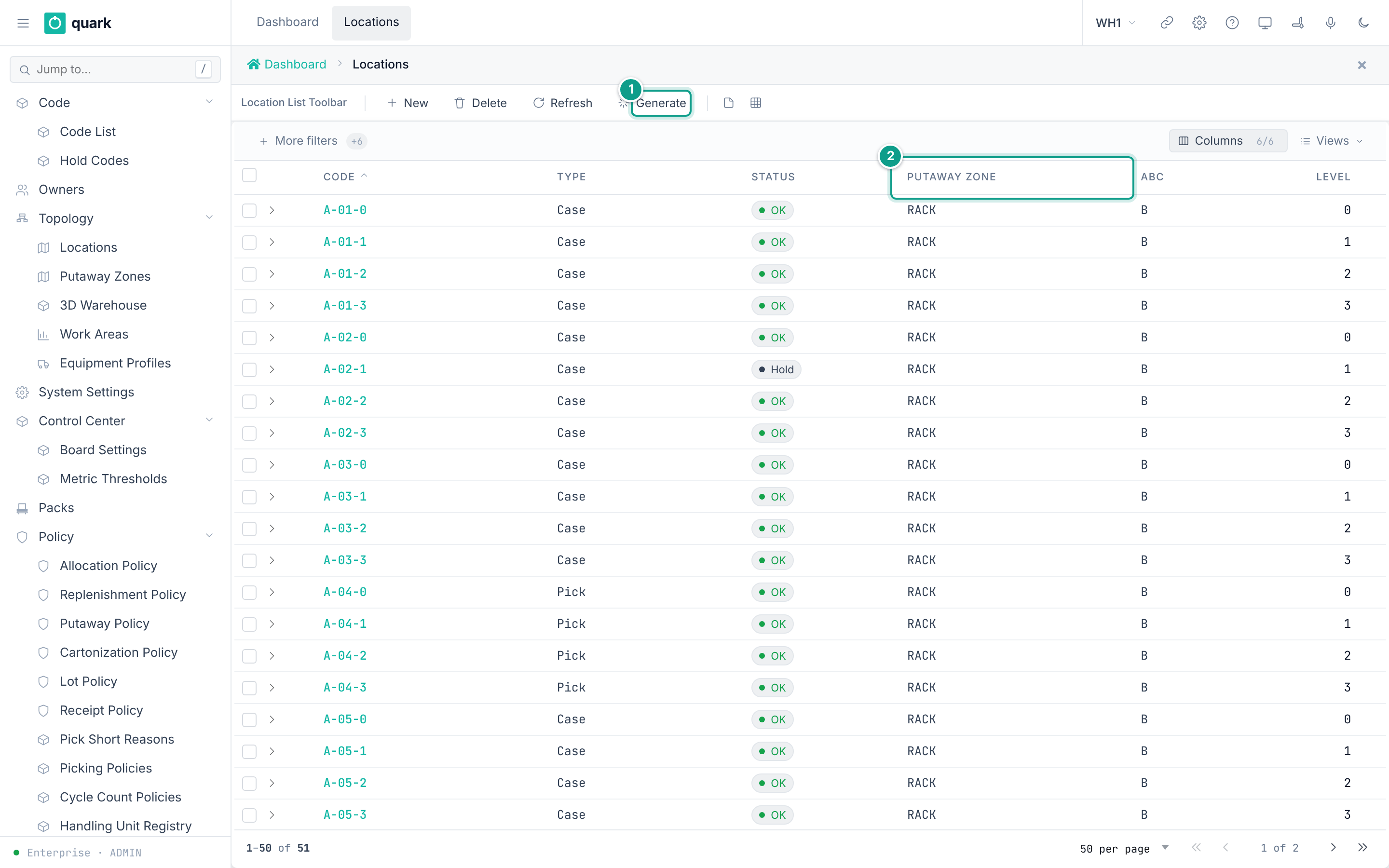
- Open
Sidebar > Topology > Locations. - Click
New. - On the tab
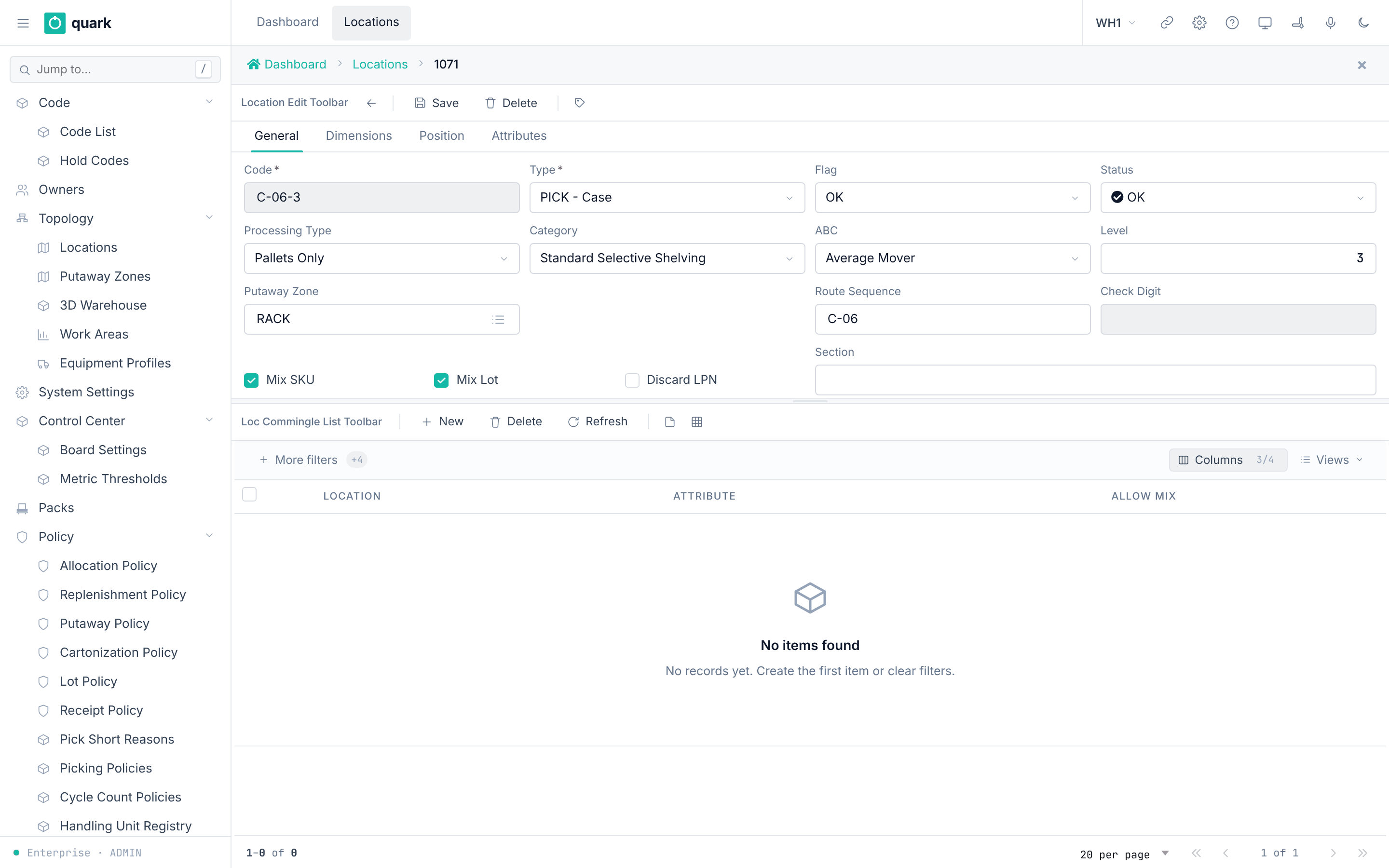
General, fillCodeandType. Fill the other fields you need. - Open the tab
Dimensions. Fill the sizes and capacity. - Open the tab
Position. Fill coordinates,AisleandBayif you use the 3D view. - Click
Save. - To change or delete: select the row, edit, and use
SaveorDelete.
Field reference
Form location_edit_form (tab General):
| Field | Meaning | Allowed values | Example |
|---|---|---|---|
Code (required) | The key of the location. It is the primary key. | Up to 20 characters. Unique. | A-01-02 |
Type (required) | Location type. | See section 2. | Case |
Flag | A special state. | None, CycleCountActive, SanitationActive, MaintenanceActive, ReceivingHoldoff. | None |
Status | Read-only. It is derived from active location holds. | Ok, Hold, Damage. | Ok |
Processing Type | Handling unit processed here. | None, Pallet, Case, Piece. | Pallet |
Category | Storage equipment. | None, NoPalletization, Asrs, CantileverRack, CartonFlow, DenseStorage, DoubleDeepRack, DriveInRack, DriveThroughRack, HorizontalCarousel, Other, PalletFlowRack, PalletCarousel, PushBackRack, SelectiveShelving, ShelvingStorage, WorkCenter. | SelectiveShelving |
ABC | Speed class. | A, B, C. Default B. | A |
Level | Level number. | Whole number. Default 0. | 2 |
Putaway Zone | Zone of the location. Picker. | An existing zone code. Default DOCK. | RACK |
Route Sequence | Walking order. | Text up to 10 characters. | 0150 |
Check Digit | Check digit for scanning. | Up to 3 characters. Set by the server when CHECK_DIGIT_ENABLED is true. | 7 |
Mix SKU | May several SKUs stand here? | On or off. Default on. | on |
Mix Lot | May several lots stand here? | On or off. Default on. | on |
Discard LPN | Discard the container on arrival. | On or off. | off |
Section | Free grouping. | Text up to 30 characters. A blank clears it. | North |
Tab Dimensions (location_dimensions_form): Cube, Length, Width, Height, Max Cube Capacity, Max Weight Capacity, Pallet positions on floor, Stack limit, Max quantity.
All numbers must be zero or more. Zero means "unlimited" for capacity (wms-inventory/src/movement/validation.rs).
Tab Position (location_position_form): X Coord, Y Coord, Z Coord, Aisle, Bay. All must be zero or more.
Tab Attributes (loc_attr_value_edit_form): custom attributes. See 04-owners-sku-uom-pack-hierarchy.md, section 8.
What you should see
- The new row in the list with
Status=Ok. - The check digit is filled if
CHECK_DIGIT_ENABLEDis on.
If something goes wrong
| Message | Meaning | Fix |
|---|---|---|
Duplicate key on location_pkey | The code exists. | Use another code. |
Foreign key fk_location_putawayzone | The zone does not exist. | Create the zone first (section 5). |
Check chk_location_* (negative number) | A dimension, capacity or coordinate is below zero. | Enter zero or more. |
| Delete refused because of foreign keys | Stock, pending moves or owner settings refer to the location. | Empty and release the location first. |
Status cannot be edited | By design. The server ignores a value you send. | Use a hold (see 05-inbound-setup.md). |
What this affects later
- Putaway searches these locations by type, zone, ABC, mixing flags and capacity.
Statusblocks moves while a hold is active.
4. Generate many locations (bulk)
What you will do
Create many locations from a pattern in one run.
Before you start
- Role:
ADMINorMANAGER(gen_locsisExecutefor these two). - The pattern setting
LOC_GEN_PATTERN(seeSystem Settings). The default is<AISLE_PREFIX><AISLE>-<LEVEL>-<LOC>.
Steps
- Open
Sidebar > Topology > Locations. - Click
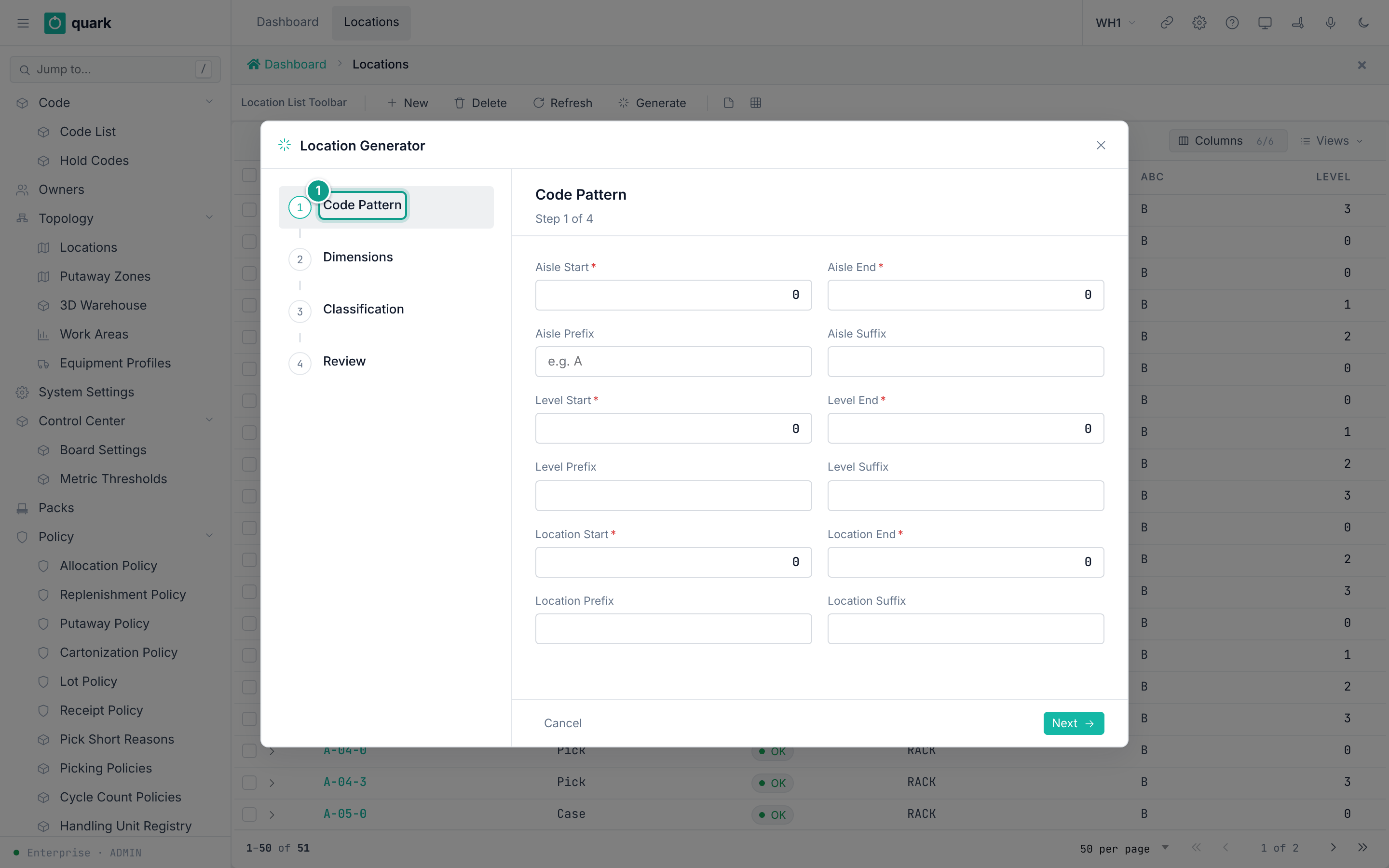
Generate. The wizardLocation Generatoropens. - Step
Code pattern: fill the three ranges and the optional prefixes and suffixes. - Step
Classification: choose the type, zone and flags. - Step
Dimensions: fill the sizes (optional). - Step
Review: check the summary. Finish the wizard.
Field reference
Step Code pattern (loc_gen_step_code_pattern):
| Field | Meaning | Allowed values | Example |
|---|---|---|---|
Aisle Start / Aisle End (required) | Range of aisles. | Whole numbers. Start must be at most End. | 1 / 3 |
Aisle Prefix / Aisle Suffix | Text before and after the aisle number. | Text. | A |
Level Start / Level End (required) | Range of levels. | Whole numbers. | 1 / 4 |
Level Prefix / Level Suffix | Text around the level. | Text. | |
Location Start / Location End (required) | Range of positions. | Whole numbers. | 1 / 20 |
Location Prefix / Location Suffix | Text around the position. | Text. |
Step Classification (loc_gen_step_classification): Location Flag, Location Category, Processing Type, Status, ABC Rotation, Putaway Zone, Mix SKU, Mix Lot, Discard LPN, Location Type (required).
Step Dimensions (loc_gen_step_dimensions): Cube, Length, Width, Height, Max Cube Capacity, Max Weight Capacity.
Rules from LocationCodeGenerator:
- Code = the pattern with the tokens replaced. Tokens are
<AISLE_PREFIX>,<AISLE>,<AISLE_SUFFIX>, the same forLEVELandLOC. - Numbers are padded with zeros to at least 2 digits, or the number of digits of the largest value.
- One run creates at most 10,000 locations.
Example: aisle 1 to 2, prefix A, level 1 to 3, position 1 to 10 gives A01-01-01 to A02-03-10 = 60 locations.
What you should see
- The new locations in the list
Locations.
If something goes wrong
| Message | Meaning | Fix |
|---|---|---|
Invalid range: start must be <= end for aisles, levels, and locations | A range has from above to. | Fix the range. |
Too many locations to generate: N exceeds maximum of 10000 | The product of the three ranges is above 10,000. | Run in smaller blocks. |
Duplicate key on location_pkey | A generated code already exists. | Change the prefix or range. |
What this affects later
- Same as section 3. All locations get the same type, zone and flags.
The check digit is not computed for generated locations. Only create_loc computes it (when CHECK_DIGIT_ENABLED is on). gen_locs copies a value from the request, and the wizard has no field for it, so it stays empty (app-server/src/web/rpcs/location_rpc.rs).
One existing code makes the whole run fail. All codes go into one INSERT, so nothing is created. The server answers Record already exists.
5. Putaway zones
What you will do
Create a zone that groups locations and names its special locations.
Before you start
- Role:
ADMINorMANAGER. - The four special locations exist. The defaults are
STAGE,STAGE,PICKTO,LOST.
Steps
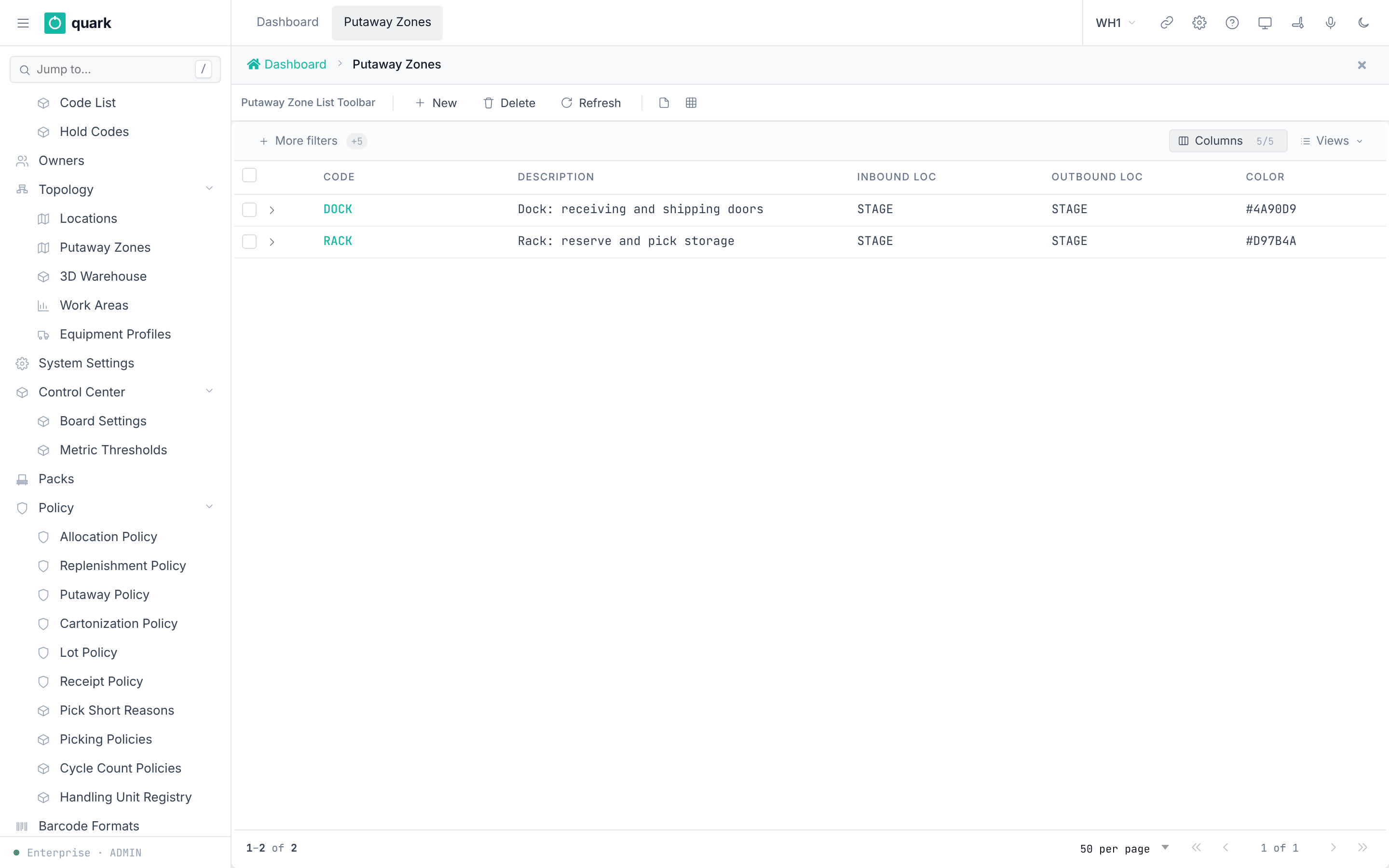
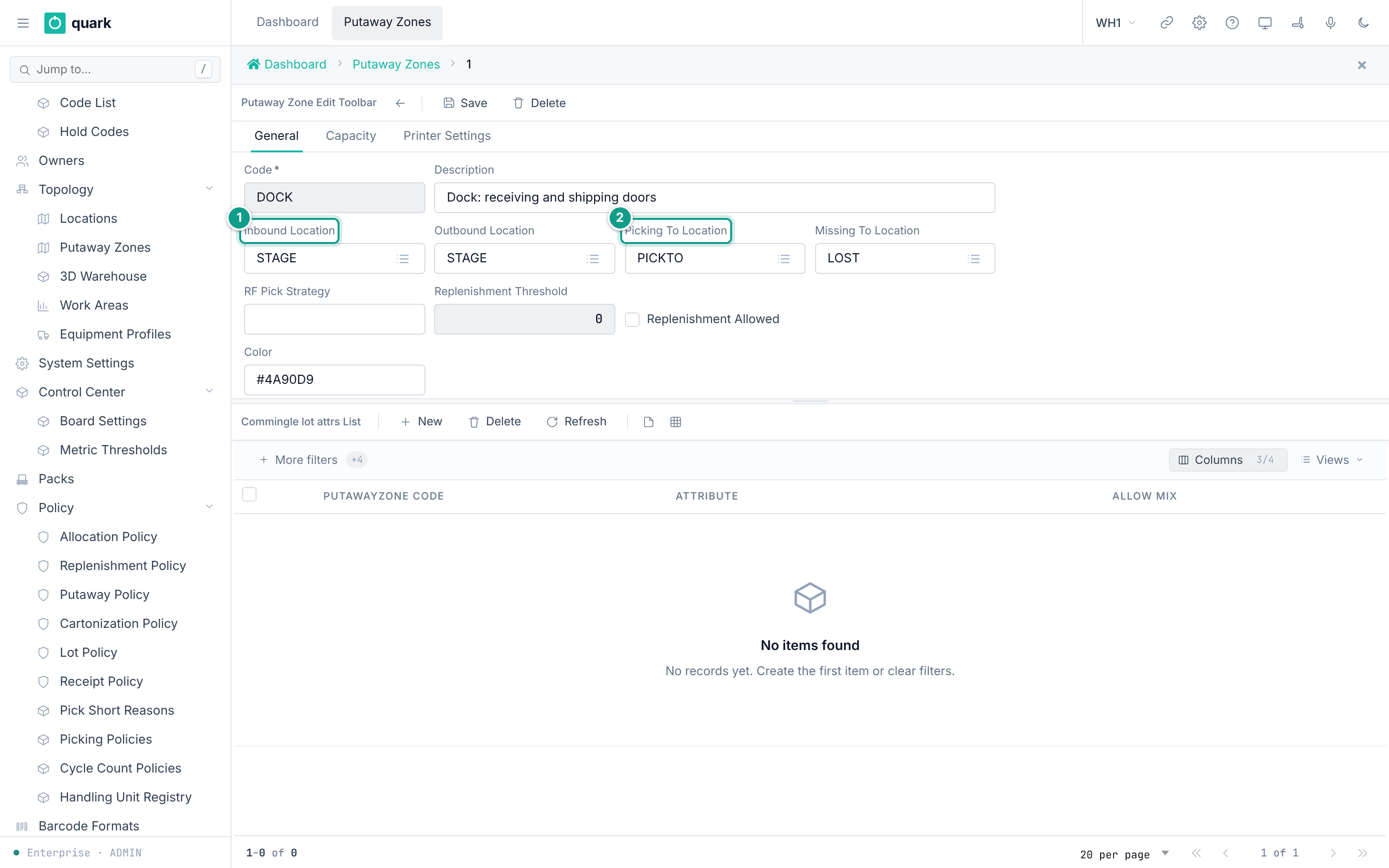
- Open
Sidebar > Topology > Putaway Zones. - Click
New. - On the tab
General, fill the fields. - On the tab
Capacity, fill the limits (optional). - On the tab
Printer Settings, fill the printers (optional). - Click
Save.
Field reference
Tab General (putawayzone_edit_form):
| Field | Meaning | Allowed values | Example |
|---|---|---|---|
Code (required) | Zone key. | Up to 20 characters. | RACK |
Description | Free text. | Up to 60 characters. | Rack storage |
Inbound Location | Where inbound goods of this zone wait. | An existing location. Default STAGE. | STAGE |
Outbound Location | Where outbound goods of this zone wait. | An existing location. Default STAGE. | STAGE |
Picking To Location | Drop place for picks from this zone. | An existing location. Default PICKTO. | PICKTO |
Missing To Location | Where missing stock goes. | An existing location. Default LOST. | LOST |
RF Pick Strategy | Text for the RF flow. | Text. | |
Replenishment Threshold | For replenishment. | Whole number. | 0 |
Replenishment Allowed | For replenishment. | On or off. | off |
Color | Color on the 3D view and lists. | Color text. | #D97B4A |
Tab Capacity (putawayzone_settings_form): Max Cube, Max Weight, Max Cases Count, Min Temperature, Max Temperature.
Zero means no limit. The minimum temperature must not be above the maximum (chk_putawayzone_temperature_order).
Tab Printer Settings: Default Label Printer, Auto Print Addr Label, Default Report Printer, Auto Print Carton Label.
Lot mixing rules per zone: list Lot Commingle Rules with Attribute, Allow Mix, Putawayzone Code.
The replenishment fields (Replenishment Threshold, Replenishment Allowed) do nothing today. Replenishment is not available, and no code reads them. The form only disables the threshold while Replenishment Allowed is off.
The zone lot mixing rules (Lot Commingle Rules) are enforced. When stock lands in a location (receipt, putaway or move), the server looks for a rule on the location first. If the location has none for that attribute, it uses the rule of the location's zone. If neither exists, mixing is allowed. When the rule has Allow Mix off, the lot's value of that attribute must match the lot already on the landing LPN, or the move is refused (wms-inventory/src/inventory_service.rs, check_location_attribute_overrides). The older note in docs-obsidian/putaway_policy/README.md that these rules have no reader is out of date.
What you should see
- The zone in the list with its color.
If something goes wrong
| Message | Meaning | Fix |
|---|---|---|
Foreign key fk_putawayzone_inbound_loc (or outbound_loc, picking_toloc, missing_toloc) | A named location does not exist. | Create the location first. |
Check chk_putawayzone_temperature_order | Minimum temperature above maximum. | Swap the values. |
| Delete refused | Locations, SKUs, work areas, policy steps or equipment profiles use the zone (RESTRICT keys). | Remove those links first. |
What this affects later
- Putaway policy steps search by zone.
- Allocation steps filter by zone.
- SKU defaults refer to a zone.
- Work areas group zones.
6. Work areas, equipment profiles and operators
What you will do
Group zones into work areas. Describe lift equipment. Give operators the right to take tasks.
Before you start
- Role:
ADMINorMANAGER. - Zones exist.
- For the pack station: a location of type
Packexists.
Steps
- Open
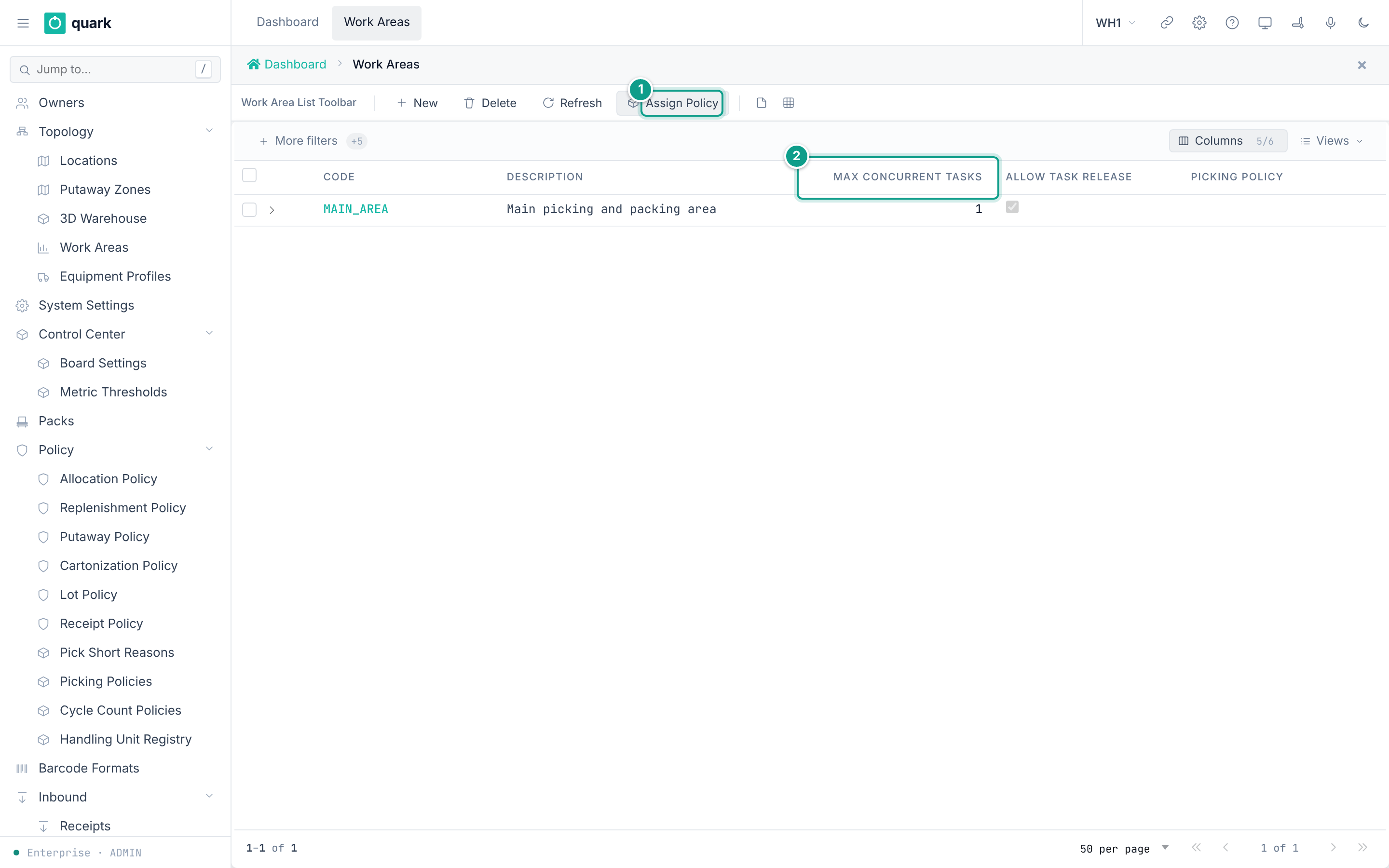
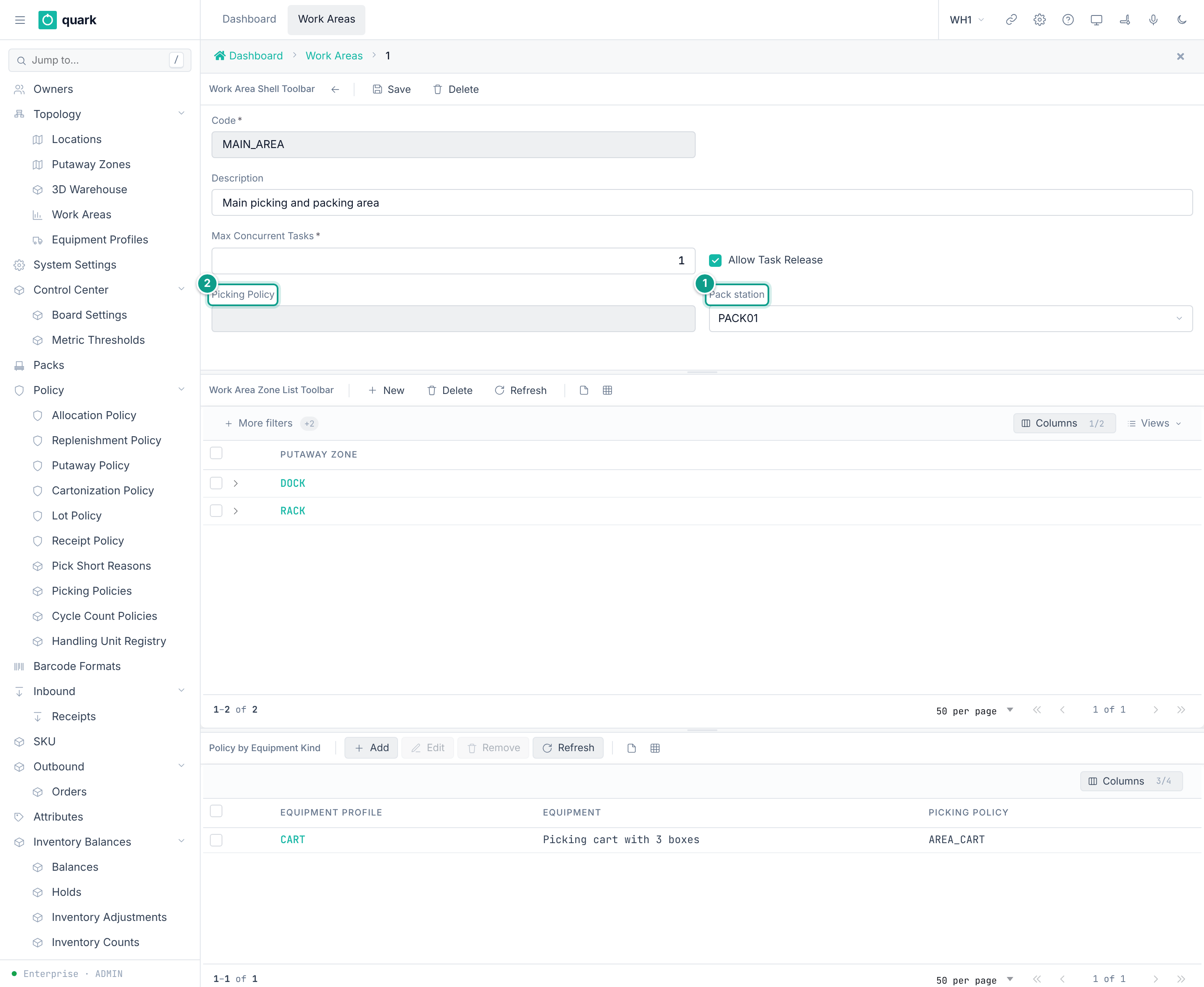
Sidebar > Topology > Work Areas. ClickNew. FillCodeand the settings. Save. - In the area, add its zones: use the list
Work Area Zones, buttonNew, pick aPutaway Zone, clickSave. - To name the picking policy: select the area and click
Assign Policy. Pick a policy. ClickAssign. - For a policy per equipment kind: in
Policy by Equipment Kind, clickAdd. Pick anEquipment Profileand aPicking Policy. - Open
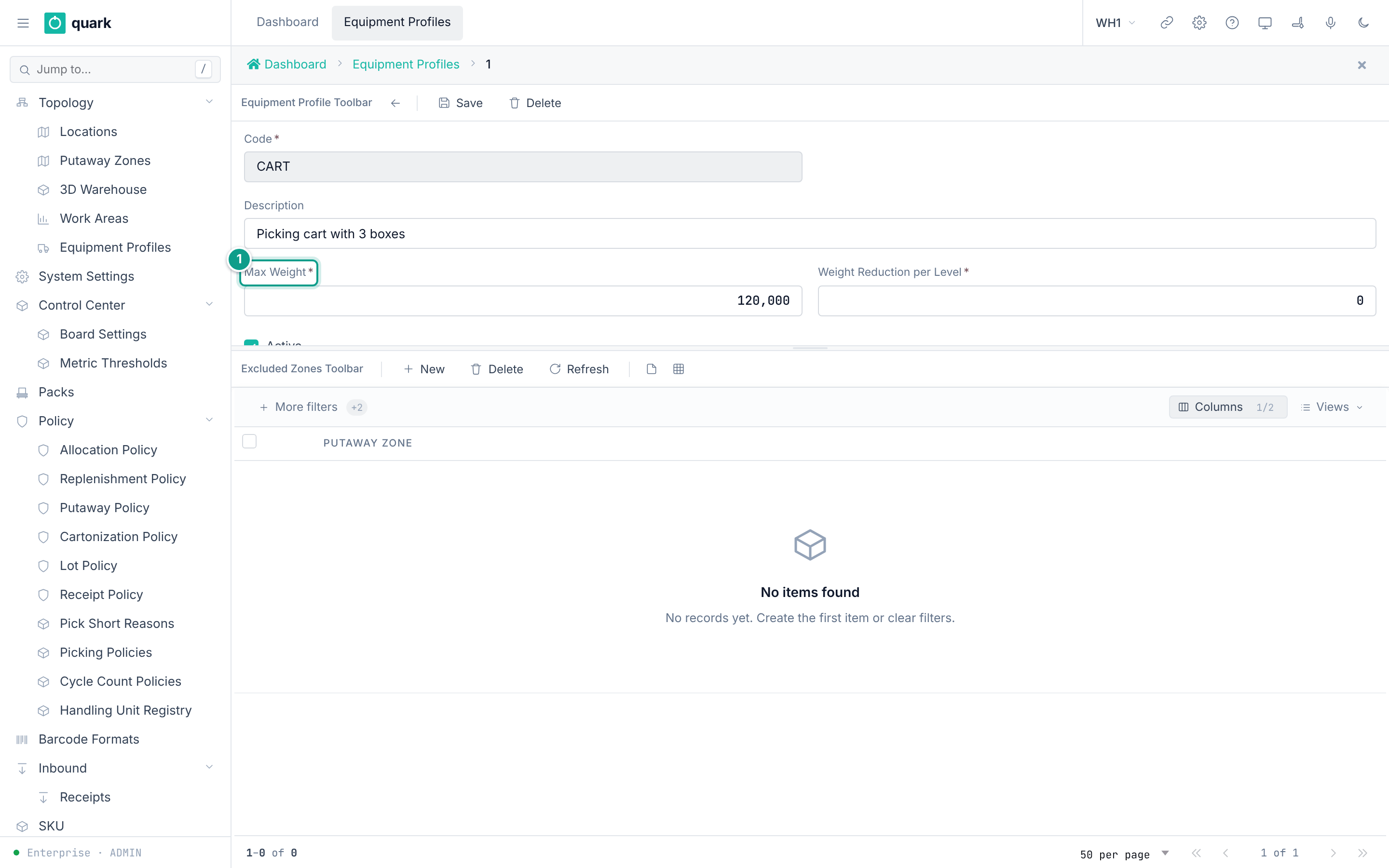
Sidebar > Topology > Equipment Profiles. ClickNew. Fill the fields. Save. - To exclude zones for a kind of equipment, add rows to
Excluded Zones. - Open
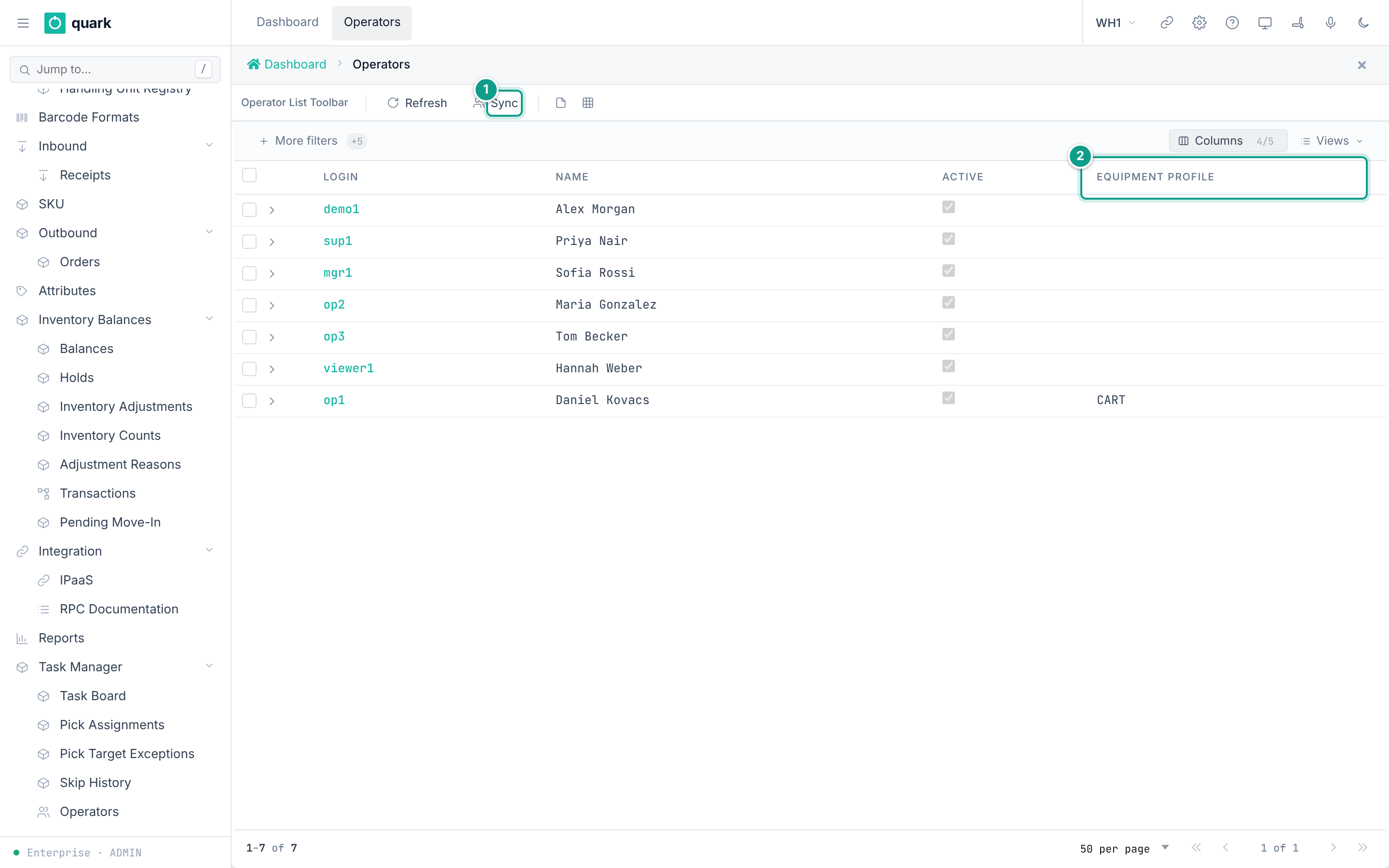
Sidebar > Task Manager > Operators. ClickSyncto copy users now. - Open an operator. Set
Equipment Profile. Add rows toTask Permissions.
Field reference
Work area (work_area_normal_form):
| Field | Meaning | Allowed values | Example |
|---|---|---|---|
Code (required) | Key. Unique. | Text. | PICK-A |
Description | Free text. | Text. | Pick area A |
Max Concurrent Tasks (required) | Tasks one operator may hold at once. | Whole number. | 1 |
Allow Task Release | May an operator hand back or refuse a task? | On or off. | on |
Picking Policy | Picking policy of the area. Set by Assign Policy. Blank = the default policy DISCRETE. | A published picking policy code. | DISCRETE |
Pack station | The pack-station location of the area. | A location of type Pack. | PACK-01 |
Equipment profile (equipment_profile_normal_form). List columns: Code, Description, Max Weight, Reduction per Level, Active.
| Field | Meaning | Allowed values | Example |
|---|---|---|---|
Code (required) | Key. | Text. | FORKLIFT |
Description | Free text. | Text. | Reach truck |
Max weight (required) | Load the machine lifts at ground level. | Zero or more. | 1000 |
Weight Reduction per Level (required) | Weight lost for each level of height. | Zero or more. | 100 |
Active | In use. | On or off. | on |
Operator (operator_normal_form): Login, Name, Active are read-only. You can change only Equipment Profile (blank = on foot).
Task permission (operator_task_permission_normal_form):
| Field | Meaning | Allowed values | Example |
|---|---|---|---|
Task Type (required) | Kind of task. | Pick, Putaway, Replenish, Move, Count. | Pick |
Work Area (required) | Area where the right applies. | An existing work area. | PICK-A |
Pick Execution (required) | May the operator execute picks in this area? | On or off. Default off. | on |
One right per operator, task type and area (uq_operator_task_permission).
System defaults used when the terminal names no work area (System Settings):
| Key | Value in the seed | Meaning |
|---|---|---|
TASK_MAX_CONCURRENT_DEFAULT | 1 | Tasks one operator may hold at once. |
TASK_ALLOW_RELEASE_DEFAULT | 1 | May an operator hand back or refuse a task? |
TASK_LEASE_TTL_MIN | 15 | Minutes a claimed task is held before the reaper returns it. |
TASK_SKIP_COOLDOWN_MIN | 10 | Minutes a skipped task stays hidden. |
TASK_SKIP_ESCALATE_AFTER | 3 | Refusals after which a task waits for a supervisor. |
What you should see
- The operator list shows every user who has a warehouse assignment (any role),
RF device loginon and statusActive. - A pack-station area shows its
Packlocation.
If something goes wrong
| Message | Meaning | Fix |
|---|---|---|
you have no right to take Pick tasks in any work area - ask a supervisor | The operator has no Task Permissions row for the task type, or the equipment excludes every zone. | Add a task permission. |
there are Pick tasks in your work areas, but every one is heavier than your equipment lifts (up to N at ground level) - they wait for other equipment | The equipment profile is too weak for the pool. | Use other equipment or raise Max weight. |
Work area Pack station refused by trigger work_area_pack_station_is_a_pack_location | The location is not of type Pack. | Use a Pack location. |
| Task cannot be released | Allow Task Release is off in the area. | A supervisor must use Return to Pool or Reassign on the task board. |
| Delete of a work area refused | Zones or permissions refer to it (RESTRICT keys). | Remove those rows first. |
| Operator missing from the list | The user has RF device login off, a status other than Active, or no assignment to this warehouse. | Fix the user; click Sync. |
What this affects later
- Pick tasks are handed only to operators with a right in the area.
- A closed pick pallet or a carton goes to the pack station of the area.
- A supervisor works from
Task Manager > Task Board(columns includeAssignee,Status,Lease Expires,Refusals; buttonsReturn to Pool,Reassign,Delete Task).
The rule is in OperatorBmc::sync_from_enterprise (wms-lib-core/src/model/tasks/operator.rs). A user becomes an active operator of a warehouse when all three are true: rf_login = true, status = 'Active', and a row in user_warehouse for that warehouse. The role does not matter. The sync sets an operator inactive when one of the three stops being true.
7. Operator sync
- A background job runs every 5 minutes (
OPERATOR_SYNC_INTERVAL = 300 s). - The
Syncbutton onOperatorsruns the same job for the active warehouse at once. - You cannot create or delete an operator by hand. A person who leaves is set inactive by the next sync.
8. 3D warehouse
Sidebar > Topology > 3D Warehouse opens an HTML page (warehouse_3d).
It draws locations from their coordinates (X Coord, Y Coord, Z Coord) and the zone color.
The page is titled Warehouse Topology. Its controls (web-ui-server/src/components/pages/warehouse_3d.rs):
Refreshreloads the data.Color Mode:Zone,Status,Type,Aisle,Level,Occupancy.Layers(check boxes):Rack structure,Analytics,Stock,Floor labels,Grid.Filters:Putaway Zone,Aisle,Status,Occupancy(Empty,Occupied,Reserved,Section locked,Blocked),Level, andSearch Location(exampleA-03-2).- A
Legendfor the current color mode. - Click a location to open its details.
Focuscenters it, and×closes the panel. - Mouse: left button turns the view, right button moves it, wheel zooms, double-click fits all. The button
Fit viewdoes the same as the double-click.
9. Cycle count policies (short note)
Sidebar > Policy > Cycle Count Policies (inventory_count_policy_normal_form).
| Field | Meaning | Allowed values |
|---|---|---|
Code | Key. | Text. |
Description | Free text. | Text. |
Active | In use. | On or off. |
Zone, Location Type, ABC, Aisle | Filters. Set at least one. A location must match every filter that is set. | Zone code, location type, A/B/C, aisle text. |
Every (days) (required) | A location counted within this many days is not due. | Whole number. |
Locations per Run (required) | Daily limit. | Whole number. |
Mode (required) | Count mode. | Blind, Informed. |
Recounts per Location | Limit of recounts. | Whole number. |
Freeze | Stock freeze for the counts this policy makes. | Hard, Soft. |
Buttons: Save, Run Now, Delete.
Setting COUNT_ON_PUTAWAY_DEVIATION (0 or 1) asks for a count of the destination when putaway deviates.
The full count workflow (Inventory Balances > Inventory Counts) is outside the scope of this guide.