Outbound Setup
Outbound covers shipment orders, allocation, release, picking, cartonization, packing, dispatch planning, loading, Goods Issue and replenishment. The packing action Repack is available on the RF terminal (see section 8).
1. Order flow in one picture
New -> Allocated (Allocate) -> Released (Release) -> Picked -> Goods Issue -> Closed
 \________ Cancel (only before anything is picked) _______/
A Load can ship only part of an order. While demand remains, the order or line can show PartiallyShipped; a shipped line can show Shipped. A complete-order Goods Issue closes the order after it ships all remaining demand.
Statuses of an order: New, PartiallyAllocated, Allocated, PartiallyReleased, Released, PartiallyPicked, Picked, PartiallyShipped, Shipped, Closed, Cancelled.
Statuses of a line: NotAllocated, PartiallyAllocated, Allocated, PartiallyReleased, Released, PartiallyPicked, Picked, PartiallyShipped, Shipped, Closed, Cancelled.
The order status is calculated from the lines. You do not set it by hand.
2. Shipment orders
What you will do
Create an order, allocate stock, and release it to the floor.
Before you start
- Role to create and edit:
ADMINorMANAGER. - Role to release, cancel and cancel quantity:
ADMIN,MANAGER,SUPERVISOR(the release band). - Role for
AllocateandShip order:ADMIN,MANAGER,SUPERVISORorOPERATOR. - The owner, the ship-to partner and the SKUs exist, and stock is on hand.
- The order type
SO("Standard Outbound") is seeded. No screen or API creates order types. - An allocation policy is published (section 3).
Steps
- Open
Sidebar > Outbound > Orders. - Click
New. - Tab
Header: fillType,Owner,Priority,Requested Ship,Notes.Order #andStatusare read-only. - Tab
Ship To: fillShip To(required) andCarrier. - Click
Save. - In the list
Order Lines, clickNew. FillSKU,UOM,OrderedandPick Instruction. ClickSave. - Click
Allocateon the order card. The system reserves stock using the allocation policy. - Check the tabs
Picks,CartonsandCartonization exceptions. - Click
Release. Tasks are created for the floor. - To undo a reservation before picking:
Unallocate. - To stop the order:
Cancel. - After picking and any required packing, use one Goods Issue path:
Ship orderfor one fully picked order, or a Load for a planned multi-order departure (section 10).
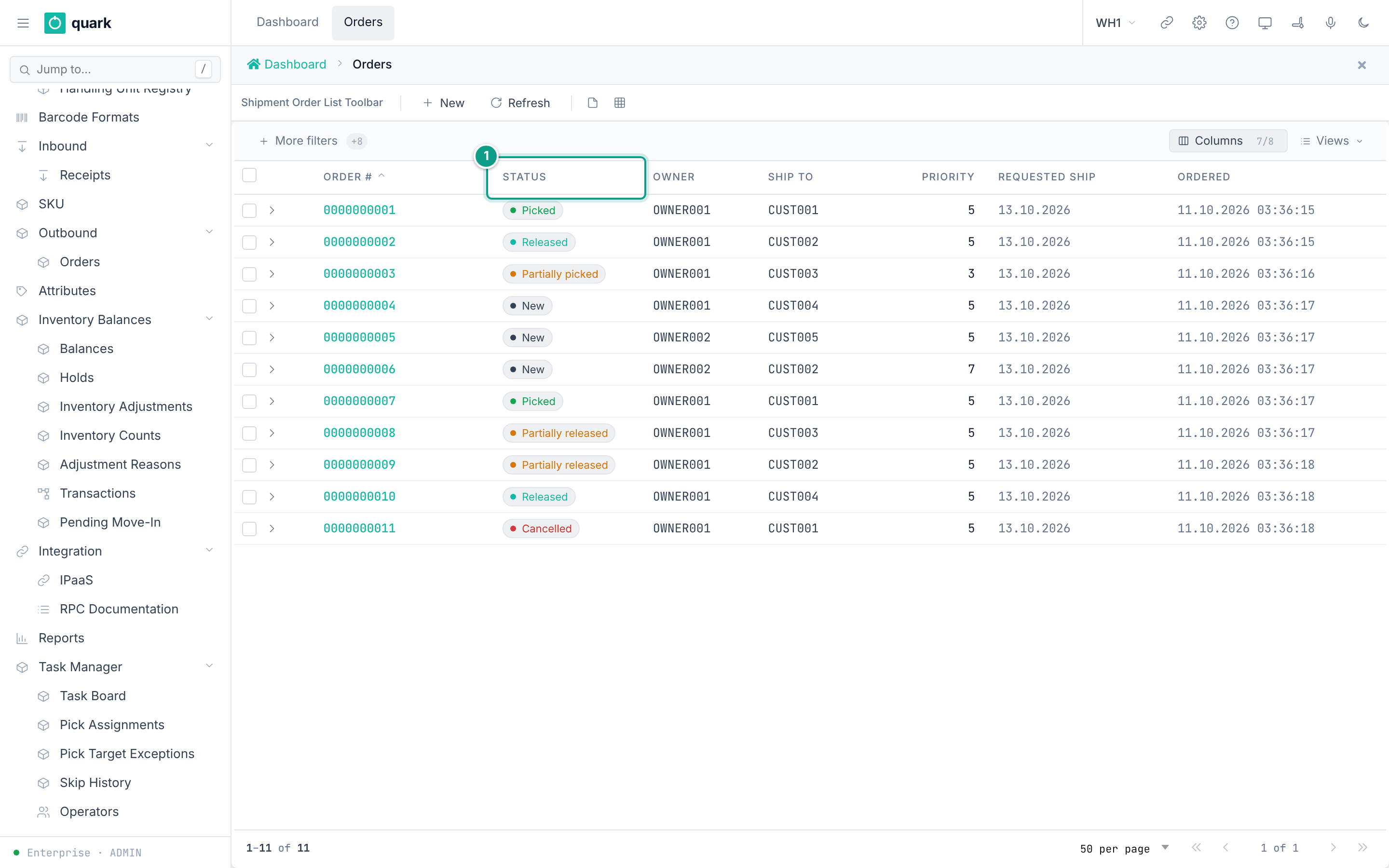
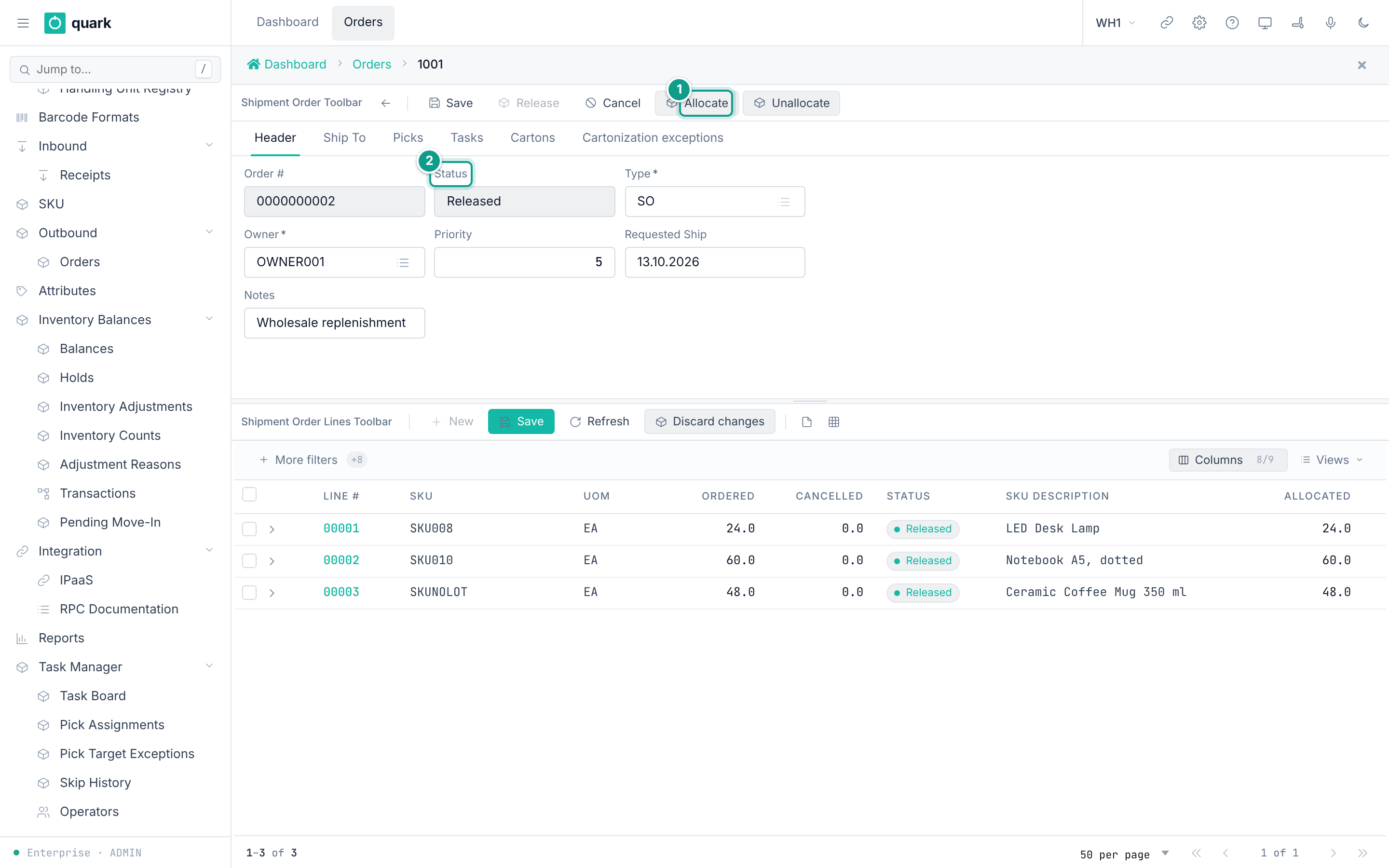
Field reference
Tab Header:
| Field | Meaning | Allowed values | Example |
|---|---|---|---|
Order # | Number. Read-only. | Text. | SO-0001 |
Status | Read-only. | See section 1. | New |
Type (required) | Order type. | An order type, seeded SO. | SO |
Owner (required) | Owner of the goods. | An owner. | OWNER001 |
Priority | Priority. | Whole number. Default 50. | 50 |
Requested Ship | Requested ship date. | Date. | |
Notes | Free text. | Text. |
Tab Ship To: Ship To (required), Carrier, Cancel Reason.
Order line: Line # (read-only), SKU (required), UOM (required), Ordered (required), Cancelled (read-only), Status (read-only), Pick Instruction.
The list also shows SKU Description and Allocated.
Button Cancel Qty (window Cancel Quantity): Quantity to cancel (required; "The amount to REMOVE from the line, in base units - not the new total.") and Reason (required; "A reduced line without a reason is unauditable.").
Order-type table: seeded SO = Standard Outbound.
What you should see
- After
Allocate: line statusAllocatedorPartiallyAllocated, a plan of cartons, and picks. - After
Release: tasks inTask Manager > Task Board, statusReleased(orPartiallyReleasedif some stock is short). - After Goods Issue: the
Shipments — base quantitiestab records immutable shipped quantities. A fully shipped order is closed; an order split across Loads can showPartiallyShippeduntil its remaining demand ships.
If something goes wrong
| Message | Meaning | Fix |
|---|---|---|
cannot {to} an order in status {from} | The action does not fit the status. | Check the status. |
the order has no lines | You tried to release an empty order. | Add lines. |
every line is fully cancelled or shipped - nothing left to ship | Nothing open on the order. | Cancel the order instead. |
quantity must be greater than zero | A line quantity is 0 or less. | Enter a positive number. |
cannot cancel {requested} - only {open} is still open | You cancel more than is open. | Lower the number. |
cannot reduce qty_ordered to {requested} - {committed} is already committed | Part is reserved or picked. | Unallocate first. |
line {line_no} already has {qty_picked} picked | Cancel is refused after picking began. | Finish the order. |
{count} line(s) are still open | Close needs every line done. | Finish or cancel the lines. |
order is locked by another operation (waited {ms}ms) | A second user works on it. | Retry. |
allocation still has {qty} units deferred by inventory lock contention | Stock was busy. | Allocate again. |
version conflict on {entity} {entity_id} | Someone saved before you. | Refresh and repeat. |
Forbidden("...") | Your role lacks the right. | Ask for the right in the matrix. |
only an open released order may ship | The order is not in a shippable lifecycle state. | Refresh it and finish release, picking and packing first. |
this order belongs to an active Load; confirm its shipment through that Load | The order is already committed to a Load. | Do not use Ship order; finish the Load in section 10. |
What this affects later
- Allocation reserves stock and creates picks.
- Release creates tasks and, with cartonization, a carton plan.
- Goods Issue deducts picked stock, updates serials and counters, records shipment history, and publishes the departure as one command.
- The statuses drive the task board and the reports.
The shipment order list has no Close button. A complete-order Goods Issue closes the order automatically when no demand remains. The separate API method shipment_order_close remains an administrative lifecycle command for ADMIN and MANAGER after every line is terminal.
3. Allocation policy
What you will do
Define the rules that decide which stock is reserved for an order line.
An allocation policy is a list of steps. The system tries them in order and reserves from the first step that has stock.
A policy has a life cycle: Draft -> Published -> Retired. A published policy cannot be edited. Duplicate it to change it.
Before you start
- Role:
ADMIN,MANAGERorSUPERVISOR(write steps). - Seeded policy
STD: version 1, published, one step (Firm,EA, sortLotRotation). - Locations, zones and units exist.
Steps
- Open
Sidebar > Policy > Allocation Policy. - To change a published policy, select it and click
Duplicate. A new draft opens. - To make a new one, click
New. FillCodeandDescription. ClickSave. - Open the policy. Click
Add step. - Fill the four bands: Source, Conditions, Selection, Output.
- Drag steps to change the order.
- Click
Save. - Click
Validate. Read every blocker. - Click
Publish. - To stop using a policy:
Deactivate(retire). A retired policy cannot be edited either. - Link the policy: SKU tab
Policies(Allocation Policy) and the owner default.
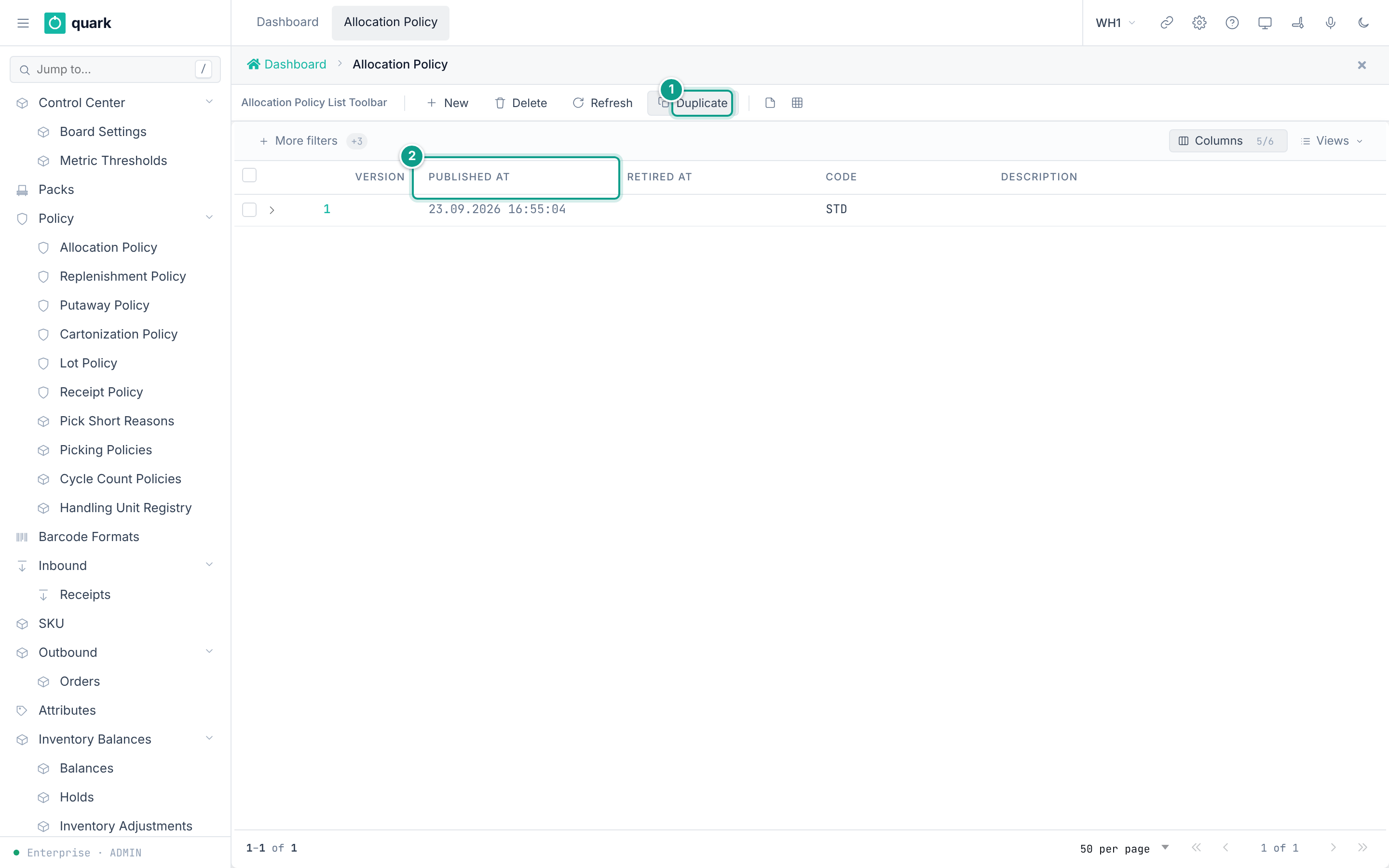
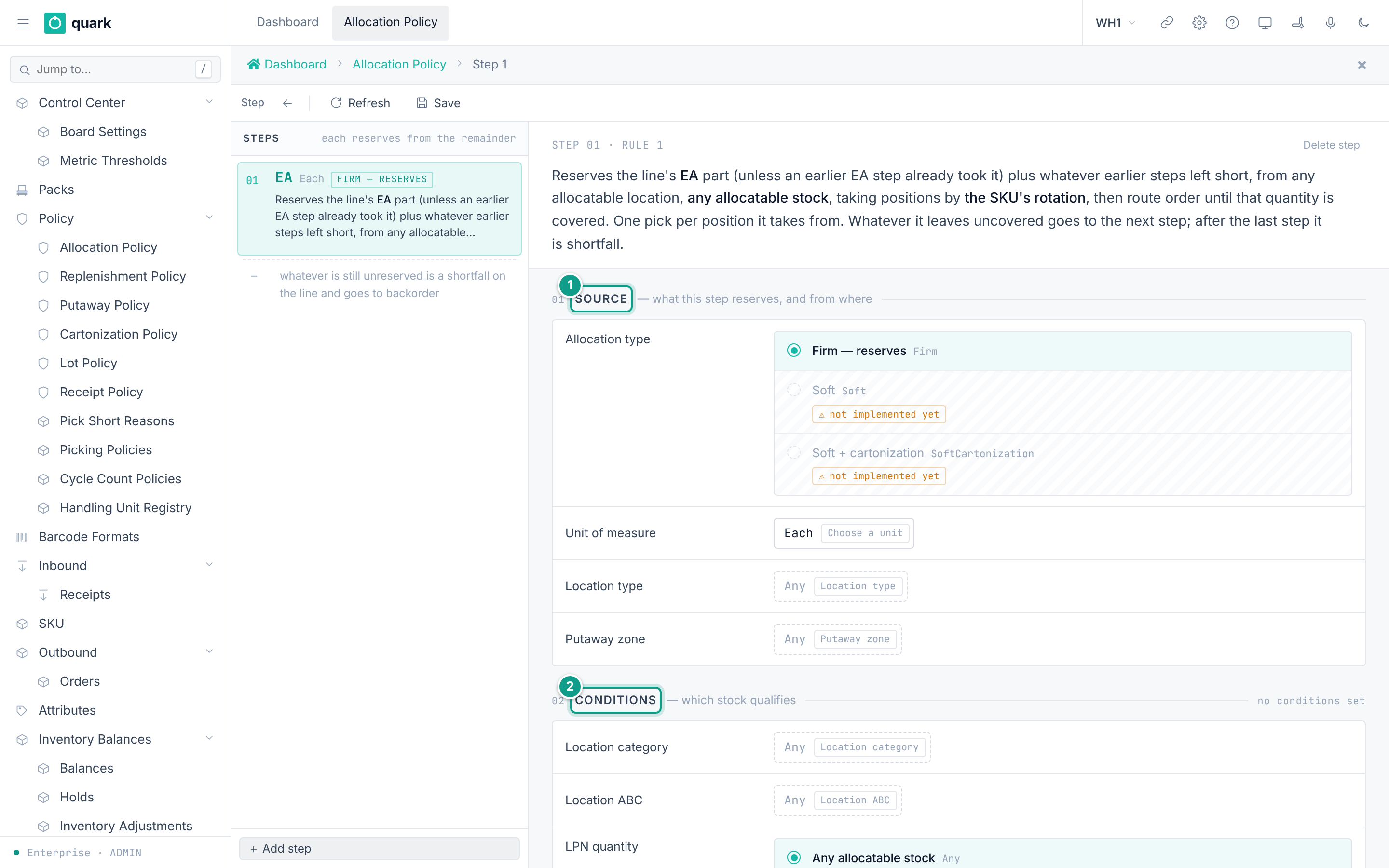
Field reference
Policy header: Code (required), Description (required), Version, Published at, Retired at (all read-only).
Step bands:
| Band | Field | Meaning | Allowed values |
|---|---|---|---|
| Source | Allocation type | Commitment kind. | Firm only. Soft and SoftCartonization exist in the list but are refused by the validator. |
| Source | Unit of measure | Unit to reserve in. | A UOM code, default EA. |
| Source | Location type | Limit to a location type. | A location type, or any. Hold zones (QC, Damage, Rtv, Destroy, Returns, Stage, Lost) are refused. |
| Source | Putaway zone | Limit to a zone. | A zone, or any. |
| Conditions | Location category | Limit to a category. | A category, or any. |
| Conditions | Location ABC | Limit to a class. | A, B, C, or any. |
| Conditions | LPN quantity | Whole pallets or not. | Any, EqPackPallet (only whole pallets), NePackPallet (anything but a whole pallet). |
| Selection | Sort ranks (1 to 4) | Order to take stock. | LotRotation, Location, LpnQuantity. Lpn, LpnRotationInLoc, LocationAbc are refused. |
| Selection | Quantity fit | How to fit the quantity. | LowToHigh, ExactFit, BiggerFit, BestFit, HighToLow. Needs LpnQuantity in a sort rank. |
| Output | One pick per UOM / location | Merge picks. | On: "merged into one task line per location". Off: "a task line per LPN". |
Validation blockers (validate_policy):
| Code | Meaning |
|---|---|
UNSUPPORTED_HEADER_FLAG | strict_lot_rotation, allow_overallocation or speed_pick_by_uom is on. This build cannot run them. |
NO_ACTIVE_STEPS | The policy must have at least one active step. |
EMPTY_UOM | A step has no unit. |
UNSUPPORTED_STEP | A step uses a value this build cannot run (see the table). |
SHADOWED_STEP | A step can never run, because an earlier step takes its candidates first. |
Also: step names qty_fit_rule={...} but no sort_1..sort_4 names LpnQuantity.
What you should see
- The list shows
Version,Published at,Retired at. - After
Publish, the policy is executable and cannot be edited. - The step editor warns
never reserves,never runsorclosed by step N. - A shortfall: "whatever is still unreserved is a shortfall on the line and goes to backorder".
If something goes wrong
| Message | Meaning | Fix |
|---|---|---|
allocation policy '{code}' is published and immutable; clone it to create a new draft | You edit a published policy. | Click Duplicate. |
allocation policy '{code}' is retired and immutable; clone it to create a new draft | Same for retired. | Duplicate. |
allocation policy '{code}' is not a draft | Publish needs a draft. | Duplicate first. |
allocation policy '{code}' is not currently published | Deactivate needs a published policy. | Check the status. |
step uses {axis}={value}, which this build cannot execute | An unsupported value. | Change the value. |
| Delete refused | An order line or pick uses the policy. | Retire it instead. |
What this affects later
- Every order line freezes the policy at allocation. Old orders keep their policy.
- Wrong steps cause unreserved stock (backorder).
4. Waves and wave policy
What you will do
Group unreleased orders, review the complete composition and release the group through the ordinary order-release pipeline.
Before you start
- Role:
ADMIN,MANAGERorSUPERVISOR. - Orders are not released, cancelled or claimed by another wave.
- To assign a station, configure a
Sortlocation with station positions first.
Steps
- Open
Sidebar > Outbound > Waves. - Click
New Wave, enterWave code, and clickCreate. - Open the wave and click
Composition and progress. - Click
Add Order, chooseUnreleased Order, optionally enterMembership sequenceandMember priority, then clickReviewandConfirm Draft edit. - Repeat for the orders in this wave. Use
Remove Orderto correct the draft. - Optional: click
Station, select theSortstation, then review and confirm the draft edit. - Review the complete member list, then click
ReleaseandConfirm Wave action. - If some members were blocked or failed, correct their order data and click
Retry blocked. - Use
Cancel Waveonly while the wave is still unstarted (DraftorPlanned).
Field reference
The wave card shows Status, Release generation, station, member counts and the release result of every order. Wave statuses are Draft, Planned, Released, InProgress, Completed, Cancelled.
Wave policy has no web editor. The API methods wave_policy_create, wave_policy_preview and wave_policy_build create waves by rule. Its fields include:
| Field | Meaning | Allowed values |
|---|---|---|
code | Key. | Text up to 30 characters. |
eligible_statuses | Order statuses taken into waves. | Default New, PartiallyAllocated, Allocated. |
priority_from, priority_to | Priority range. | Numbers. |
requested_ship_days_ahead, include_undated | Ship date window. | Number, true or false. |
owner_id, carrier_id | Limit to an owner or carrier. | Ids. |
group_by_owner, group_by_carrier, group_by_requested_ship_date | Group rules. | true or false. |
max_orders | Orders per wave. | Default 100. |
max_lines | Lines per wave. | Number or empty. |
max_waves_per_run | Waves per run. | Default 10. |
schedule_interval_minutes, schedule_starts_at | Recurring run. | Number, time. |
auto_release | Release waves automatically. | Default false (keeps Draft waves). |
What you should see
- A draft wave lists its complete intended order composition.
- Release records a per-order outcome. It creates ordinary picking work; it does not confirm picking, move stock, load transport or ship goods.
- A policy-built wave records the policy and run that created it.
If something goes wrong
| Message | Meaning | Fix |
|---|---|---|
a wave policy with this code already exists | Duplicate code. | Use another code. |
version conflict on wave policy {policy_id} | Someone saved first. | Re-read and repeat. |
wave membership changed while the command was acquiring locks; retry with the current version | A race. | Retry. |
| A wave action says the observed state changed | Another user changed the wave. | Cancel the dialog, click Refresh, review the new composition and decide again. |
What this affects later
- Release of a wave releases one order per transaction and preserves each order's result.
No wave policy exists at the start. No migration or dev seed inserts into wave_policy.
5. Picking policy
What you will do
Define how pickers confirm and drop picks.
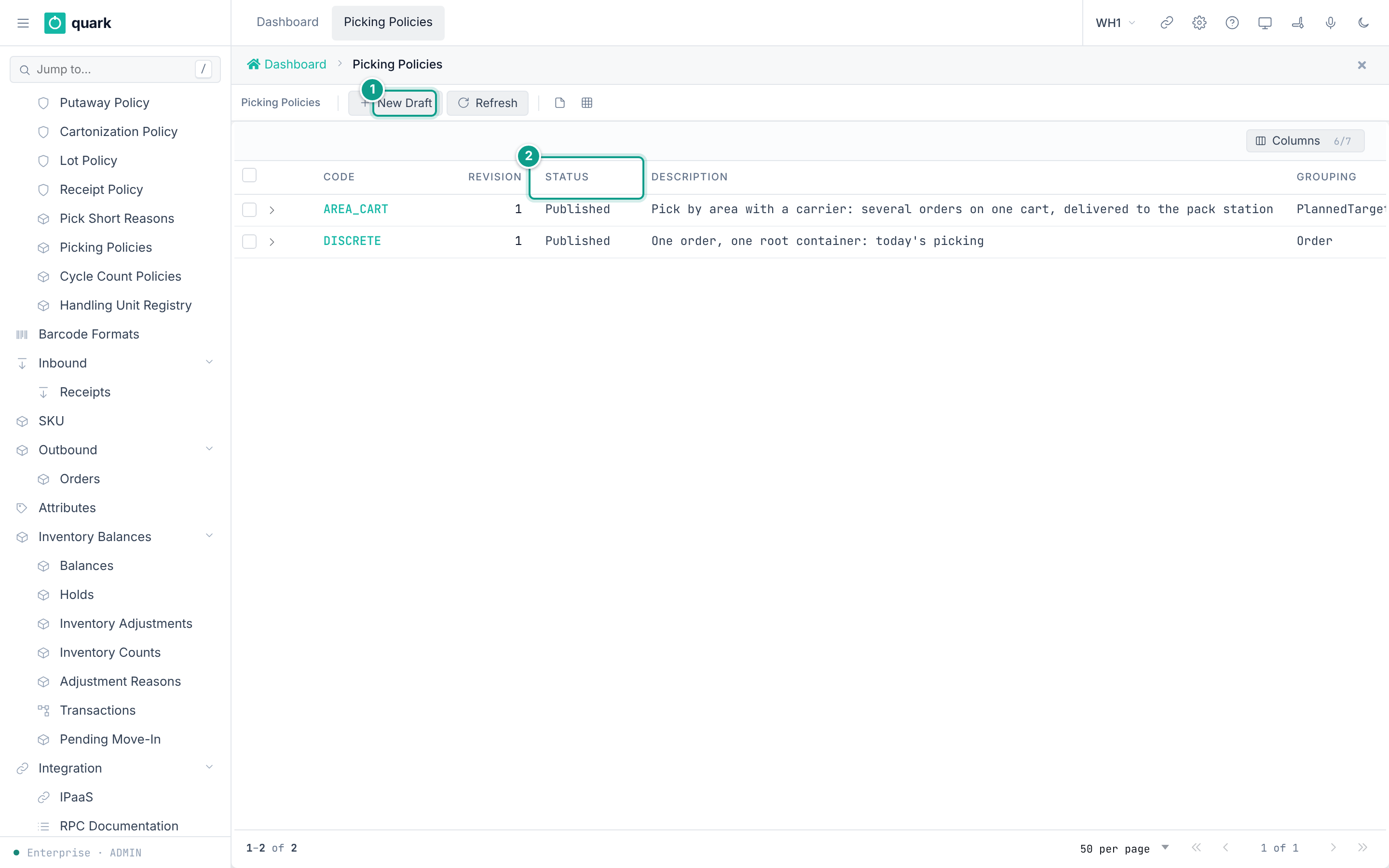
A picking policy has revisions. Each code has revisions with a status: Draft -> Published -> Retired.
The seeded policy is DISCRETE (revision 1, published): "One order, one root container: today's picking".
Before you start
- Role:
ADMIN,MANAGER(write).SUPERVISOR,OPERATOR,VIEWERread.
Steps
- Open
Sidebar > Policy > Picking Policies. - Click
New Draft. FillCodeandDescription. ClickCreate Draft. The server copies the latest revision of the code, orDISCRETEfor a new code. - Open the draft. Change the sections.
- Click
Save. - Click
Publish. - To stop a revision:
Retire. - Assign the policy to a work area (
Topology > Work Areas, buttonAssign Policy) or per equipment kind.
Field reference
| Field | Meaning | Allowed values (seed DISCRETE) |
|---|---|---|
Description (required) | Free text. | Text. |
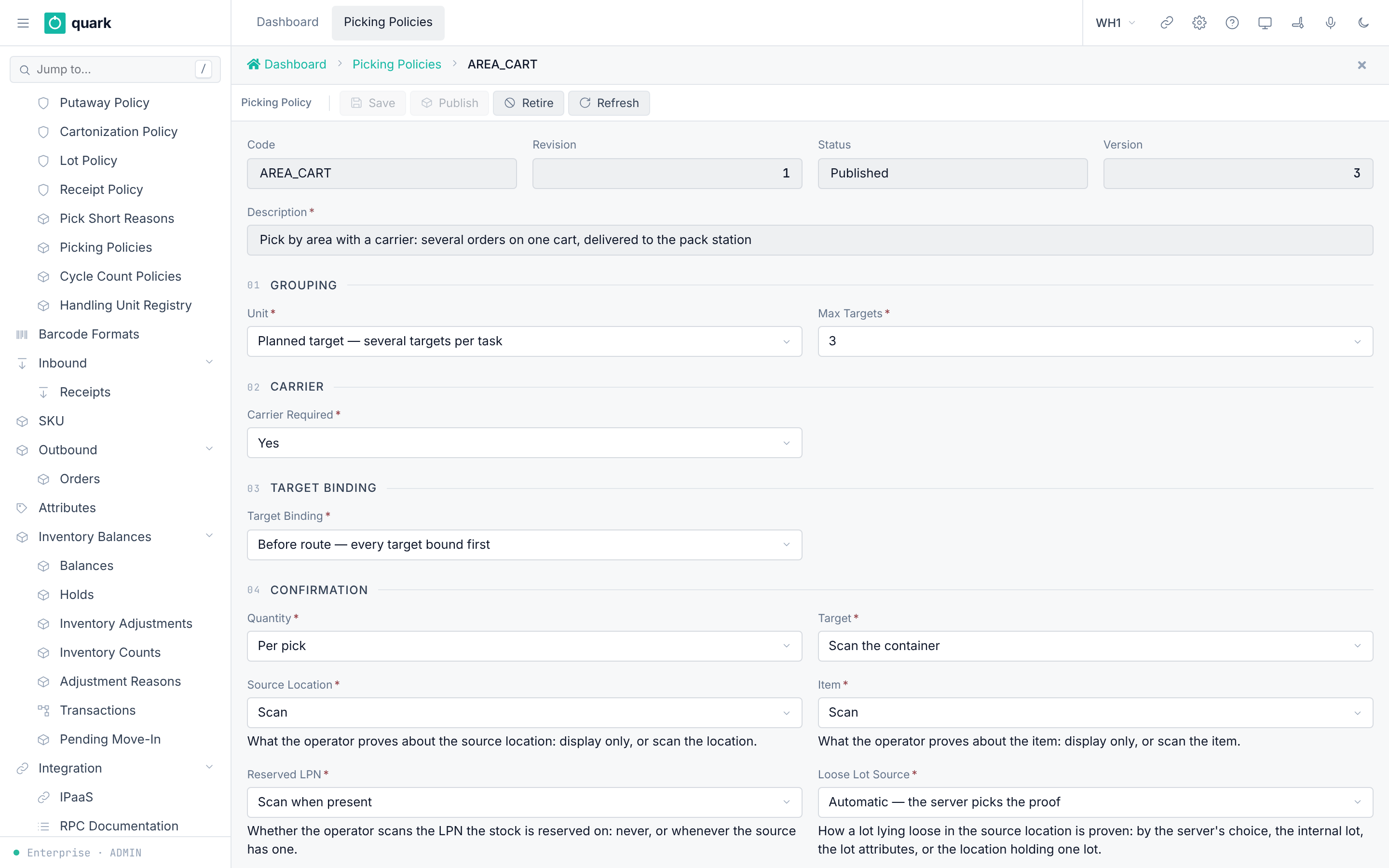
Unit (grouping_unit) | What is grouped in one task. | Order (one order per task), PlannedTarget (several targets per task). Seed Order. |
Max Targets | Targets per pass. | 1 to 99. Seed 1. |
Carrier Required | A cart must be used. | Yes or no. Seed no. |
Target Binding | When a target container is bound. | Unbound, BeforeRoute. Seed Unbound. |
Quantity | Quantity confirmation. | PerPick, Aggregated. Seed PerPick. |
Target | Target confirmation. | ScanContainer, PositionNumber. Seed ScanContainer. |
Deposit Mode | Where goods go. | CollectToRoot, DirectToTarget. Seed CollectToRoot. |
Completion | When a pick is complete. | Complete, ConfirmAtLocation. Seed Complete. |
Pallet Drop Suggestion | Source of the suggested drop cell. | OwnerThenTask: the owner's picking drop location, else the order's task destination. |
Pallet Drop Cell Types | Types allowed for the drop cell. | At least one of Door, Pickto, Sort, Stage, Pack. Seed Pickto, Sort, Stage, Door. |
Count an Emptied Location | Ask for a count when a pick empties a location. | Yes or no. Seed no. |
Source Location | Proof at the source. | DisplayOnly, Scan. Seed Scan. |
Item | Proof of the item. | DisplayOnly, Scan. Seed Scan. |
Reserved LPN | Proof of the LPN. | DoNotConfirm, ScanWhenPresent. Seed ScanWhenPresent. |
Loose Lot Source | Proof of a lot in a loose location. | NoConfirmation, Automatic, ScanInternalLot, ConfirmLotAttributes, ExclusiveLocation. Seed Automatic. |
Lot Attribute Capture | How lot attributes are entered. | ScanOnly, ScanOrManual. Seed ScanOrManual. |
Rules (PickingPolicyRefusal):
| Message | Meaning |
|---|---|
Targets per pass must be between 1 and 99, got {value} | Max Targets is out of range. |
With grouping by order the section '{field}' cannot be changed: the grouping itself defines it | Order grouping fixes some sections. |
Grouping by planned target requires a carrier container | Turn on Carrier Required. |
With grouping by planned target the target is bound before the route | Set Target Binding to BeforeRoute. |
With grouping by planned target goods are put straight into the target | Set Deposit Mode to DirectToTarget. |
With grouping by planned target the target is confirmed by scanning the container | Set Target to ScanContainer. PositionNumber is not built. |
A closed pallet must be allowed into at least one location type | The drop list is empty. |
A closed pallet cannot be put into a location of type {loc_type} | The type is not one of the five. |
Location type {loc_type} is listed twice | Duplicate in the list. |
What you should see
- The list shows
Code,Revision,Status,Description,Grouping,Deposit.
If something goes wrong
| Message | Meaning | Fix |
|---|---|---|
| A refusal from the table above | A rule is broken. | Fix the field. |
| Save refused on a published revision | Published revisions are fixed. | Create a new draft. |
What this affects later
- The RF picking flow follows the policy of the work area (and equipment).
- An area with no policy works by the default
DISCRETE.
6. Pick short reasons
What you will do
Define what happens when a picker cannot find the full quantity.
Before you start
- Role:
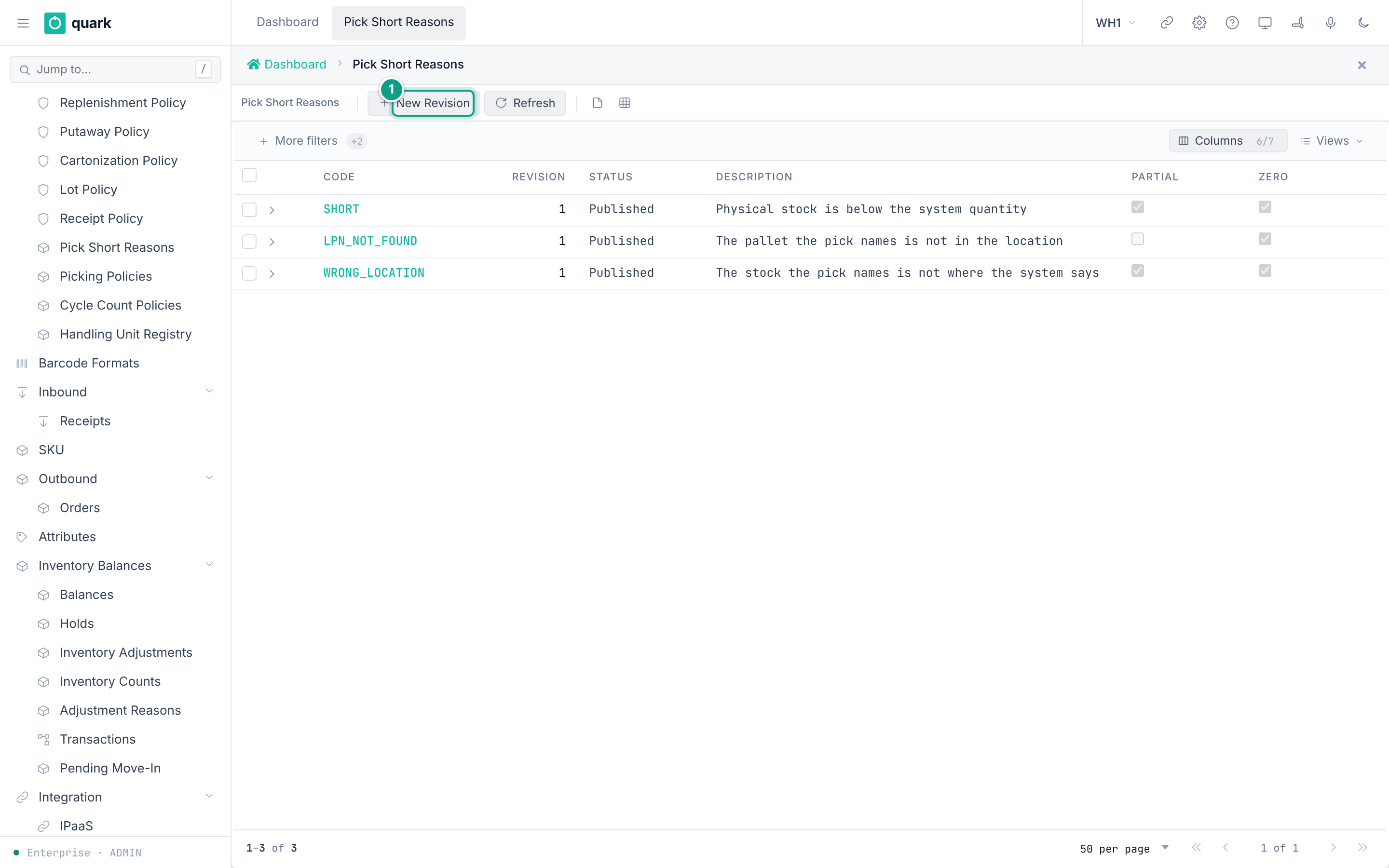
ADMIN,MANAGER,SUPERVISOR(write). - Seeded reasons:
SHORT,LPN_NOT_FOUND,WRONG_LOCATION(revision 1, published). Each has six actions.
Steps
- Open
Sidebar > Policy > Pick Short Reasons. - Click
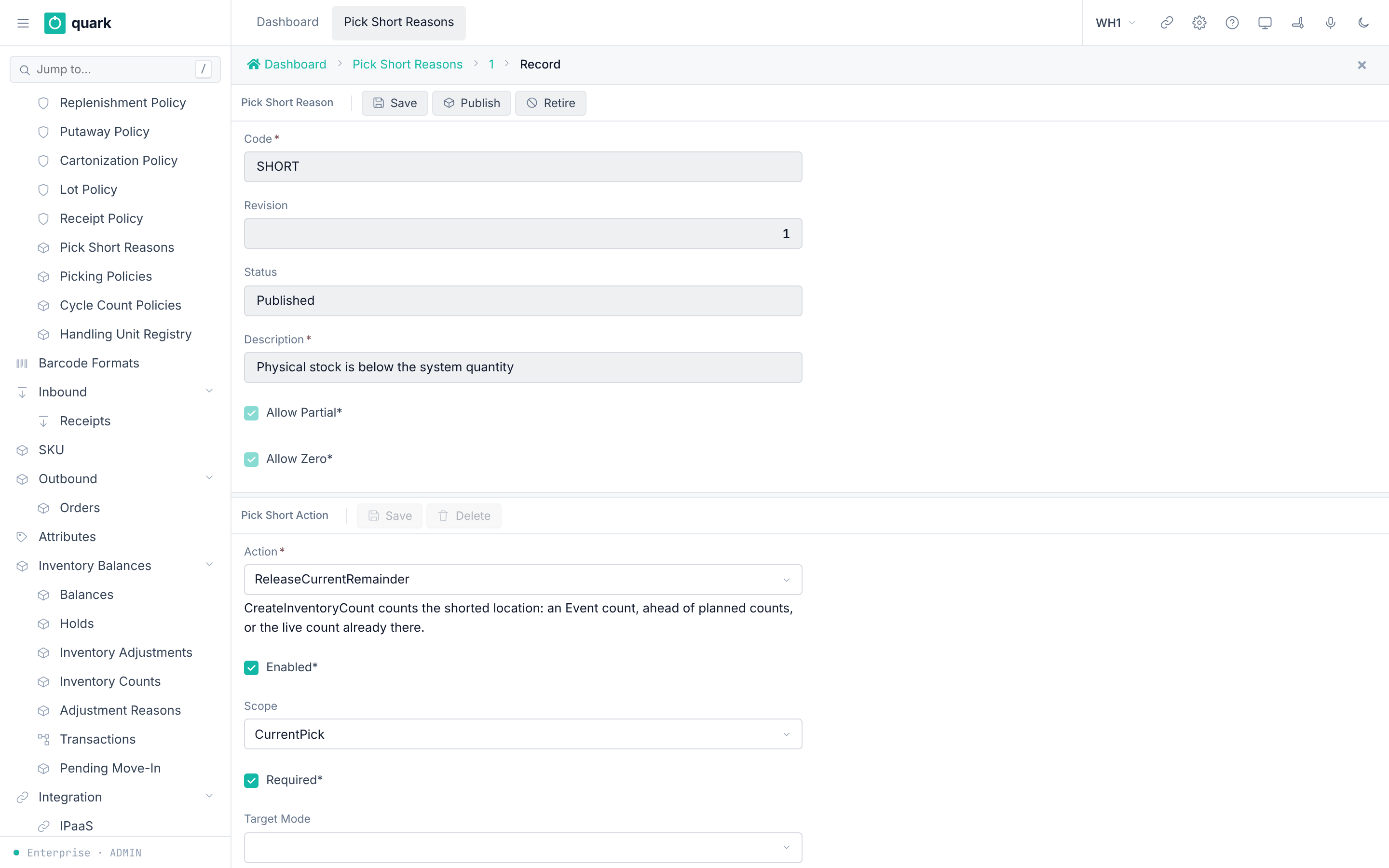
New Revision. FillCode,Description,Allow Partial,Allow Zero. - Click
Add Actionfor each action. Fill the form. ClickSave. - Click
Save, thenPublish. - To stop a revision:
Retire.
Field reference
Reason: Code (required), Revision, Status (Draft, Published, Retired), Description (required), Allow Partial (required), Allow Zero (required).
Action:
| Field | Meaning | Allowed values |
|---|---|---|
Action (required) | What the system does. | ReleaseCurrentRemainder, BlockSourceLocation, ReleaseRelatedReservations, RelocateResidualToMissing, ReallocateReleasedDemand, CreateInventoryCount, HoldInventory, HoldContainer, RequestSupervisorReview. |
Enabled, Required, Supervisor Review (required) | Switches. | On or off. |
Scope | How much stock is touched. | CurrentPick, SameSourceStock, CurrentSkuAtLocation, EntireLocation. |
Target Mode | Where the residual goes. | ZoneMissingToLoc, FixedLocation. |
Fixed Location | Shown for FixedLocation. | A location code. |
Trigger After | When the action runs. | AfterReservationRelease, AfterResidualRelocation, AfterCountCompletion. |
Order Scope | Which orders. | CurrentOrder, OrdersWithReleasedReservations, CurrentAndAffectedOrders. |
Rules before publish (validate_draft):
Pick short reason '{0}' must release the current remainder- an enabledReleaseCurrentRemainderis required.RelocateResidualToMissingneedsBlockSourceLocationandReleaseRelatedReservations; the release scope must cover the relocation scope; a target mode is required; its scope must beEntireLocation.CreateInventoryCountcannot beRequired; its scope must beCurrentSkuAtLocationorEntireLocation.- Nothing may use
AfterCountCompletion. AfterResidualRelocationneeds the relocation action.FixedLocationneeds a location code.ReallocateReleasedDemandwith an order scope wider thanCurrentOrderneedsReleaseRelatedReservations.- Errors read
action {action:?} has incompatible configuration: {reason}.
What you should see
- The status changes to
Published. The picker can choose the reason on the RF.
If something goes wrong
| Message | Meaning | Fix |
|---|---|---|
Pick short reason '{0}' is not an editable draft | The revision is published or retired. | Click New Revision. |
Pick short reason '{0}' is not published | Runtime use needs a published reason. | Publish it. |
What this affects later
- When a picker shorts a pick, the system runs the actions of the chosen reason: it can block the location, release reservations, move residual stock to the missing location, and try to allocate again.
- Setting
TASK_SKIP_*values (see03-warehouse-structure.md) control task skipping, not shorts.
The order is fixed in code (remediation.rs):
- In the short command itself: the found quantity is committed, the rest of that pick is released, and the source location is blocked. A remediation request is saved.
- A background worker then runs the remediation. It releases the related reservations. Picks that an operator is working on are left alone.
- It moves the free residual stock to the missing (Lost) location.
- After that commit, it makes an inventory count of the location, if the reason asks for it.
- It allocates the released orders again, if the reason asks for it. Allocation skips the blocked location.
A refused step is retried by the worker.
7. Cartonization policy
What you will do
Tell the system which boxes exist and how to plan an order into boxes.
Before you start
- Role:
ADMIN,MANAGER(write). - Seeded policy
STD("Standard parcel") with three boxesBOX-S,BOX-M,BOX-L. - Every item you want planned has weight and size in its pack (
Cartonizeon).
Steps
- Open
Sidebar > Policy > Cartonization Policy. - Click
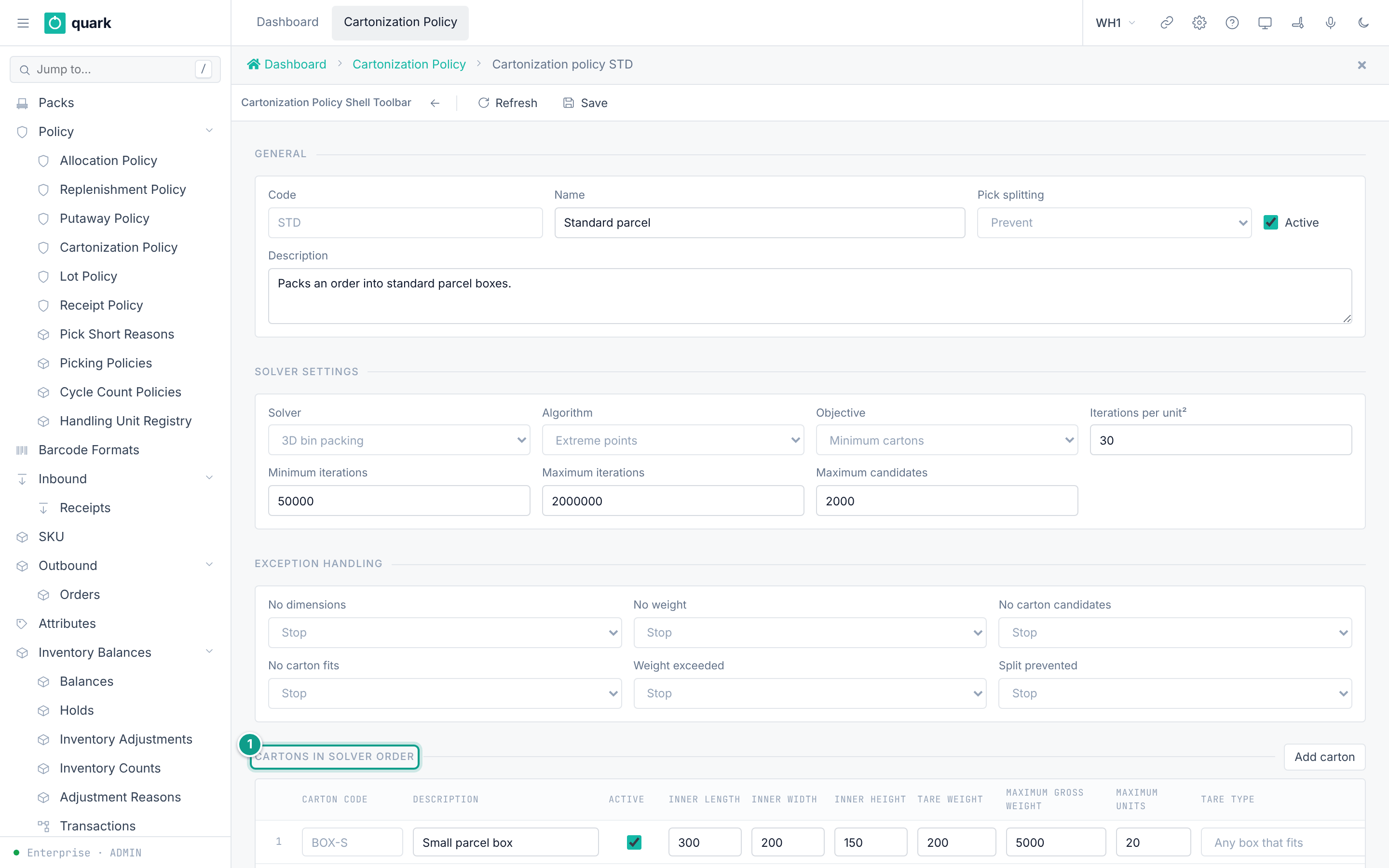
New. FillCode,Name,Description. KeepActive. - Section
General: setPick splitting,Objective. - Section
Solver settings: keep the defaults unless told otherwise. - Section
Exception handling: chooseStoporShip as isfor each cause. - Section
Cartons in solver order: clickAdd carton. Fill the row. UseMove carton upandMove carton downfor the order. - Click
Save. - Link the policy: SKU tab
Policies(Cartonization Policy).
Field reference
| Field | Meaning | Allowed values |
|---|---|---|
Pick splitting | May one pick spread over several boxes? | Prevent, Allow. Seed Prevent. |
Objective | Goal. | Minimum cartons is the only one the engine solves (cartonization_policy_objective_is_executable). Minimum unused volume, Fewest pick splits, Balanced weight are listed but the engine does not solve them. |
Solver / Algorithm | Method. | 3D bin packing / Extreme points (only values). |
Iterations per unit², Minimum iterations, Maximum iterations, Maximum candidates | Search limits. | All above 0; maximum iterations not below minimum. Seed 30, 50000, 2000000, 2000. |
| Exception causes | No dimensions, No weight, No carton candidates, No carton fits, Weight exceeded, Split prevented. | Stop (hold just this pick; planned cartons stand) or Ship as is (the pick travels with no carton named in advance). Seed: all Stop. |
Carton: Carton code, Name | Identity. | Text. |
Carton: Inner length, Inner width, Inner height | Inner size. | Above 0 for an active carton. |
Carton: Tare weight | Empty box weight. | Above 0 and below the maximum when the maximum is set. |
Carton: Maximum gross weight | Limit. | 0 means no limit. |
Carton: Maximum units | Unit limit. | 0 means no limit. |
Carton: Active | In use. | On or off. |
What you should see
- The message
Cartonization policy saved. - On an allocated order: the tab
Cartonsshows a plan withCarton code,Planned gross weightandPlanned volume.
If something goes wrong
| Message | Meaning | Fix |
|---|---|---|
Check cartonization_active_carton_has_dimensions | An active box has a zero side. | Enter sizes above 0. |
Check cartonization_carton_weights_are_executable | Tare is 0 or not below the maximum. | Fix the weights. |
Check cartonization_policy_solver_limits_valid | A search limit is not valid. | Enter valid limits. |
cartonization solver budget exceeded after {consumed} of {limit} iterations | The order is too large for the limits. | Raise Maximum iterations. |
Tab Cartonization exceptions shows a reason such as NoDimensions | An item has no size or weight. | Complete the pack data. |
What this affects later
- Each pick gets a planned carton. Pickers fill the planned boxes.
- Reasons
Stophold only that pick; the rest goes on.
8. Pack stations
What you will do
Prepare a pack station for the RF Verify action.
Packing itself runs on the RF terminal. The web UI prepares the master data only.
Before you start
- Role:
ADMINorMANAGER. - Cartonization is working, so cartons exist.
Steps
- Create a location of type
Pack(Sidebar > Topology > Locations). - Open
Sidebar > Topology > Work Areas. Open the area. - In the field
Pack station, pick thePacklocation. Save. - Make sure the picking policy of the area allows
PackinPallet Drop Cell Typeswhen pallets should go to the station. - Make sure the label
shipping_labelexists (see07-printing-and-labels.md).
Field reference
See 03-warehouse-structure.md, section 6.
What you should see
- After a pick, the unit waits for
Packat the station.
If something goes wrong
| Message | Meaning | Fix |
|---|---|---|
Trigger error work_area_pack_station_is_a_pack_location | The location is not of type Pack. | Use a Pack location. |
SERIAL_PACKING_NOT_SUPPORTED | The carton holds serial-tracked stock. | Not supported today. |
PACK_SOURCE_SHORT, PACK_UNEXPECTED_ITEM | The box does not hold what was picked. | Resolve the packing exception. |
What this affects later
- Closing a carton prints the shipping label and sets weights and a verdict.
- Goods Issue is separate from carton close; use
Ship orderor the Load workflow in section 10. - The action
Repackworks on the RF terminal. The action is chosen once, when the packer opens the work, from what the unit is: a box off a cart is verified, a discrete pick pallet is repacked into output cartons (resolve_packing_action,wms-outbound/src/packing/README.md). There is nothing to set for it. Voiding an empty output carton and reopening a closed one have commands but no RF screen yet.
There is no packing queue in the web UI. Migration 110 only adds one message word (STATION_UNKNOWN). The queue is the query packing_queue_list. The RF screen PACK00 (rf-screens/103_uc_pack_verify.sql) reads it after the packer scans the station.
9. Task Manager screens
| Screen | Use |
|---|---|
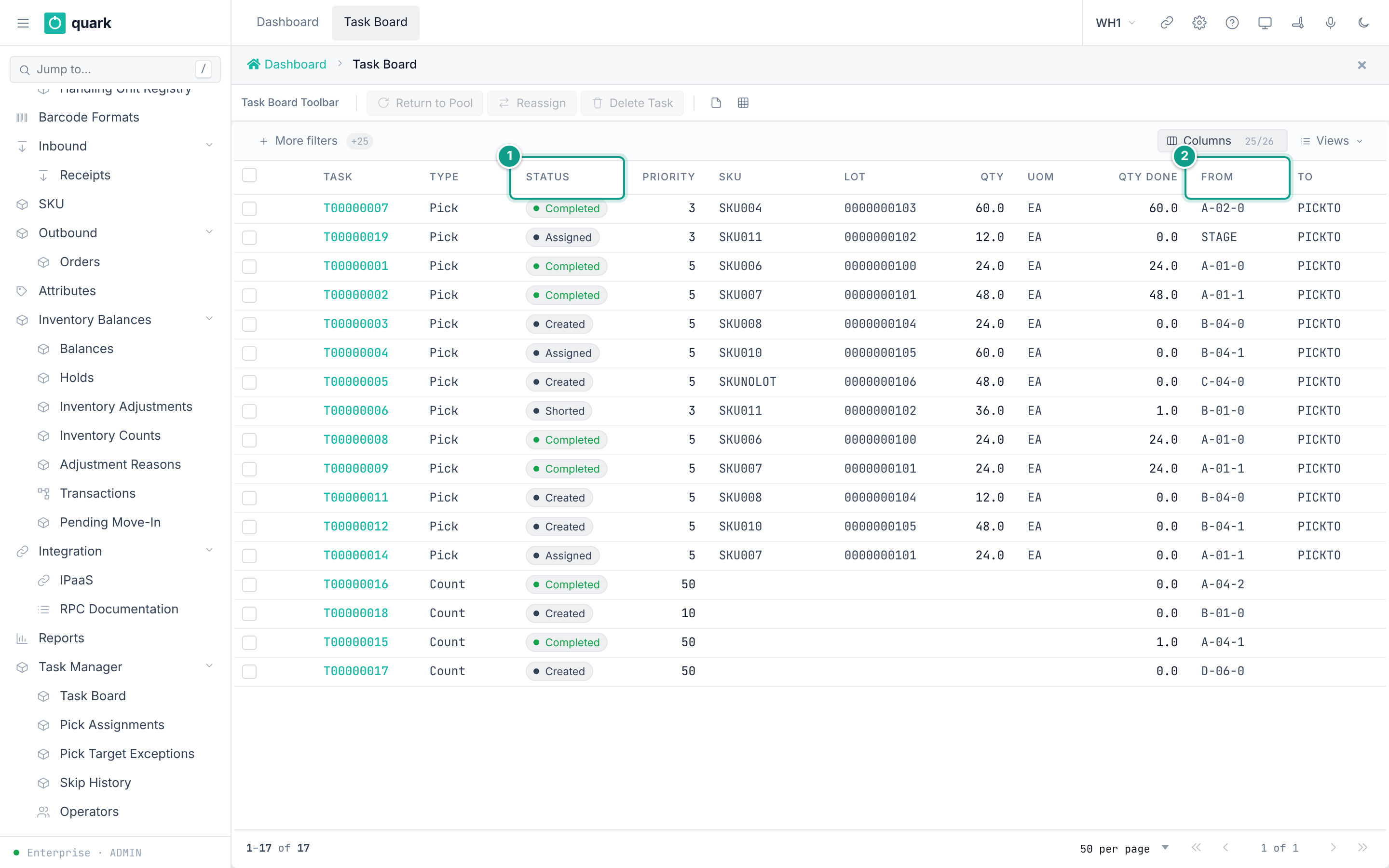
Task Manager > Task Board | See every task. Buttons: Return to Pool (reason required), Reassign (new Operator), Delete Task. |
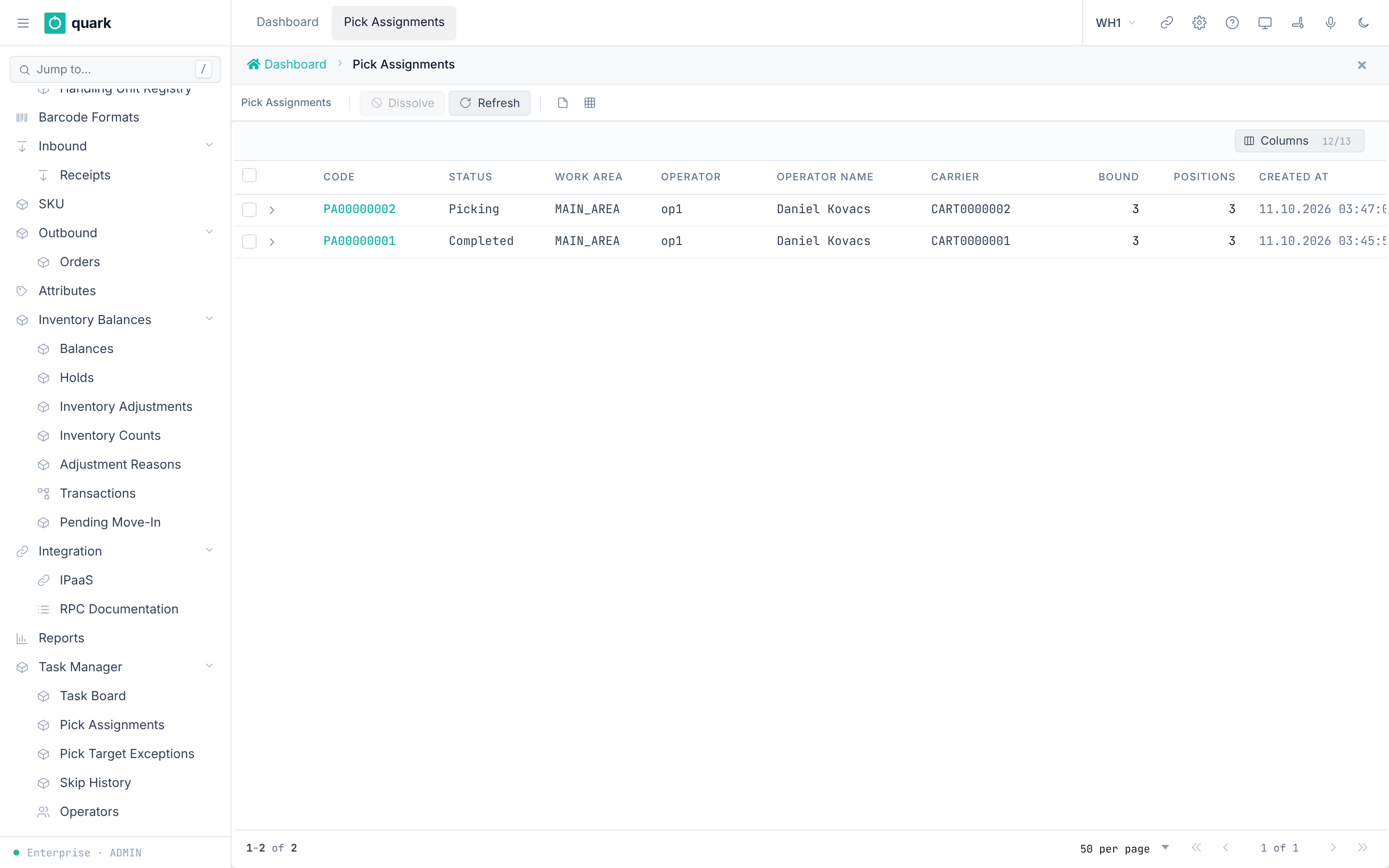
Task Manager > Pick Assignments | See carts in use. Button Dissolve (reason required): returns tasks to the pool and takes empty boxes off the cart. |
Task Manager > Pick Target Exceptions | See box-full problems. Button Retry. |
Task Manager > Skip History | See tasks refused or handed back. |
Task Manager > Operators | Operators (see 03-warehouse-structure.md). |
Delete Task removes every selected task nobody has taken yet, and returns its pick to reserve. An order with nothing in work goes back to Allocated. Press Release to dispatch again.
10. Dispatch, loading and Goods Issue
What you will do
Confirm warehouse departure either for one fully picked order or for a reviewed Load. Loading and shipment are separate decisions: Loaded does not deduct stock; Goods Issue is the irreversible step that does.
Before you start
ADMIN,MANAGERorSUPERVISORplans dispatches, load plans and transport.OPERATORcan run loading and confirm shipment after the Load exists.- The order is released and picked. Finish its packing job when packing is required.
- For the Load path, ready units are at their required
Stagelocation and are not held. - Use one path only. An order in an active Load must ship through that Load.
Ship one complete order
- Open
Sidebar > Outbound > Ordersand open the fully picked order. - Click
Ship order. - In
Confirm shipment — stock will be deducted, verifyOrder,Reviewed statusandReviewed Order version. - Click
Confirm — ship and deduct stock. - Open the
Fulfilment — base quantitiesandShipments — base quantitiestabs to check the shipped base quantities and Goods Issue receipt.
This path requires every remaining line to be fully picked and its physical content to belong only to this order. A pallet shared by several orders, an order in a frozen Load Plan, or an order in an active Load must use the Load path.
Plan a Load
- Open
Sidebar > Outbound > Transport Resources. ClickRegister, enterTransport reference,Kind, optionalCarrierandPlate, then clickRegisterin the dialog. The kinds areTruck,Trailer,Container,SwapBodyandCourierCage. - Open
Sidebar > Outbound > Dispatches. ClickNew Dispatch, enter the dispatch reference, optionally choose a carrier andDoor, then clickCreate. - Open the dispatch. Enter
New stop sequenceandNew stop destination, then clickAdd Stop. ChooseOrder to add, its now-persistedDelivery stop, and optionalPreferred stage, then clickAdd Order. - Review
StopsandOrders, then clickPlan Dispatch. - Open
Sidebar > Outbound > Load Plans. ClickNew Load Plan, choose the planned dispatch andLoading order, then clickCreate. - Open the plan and click
Generate stop order. ClickReview composition; check all stops, selected units, invalid units and unplanned units. - Click
Freeze reviewed composition. Freeze is a planning commitment, not loading or shipment. - Back on the plan, click
Open Load, choose an unused active transport, clickReview selected transport, thenConfirm — open Load.
Loading-order choices are Last delivery stop first, First delivery stop first, Any stop group, Manual unit order, and Any eligible unit (no stop priority). Use the review screen to resolve invalid or unplanned units before Freeze.
Load and ship in the web UI
- Open
Sidebar > Outbound > Loads, open the Load, and clickComposition and progress. - On an
OpenLoad, clickConfirm transport / start. Enter the bound transport reference, clickReview entered scan, review the saved decision, then clickConfirm loading action. - For each unit, click
Review root LPN, enter the physical root LPN, and review its location, quantity and next sequence. Physically load it, then clickConfirm loading action. - When
Remaining unitsis 0, clickComplete loading (not ship)and confirm. The status becomesLoaded; stock has not left yet. - Click
Ship whole Load / deduct stock. Verify the reviewed Load, transport and complete counts, then clickConfirm shipment / deduct stock.
Load and ship on the RF terminal
- Open
Main Menu > Loading > Load Units. - On
Scan Load, scan the Load code. - On
Confirm Transport, scan the bound transport and pressF4 Start. - On
Scan Unit, scan a root LPN. The scan is a read-only review. - On
Confirm Unit Loading, physically load the unit and pressF4 Confirm. - After the last unit, press
F5 CompleteonScan Unit. ReviewComplete Loading, then pressF4 Complete. - On
Load Status, pressF5 Ship. OnConfirm Shipment, review the irreversible warning and complete counts, then pressF4 Ship all.
What you should see
- Load states progress through
Open,Loading,LoadedandShipped. Composition and progresskeeps planned and actual loading facts separate.- Goods Issue records shipment history, deducts picked stock, updates serials and order counters, and marks the Load and Dispatch shipped in one transaction.
If something goes wrong
| Situation | Fix |
|---|---|
| The observed version changed | Cancel the decision, refresh or rescan, and review the current state. Do not retry with only a new version number. |
| A unit is foreign, not staged, held or out of sequence | Leave it unloaded. Correct staging, holds or the plan, then review it again. |
| A unit was confirmed loaded by mistake | Before shipment, use Acknowledge physical unload in the Load view, or Loading > Unload / Cancel (Supervisor) on RF. Scan the removed root and enter a reason. This preserves history and does not move stock. |
| The Load must be cancelled | Physically unload and acknowledge every unit first, then use Cancel empty Load. |
| Shipment is already committed | Do not repeat or reverse it from a generic status control. Use the immutable Shipments record as the receipt and follow the site's controlled correction process. |
11. Replenishment of pick locations (min/max)
What you will do
Keep the pick locations filled. A SKU's pick location (SKU card, tab Pick Locations) has a Min and a Max. When it falls to Min or below, the system plans what it lacks up to Max and an operator brings it from storage on the RF terminal.
Before you start
- The SKU has a pick location with
Min,Maxand aUnit(see04-owners-sku-uom-pack-hierarchy.md). - The pick location's putaway zone has Replenishment Allowed switched on. Without it the zone's pick locations are never replenished.
- Operators who replenish have the
Replenishtask right in a work area over the pick zone and the storage zones. - A serial-tracked SKU is not replenished in this version.
How it decides
| Question | Answer |
|---|---|
| When | What lies in the location plus what is already on its way is at or below Min. Checked every 5 minutes, and at once by Replenish Now. |
| How much | Up to Max, in whole units of the pick location's Unit, rounded down (16 boxes, not 16.5). Less than one unit — nothing. |
| From where | Free stock of the SKU (not reserved, not held) in a Case, Pick or SpeedPick location that is not one of the SKU's own pick locations; status Ok. Lots in the SKU's rotation (FEFO by expiry, FIFO oldest first, LIFO newest first), then by route. One task per source; several if one pallet is not enough. |
| How urgent | By the SKU's replenishment policy (below): 1 — urgent, 2 — important, 3 — below Min. The task queue gives the most urgent first. |
| Twice | No: an open replenishment counts as already there. |
The screen Replenishment
Sidebar > Inventory Balances > Replenishment (after Inventory Counts). The list shows every replenishment: urgency, status (Open, Done, Shorted, Cancelled), pick location, SKU, lot, from where, quantity and unit, the short reason, when it was planned.
| Button | What it does |
|---|---|
| Replenish Now | Runs the planner at once (replenishment_plan). |
| Call Off | Cancels the ticked open replenishment, on the version you see (replenishment_cancel). Its task leaves the pool. If it changed meanwhile: refresh and decide again. |
| Refresh | Reloads the list. |
How urgent: the replenishment policy
Every SKU has a replenishment policy (STD unless the SKU card names another). Sidebar > Policy > Replenishment Policy lists them; open a row to set its rule, New makes one by its code with the default rule.
| Setting | Default | Meaning |
|---|---|---|
| Urgent (1) from reserved, % | 100 | Urgency 1 when at least this share of what lies in the pick location is reserved for picks. |
| Important (2) from reserved, % | 0 | Urgency 2 when at least this share is reserved. 0 means any reserve at all. |
| Empty location is urgent | on | An empty pick location is urgency 1: no new reserve can land on it, so picks go elsewhere. |
Otherwise urgency 3. A share counts only when something is reserved. The important share may not be above the urgent one; each is 0 to 100 — Save refuses otherwise and says why. Saving works on the version you opened: if someone saved the policy meanwhile, refresh and decide again. Only Admin and Manager save a policy. A replenishment already planned keeps its urgency; the new rule applies from the next planning.
Example, 40 lie in the pick location, default rule: 40 reserved — 1; 10 reserved — 2; nothing reserved — 3; empty — 1.
The operator's side is operator/12-replenish.md.