Reports and Dashboards
1. Reports
What you will do
Open the report catalogue, run a report, and check that the report service is set up.
Reports are produced by a separate service named Quark Reports. The web UI shows it inside a frame. The service has no users of its own. The web UI signs a short token (5 minutes) that carries the user, the language, the warehouse and the allowed report codes.
Before you start
- Role to run reports: all roles (
print_report,list_report_album,get_report_albumandset_report_favoriteare granted toADMIN,MANAGER,SUPERVISOR,OPERATOR;VIEWERalso holdsprint_reportandset_report_favorite). - You work in a warehouse, not in Enterprise mode.
- The installer set these two values for
web-ui-server:REPORTS_SERVICE_URL: the address of the report service.REPORTS_JWT_SECRET: a shared secret of at least 32 bytes. The report service reads the same secret asQUARK_REPORTS_JWT_SECRET.
- The report service runs, and its catalogue was loaded (
import-catalog).
Steps
- Switch to a warehouse (not Enterprise).
- Open
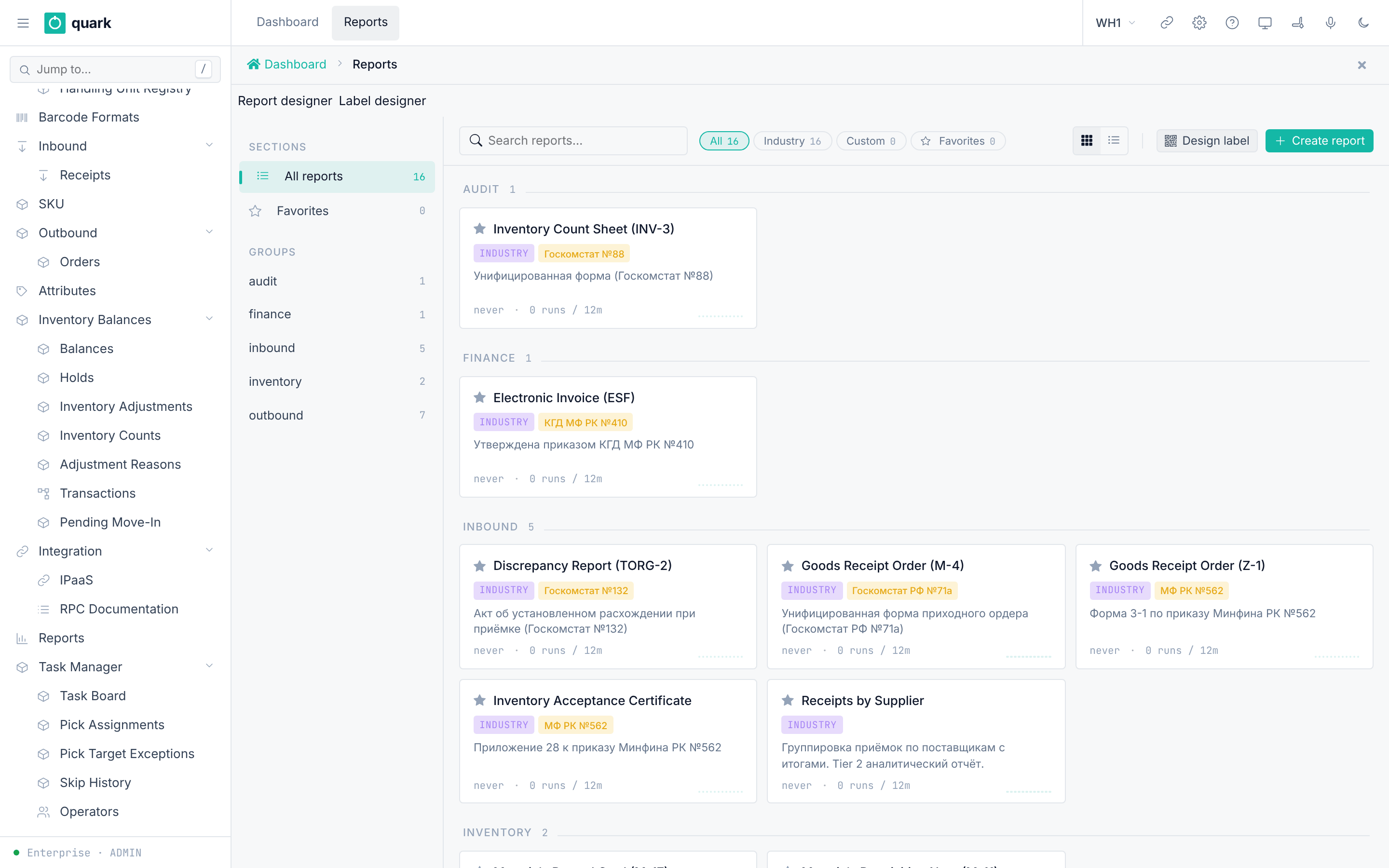
Sidebar > Reports. - Search or group the report list. Click a report.
- Fill the parameter form.
- Click run. The browser downloads the file (PDF, XLSX).
- Click the star to mark a favorite.
Field reference
Seeded report catalogue (16 reports). Names are the English labels.
| Code | English name | Category |
|---|---|---|
ru_inv_3 | Inventory Count Sheet (INV-3) | audit |
kz_esf_print | Electronic Invoice (ESF) | finance |
grouped_receipt_by_supplier | Receipts by Supplier | inbound |
kz_act_priemki | Inventory Acceptance Certificate | inbound |
kz_z_1 | Goods Receipt Order (Z-1) | inbound |
ru_mh_1 | Goods Receipt Order (M-4) | inbound |
ru_torg_2 | Discrepancy Report (TORG-2) | inbound |
ru_m_11 | Materials Requisition Note (M-11) | inventory |
ru_mh_3 | Materials Record Card (M-17) | inventory |
cortive_pick_list | Pick List | outbound |
kz_snt_print | Accompanying Waybill for Goods (SNT) | outbound |
kz_z_2 | Stock Release Note (Z-2) | outbound |
pivot_sku_by_month | SKU by Month (Pivot) | outbound |
ru_torg_12 | Goods Consignment Note (TORG-12) | outbound |
ru_ttn_1t | Consignment and Waybill (1-T) | outbound |
ru_upd_503 | Universal Transfer Document (UPD) | outbound |
Label missing in English: the
descriptiontext of the 16 report definitions is in Russian. The report names come from the English label and are correct. Example:ru_inv_3has the Russian nameИнвентаризационная опись ИНВ-3in the Russian label only.
Inventory count reports (category inventory). Each asks for a period, date_from and date_to:
| Code | English name | What it shows |
|---|---|---|
inventory_count_accuracy | Inventory Accuracy | Share of locations and lines that matched on the first count, and the difference in units and value. By zone, by SKU ABC class and by counter. |
inventory_count_variance_by_sku | Count Variance by SKU | The 100 SKUs with the largest first-count difference, by value and then by units. |
count_variance_causes | Count Variance Causes | Accepted differences by cause. Then each cause by zone, by counter and by SKU. Per row: how many, their share, the difference in units, in value and its net value. |
location_empty_confirmations | Empty Confirmations | Locations confirmed empty by operators. |
- Value is the difference × the SKU's
costattribute. A SKU without a cost adds no value. Count Variance Causescounts what the board panelVariance causescounts: tasks accepted with an adjustment, by the time of the decision. Run it for today and it agrees with the panel onToday.Count Variance Causesnames a seeded cause by the description of the cause list, which is English (Mix-up with another item). The board names it in the reader's language. Your own causes appear as you named them. A difference accepted before causes existed shows as— не записана.Inventory Accuracyand the board'sInventory accuracyuse one definition: a location's first count matched when every line matched.
Access rule today:
- The token carries
reports = ["*"], so every report is allowed for every user. The code comment calls this "step 1". Narrowing the list per role is not built. - The
designerclaim (permission to open the report editor) is true only when the user passes the Studio-admin check.
What you should see
- The catalogue with groups and counts.
- After a run, a downloaded file.
If something goes wrong
| Message | Meaning | Fix |
|---|---|---|
A banner wms-reports-unconfigured instead of the frame | REPORTS_SERVICE_URL or REPORTS_JWT_SECRET is missing, or the secret is shorter than 32 bytes. | Ask the installer to set both. |
A banner wms-reports-enterprise | You are in Enterprise mode. | Switch to a warehouse. |
A banner wms-reports-unavailable | The token could not be signed. | Check the secret and the logs. |
| The frame is blank or refuses to load | The address in REPORTS_SERVICE_URL does not match the address the frame uses. | Check the address ("Nothing was done. Check REPORTS_SERVICE_URL against the address ..."). |
| The report service refuses to start | QUARK_REPORTS_RENDER_KEY is missing (at least 32 bytes). | Set it. |
| The catalogue is empty | The catalogue was never imported or reports[] is empty. | Run quark-reports import-catalog. |
What this affects later
-
The frame uses your active warehouse schema for its data sets.
-
Report run history is stored in the report service schema
reports. -
Deletions in your own report tables do not travel to the service (see its install guide).
-
The old report definition screen is retired. Its menu item
report_def_menuis inactive and does not reach the sidebar. -
Report definitions are added in two ways. The command
quark-reports import-catalogloads the catalogue. Or a Studio admin clicksReport designerabove the frame onSidebar > Reportsand edits there. The same page hasLabel designer.
2. Dashboard
What you will do
Set what the dashboard (the "Control Center") shows.
The dashboard has a left rail of up to six key figures (metrics), panels, and a plan line.
Before you start
- Role:
ADMINorMANAGER(write).SUPERVISOR,OPERATOR,VIEWERread the dashboard data (dashboard_snapshot_rpc).
Steps: board settings
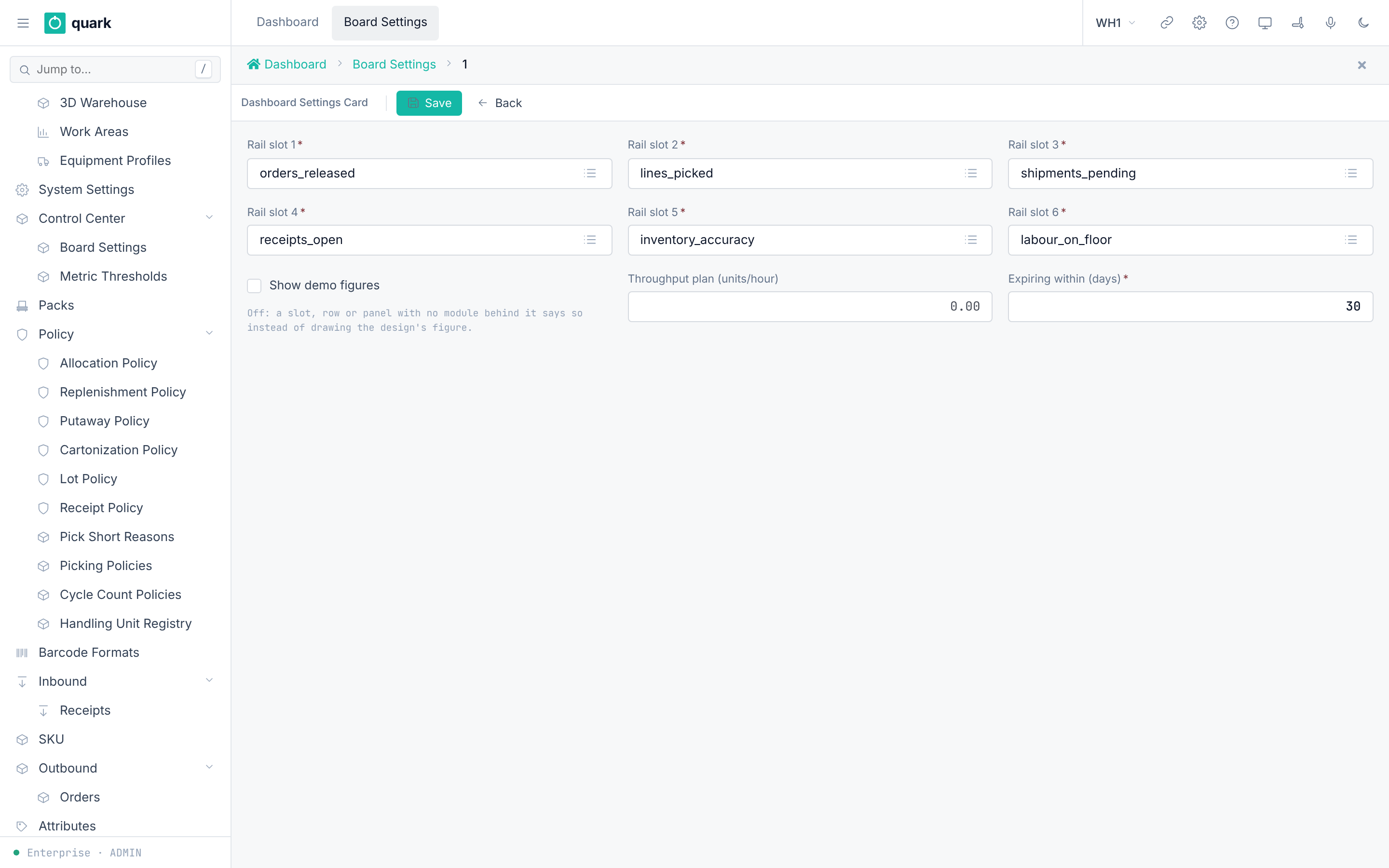
- Open
Sidebar > Control Center > Board Settings. - Open the single settings row.
- Pick a metric for each of
Rail slot 1toRail slot 6. - Set
Throughput plan (units/hour)andExpiring within (days). - Decide
Show demo figures. - Click
Save.
Steps: thresholds
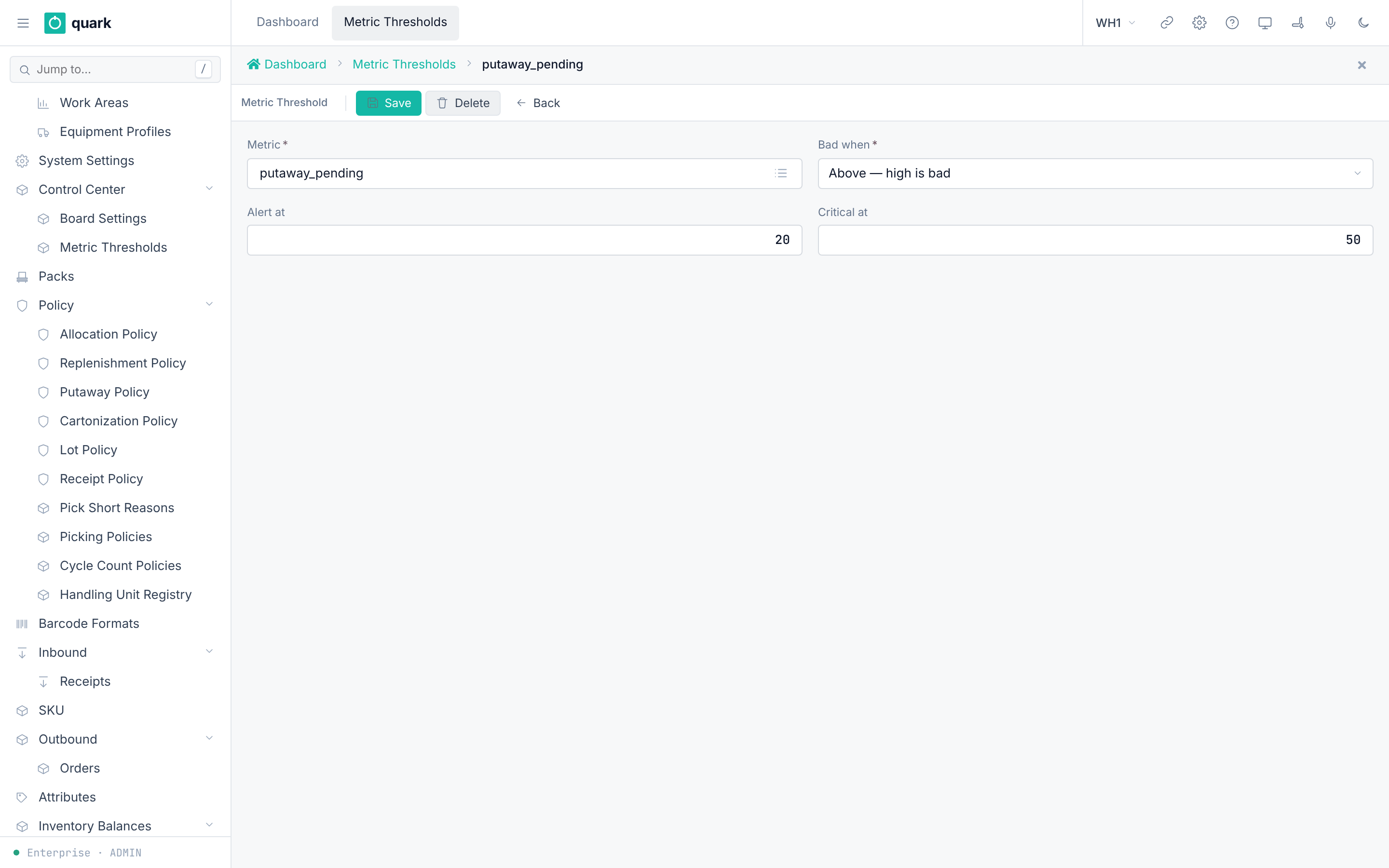
- Open
Sidebar > Control Center > Metric Thresholds. - Click
New. - Pick the
Metric. PickBad when. FillAlert atorCritical at(or both). - Click
Save.
Field reference
Board settings (dashboard_setting_normal_form):
| Field | Meaning | Allowed values | Example |
|---|---|---|---|
Rail slot 1 to Rail slot 6 (required) | Metric in each rail slot. | A metric key (below). | orders_released |
Show demo figures | "Off: a slot, row or panel with no module behind it says so instead of drawing the design's figure." | On or off. Seed on. | off |
Throughput plan (units/hour) | "Empty: no plan line." | Number. | 120 |
Expiring within (days) (required) | Window for the expiry figure. | Whole number. Seed 30. | 30 |
Version | Read-only. |
Metric catalogue (Dashboard Metrics, columns Key, Metric, Measured):
| Key | Name | Measured |
|---|---|---|
orders_released | Orders released | yes |
lines_picked | Lines picked | yes |
shipments_pending | Shipments pending | yes |
dock_utilisation | Dock utilisation | no (stub) |
inventory_accuracy | Inventory accuracy | yes |
labour_on_floor | Labour on floor | yes |
receipts_open | Receipts open | yes |
lines_received | Lines received | yes |
putaway_pending | Putaway pending | yes |
stock_on_hold | Stock on hold | yes |
moves_executed | Moves executed | yes |
Threshold (dashboard_threshold_normal_form):
| Field | Meaning | Allowed values | Example |
|---|---|---|---|
Metric (required) | Which metric. | A metric key. | receipts_open |
Bad when (required) | Direction of trouble. | Above, Below. | Above |
Alert at | Level for an alert. "A level is reached at its value. One of the two is enough." | Number. | 50 |
Critical at | Level for critical. | Number. | 100 |
Rules (dashboard_metric_threshold checks):
- At least one of
Alert atandCritical atmust be set (chk_dashboard_metric_threshold_some_level). - With
Above:Alert atmust not be aboveCritical at. WithBelow:Alert atmust not be belowCritical at(chk_dashboard_metric_threshold_order).
What you should see
- The rail shows the six chosen figures. Figures past a threshold change color.
- Metrics marked "no (stub)" show no real value.
If something goes wrong
| Message | Meaning | Fix |
|---|---|---|
Check chk_dashboard_metric_threshold_some_level | No level given. | Fill at least one. |
Check chk_dashboard_metric_threshold_order | Levels are in the wrong order for the direction. | Swap the values. |
Someone changed this record ... | Version conflict. | Refresh and repeat. |
| An empty rail slot | The seed row has no rail value. | Pick a metric for each slot. |
What this affects later
-
Only the display changes. No stock or order data changes.
-
Each user can arrange personal layout (
user_dashboard_layout). -
Users do not reach the dashboard from the sidebar. It is the first tab (
dashboard, tachometer icon) in the main tab bar, and its form is the formdashboard. -
The page has a toolbar and a board. The toolbar has a live or offline pill, the scope buttons
Shift,Todayand7 days,Reset layoutandArrange. The board has these panels: metric rail, order flow, throughput, exceptions, dock schedule, activity, aged putaway, labour by zone, count progress and variance causes. Dock schedule and labour by zone have no data source. WithShow demo figuresoff they say so.
Inventory accuracy and variance causes
- Inventory accuracy (rail metric
inventory_accuracy): the share of locations counted in the scope (Shift,Today,7 days) that matched on the first count. A location matched when every line of that count matched. A recount does not improve the figure. This is the definition of the reportInventory Accuracy. - The sparkline under the figure has 12 bars, one per twelfth of the scope. A full bar is 100 %. A stretch with no counts repeats the last measured value; it is not 0 %.
- Variance causes (panel
Variance causes, after count progress, full width): the differences accepted in the scope, one row per cause. Each row shows the cause, a bar andcount · share %. The most frequent cause is on top.Not established,Within toleranceandno cause recordedare grey. They say nothing about where stock goes wrong. - With no difference accepted in the scope, the panel says
no variance accepted in this period. - A user who saved their own layout gets the panel at the end of the board.
Reset layoutputs it after count progress. - The causes come from the accept window (
policies/24-inventory-count-policy.md, section 6b).
3. Other places to read data
| Screen | Path | Use |
|---|---|---|
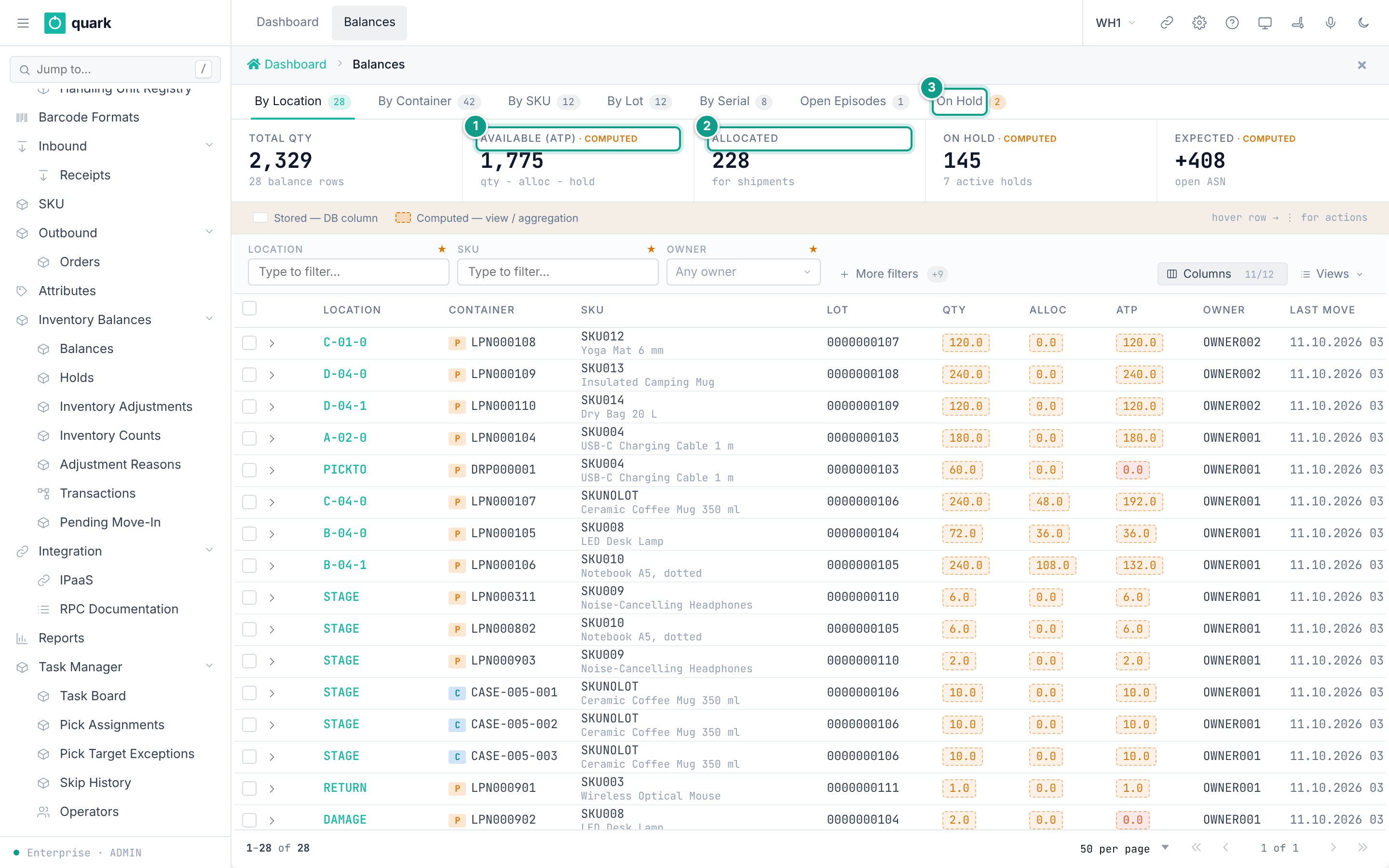
| Balances | Sidebar > Inventory Balances > Balances | Tabs: By Location, By Container, By SKU, By Lot, By Serial, Open Episodes, On Hold. |
| Transactions | Sidebar > Inventory Balances > Transactions | The ledger of stock moves, with before and after values. |
| Pending Move-In | Sidebar > Inventory Balances > Pending Move-In | Reserved putaway destinations. |
| Audit Log | Enterprise > Users & Roles > Audit Log | Permission changes and denials. |
| Event Monitor | Enterprise > Integration > Event Monitor | Business events and their status. |