Loading and shipment
What you will do
Confirm the truck, load every planned root pallet or container in the required order, complete physical loading and then confirm warehouse departure. Completing a Load does not deduct stock. Shipment is the separate, irreversible step that does.
Before you start
- A planner has frozen the Load Plan and opened the Load.
- The Load has an
LD########number and a registered transport. A loading door may be assigned when the site uses one. - Every planned unit is ready at its required Stage location and is not held.
- You have the physical truck and each root LPN in front of you.
Load the truck
- Open Loading.
- Select Load Units.
- On Scan Load, scan the
LD########label or enter the complete number. - On Confirm Transport, scan the transport reference.
- Check the transport, then press
F4to start loading. Follow the assigned door when one is shown in the warehouse plan. - On Scan Unit, scan the root LPN shown by the loading sequence.
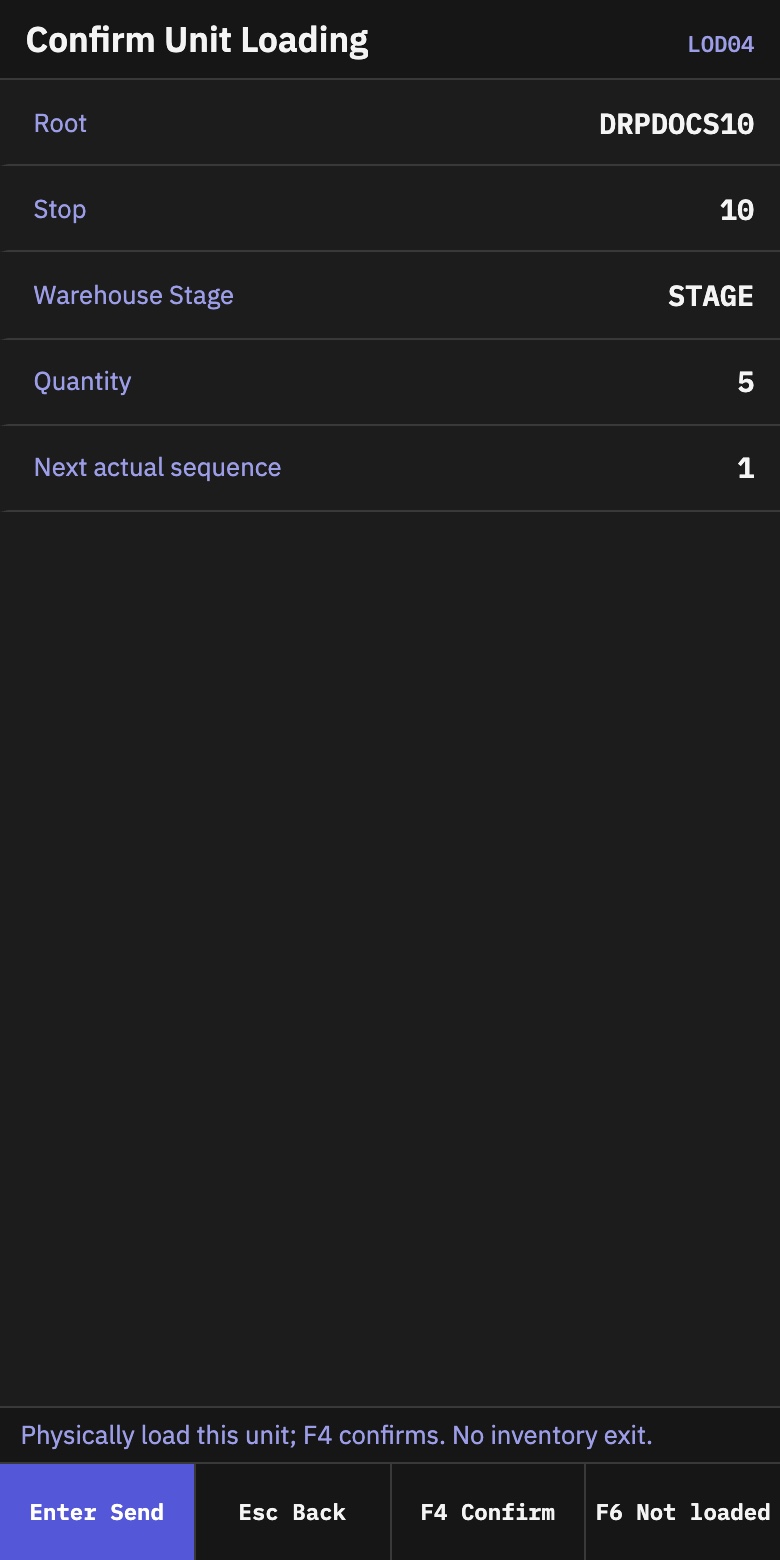
- Review the unit, stop and Stage. Physically place the unit in the trailer.
- On Confirm Unit Loading, press
F4to confirm it is in the trailer. - Repeat until Left to load is
0.
The loading history records the actual sequence. A successful scan does not ship the stock.
Complete physical loading
- From Scan Unit, press
F5. - On Complete Loading, verify that all required units and stops are complete.
- Press
F4to complete the Load.
The Load becomes Loaded. Stock is still in the warehouse record until shipment is confirmed.
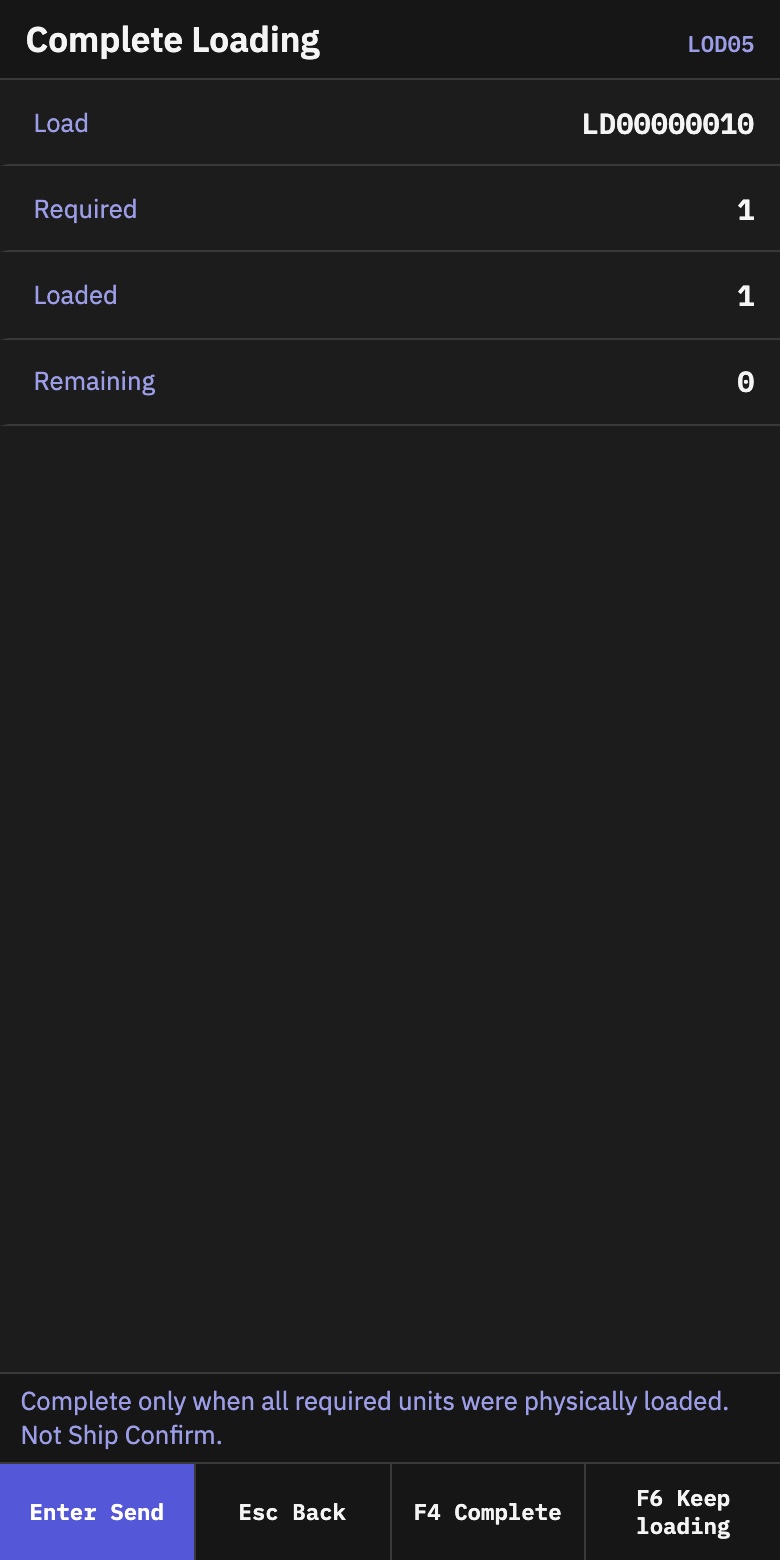
Remaining is 0. This closes physical loading; it is not Goods Issue.Confirm shipment
- On Load Status, verify the Load number, transport and complete counts.
- Press
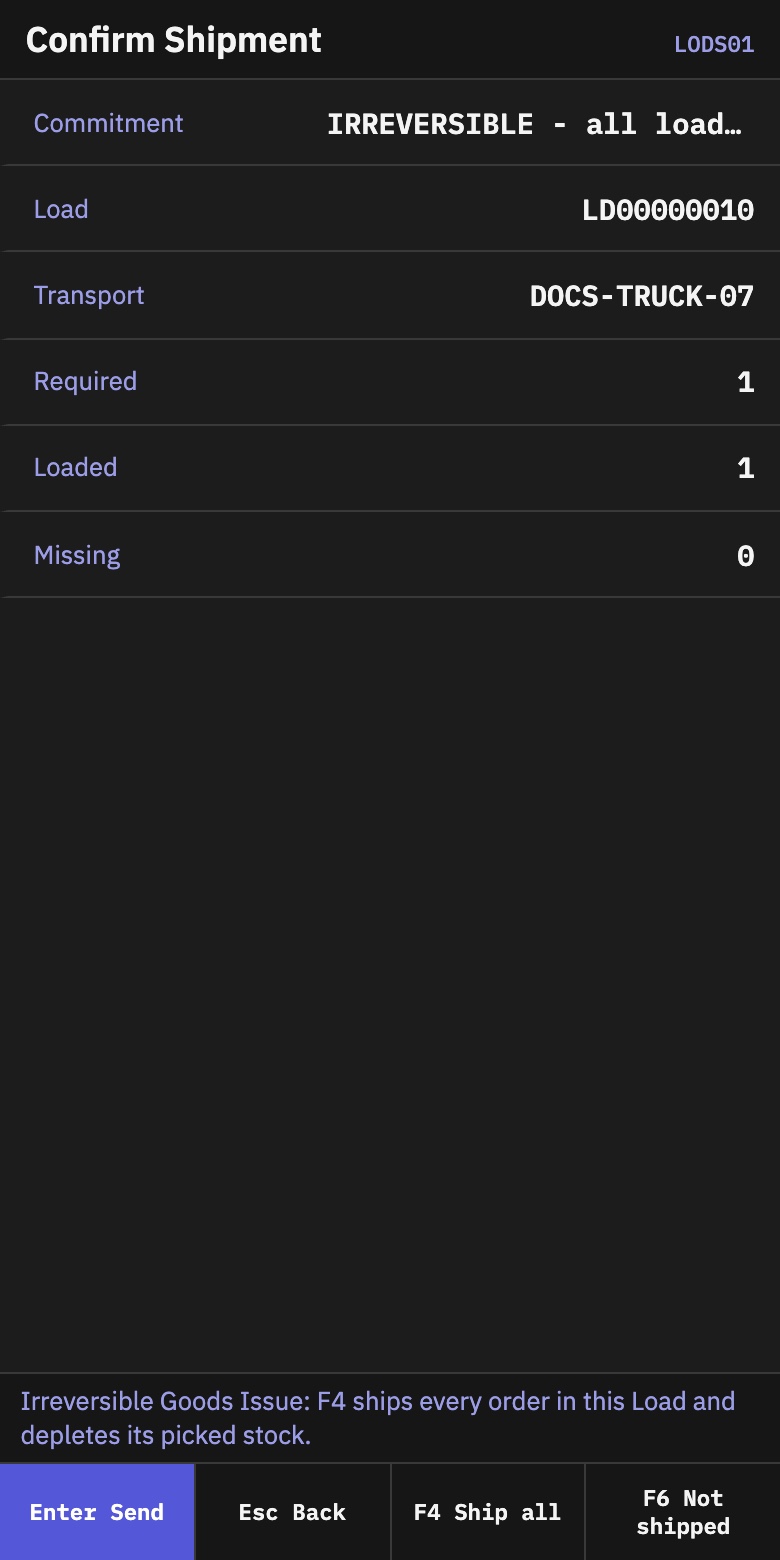
F5to open shipment confirmation. - Read the irreversible warning on Confirm Shipment.
- Verify the order, unit and quantity totals.
- Press
F4to ship all.
Shipment writes off the loaded stock, records one shipment receipt per order, closes fully shipped orders, and makes the Load and Dispatch final.
If a unit must leave the trailer
Do this before shipment.
- Open Loading.
- Select Unload / Cancel (Supervisor).
- Scan the Load.
- On Supervisor Recovery, select Remove Loaded Unit.
- Scan the root unit that was physically removed.
- Enter the reason and press
F4to confirm it as unloaded.
Do not cancel a Load while it still contains physically loaded units. Remove and acknowledge every unit first.
What you should see
- Load states progress through Open, Loading, Loaded and Shipped.
- Loaded means physical loading is complete; it does not mean stock has left the warehouse.
- Shipped is final and cannot be undone from the loading flow.
- The final shipment shows the shipped quantities and one receipt for each order.
If something goes wrong
| Message or situation | What to do |
|---|---|
| Load code not found | Scan the complete LD######## number. Historical Loads may use an older label format. |
| Transport confirmation is missing | Scan the registered transport before scanning units. |
| Scanned transport does not match this load | Stop. Check the physical truck and the transport shown on the screen. Do not begin loading until they match. |
| Unit is not a member of this frozen manifest/Dispatch | Leave it outside the trailer and ask the planner to review the frozen plan. |
| Unit is not staged | Return it to the required Stage location and confirm staging first. |
| Unit is held | Do not load it. Follow the site's hold-resolution process. |
| Unit is out of sequence | Load the stop or unit currently shown by the terminal first. |
| Unit is already loaded | Do not put it in the trailer twice and do not scan it again. Continue with the next planned unit. |
| Load has required units still missing | Press F6 to keep loading. Complete the remaining planned units before trying again. |
| Anything changed after the Load was completed | Do not force shipment. Refresh the Load and ask the supervisor to reconcile the difference. |
| The web Dispatch card still shows the earlier state after RF work | Reopen or refresh the Dispatch, then verify the current Load status before taking another action. |
| Load status is Shipped | The shipment action is disabled. Do not try to repeat Goods Issue. Review the shipment receipt instead. |